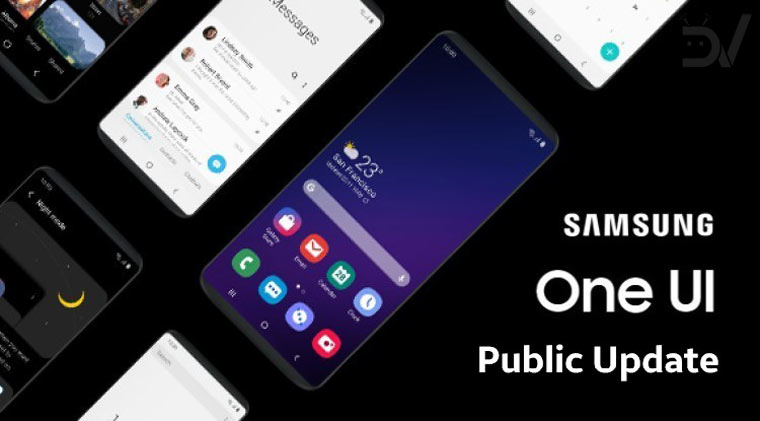
The wait is finally over and the Android 9.0 Pie update for Galaxy S9 (G960FXXU2CRLI) and S9 Plus (G965FXXU2CRLI) is here. Download and install One UI Android 9.0 Pie firmware on Galaxy S9 (SM-G960) or Galaxy S9 Plus (SM-G965) manually using the steps described below.
Samsung has just surprised everyone with an unexpected Christmas gift, by officially releasing the official One UI Android Pie update for Samsung Galaxy S9 and Galaxy S9 Plus. The Pie update with build version FXXU2CRLI started rolling out in Germany during the morning, and more countries are following rapidly.
The first devices to receive the One UI update are the Exynos Galaxy S9 and S9 Plus, but there’s a good chance that other models will join before the end of the year, including the Galaxy Note 9. Even if the Samsung One UI Android Pie update for Galaxy S9 and S9 Plus hasn’t reached your country, you can still install it manually, as long as you have a compatible model. Let’s quickly introduce the new interface, before going into details with the tutorial!
Introduction to Android 9.0-based Samsung One UI
Back in November, at the Samsung Developer Conference, the company has revealed the new One UI update. Samsung was planning to start the roll-out in January for the S9, S9+ and Note 9, followed by the 2017 flagships. Meanwhile, they have also announced the Beta Program, which has effectively started a few days later. Thanks to this, many users had the opportunity of previewing the new interface and reporting bugs before the final release.
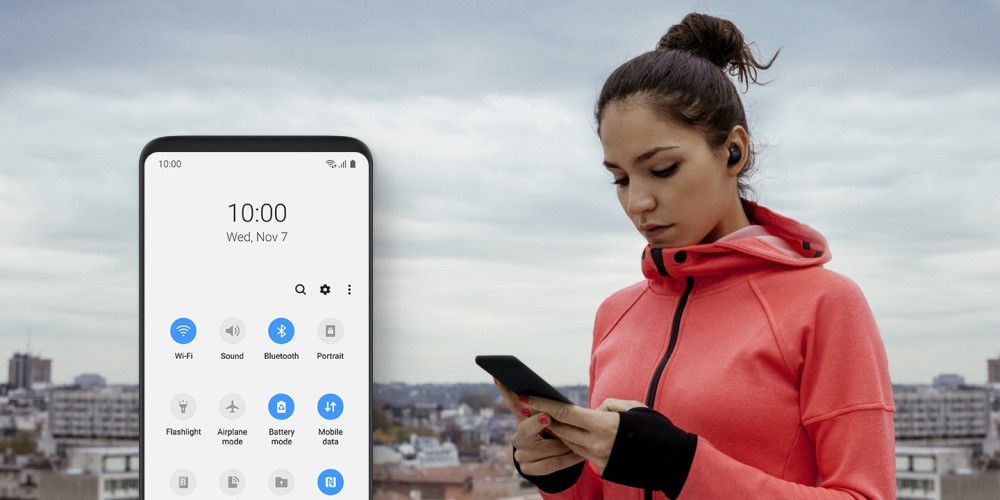
Since the first beta, it’s been pretty clear that the people behind it had done an amazing job. In fact, the firmware was surprisingly stable and there were no critical issues to be aware of. More recently, the latest European beta has brought support for Samsung Themes, which suggested that we were getting closer and closer to the public release. It’s been about one month since Beta 1, and the One UI update with Android Pie is now a reality! If you want to learn more, we recommend to check out our preview based on on the SDC event. Now, let’s see what’s new with the brand new interface!
Samsung One UI Android Pie Update Overview
Samsung One UI is the successor to Samsung Experience, and it represents a new way of using our device. With the display aspect rations getting taller and taller, reaching elements at the very top becomes quite difficult. Consequently, we’re often forced to use two hands or adjust the grip, thus risking to drop the smartphone. Tall displays are great since they allow to fit more content and enhance the viewing experience, but this problem needed a solution.
Samsung has approached the challenge with a very smart idea. Firstly, they have virtually divided the display into viewing and interaction areas. Then, they have tried to fit all interactive elements in the lower part of the display. Lastly, they have applied this concept to the entire interface, including first-party apps. As a result, everything is positioned at the reach of your thumb, and interacting with the device is significantly easier.
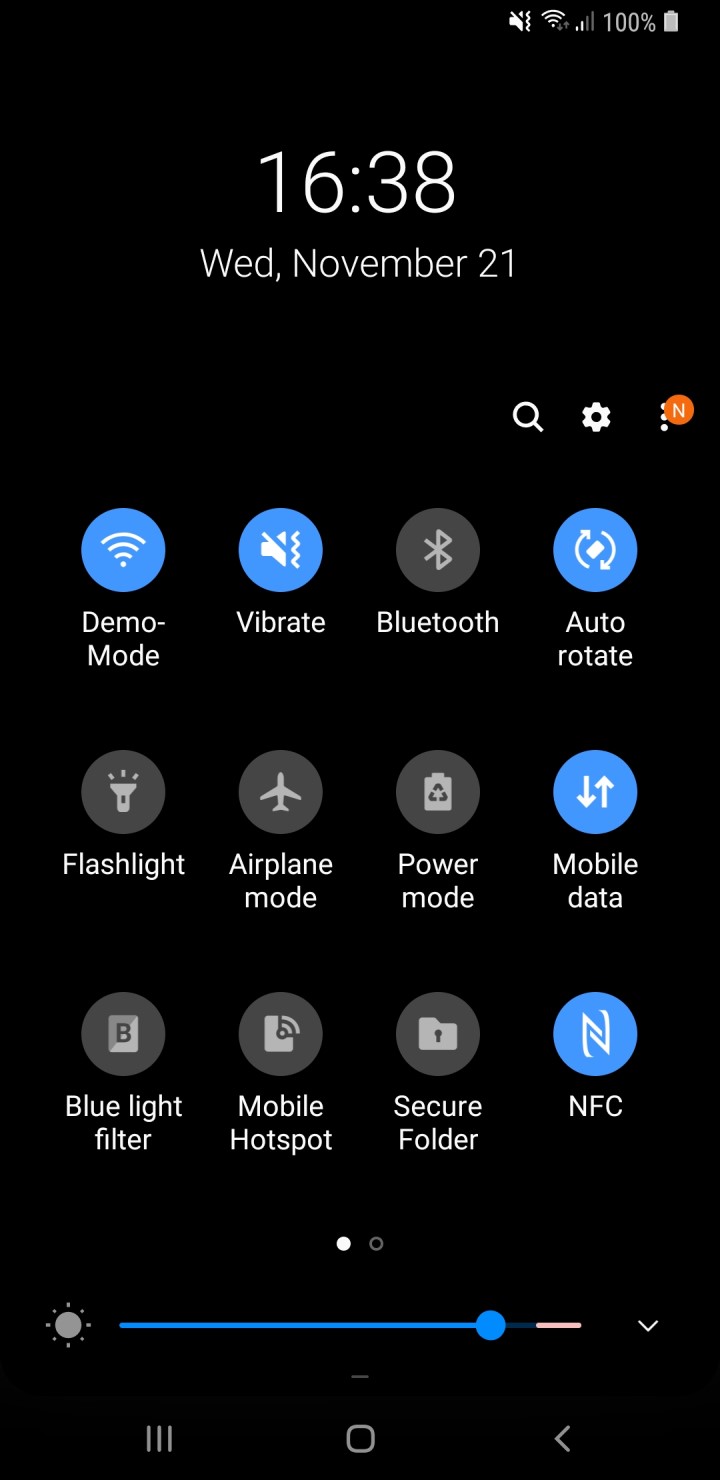
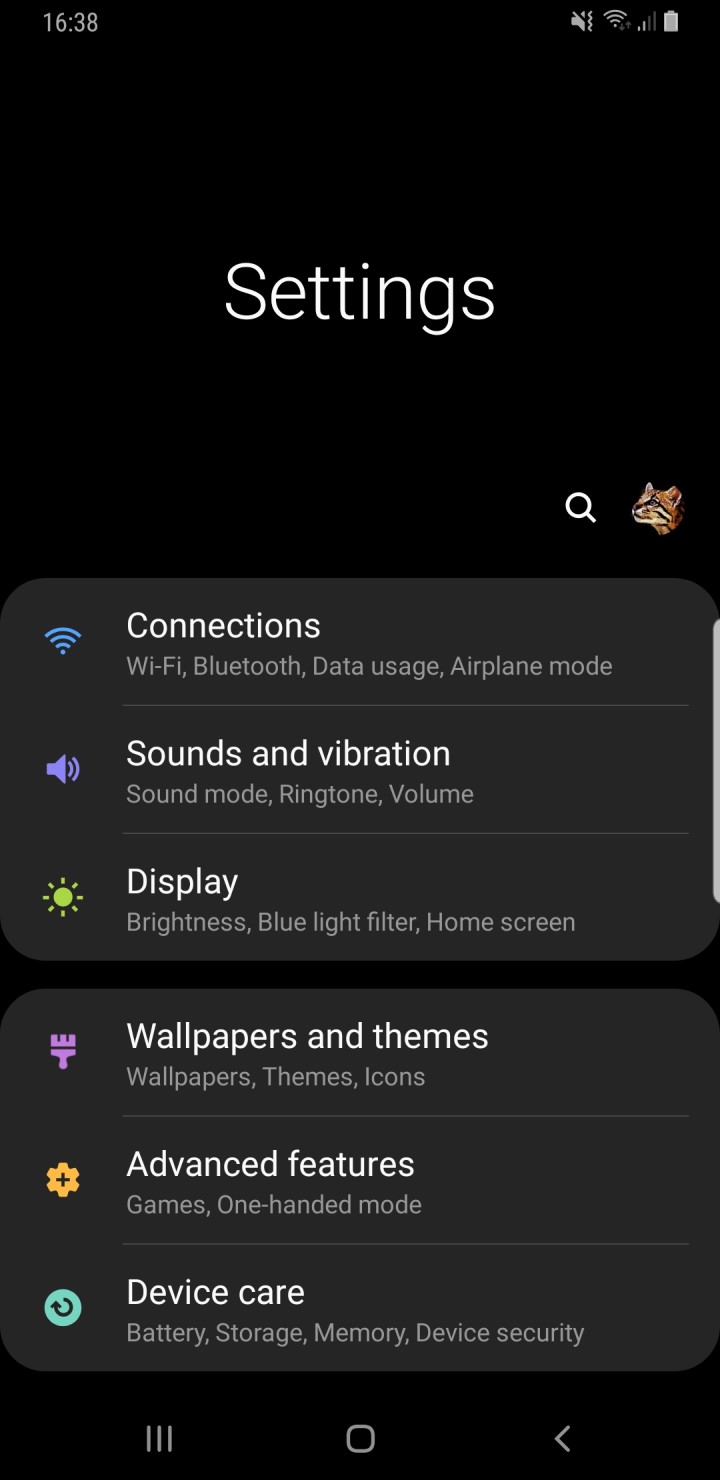
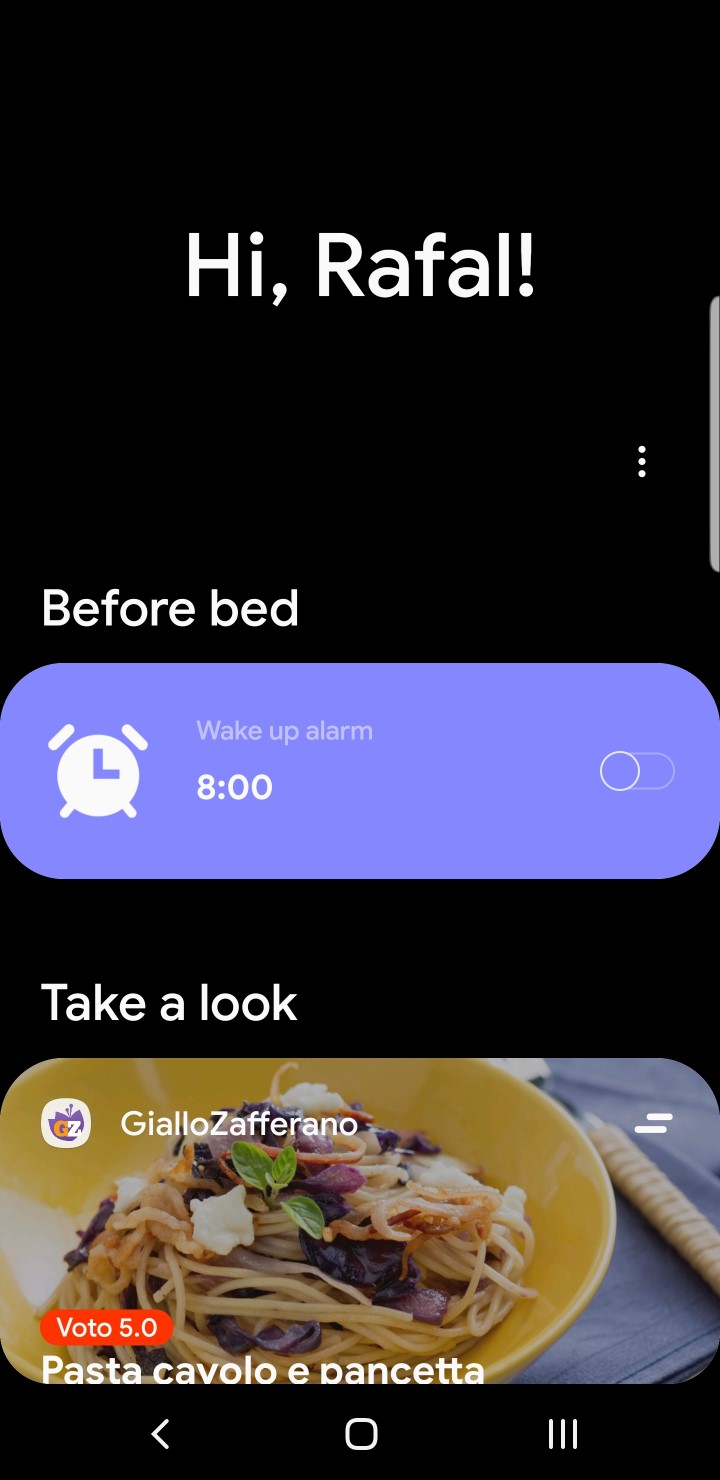
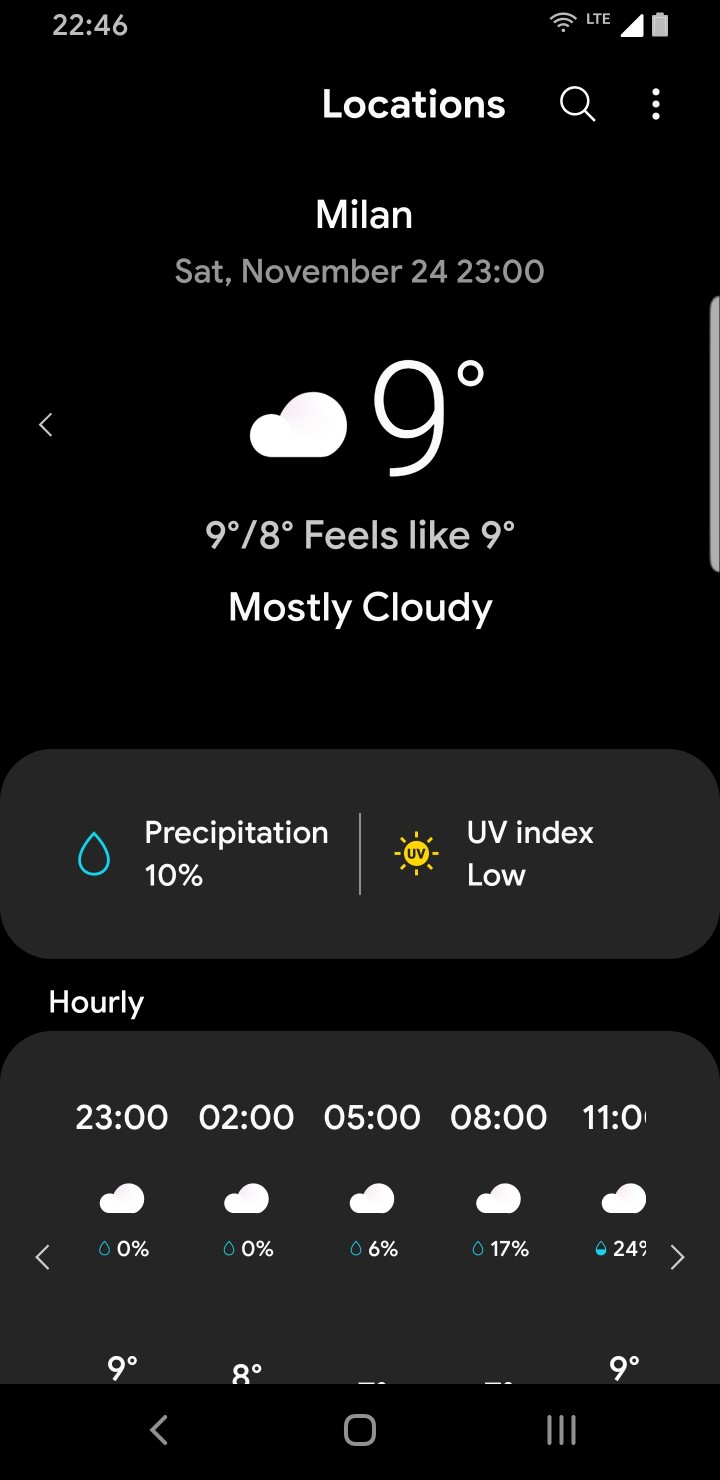
Even though this is the most significant change, there are tons of new features and design elements. For example, you can now use navigation gestures, or switch between your apps thanks to the new recents menu. Additionally, all animations are now faster and smoother, so the experience feels just a bit more refined. We have already covered some of these aspects in our One UI Beta review, which we recommend to check out. If you want to learn more, stay tuned for the full review. Now let’s see how you can install the One UI update on your own device!
Official Update Method via OTA
If your country has already received it, the One UI update will show up in the Software Update section of your settings menu. At the time of writing this article, this update is available in Germany, Switzerland, Italy, and UAE. If you want to check the current availability, you can search for your model and country in the SamMobile firmware database. The OTA (Over The Air) update has already reached users on bot Oreo and Pie, so you’ll be covered even if you’re running One UI Beta. However, keep in mind that you won’t get it if you have installed the beta unofficially.
Install Android 9.0 Pie Firmware on Galaxy S9 / S9 Plus
If you don’t want to wait for the One UI update to reach your country, or your device isn’t eligible for it, you still have an alternative. In fact, you can download the full firmware, and flash it with a tool called Odin. The process we’re describing is very similar to an OTA update, but it bypasses the Samsung approval. As a result, you don’t have to wait for the Samsung servers to provide the necessary files. Keep in mind that compatibility may vary, so we advise to carefully read the requirements and the disclaimer before proceeding.
One UI Android Pie Update Requirements
As of today, the One UI update is only available for the international S9 and S9+ (Exynos). We’ll be providing the specific instructions for these two devices, but the steps are mostly unchanged regardless of your version. Going back to the requirements, make sure you have either an SM-G960F (S9) or an SM-G965F (S9+). If you have a Duos model (F/D), you can treat it as a regular single SIM version. Additionally, it’s important to back up all your data before you start flashing. Regardless of how careful you are, you never know what may happen during the process, so it’s better to be prepared.
Important Disclaimer
The software we’ll be using for the update process is official, but the sources are not. Consequently, in case anything goes wrong, your warranty may not cover it. Even though what we’re doing is very similar to the system updates you receive regularly, there is always some risk involved with flashing your device. When done incorrectly, this process may bring to unintentional data loss or a soft brick of the smartphone. By proceeding, you understand that the choice is yours, so you have full responsibility for the outcome. We have used the described procedure to flash the firmware on our own Galaxy S9+ and the update was successful.
Step 1: Preparation & Downloads
The first thing you need to download is the official Samsung One UI update. We’ll be using the German version simply because it’s the first one, but this won’t affect your experience in any way. The best way to download it is by using SamFirm, you’ll find the explanatory article below. The alternative is downloading it via SamMobile, but the download speed will be limited for basic users. Regardless of the option you choose, the firmware version to search for is CRLI with the German country code DBT. The size of the package is approximately 4.3 GB.
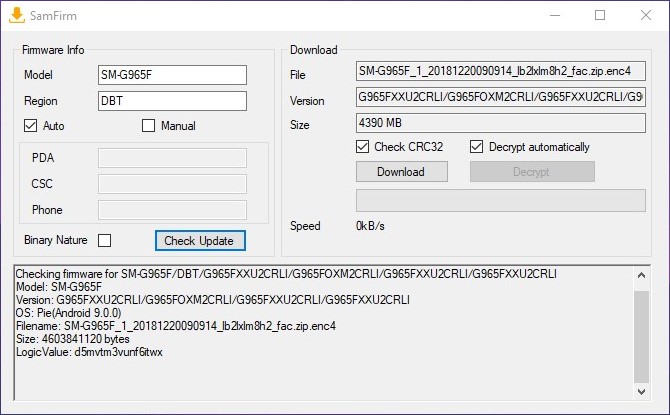
Flashing this firmware requires a program called Odin. You’ll find the downloads, as well as a comprehensive introduction guide, in the resources section. In order to avoid any issues, the version we’ll be using is 3.13.1. Odin doesn’t require any setup, just unzip the package and run the application from the folder. It’s important that you read the full guide since there are some important steps to take before proceeding.
Resources & Downloads
- Introduction & Download: Odin (All Versions)
- Download & Tutorial: SamFirm 0.3.6
- S9 Android 9.0 Pie Firmware: SM-G960F (S9) – TUR – G960FXXU2CRLI
- S9+ Android 9.0 Pie Firmware: SM-G965F (S9+) – OMC – G965FXXU2CRLI
- Guide: Flash Samsung Firmware Using Odin
Step 2: Set Up Odin
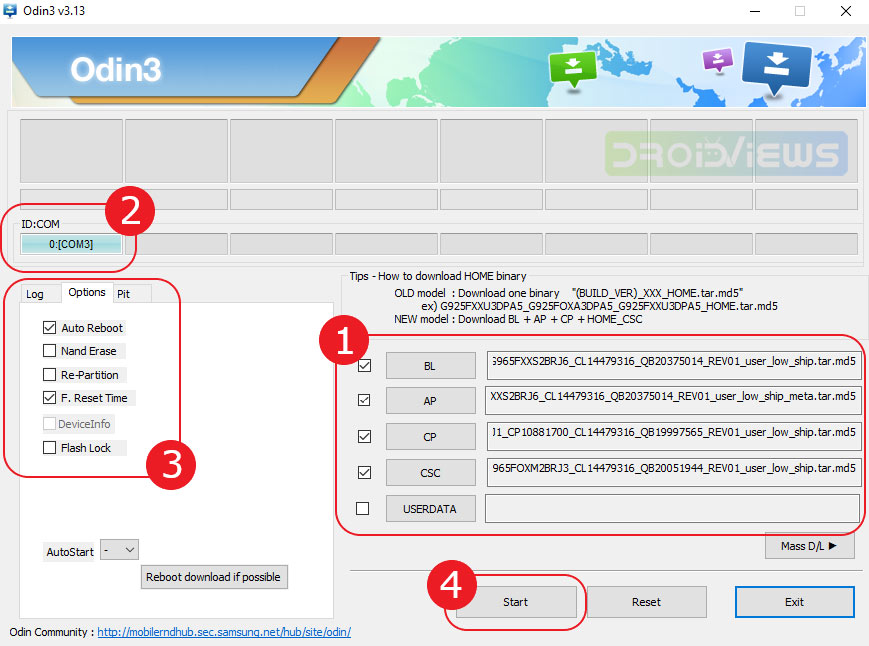
In order to flash the One UI Android Pie update on Samsung Galaxy S9, go back to the firmware package you have downloaded through SamFirm or SamMobile. Then, unzip the firmware into a folder with a tool like 7zip. Inside of this package, you’ll find 5 files starting with AP, BL, CP, CSC, and HOME_CSC. Before proceeding, make sure you have read the Odin guide, as recommended in the previous section. Now, launch Odin and load AP, BL, and CP in the respective slots. The AP one may take a couple of minutes, don’t worry if your PC seems frozen.
Regarding the CSC field, we’ll choose CSC to reset the device or to perform a clean installation, or HOME_CSC to keep our data. You should already have a backup of all your data, so the decision depends on the time you want to invest. If you’re coming from Oreo, we strongly recommend opting for a clean install, as this will help to avoid major issues in the future. Instead, this step isn’t necessary if you’re upgrading from the latest One UI Beta, but it may be a good idea anyway.
Step 3: Flash Android 9.0 Pie Firmware on Galaxy S9
Once you’re ready, reboot your device in download mode and connect it to the PC with a USB cable. Make sure it appears in the console, just as shown in the screenshot below. Then, go to the Options tab and ensure that only Auto Reboot and F Reset Time have a check mark. Lastly, if everything looks good, click on the Start button and wait. The process usually takes less than 7 minutes and the device will restart itself twice. If HOME_CSC gives you an error, you’ll need to use CSC instead, thus resetting the storage. If Odin shows “PASS“, you’re done. You can now start your phone and enjoy the One UI update!
In case you encounter any issue while installing Android 9.0 Pie Update on Galaxy S9 (SM-G960) or Galaxy S9 Plus (SM-G965), don’t hesitate to drop us a comment below. Merry Christmas!


Join The Discussion: