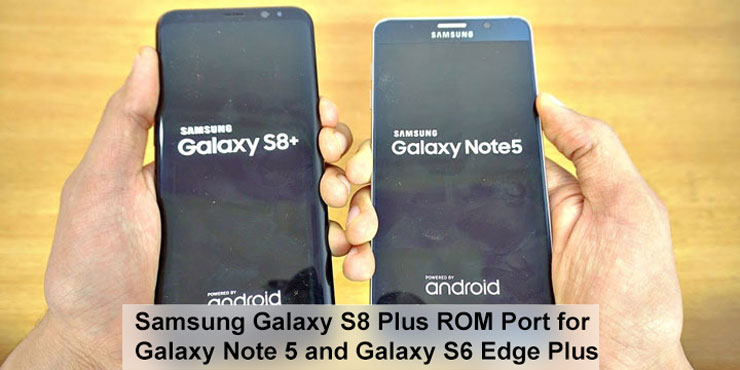
Last time, we showed you how to install the Galaxy S8 ROM port on the Galaxy S7 and S7 Edge. It is now time for the latest Galaxy Note to receive some love as well. We’re talking about the Galaxy Note 5 of course. XDA developer and senior member OttomanTR‘s INFINITY ROM brings all the Galaxy S8 goodies to your beloved Note 5 such as Bixby, Always On display and edge screen features. Now you can enjoy the S8 features on your Note 5 and S6 Edge Plus with Galaxy S8 Plus ROM port.
If you wish to breathe a new life into your old Galaxy Note 5, follow the tutorial below to install the Samsung Galaxy S8 Plus ROM port on your device. The ROM also works for the Galaxy S6 Edge Plus.
It is based on the Galaxy S8 Plus NRD90M.G955FXXU1AQCC firmware and supports multiple languages as well.
Galaxy Note 5 and S6 Edge Plus Supported models
Galaxy Note5: SM-N920C, SM-N920S, SM-N920L, SM-N920K, SM-N920G, SM-N920I, SM- N9208, SM-N920CD
Galaxy S6 Edge Plus: SM-G928F, SM-G928C, SM-G928S, SM-G928L, SM-G928K, SM-G928G, SM-G928I
Disclaimer
Installing custom ROMs on Android, no matter how simple or easy, involves risks. You might end up with a bricked device, and DroidViews does not take any responsibility for it. You have been warned and must proceed at your own risk.
Prerequisites
- A rooted Galaxy Note 5 or Galaxy S6 Edge Plus.
- A custom recovery, such as TWRP, installed. In case you don’t have root or a custom recovery already installed, follow our guide for the Galaxy S6 Edge Plus and Galaxy Note 5.
You may also like: Enable Dual Speaker Stereo Audio on Galaxy Note 5
Downloads
Screenshots
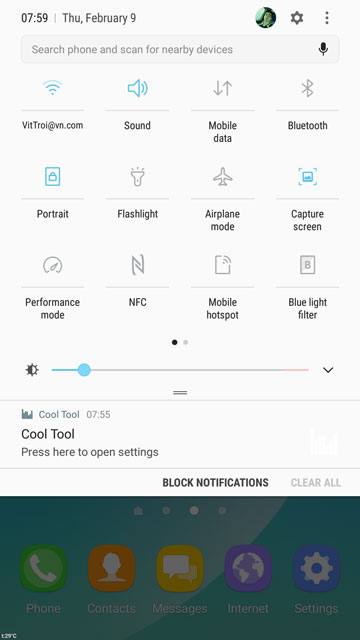
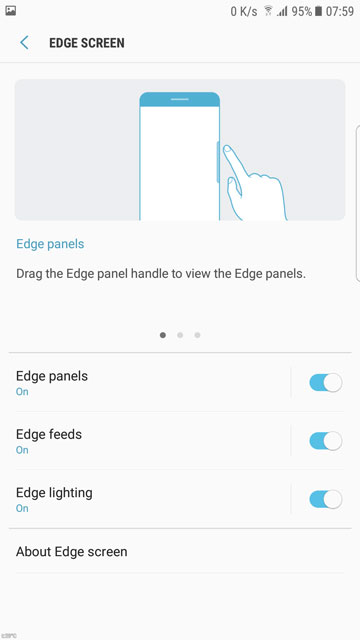
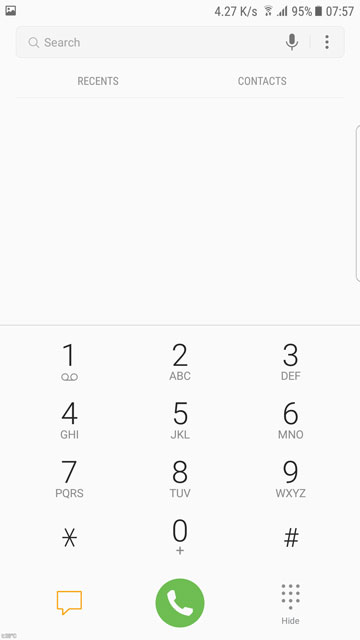
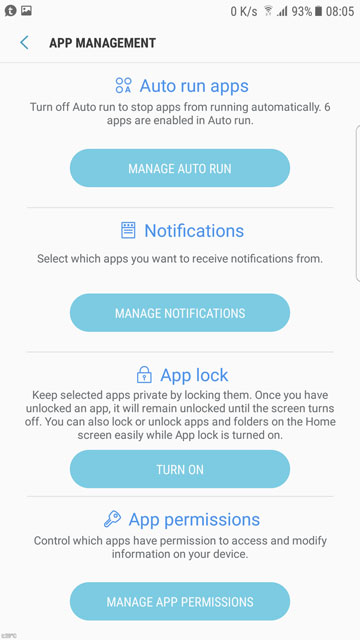
Install Galaxy S8 Plus ROM Port
Don’t miss: Download Samsung Galaxy S8 Stock Wallpapers & Ringtones
- If you’ve installed custom ROMs before, you should feel right at home installing INFINITY ROM. But, if you’re new to this, be careful and read the following steps carefully.
- First, make sure your device is listed under the supported section above.
- Then transfer the downloaded ROM zip and mods to your Galaxy device.
- Power off your Samsung Galaxy.
- Once the device is off press and hold the Power, Home, and the Volume Up Button at the same time. Let go of the buttons when you see the text “Recovery Booting” on your screen, or if your device already boots into recovery.
- In the TWRP main menu, select Backup and then select every available partition. Swipe right to initiate the Nandroid Backup process. You can choose to skip this step but it is not recommended. In case things go south, you can revert back to your previous setup using the backup.
- When the Backup process is complete, go back to the main menu and select Wipe.
- Go to Advanced Wipe and select everything except the internal or external storage.
- Swipe right to wipe all the data. This is a necessary step when installing a new custom ROM.
- After that, select Install from the TWRP main menu and then select the INFINITY ROM zip file. You can also choose the mods, but it’d be better to install them once the ROM has booted. This way, in case the ROM doesn’t boot, you know it is not because of the mods.
- Swipe right to begin the installation process.
- On completion of the installation process, tap on Reboot System.
The first boot will take a while, so be patient. In case things didn’t work out, you can go back to the recovery and restore your previous ROM. If the ROM does boot, make sure you check everything works before you go ahead and install the mods. This is of course only a recommendation.
When you feel ready to install the available mods, go back to the recovery using the above-mentioned button combination. When in the recovery, flash the desired mods the same way you flashed the ROM earlier. There is no need for a full Nandroid backup this time, but it’d be a wise choice to create a backup of the system partition, just in case.
Read Next: Reasons Why You Don’t Need an Expensive Smartphone Anymore


Hi, I installed the S8 Rom to my Galaxy note 5 920C . Everything is working fine except AOD and Bixby. Always on display shows an error and didn’t work at all whereas Bixby is working but not smoothly and sometimes it crashes. Any suggestions in this regard.
Try clearing the cache for those particular apps from Settings> Applications and reboot your phone.
Hi, thank you very much for the quick response from you. surprisingly there was no A0D application in the applications then i picked the application form the net and installed it. And then cleared its cache and restarted the device but no success. The application Keep stopping. Bixby running well now. Any suggestions please.
AOD on the ROM needs fixing from the developer. A lot of users seem to be experiencing issues with it. It’s not yet clear how much of it can be fixed.
Ok, please let me know as soon as you get it fixed by the developer. I really appreciate the efforts and contribution of yours in this regard.