
To keep your account safe, you might have opted for several measures. From enabling Two Factor Authentication to even making your fail to private, the options are aplenty. However, there is one option that many fail to keep a check on. We are talking about the photo tag feature that lets anybody tag you in their posts. What’s frightening is the fact that the user could be practically anyone. As a result, the photo in which you have been tagged in on Twitter could spell out trouble for you. Fortunately, the app provides pretty useful functionalities to deal with such cases. Moreover, it is also advisable to review tags before they appear on your Facebook timeline.
Photo Tagging in Twitter

On Twitter, up to 10 people could be tagged to any photo. You could see the name of all the people just beneath the said post (photo). But this photo-tagging feature is nothing new and all the social media platforms provide this feature. However, regarding its solution, Twitter probably stands out from the rest.
In the case of Facebook, you can’t stop any user from tagging you in any post (you could only hide or permanently delete that post from your timeline). But Twitter takes this one step further. It provides the added benefit or disabling the Photo tagging feature altogether. This is in addition to the fact that you could also manually untag yourself from any photo as well on Twitter.
Both features have added benefits and disadvantages attached to it. If you chose the latter process, you’ll have to manually untag yourself from the tagged posts. However, this option at least gives you control over the photos on which you wished to remain tagged. On the other hand, if you toggle off the Photo tag switch, no one could ever tag you in any of their posts on Twitter. But at least you don’t have to keep a tab on any of the tagged photos. In this guide, we will be listings both the steps. Here is what needs to be done for the same. On that note, also check out the steps to untag yourself from multiple Instagram posts at once.
Manually remove yourself from tagged photos on Twitter
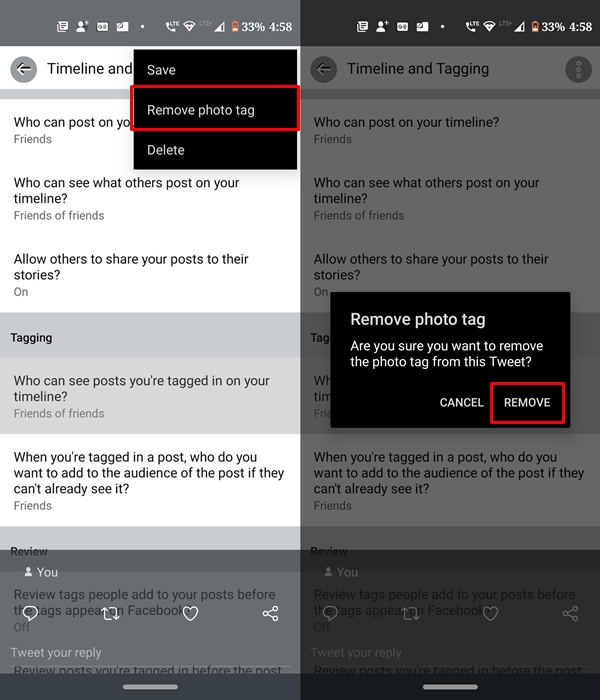
The first of the two methods involve manually removal of your tags from any photo on Twitter.
- To do so, head over to the photo on which you have been tagged.
- Next, tap on the overflow icon and select Remove photo tag.
- That’s it. You will now no longer be associated with that photo in any matter.
Apart from that, you could also altogether disable the option of allowing anyone from tagging you in photos on Twitter. Given below are the instructions for the same.
Prevent Yourself from Getting Tagged in Future
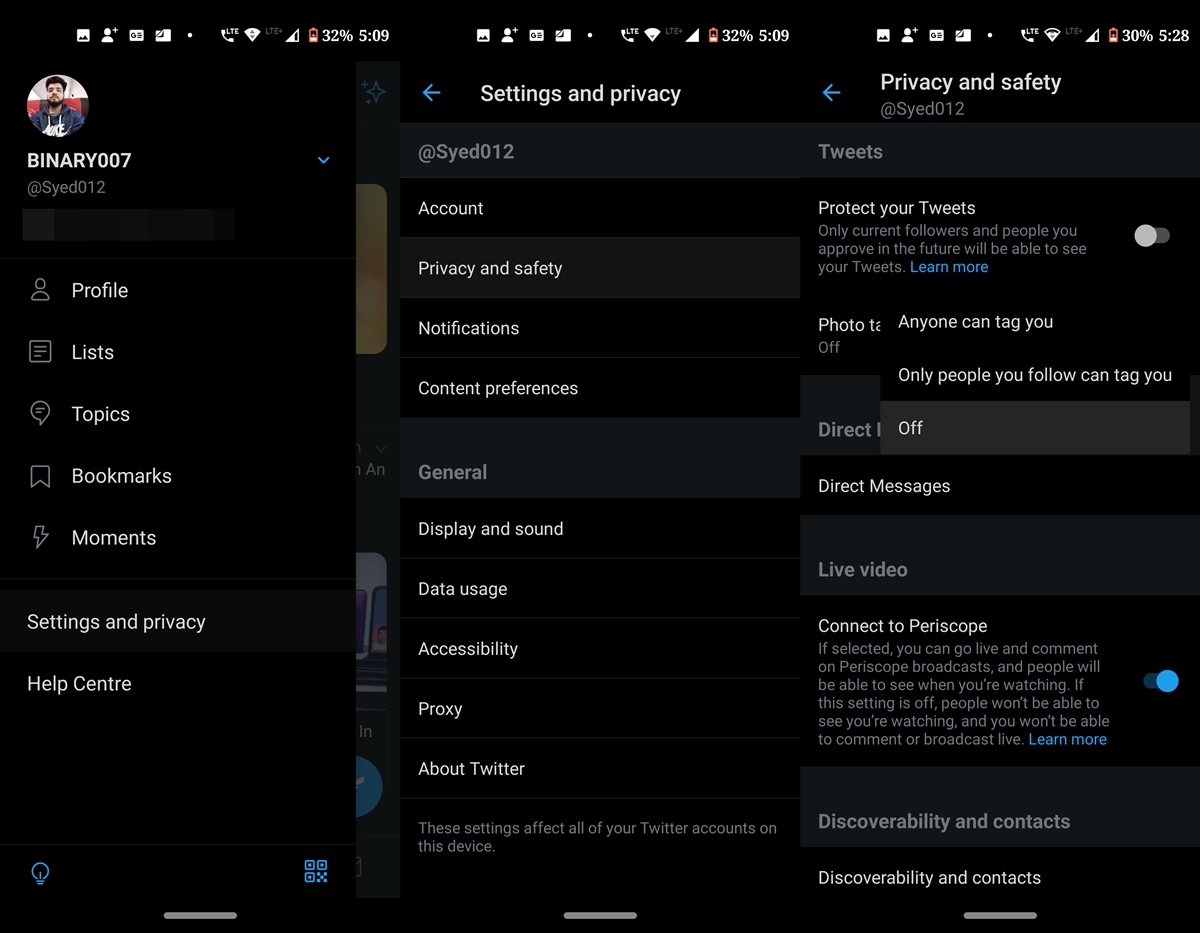
If manually removing tags is asking too much, it’s better to take the second route. Once you enable this feature, no one, and this includes your followers as well, will be able to tag yourself in any photo whatsoever. The users who wish to opt for this method should follow the below instructions:
- Open the Twitter app and tap on your profile.
- Head over to Settings and Privacy and tap on Privacy and Safety.
- Select the Photo tagging option and you’ll have three options to choose from:
- Anyone can tag you: The default option. Any Twitter user can tag you in any of his photos.
- Only people you follow can tag you: People you follow only could tag you in their photos on Twitter.
- Off: No one can tag you in any of their posts i.e photos.
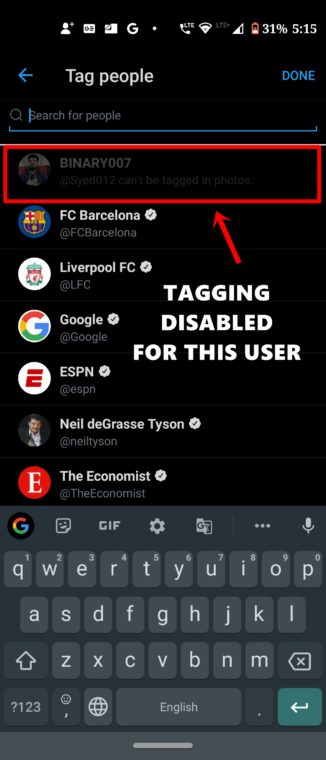
- Select the last option (Off) to confirm your decision. That’s it. You have successfully disabled the photo tagging option of Twitter for good. If any user tries tagging you, your name will be greyed out from the list, as shown.
- Don’t Miss: Top 5 Twitter Clients for Android To Try
So with that, we conclude this guide on how to remove tags from photos on Twitter. Furthermore, we also discussed the steps to disable this option altogether. Do you always keep this feature disabled or manually remove yourself from any photo that is deemed to be unsuitable? Do share your views on the same in the comments section below.



Join The Discussion: