
Sony Xperia devices have had a dedicated camera button for quite some time. It took other OEMs a while but they’ve all come up with workarounds to that. Most allow a double tap on the Power button to quickly launch the camera. If you’ve used an Xperia device, you’ll find that the dedicated camera key is still better because of the two-step pressing it offers. Although, something is better than nothing. The OnePlus 6 also allows users to quickly launch the camera with a double tap on the power button.
However, the experience isn’t consistent all across the world. For instance, OnePlus has simply removed the double tap to launch camera feature on devices sold in India. The Indian Government requires that devices sold in the country have a triple-tap power button gesture to dial emergency services. Therefore, OnePlus disabled the double tap gesture from the Power button in order to prevent users from accidentally dialing emergency services.
Another feature not included is “Turn on Wi-Fi automatically”. Unlike the double tap on the power button, this feature is omitted from OnePlus devices everywhere. What the feature does is that it uses the Wi-Fi scanning service on your device to determine if a connection is a high enough quality for your device to connect to. It considers whether you’ve saved the network or if you’ve connected to it before, and what kind of connection speed it offers.
On the OnePlus 6, the company’s best selling smartphone to date, and the OnePlus 5/5T, these features can, fortunately, be enabled. That does require that the device should be rooted with Magisk though. Because these features can be enabled with a Magisk Module by XDA Senior member anirudhnyg. The developer claims that the mod also works for the OnePlus 3 and 3T.
Download
Must read: List of 70+ Xposed and Magisk Modules for OnePlus 5 and 5T
How to install
- Download the Magisk module zip file onto your OnePlus 6 using the link provided above under Download. You’ll receive a file named OP_System Mod 1.2.zip.
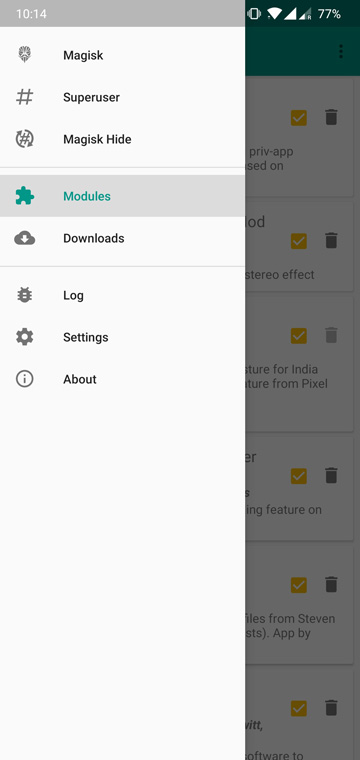
- Launch the Magisk Manager app on your phone and tap pull the side menu drawer with a swipe from the left edge of your screen. You can also access this menu by tapping on the hamburger menu icon in the top-left.
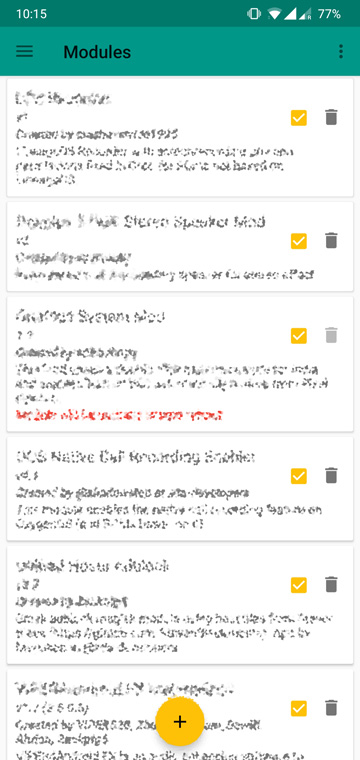
- Go to the Modules section and tap on the floating + button at the bottom. It’s a yellow circle at the bottom as you can see in the screenshot below.
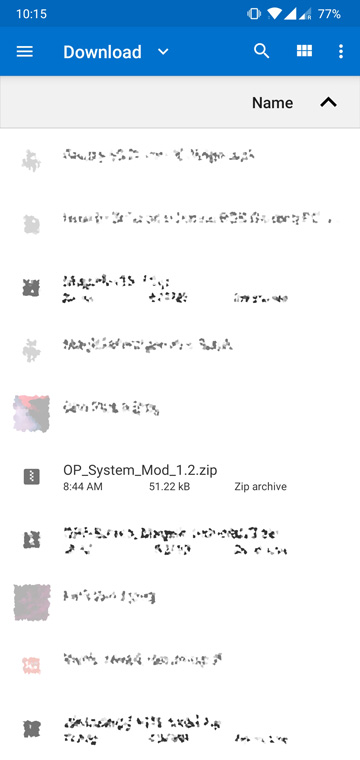
- Browse to the downloaded zip file, tap on it to install the module.
- Reboot your device once the module is installed.
Where to find the double tap to enable camera & Turn on Wi-Fi automatically
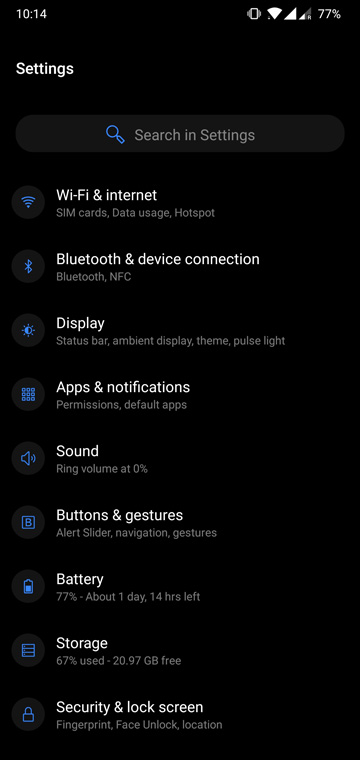

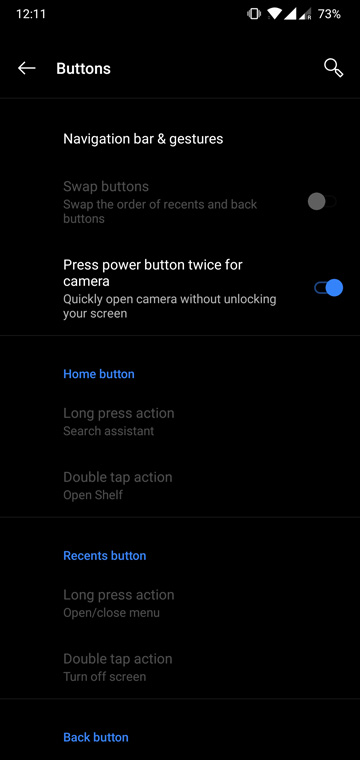
Once your device reboots, head over to Settings > Buttons & gestures > Navigation bar & gestures and you’ll find the setting labeled Press power button twice for camera.

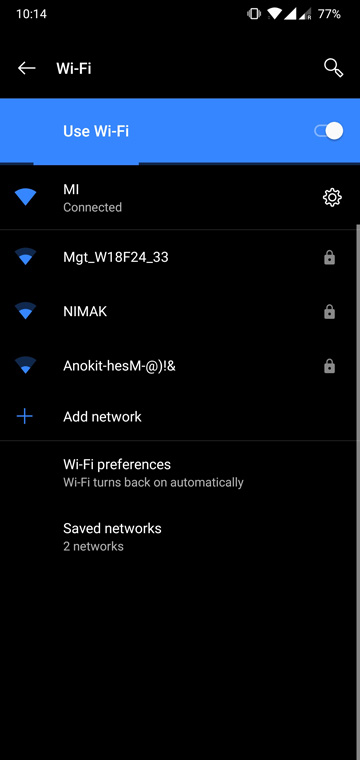
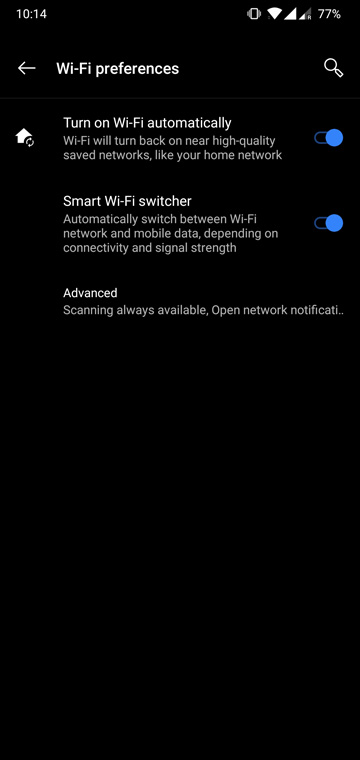
Now go to Settings > Wi-Fi & Internet and tap on the Wi-Fi heading, not the toggle. Towards the bottom, you’ll find the Wi-Fi preferences label. Tap on it and you’ll find the setting to Turn on Wi-Fi automatically.
Visit the original development thread on xda for more information or to report any bugs. If you’re reading this at a later date, you may also want to check it in case any newer versions of the magisk module have sprung up. The original thread is linked below.
Don’t miss: Enable Always on Display on OnePlus 5/5T and OnePlus 6
Source: XDA


Join The Discussion: