Being an open source platform in nature, Android offers a lot of flexibility in customization and if you have a rooted Android device, there are amazing things you can do to make the most of it. Custom ROMs, mods, getting rid of bloat apps, taking advantage of root apps, Xposed Framework modules and what not.
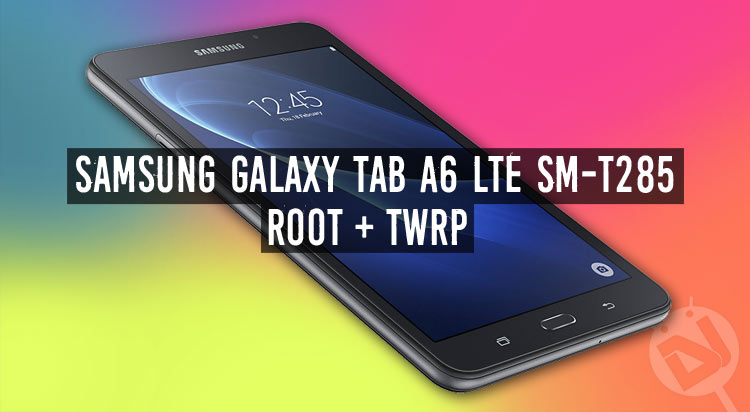
Just a few weeks ago, we shared a guide on rooting the Galaxy Tab A SM-T280. However, if you own the Galaxy Tab A6 LTE (SM-T285) and have been looking for a way to achieve root privilege, you’ve just landed the right place. In this tutorial, we are going to describe the procedure to install TWRP recovery and root Samsung Galaxy Tab A6 LTE in detail so that you can easily perform the action with the least risk possible.
Disclaimer
We have taken all care in writing the steps but a successful result depends on how you follow them. Rooting your Tab A6 LTE will void its warranty and following the tutorial incorrectly might soft-brick your device. Proceed at your own risk.
Getting Prepared
- Download Odin 3.10.7 and unzip the downloaded file. Linux and Mac users should download Heimdall instead: Link
- Download the TWRP Recovery for Galaxy Tab A6 LTE SM-T285 and extract the zip: TWRP_3.0.2-1_SM-T285_20161124.zip | Mirror
- Download the latest SuperSU file and copy it to your device: SR2-SuperSU-v2.82-SR2-20170103215521.zip
- Enable USB Debugging and OEM Unlocking on your Tab from Settings> Developer options (see how to enable Developer options).
- Backup the apps and data present on your Galaxy Tab (as a precaution).
- And yes, don’t forget to charge your Tab A6 to ensure at least 60% battery.
Install Samsung USB Drivers on your computer
Steps to Install TWRP & Root Galaxy Tab A6 LTE SM-T285
Okay, it’s action time now. Just follow the steps below to gain root access on your Galaxy Tab A6 LTE.
- Turn off your device and boot it into the Download mode by pressing and holding the Home + Volume Down + Power buttons simultaneously for 2-3 seconds. When you see the warning screen, press the Volume Up key.
- Launch Odin by double-clicking Odin 3.10.7.exe.
- Connect your Tab A6 to the computer using a USB cable, preferably the original one.
- When your device is recognized by Odin, the ID:COM port will be highlighted.
- Now click the ‘Options’ tab on Odin and uncheck the ‘Auto Reboot’ option.
- Click the AP button in Odin and add the TWRP_3.0.2-1_SM-T285_20161124.tar.md5 file to it.
- Now click the Start button to begin the installation.
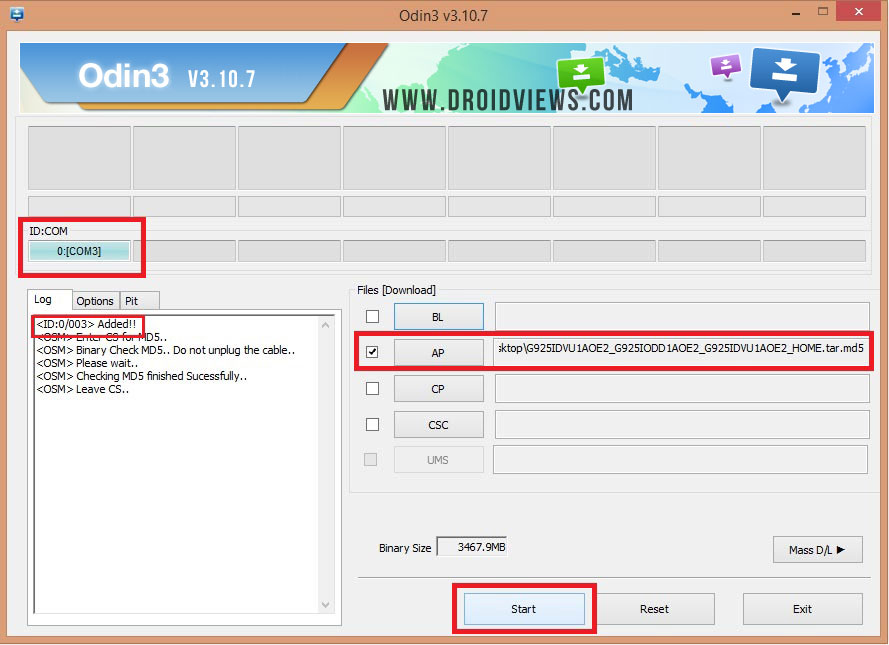
- Just ignore if you get secure check failed error after TWRP is installed and you see PASS! in Odin. Disconnect the USB cable and then press and hold the Home + Volume down + Power keys at the same time. As soon as the screen goes blank, change to Volume up while keeping the Home + Power keys pressed. Tour tab will boot into the TWRP recovery mode.

- Tap the Install button in TWRP menu, navigate to SR2-SuperSU-v2.79-SR2-20170103215521.zip and install it.
- When the file is installed, select the Reboot> System option.
- Your Tab might reboot a couple of times but at the end of the process, it should be rooted.
When your Samsung Galaxy Tab A SM-T285 boots up, it will have root privilege with TWRP Recovery installed on it. Congrats! You did it!
To verify that your Tab A has been properly rooted, you can install and run a free app called ‘Root Check’ from the Play Store.
[googleplay url=”https://play.google.com/store/apps/details?id=com.jrummyapps.rootchecker”/]

Update: Rakesh, thank you.
I used odin 3.1. patched. It is all rooted now, after that the recovery was newer, i used internal root drive too.
Awesome!
hi, could you help . Final stage i get E: “failed to verify whole-file signature” or something similar. and then it fails to root.
Hi, try removing the “.MD5” extension from the TWRP file and try again. Let me know if you still get error.
Hi, try removing “.md5” extension from the TWRP recovery file name and try again.
trying. . .
hi. I retried after removing the .md5 ext. Same result. I get TWRP open ok, i scroll down to “update from external storage” and choose zip file in sd root. but does not verify package and says E: “failed to verify whole-file signature” etc.
Also, odin 4 does not see device, i used odin 3.10.
I am unable to flash TWRP using JOdin3CASUAL-r1017-dist
From JOdin3 program
Downloading device’s PIT file…
PIT file download successful.
Uploading RECOVERY
100%
RECOVERY upload successful
Ending session…
ERROR: Failed to receive sDevice Removed
sesion end confirmation!
Releasing device interface…
Device Not Detected
Device Connected
on my galaxy tab
ODIN MODE
SECURE DOWNLOAD: ENABLE
MDM DOWNLOAD BLOCK: 0
PRODUCT NAME: SM-T285
CURRENT BIN: Samsung Official
System Status: Official
FRP LOCK: ON
USB Init Start!
USB core reset done!
SECURE CHECK FAIL: (recovery)
Custom Binary(Recovery) Blocked By FRP Lock
You’re welcome!
tnx to u its worked
so i can hack every thing i want
Rakesh, I’ve got a new Galaxy Tab A6 SM-T285 on the way. I see posts here of folks that couldn’t root and install recovery but would it be correct to assume that 99% have successfully rooted and installed TWRP? Also, can you tell me if the A6 and A7 are functionally the same?
No, they are different models. Don’t try the TWRP image for the A6 on A7.
Rakesh, I’m puzzled. I have the A6. When I boot it, it says Samsung Galaxy TAB A6. Is this the correct phone for your procedure here?
Also, if something goes wrong, can I PAY YOU to tutor me back to boot?
Go to Settings> About to check your device model. If it is SM-T285, you can follow this tutorial. As for the support, everything is free here and we don’t demand or expect payment for that. 🙂
Use v2.82 version.
Thanks friends
hi, i followed your instructions but my phone is stuck at blank screen after system reboot. do i have to wait or did something go wrong? thanks in advance
https://uploads.disquscdn.com/images/67598d599824f293ef987e41cea56678f829ec815d426d101956ea86a7731b84.jpg
Right now I’ve done everything and it’s stuck on the Samsung galaxy tab a6 powered by android screen. It’s that normal???
After which step?
same issue, after step 8:
“Disconnect the USB cable and then press and hold the Home + Volume down + Power keys at the same time. As soon as the screen goes blank, change to Volume up while keeping the Home + Power keys pressed. Tour tab will boot into the TWRP recovery mode.”
Sits on a loading screen…
…with a samsung a6. Any ideas?
i tried again and the twrp recovery does not show, just:
reboot sys
apply update from adb
wipe data
wipe cache
reboot to bootloader
power down
view revoery logs
update from cache
update from external storage
Any ideas?
@DroidViews:disqus tried a few times. just can’t seem to get TWRP to load. Appreciate any advice. Thank you very much.
i press home + power + volume up after the home volume down power key
Thanks. I’ll try
Did you ever get it to work?
After root factory reset?
not work!!!!
My device does not root. After installing the twrp if I go into recovery mode it still shows the default recovery software not twrp. i check online and most blogs said to unlock the bootloader but I don’t know how to do that.
Never mind it turns out the stock rom kept flashing the custom rom on reboot
Amazing, thanks its woks 100% yeaaaaaaaah
Glad to know, Aurthur!
Hi, odin show “pass” and on phone screen “security check fail: recovery”. I followed your instructions but still TWRP does not work. Can you help me please?.
Try this TWRP: https://drive.google.com/file/d/0B-EQqpEb645uRDhWdk5MdmdKRGM/view?usp=sharing
It should work for you.
My friend…it’s working now!. Thanks so much for your support. Really appreciate.
You’re welcome!
See this: https://www.droidviews.com/fix-status-7-error-while-flashing-lineage-os-rom/
Try this recovery file: https://drive.google.com/file/d/0B-EQqpEb645uRDhWdk5MdmdKRGM/view?usp=sharing
My TABLET IS RUIEND IT KEEPS REBOOTING IM SAD PLEASE HELP
Thank So much from Cambodia !
It work 100%
Thank Again Admin
Is the provided TWRP zip working with the SM-T285m rom from the latin american tab a 7.0 version too?
Yes, it should.
thank you so much. i’m now rooted!
ohh yeah you rooted not your device