The Google Pixel and Pixel 2 are still considered to have one of the best cameras on smartphones. Keep in mind that we now live in a word where smartphones have 2 to 3 camera sensors in a single module. Google Pixel 2 still has only one. What other smartphones achieve with multiple sensors, Google’s smartphones can with a single sensor. The credit for this has to go to Google’s exceptional image processing software that is included in the Google Camera app. No wonder, the developer community has taken a keen interest in porting the Google Camera app to other devices. The Google Pixel 2 Camera port for Xiaomi Redmi 5A is brought to us by androwide.
However, this is not the first Google Camera port for other devices. We’ve previously seen a Google Pixel 2 Camera port for other Pixel and Nexus devices and even the Essential Phone. The Google Pixel 2 Camera port for Xiaomi Redmi 5A should in theory work with any other devices powered by a Snapdragon 400 series processor. These include the Snapdragon 430, Snapdragon 435 and Snapdragon 450. Many of the Google Camera features seem to be working, including bokeh effects on the front camera and portrait effect on the rear camera.
Bugs
As is the case with most Google Camera ports, this one comes with a few bugs of its own. To make the Google Camera work on the Redmi 5A, Camera2 API needs to be enabled. When that is enabled though, the stock MIUI camera stops functioning. So you’ll basically be trading the stock MIUI camera for Google Camera. This is where another bug might be a deal breaker. At least on the Redmi 5A, video recording does not work on the Google Camera. You can learn more about the Camera2 API by visiting the link below.
Warning
We make sure to keep the guides as detailed and accurate as possible. The method mentioned in the guide has been successfully tested by many users as well. Yet, there is always a chance that things might not work the way they’re supposed to for everyone. As such, neither the developers who find these methods nor DroidViews take any responsibility for any harm that may come to your device. You must understand that meddling with your device using elevated privileges can produce unexpected results. Thus, you will be the only one responsible for any damage done to your device.
Requirements
- Unlocked bootloader
- TWRP recovery
- The device must be rooted with Magisk
- File explorer with root capabilities and a text editor or a build.prop editor. You will need this to edit the build.prop file. If you don’t know how to edit a build.prop file or what it is, you can visit the link below.
- Enable Unknown sources in Settings > Additional settings > Privacy. If you’re using another device running on a Snapdragon 400 series processor, and Android Oreo, you’ll most probably not find this setting. Here’s how you can enable Unknown sources on Android Oreo.
If you haven’t yet rooted your Redmi 5A, we have a detailed guide on how to install TWRP and root Redmi 5A that you can check out.
Download Pixel 2 Camera Port APK
Don’t miss: Download Xiaomi Flash Tool (Latest and All Versions)
Install Google Pixel 2 camera port on Redmi 5A
- Navigate to the /system/ folder and scroll down. Here you’ll find the build.prop file that we need to edit. You can open this with a text editor or a build.prop editor of your choice. JRummy’s BuildProp Editor is a popular and reliable choice.
[googleplay url = “https://play.google.com/store/apps/details?id=com.jrummy.apps.build.prop.editor”] - In the build.prop file, simply add the following line at the end of the file, save and exit the file and then reboot your device.
persist.camera.HAL3.enabled=1
- Download the GCMod camera apk from the download section above.
- Tap on the download notification when the download is complete and install the apk like any normal apk.
- Once installed, go to GCMod camera settings.
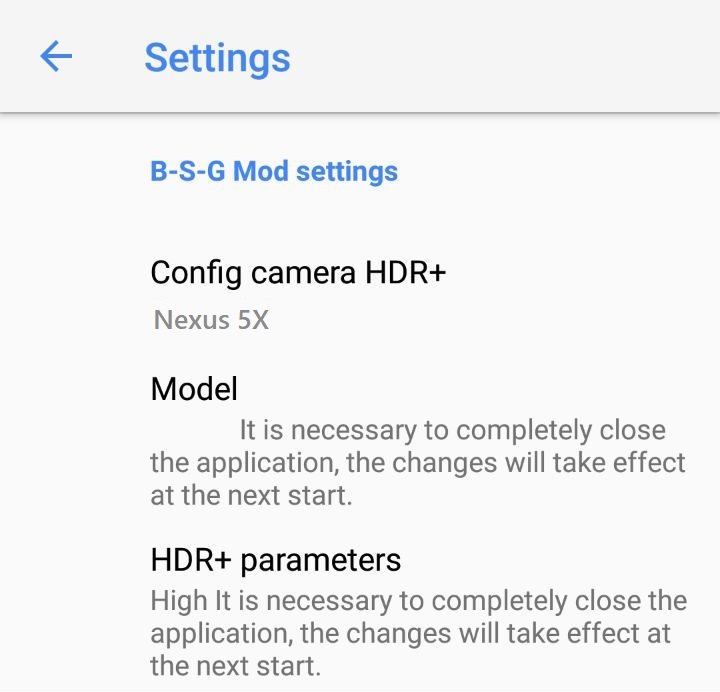
- Here, set the Config Camera HDR+, and Model to Nexus 5X. Scroll down then and Enable HDR+ Control under Advanced settings.
- Reboot your device. When your device comes back on, you can enjoy the Google Camera features that do work.
You may also like: Download and Install Pixel 3 Launcher on Any Android


Join The Discussion: