We all love apps on our phones and tablets. They let us add new functionality to our device and make our mobile life easier. However, there are some apps that make us irritated because the needlessly keep our device’s app drawer stuffed. These useless apps come with our device out of the box because they are part of the package from the OEM and feed on the battery juice and RAM. Follow this tutorial to remove Galaxy Note 3 bloatware without root.
Such apps are popularly called bloats and most of the users feel a strong desire to terminate them from our devices. It is very to uninstall a third-party app but when it comes to removing a system app, the thing becomes a little tougher, at least for those who do not have a rooted device. The Galaxy Note 3 comes preloaded with dozens of bloats.
Most of these apps are either nominally useful or useless at all. They occupy the internal storage and because many of them work as background processes, they also have a negative impact on battery life and RAM. Thus they make our device slower in performance and less battery efficient. In the past, we have published various tutorials on cleaning bloats or system apps for a range of Android devices, and today we are back again with another guide for Samsung’s latest phablet, Galaxy the Note 3.
Safely Removable System Apps on Note 3
Before we begin the steps to remove bloat apps on the Galaxy Note 3, here is a detailed list of apps that can be safely removed. I have tested removing the apps listed below but I would like to warn you not to follow us blindly while removing these apps.
The list is just for reference and your selection of apps to be removed must be based on your requirements and preferences. Perosredo from XDA has prepared a spreadsheet of the system apps and their function that will help you further. I have highlighted that app names (with * sign) that have a worse effect on RAM and battery for your convenience.
- Action Memo (3x times)
- Action memo
- AllShare ControlShare Service*
- AllShare FileShare Service*
- ANT HAL Service*
- ANT Radio Service*
- ANT+Plugins*
- Backup
- Best Face
- Bloomberg*
- BlurbCheckout*
- Bubbles*
- ChatOn
- ChocoEUKor
- CloudAgent*
- CoolEUKor
- DirectConnectManager
- DirectShareGallery*
- DirectShareManager*
- DRM-Protect Content Storage -N9005XXUBMI7
- DroidSerifltalic
- DSMForwarding -N9005XXUBMI7
- DSMLawmo -N9005XXUBMI7
- Easy chart*
- Evernote*
- Exchange Services*
- FWUpgrade
- Google Play Books*
- Google Play Games*
- Play Magazines*
- Google Play Movies*
- Google Play Music*
- Google Search
- Group Play*
- Help*
- HP Print Service Plugin*
- Idea Sketch*
- Live Wallpaper Picker -N9005XXUBMI7
- Maps
- Mobile tracker*
- My Magazine*
- PageBuddyNotiSvc*
- Picasa Uploader
- Rakeln*
- Remote controls v2
- Remote Controls
- RoseEUKor
- S Finder*
- S Health
- S NameCard*
- S Note
- S Voice
- Samsung account*
- Samsung Apps*
- Samsung Apps Widget*
- Backup Provider*
- Samsung Calendar SyncAdapter*
- Samsung Cloud Data Relay*
- Cloud Quota*
- Samsung Contact SyncAdapter*
- Contents Agent*
- Samsung Hub*
- Samsung Link*
- Print Service*
- Samsung Push Service*
- Samsung SBrowser SyncAdapater*
- SNote3 SyncAdapter*
- Samsung Syncadapters*
- Samsung text-to-speech engine
- Samsung Video
- WatchOn Video*
- SamsungHub Updater*
- SamsungSans
- Scrapbook
- SecWallpaperChooser
- Share music
- Share Video
- ShareShotService*
- SketchBook for Galaxy*
- SNS
- Software update
- Story Album*
- Story Album Widget*
- Street View*
- Travel Wallpaper*
- TripAdvisor*
- User manual*
- Weather Widget
- WFDS Print Service Plugin*
- wssyncmlnps*
- Yahoo! Finance*
Warning!
Please be careful while deciding which apps are really useless for you before removing. Also, we strongly recommend that you create a backup of all APK files before removing. Sometimes people delete an app in a fit of hurry and repent when some or other function on the phone stops working. You should also note down the Permissions value for system apps because without fixing file permissions, the apps would not work even if you copy the APK to the system folder. Read our Detailed Guide on Fixing Permission on Android devices.
Remove Galaxy Note 3 Bloatware Using Cleaner Script:
There are various ways in which you can delete system apps found on your Samsung Galaxy Note 3:
- Flashing a script via a custom recovery like CWM or TWRP
- Using a root file browser app
- Using an app that is capable of deleting system apps
XDA member CoOoL_BoY has made a script that can easily clean about 100 bloat apps from your Note 3. The script can be used on any Note 3 with root and a custom recovery whether your device is on Odexed or Deodexed stock or stock-based custom ROM. The Note 3 Cleaner Script, as it is called, can also be edited and thus you can add or remove apps according to your preference. Here is how you can edit the script:
- Download the Note 3 Cleaner package: Galaxy Note 3 Cleaner v0.5.zip
- Download Notepad++ if you do not have it on your computer.
- You must have a Zip extractor like WinZip or PowerArchiver on your computer.
- Now double click the zip file and navigate to META-INF\com\google\android\
- Right-click on updater-script and select Edit.
- You can now add or remove app names. Make sure to type the name of the Apk file you want to remove.
- Finally, save your changes and copy Samsung GALAXY Note 3 Cleaner v0.4 CoOoL_BoY.zip to your device.
After modifying/editing the app names, you can now flash it via recovery. Here are the steps:
- Copy the Samsung GALAXY Note 3 Cleaner v0.4 CoOoL_BoY.zip to your Note 3.
- Boot your device into recovery mode by holding the Volume Up+Home+Power buttons for about 4-6 seconds.
- If you use TWRP, go to “Install” option and select the Zip file you copied in Step 1, OR if you have CWM, go to “install zip from sdcard” and select the file.
- Confirm the installation and then reboot your device.
- If the recovery mode prompts you “Root access possibly lost. Fix?”, make sure to select “No”.
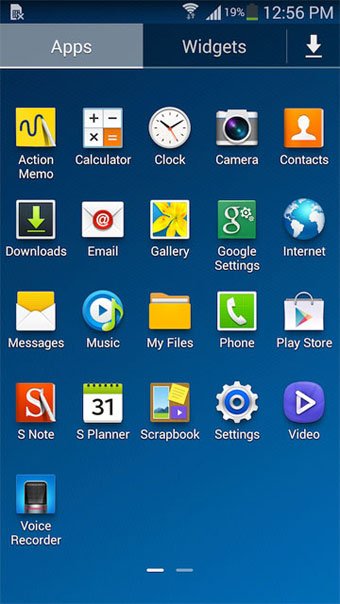
When your Samsung Galaxy Note 3 boots up, you’ll have a cleaner app drawer with all selected bloat apps removed from it. In case you notice any error or discover that you have accidentally deleted an app that you should have removed, download the following zip that contains all app deleted by the Note 3 Cleaner script and install it back the same way as you did above:
Download: Deleted Files.zip
Remove Galaxy Note 3 Bloatware Manually
In case you do not want to delete all bloatware/system apps (listed above) from your Galaxy Note 3, or the Note 3 Cleaner script did not work for properly, you can use the method described below. To be able to use this method, you need to have a rooted device. By following the steps below, you will be able to uninstall only those apps that you want to remove individually.
- Install a root file explorer app from the Google Play Store. Personally, I prefer Root Browser: [googleplay url=”https://play.google.com/store/apps/details?id=com.jrummy.root.browserfree”]
- Open Root Browser and navigate to system/app directory.
- Tap and hold the system app you want to delete and select the Delete option. Below is an example of removing My Magazine app from Note 3:
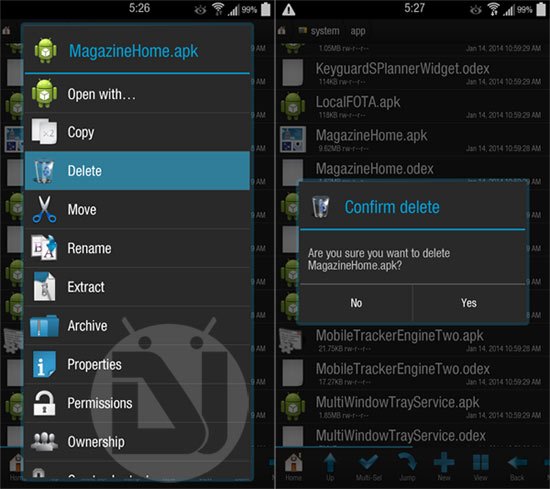
- When it prompts whether you want to delete the app or not, select Yes.
- You can repeat the same steps as many times as you wish to delete more apps.
- To delete more than one apps/files, select the Multi-Sel option from the bottom bar before marking multiple apps and then tap on the delete icon.
Uninstall System Apps Using App Remover:
If you have root access on your Samsung Galaxy Note 3, you can easily and safely uninstall bloatware/system apps from your device using a root uninstaller app from the Google Play. A good thing about using this method is, it also creates a backup of the uninstalled apps so that you might restore them later if required.
[googleplay url=”https://play.google.com/store/apps/details?id=com.jumobile.manager.systemapp”] [googleplay url=”https://play.google.com/store/apps/details?id=mobi.infolife.uninstaller”]Remove Galaxy Note 3 Bloatware without Root
If you do not have root access on your Galaxy Note 3 and you wish to get rid of bloat or system apps, you can easily do it. Here’s how:
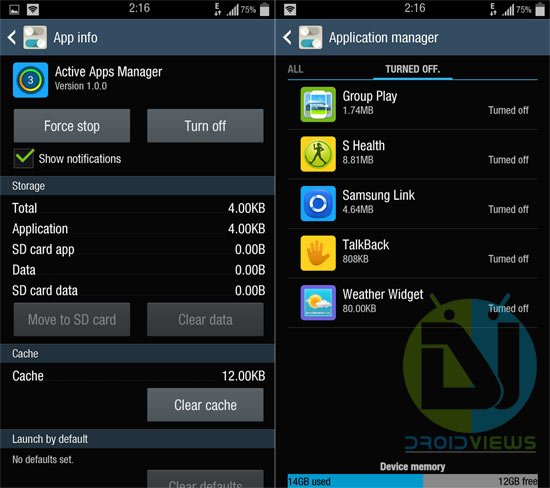
- Open phone Settings> General> Application Manager.
- Swipe screen from right to left and go to All.
- Now select the app you want not to show in the app drawer and disable.
- Tap the Turn Off button.
- Done!
- All disabled apps go to Turned Off option and you can enable them anytime from there.
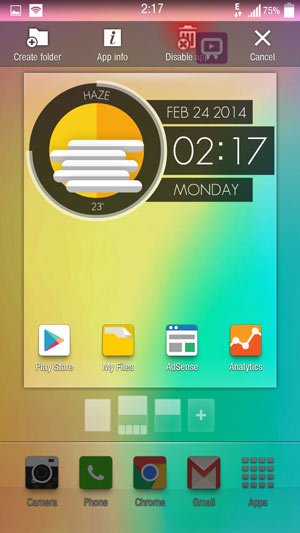
There is yet another way of disabling system apps on your Galaxy Note 3. Just open the App Drawer, press and hold an app and drag it to Disable App option on the top bar.
If you have question related to the topic in discussion or wish to share your experience, feel free to drop a comment. Cheers!
Read Next: Install Third-Party Apps as System Apps on Android

Deleted each piece of bloat individually with a Root-Friendly file explorer app… and couldn’t be any happier.
Thanks Rakesh!
Glad to know, James! Please follow us to stay updated with new tips and tricks. 🙂
No functional problems after deleting AllShare and Chaton using Root Browser, but my phone keeps notifying me that these applications have stopped working. “Unfortunately, com.samsung.nearbyserver [or something like that] has stopped working.” Why does the phone act as if these files still exist?
Hi, your article is great but I suggest Link2SD and freezing the apps rather than removing them just so you change your mind, or you need some functionality back. Link2SD is free and available at PlayStore and YES you do need to have root access for that.
Hmm, I know about that app and have used it too. I am going to mention it in the article.
Thanks for your suggestion.
I am legally blind. It’s easier for me to see apps with black background. To get house types of apps I’ve got to remove the pre-installed apps. My phone is not rooted so will turning off the pre-installed apps work for me?? . Thanks for your time.
I am not sure that the no-root method will work on the current firmware version or not. However, if you root your Note 3, you can certainly get rid of bloat apps: https://www.droidviews.com/root-att-and-verizon-galaxy-s5-without-voiding-knox-warranty/
Bridget, you can use Apex Launcher (available in Play store, free), or another launcher to change the background in your App Drawer to Black, to make it easier to see. I prefer it this way also. I also prefer to scroll my apps vertically (not on the home screen, but in the drawer). Installing a launcher other than the one that came with the phone allows this as well…. after you have done this, you can still TURN OFF un-wanted apps via the method above. No root is needed for any of this. It will make the apps easier to see, and eliminate all the stuff you don’t want to look at. You can also HIDE apps you never use so they don’t even show up in your drawer. They are still there, just hidden. Try it, I think this is what you are looking for.. YOu can choose HOW MANY apps across and down display on your phone, you can make them larger or smaller… Really it would be very useful for you. Only android phones allow all this customization. Apple would not allow you to make it how you need it to be for your eyes. Try Apex Launcher.
im really new to the idea of bloat removal and would like to know what apps I should remove for better performance because I don’t really know what apps my phone really needs to function correctly I just want to do away with stuff I will never use but I don’t want to remove something that will destroy the phone being my first time trying this any suggestions on the safest ones to remove
The best way is to take a look at your phone’s app drawer, mark the ones you do not need, use Root Browser, go to system/app, and add a .bak extension to the apps you do not really want. In case you feel later that you made a mistake, you can remove the .bak extension.
is there anyway to put cyanogenmod on it and still keep only the s-note software? or at the very least, delete all the apps that aren’t with stock android and only keep s-note?
S-Note require TW ROM to work so you can’t use it on CM. As for removing the blots, you can do that.
so i have to have touchwiz to use s-note? but there’s a way to delete all the other pre-loaded apps right?
Yes. You can use Root Browser or app installers listed above.
I have tried many methods on a non-root Note3,and the apps always restore after the next restart. Samsung should give the customer greater control over OUR products. I have not tried the root yet, since the phone is still under warranty. Other phones from samsung, that I have tried to root, failed, but they did not brick.
Which custom rom is the most popular/reliable?
I used root browser to delete the app from the system/app folders. It says deleted but remains in the list. Hos do i get a confirmation that these deleted apps are no more there.
Install BusyBox on the device, reboot phone and try deleting again. Also try System App Remover.
my device is not rooted. so is there a way to do it without rooting the device.
I have just updated the guide with a method for non-rooted Note 3.
the non-rooted version just turns them off but they’re still there but hidden and off yeah? While the rooted ways delete completely? I’m guessing best way for a mid level tinkerer is using one of the app store deleters? Do they all automatically backup before deleting?
Thanks in advance and thanks for tons of info (recent Apple convert)
if i wont like to delete something i just delete the line of the program name right?
Yes.
Can you please explain the differences between
“Flashing a script via a custom…” & “Using a root file browser app”.
Thank you
The TrueCleaner zip contains a script inside and when you run the zip using a custom recovery tool like ClockworkMod or TWRP Recovery, it deletes the apps that are listed in the script.
Root browse is a file manager apps that, if granted root permission, can access the system directory of your device and lets you delete any system app manually individually or in group.
It’s very… what?
i have ran this twice and it has preformed a factory reset each time. whats going on? i’m trying to remove app and programs and it just puts them all back and erases all my data.
Does this only work for unrooted devices? I rooted my SG Tab 3 with Odin and i can’t seem to get into recovery mode. Holding the 3 buttons just makes the device start up normally. Help?
Hi there, when i open updater-script with Notepad++, i can’t delete the apps on the list that i want to keep. Help?
using Note3
May be this helps: https://www.droidviews.com/how-to-uninstall-third-party-apps-on-android-with-no-uninstall-option/
Download LINE but it goes into widget,cant delete or remove.pls help.
I am trying to run the initial deletion of my apps and I keep getting signature verification failures. Any help?
The script requires root and a custom recovery. If you onlt root access on the device, try a root file browser app.
Okay but doesn’t it have to be flashed? I already put the zip in the root of the phone and it gets the error. What difference would a file browser make from my transfer I have already performed? I’m on an SM-N900V (just fyi).
Yes, the script is meant to be flashed but via a custom recovery like CWM or TWRP on a rooted device.
In case you are getting issues with that, you can clean the bloats manually. See here: https://www.droidviews.com/list-of-bloatssystem-apps-on-samsung-galaxy-devices-that-can-be-safely-removed/
hi
i want to install deleted files but it says “installation aborted”
why?
It is because system apps can’t be installed normally. You should use a root browser app to copy the app file to “system/apps folder and fix app permissions.
https://www.droidviews.com/how-to-setfix-file-permissions-on-android-devices-a-beginners-guide/
Would be neat if something was added to the list that zeroed in on the top few that have considerable impact on battery life and an overall performance impact on the phone. This would help a lot when debating which ones to get rid of .
Nice suggestion, I’ll soon update the list. Thanks!
UPDATE !!!
Newer cleaner script added !!