Qualcomm HS-USB QDLoader 9008 drivers are now available for download. Currently, Microsoft Windows 7, 8, 8.1 and 10 are supported. Also, it supports both the 32 bit and 64-bit architecture. But, before starting with the installation instructions, it is of paramount importance to get complete knowledge about this driver and its functionality. Download the Qualcomm 9008 driver from below and install it manually.
What are Qualcomm HS-USB QDLoader 9008 Drivers?
Generally, whenever you want to revert back to the stock OS, you simply have to flash the stock firmware. There are many ways of doing so. While some support it through the fastboot commands, others like Samsung have a dedicated software (Odin) for it. But all of this only possible when you connect your device to PC via the USB Cable. The USB drivers first create a successful connection between your device and PC. It then allows you to carry forward the desired actions.
But these USB drivers would only recognize your device when it’s in perfect working condition. Once your device gets bricked as a result of flashing incompatible software, these drivers will be of no use. In such cases, the Qualcomm HS-USB QDLoader 9008 drivers may prove to be useful. They would allow flashing the stock firmwares on these devices. You just need to reboot your device to EDL (Emergency Download Mode) and let these drivers do the job.
Moreover, as the name suggests, these drivers only support the devices running on Qualcomm Snapdragon chipset. Keep in mind that there are two methods of installing these Qualcomm Drivers. The first one is the Manual Method in which you have to carry out the installation procedure. Whereas, the second method involves Direct Installation using the Setup Wizard. You may choose any one of them.
Things You Need
The Prerequisites are only to be followed if you would opt for the Manual Installation Method. Users going for the Direct Method may skip this section.
- Download and install the SDK platform-tools on your PC.
- Enable USB Debugging on your device:
- Go to Settings.
- Navigate to About Phone and tap on Build Number 7 times. Users on Xiaomi devices running MIUI needs to tap on MIUI Version 7 times.
- Go back to Settings and under Developer Options, toggle on the switch next to USB Debugging.
- If you are on Windows 8 or later versions, you need to turn off the Driver Signature Verification. Follow the below steps for the same:
- Open Command Prompt on your PC (click on the Windows icon and search for cmd).
- Type in the below code to enable test-signing mode:
bcdedit /set testsigning on
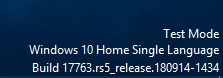
- Reboot your PC. It will now enter the Test Mode. Have a look at the bottom right of your screen to make sure that the Test Mode is enabled.
- Once you are done with the installation process, you may exit the Test Mode by entering the below code in the command prompt:
bcdedit /set testsigning off
Download Qualcomm 9008 Driver 32 bit & 64 bit
You have to download the Qualcomm HS-USB QDLoader 9008 drivers based on the installation method you choose.
For direct installation method: Download the Qualcomm 9008 Driver 32 bit & 64-bit setup file based on your CPU’s architecture.
For Manual Installation Method: Download the Qualcomm driver as a zip file.
Steps to Install Qualcomm HS-USB QDLoader 9008 Driver
As mentioned before, there are two methods of installing these Qualcomm Drivers. The first one is the Direct method in which you could easily install the drivers using the Setup Wizard. This is the easier method among the two. We would recommend this approach. However, if this method does not work for you, consider taking the second route. In this, you will have to manually install the Qualcomm Drivers. Both the process have been discussed in depth below.
Direct Installation Process
Once you have downloaded the Qualcomm 9008 driver 32 bit or 64-bit version, you need to follow the instructions given below.
- Download the Qualcomm USB Drivers corresponding to your device’s architecture from the Downloads section.
- Open the Setup Wizard file by clicking on the executable setup file.
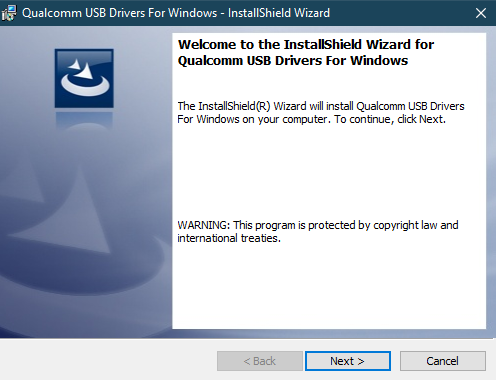
- Tap on Next in the Welcome Screen that appears.
- Accept the terms and conditions by selecting the I accept the terms in the license agreement option.
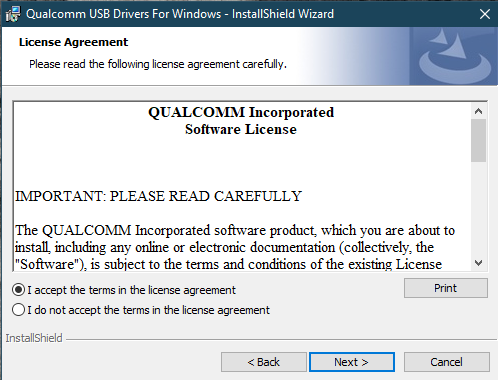
- Click on Next to confirm your selection.
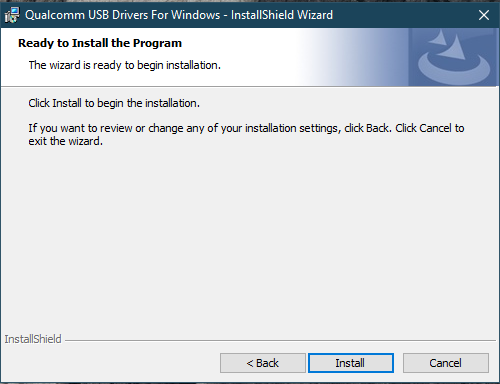
- Then click on Install to begin installing the Qualcomm HS-USB QDLoader 9008 Drivers on your PC.
- Finally, click on Finish when the process gets over. This will also exit the Installation Wizard.
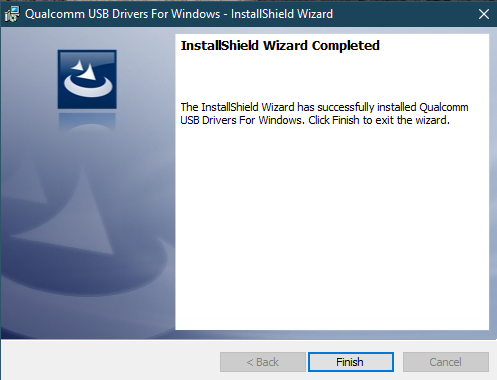
That’s it. Qualcomm Drivers are now successfully installed on your PC through the Direct Method. Now we will have a look at how to install these USB drivers manually. Only go for this method if the installation wasn’t successful via the Direct Method.
Method 2: Install Qualcomm HS-USB QDloader 9008 Driver manually
-
- Download the Qualcomm Drivers zip file and extract it to a convenient location on your PC.
- Connect your device to PC via USB Cable.
- Navigate to the folder where ADB and Fastboot platform-tools are installed.
- Inside the folder, type in cmd in the address bar. This will open the Command Prompt window. To master ADB and Fstboot, you must not miss the list of ADB, ADB shell and fastboot commands.
- Type the below code to boot your device to EDL mode:
adb reboot edl
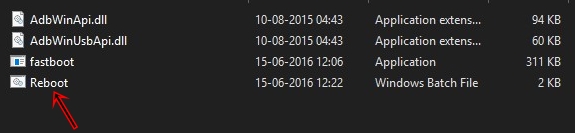
- You may also take the help of the edl tool developed by the XDA Senior Member BRoy_98. Just reboot your device to fastboot mode and click on Reboot. This will boot your device to EDL mode.
- Next, go to Control Panel and navigate to Device Manager.
- You will see your device named QHUSB_BULK under the Other devices section. It would also have a yellow exclamation mark. This indicates that your PC isn’t able to recognize your device as the required drivers are missing.
- Right-click on the device name and select Update Driver Software.
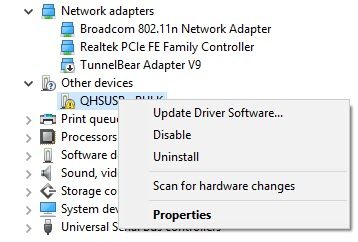
- Next, it will ask how you wish to search for the driver software. Select the second option- Browse my Computer for Driver Software.
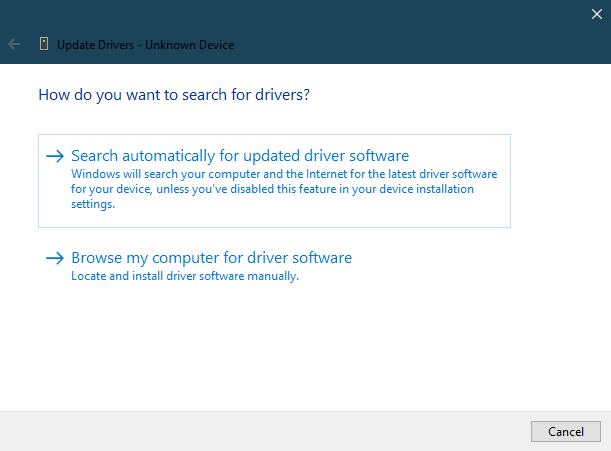
- Browse to the extracted Qualcomm drivers folder and click Next.
- At this stage, Windows Security may prompt that it cannot verify the publisher. Just click on Install this driver software anyway.
- Wait for some time before the installation process gets over. After that, you may go to Device Manager and have a look under the Ports section. The device will now be recognized as Qualcomm HS-USB QDLoader 9008.

That’s it. Qualcomm HS-USB QDLoader 9008 Drivers are now successfully installed on your PC. Whenever your device gets bricked just boot it to the EDL Mode and take the help of these Qualcomm drivers to flash the stock firmware.
Read Next: How to Debloat Android Devices (No Root)
Join The Discussion: