
If you use YouTube to listen to your favorite songs, then one feature that you might feel missing is the ability to play videos in a loop or repeat mode. To do the same on the web version of YouTube is quite easy. You just have to right-click on your preferred video and click on Loop. But for some strange reason, the same is yet to come on YouTube’s Android app. Still, I found out a couple of ways through which you could play any YouTube video in a loop, right from your Android device. What’s even more interesting is that none of these methods require any third-party app. Not just that, you can also play YouTube videos in a pop-up window on Android and Windows.
With that said, let’s have a look at both the methods in detail below. Moreover, if you want to enable swipe controls for brightness & volume in YouTube as well, do read our tutorial for the same.
Loop Videos using the YouTube App
In this method, we will start by creating a new playlist. Once created, we would then add the preferred video into it. Finally, we would be playing that playlist in a loop. It is quite a simple yet effective method of playing youTube videos in a loop or repeat mode on your Android device. Head over to the instructions below to see the steps involved.
- Open the YouTube app on your Android device and play your preferred video.
- Below the video, you will see various options. Long press on the Save option until a menu pops up.
- Tap on the +NEW PLAYLIST option present at the top right of that menu.
- Give this playlist a Name, and choose the Privacy type. Then click on CREATE.
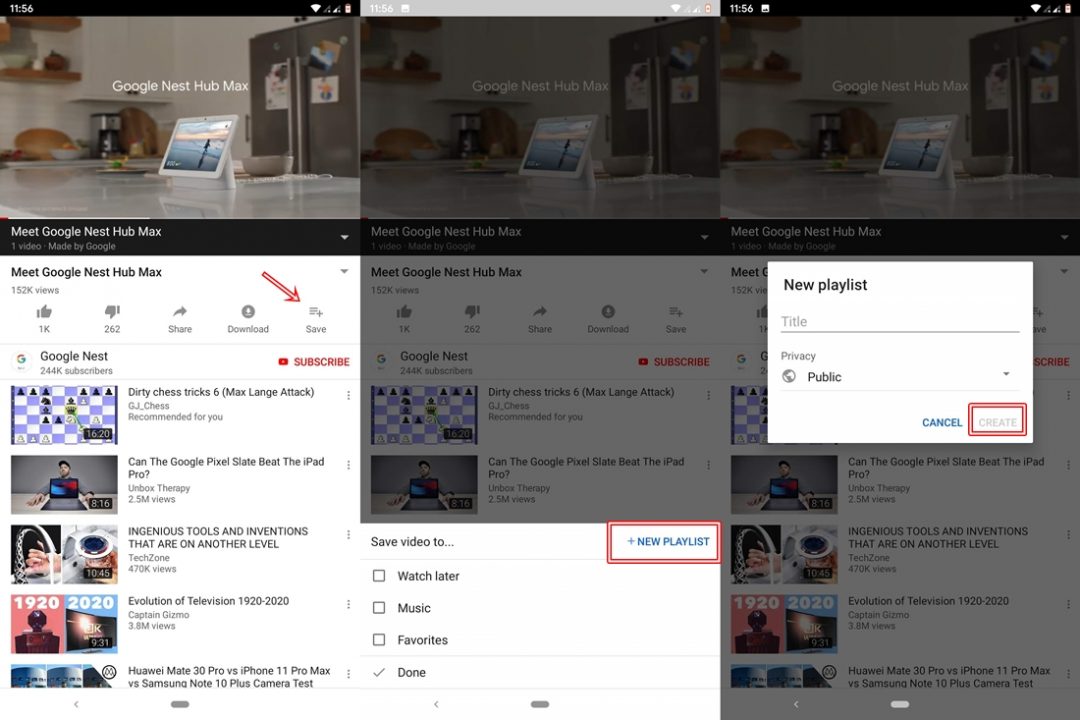
- Your playlist has now been successfully created.
- Now head over to the main menu of YouTube and select the Library section. It is the last option appearing in the bottom menu.
- Tap on your newly created playlist.
- Next, click on the red play button or tap on the video to start playing it.
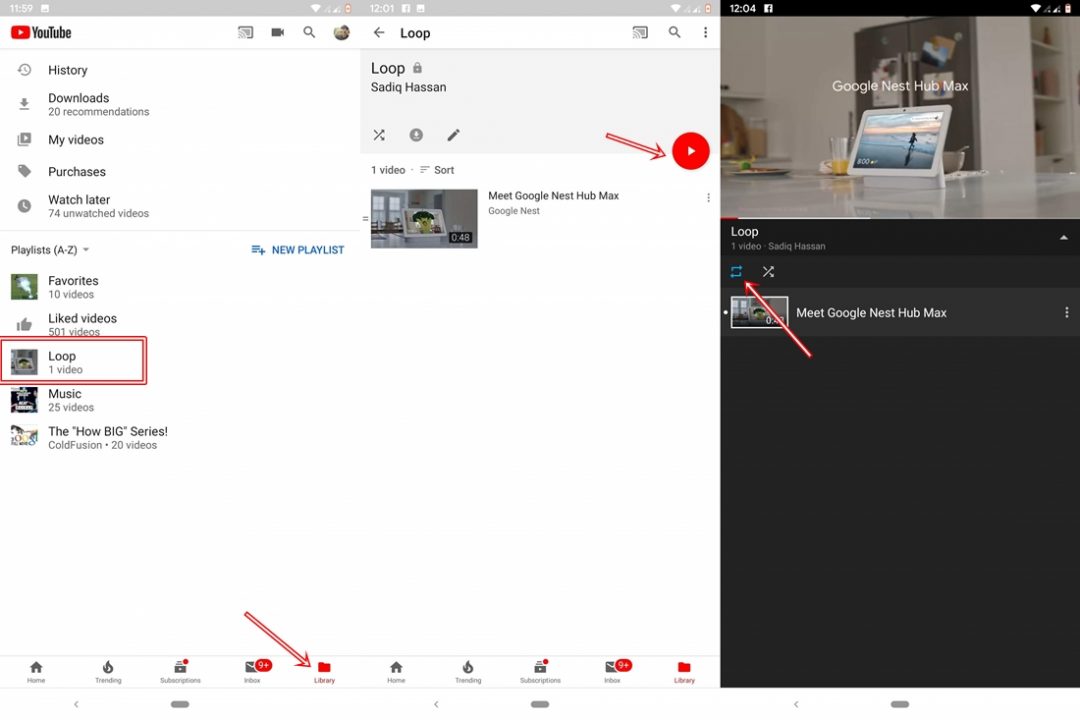
- When the video is playing, simply tap on the name of your playlist. It will be just beneath the video.
- Finally, click on the loop button (refer to the image above). Now the added YouTube video will continue to play in a loop on your Android device until you manually stop it.
Wasn’t this quite an interesting way of playing YouTube videos in repeated mode. However, if you find this method to be somewhat lengthy, we have got another one for you. Do try it out. Moreover, if you want a break from YouTube videos, then try these 5 interesting zero MB games for Android.
Play YouTube Videos in Repeat Mode using Browser
In this method, we would be using a web browser to play YouTube videos in a loop on your Android device. By default, if you open any video in a web browser, it generally takes you to the YouTube app. But this will destroy the sole motive of this method. So we would request the browser to provide the desktop version of YouTube and then play the videos in a loop. Sound’s interesting, right? Follow the below instructions and try it out yourself.
Also, note that we would be using the Chrome browser in this method. But any Android browser, with the capability to show websites in Desktop Mode, will do the job. With this in mind, let’s begin the guide.
- Open your Web browser and type m.youtube.com
- This will open the mobile version of the YouTube website. Tap on the three vertical dots present at the top right and tick mark the checkbox next to the Desktop site.
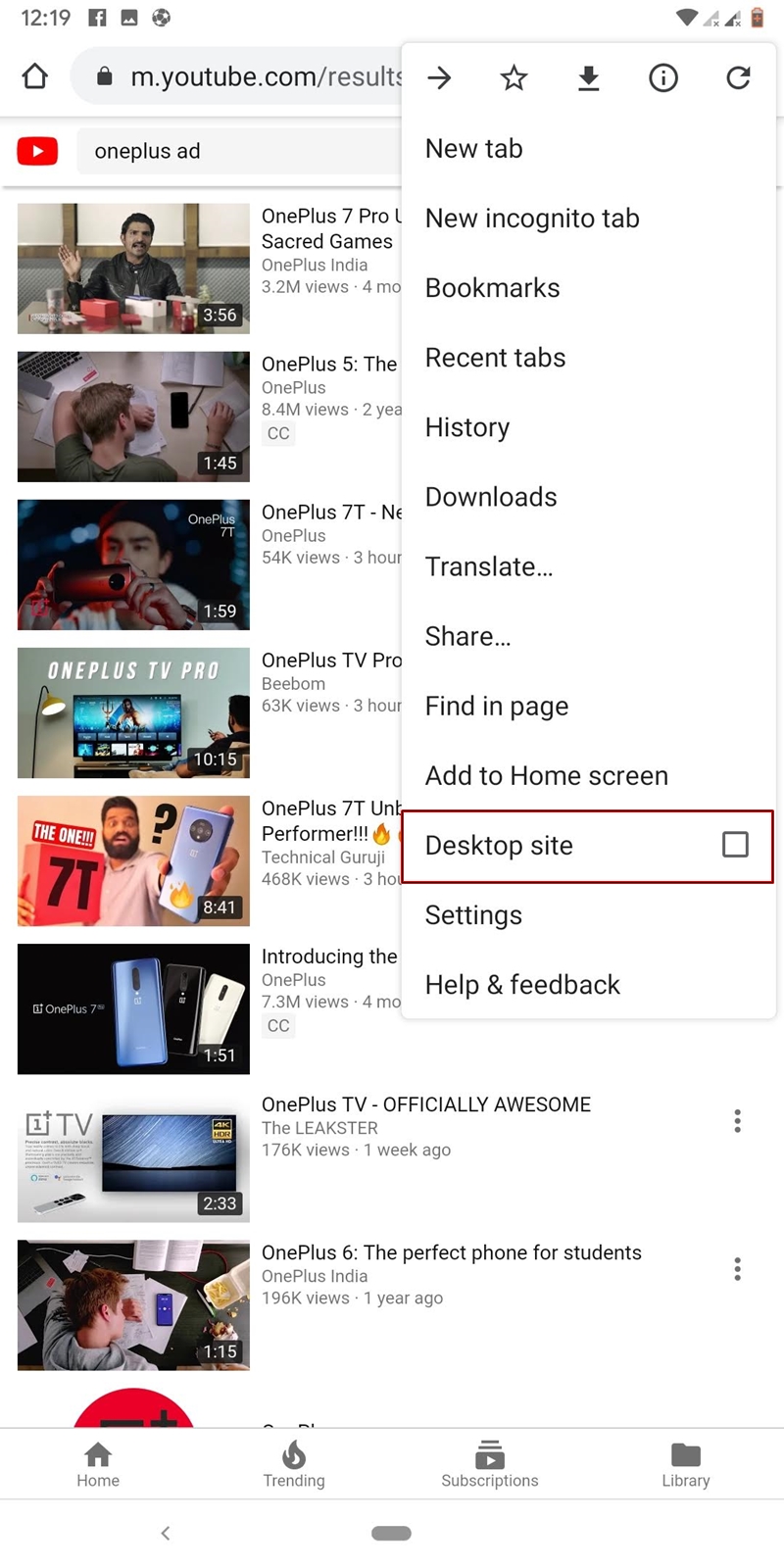
- Now search for and play your favorite YouTube video.
- Now long press on the video. This will open a set of options. Select the Loop option from there.

- That’s it. The chosen YouTube video will now continue to play in a loop on your Android device.
With this, we conclude our guide. Although both the methods do their jobs pretty well, yet both have their fair share of caveats. The first one is quite a lengthy method but you have the luxury to watch the video in the YouTube app itself. The second method, although much shorter, only allows you to watch videos in the desktop version, which does not provide the same level of comfort. Do let us know down in the comments below which method you preferred out of the two.
Read next: Download Facebook Videos on Android Devices


Join The Discussion: