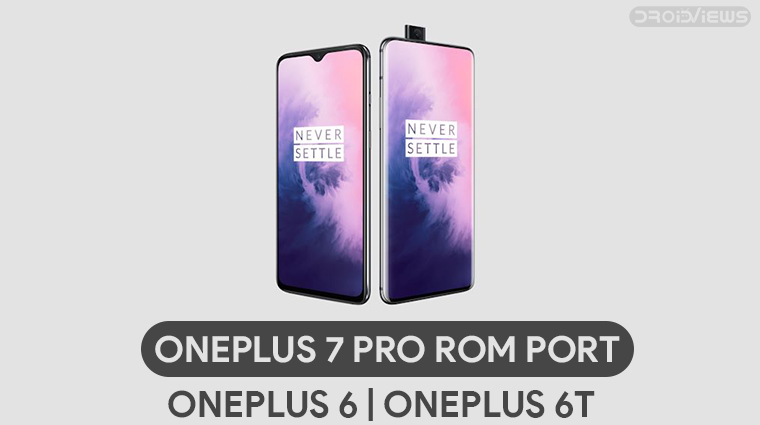
The OnePlus 7 Pro arrives with quite a few bells and whistles compared to previous OnePlus flagships. Whether these justify the cost or not is a different matter. Although OnePlus has said most of the software features from the OnePlus 7 Pro will be coming to previous OnePlus devices, that may take time. If you’d rather not wait, you can install a OnePlus 7 Pro ROM port on your OnePlus 6/6T right now.
OnePlus 7 Pro ROM port
XDA Senior Member ProtoDeVNan0 has ported the OnePlus 7 Pro ROM to the OnePlus 6/6T. The ported ROM will install the OxygenOS 9.5.4 firmware from the OnePlus 7 Pro to your OnePlus 6/6T. One the OnePlus 6, nothing related to an on-screen fingerprint scanner will work, obviously. Moreover, Face unlock doesn’t work on either of the devices since they don’t have a motorized pop-up camera and the OnePlus 7 Pro does. Almost everything else should work as expected but be prepared to run into random bugs.
You can participate in the development by visiting the development thread on XDA from the source link provided at the bottom of this article.
Note
Flashing custom ROMs on your device can be harmful to the proper functioning of your device. You even run the risk of bricking your device. In many cases, this can also lead to loss of all the data stored on the device. You’ve been warned of the risks involved. Therefore, DroidViews or anyone else cannot be held responsible for anything that goes wrong with your device. Even if you follow this guide correctly, things can still go wrong for a myriad of reasons. You’ll be responsible for anything you do to your phone.
That said, if you do end up in a boot loop of with a bricked device, you can follow our tutorial on restoring the OnePlus 6 to the stock OxygenOS firmware.
Requirements
- A OnePlus 6/6T with an unlocked bootloader running OxygenOS Open Beta 18 (or an equivalent for the OnePlus 6T).
- A computer with ADB and Fastboot installed. If you need help, you can refer to our guide about how to install ADB and Fastboot on Windows, Mac and Linux.
- Windows users will also need to install the OnePlus USB Drivers.
- Installing the fastboot ROM will wipe your entire device so make sure you’ve backed up everything, if possible.
Downloads
Install OnePlus 7 Pro ROM Port on OnePlus 6/6T (OxygenOS 9.0.0)
- Download the zip files linked above in the Download section.
- Extract the downloaded files into the same folder on your computer.
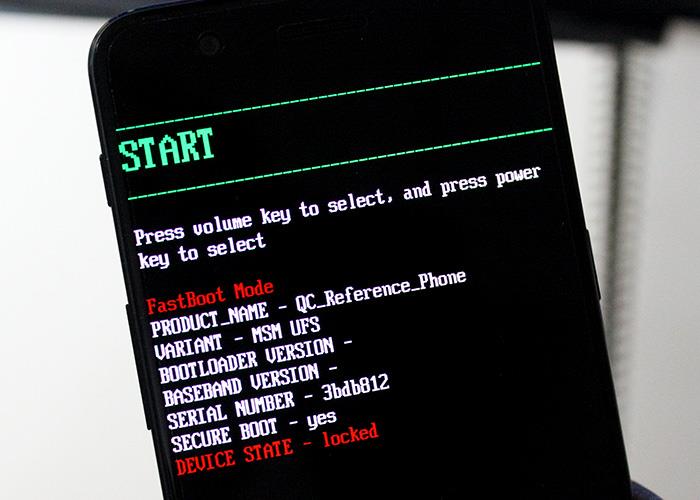
- Reboot your OnePlus 6/6T into the fastboot mode. In case you don’t know how to do this and haven’t even turned on Advanced reboot, power off your device. Now press and hold the Power and Volume Up buttons at the same time until you see some text on the screen as shown below.
- When in the fastboot mode, connect your phone to your computer with a USB cable.
- From here on, Windows users have it pretty easy. All you have to do is double-click on the flasher_windows_enchilada.bat (OnePlus 6) or 6T_flasher_windows.bat (OnePlus 6T) file in the extracted fastboot ROM folder.
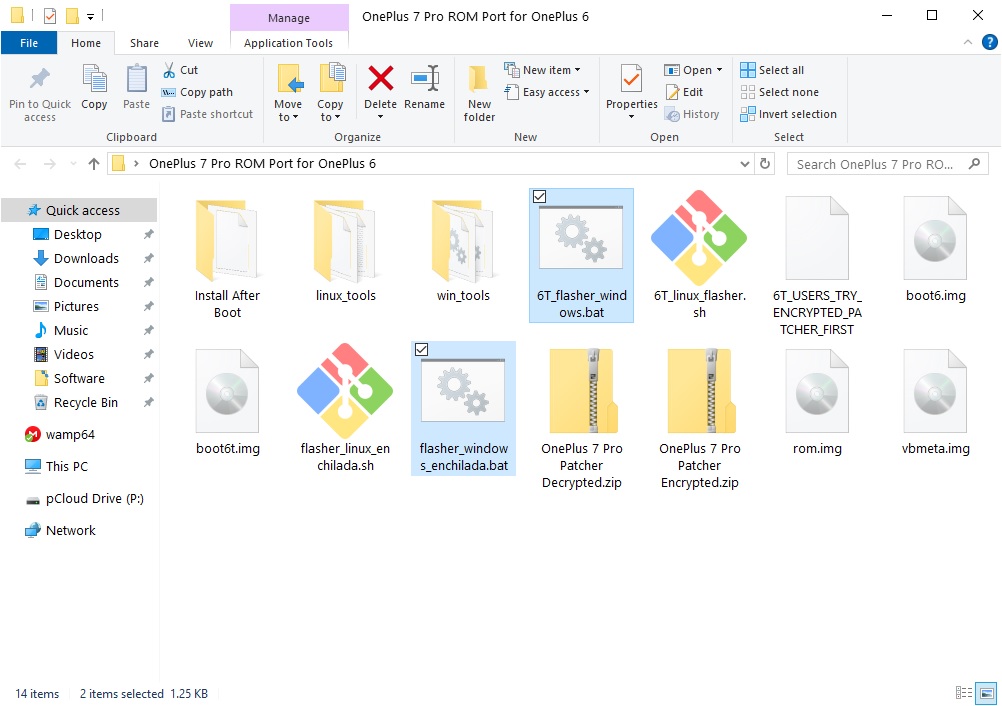
- Assuming that you have all the drivers properly installed, Windows will detect your device and the ROM will be flashed on it.
- Similarly. Linux users can run the flasher_linux_enchilada.sh (OnePlus 6) or 6T_flasher_linux.sh (OnePlus 6 T) script also included in the folder.
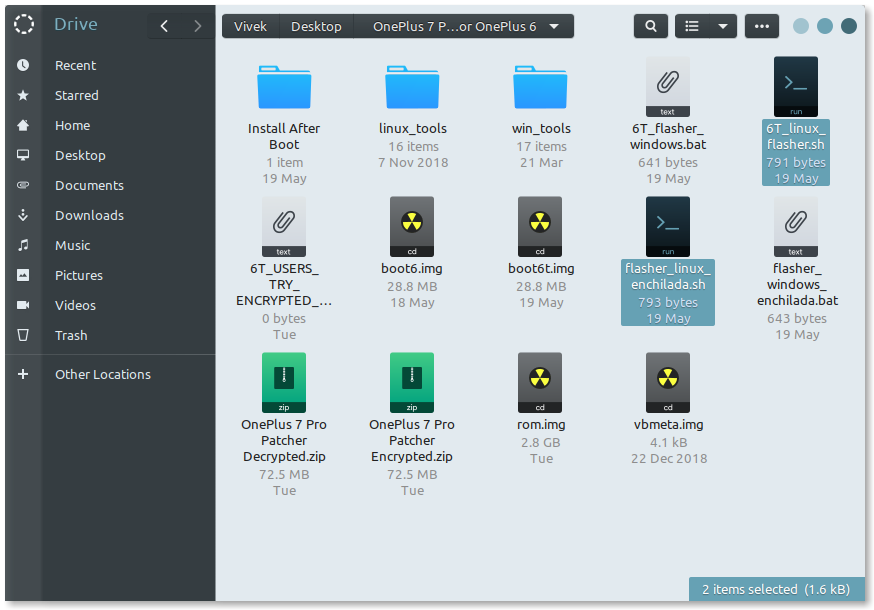
- To do that, open a terminal window inside the extracted folder by right-clicking an empty space and selecting Open in Terminal.
- In the Terminal window, use the following commands one by one to make the script executable and then execute it.
chmod 777 flasher_linux.sh

./flasher_linux.sh
- From here on, Windows users have it pretty easy. All you have to do is double-click on the flasher_windows_enchilada.bat (OnePlus 6) or 6T_flasher_windows.bat (OnePlus 6T) file in the extracted fastboot ROM folder.
- When the flashing is done, disconnect your phone and reboot while holding the Volume down button. This will boot your device into recovery mode.
- Factory reset the device from the recovery mode.
When your device boots up, get past the initial setup and transfer the OnePlusGallery.apk file from the Install After Boot folder. Install the APK like any normal APK and enjoy your new OnePlus 7 Pro ROM port.
Read Next: What is Init.d and What Can Init.d Support Do on Android?

Join The Discussion: