
All HTC phones come with locked bootloaders that need to be unlocked before involving into any custom development activity. If you got a brand new HTC device with locked bootloader, just press and hold the Volume Down + Power keys to get into the bootloader mode on your phone and you would see *** LOCKED *** banner at the top the screen.
Once you unlock the bootloader of your HTC device via HTC Dev portal or gain S-OFF using Firewater method, the *** LOCKED *** flag disappears and your device status begins to show as *** UNLOCKED *** and *** TAMPERED ***. These flags are deliberately put by HTC to show that you have done something that the OEM does not want its users to do. If there occurs some problem with your phone and you submit it to the service center, your phone is likely to be rejected the HTC guys notice 3 things:
- Red development text on the boot screen.
- And, the *** TAMPERED *** flag.
- The *** UNLOCKED *** status of the device.
The customary way of regaining the stock *** LOCKED *** status, you will have to unroot your HTC phone and relock the bootloader. Luckily Android is an open source platform and fortunately, we have so many talented developers with itching palms who won’t sit calmly at the state of things.
If you own a brand new HTC One M8 with an unlocked bootloader or S-OFF, you can easily get rid of all 3 signs of having a tampered device we mentioned above. Just a few days ago, we covered two hacks to remove the TAMPERED flag and the red development message on the boot screen of the One M8:
XDA senior member scotty1223 is back again with another hack method to reset the UNLOCKED status to LOCKED on HTC One M8. To get the job done, all you need is to issue a few ADB commands. So, let’s see how we can do it.
Disclaimer
The procedure described in this tutorial is considered risky and making even a single mistake in typing the command lined might brick your device. Play it carefully and safe at your own responsibility.
Prerequisites
- HTC One M8 with S-OFF. If you have not S-OFF’ed your phone, jump to Firewater’s official page to gain it.
- Download and install HTC USB Drivers on your computer. If you have installed HTC Sync, uninstall it temporarily to avoid any problem.
- You must have ADB (Android Debug Bridge) installed and set up on your computer.
- Also, enable USB Debugging on your HTC One M8.
Reset HTC One M8 UNLOCKED Status to LOCKED
- Navigate to the directory where you have set up the Android SDK. Open the folder the platform-tools directory where ADB and Fastboot files are found.
- Press the Shift key and then do a right-click on the mouse at an empty space in the platform-tools folder. Select the Open command window here option to launch cmd prompt.
- Connect your phone to the computer using a USB cable.
- Just to make sure that you have set up the ADB properly, type the following command in the cmd and press a key on the keyboard:
adb devices
- If you see the serial number of your device on the cmd, all’s fine and you can proceed with the next step.
- Now issue the following commands on the cmd (we strongly recommend that you copy/paste the commands as they are:
adb shell su echo -ne '\x00\x00\x00\x00' | dd of=/dev/block/mmcblk0p2 bs=1 seek=33796 exit exit - By now, the UNLOCKED Status of your HTC One M8 should have turned to LOCKED. Just to make sure that the magic has been done successfully, reboot your M8 into the Bootloader Mode by using the following command:
adb reboot bootloader
Your phone’s bootloader screen should show as shown below:
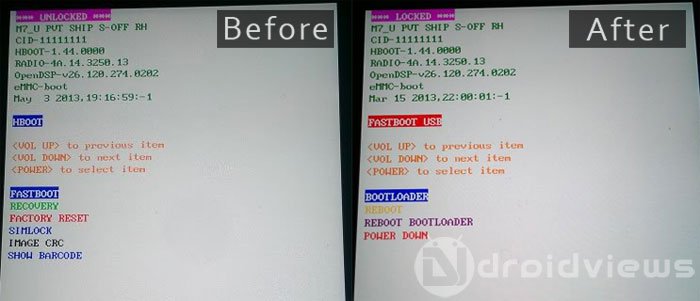
It’s time to revel at your success! To revert back to the UNLOCKED status, you can use the following commands:
adb shell
su
echo -ne "HTCU" | dd of=/dev/block/mmcblk0p2 bs=1 seek=33796
exit
exit
adb reboot bootloader

who can help me.i can’t switch on after Firmware instal.
Hello Rakesh, can you direct me to same tutorial but for s-on users? s-off seems like a big process and risky.
thanks,
Ahmad
Hi Ahmad, you must have S-OFF in order to be able to reset the flags.
My phone is still unlocked and I’ve done everything that you wrote but it won’t work. Please help
Rakesh,
Thank you for this post. I was able to follow your instructions clearly and successfully locked my phone without any signs of tampering that I know of. I will now be able to send my HTC One in for repair of its phone mic. Its people like you that save the sanity of knuckleheads, such as myself. In order to s-off I did need to pay for the Sunshine App, but that’s a small price I have to pay in order to get my phone back in operation again.
how do i get out of this locked screen .. every time i tried to switch off my phone but after turning on it again bring me to this screeen
Do I need SU installed on the phone? Doesn’t work with my S-off M8 with stock 4.4.2 ROM. ADB recognizes the phone and accepts “adb shell” command, but when i type SU after that it gives me “/system/bin/sh: su: not found” ???
Yes, you should have root access.
hi where do i find the adb drivers the ones i downloaded are not working
See these: https://www.droidviews.com/say-goodbye-to-adb-issues-with-techknow-universal-adb-driver/
https://www.droidviews.com/setup-adb-and-fastboot-on-windows-within-seconds/
https://www.droidviews.com/a-comprehensive-guide-to-adb-android-debug-bridge-and-commands/
If you still get issues, let me know.
Rakesh i also have a Htc oneX its stuck in a boot loop i bought it off aliexpress and returned it the first time they replaced the unit then when i connected to the wifi and upgraded the OS it got stuck in the boot loop again now i cant send it back because the supplier closed shop but i need help making the phone work again even flashing another rom