
Every one of you might be using Google Search functionality for various queries. Either related to studies, entertainment, research or just for downloading files, the first thing you do is hop over to Google Search and look for the desired file. But what you all might be missing here is the fact that Google has some pretty nifty search tips, tricks, and hacks. These will make your search results more efficient and will save you a lot of time.
With such a plethora of results available at your disposal, it becomes quite a difficult task to look out for the best one. Fortunately, the 10 Google Search tips mentioned here will help you in searching for your queries like a pro. However, if you are looking for Chrome tips and tricks, head over to our guide on the same.
1. Use the Asterisk (*) sign

This is probably among the most useful Google search tips that many of you might not be aware of. The asterisk wildcard is used as a placeholder. It tells Google to look for the appropriate result in place of the asterisk. For example, suppose you know that Obama voted for a certain bill. But you forgot the name of the bill and what was his vote (favor or against). In such cases, you may search for Obama voted * on the * bill. Google will then automatically fill in with the appropriate results, replacing those asterisks. In the above image, look for the bold lines. It exactly shows what we were looking for. This could also be used for searching for any song lyrics.
2. Restrict Search Results
Another pretty useful Google Search tip. You may make Google try to minimize its guesswork by inserting your keyword between double-quotes. For example, searching for Android 10 devices may also throw in some results about the Android 10 OS. To only get results regarding devices with this latest OS, try to restrict your search to “Android 10 devices”. This will only show you the devices with Android 10.
3. Exclude Certain keywords
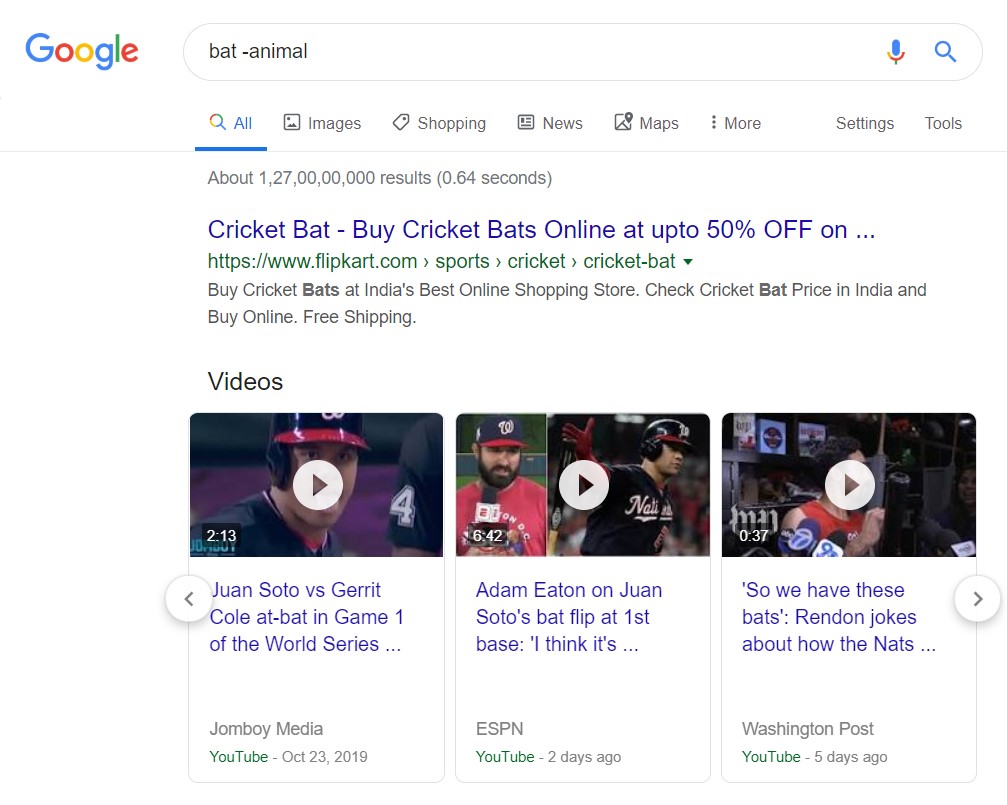
This Google Search tip may be useful when you search for words that have more than one meaning (homographs). For example, if you are looking for the sports bat and search for bats, you will get most of the results related to the animal/mammal bat. To exclude it from your results, try searching as bats -animals. Now you will only get results related to the sports bat, either of cricket or baseball. You may even further cut down your search by excluding baseball as well. Search bat -animal -baseball. You will now only get results related to the cricket bats.
4. Find a Website that is linked to another Site
Not a popular Google Search tip because not many use it. But it could definitely come in handy in certain situations. Suppose you read an interesting article on droidviews.com. Now, if you wish to know all the sites that have cited this article on their website, you may use the syntax link:website. In our case, this corresponds to link:droidviews.com. Just make sure not to attach any http, https or www before the website URL. Moreover, if you have published an article in any journal, you may also use this trick to find out if any other research magazines have cited in their articles.
5. Search on Specific Sites
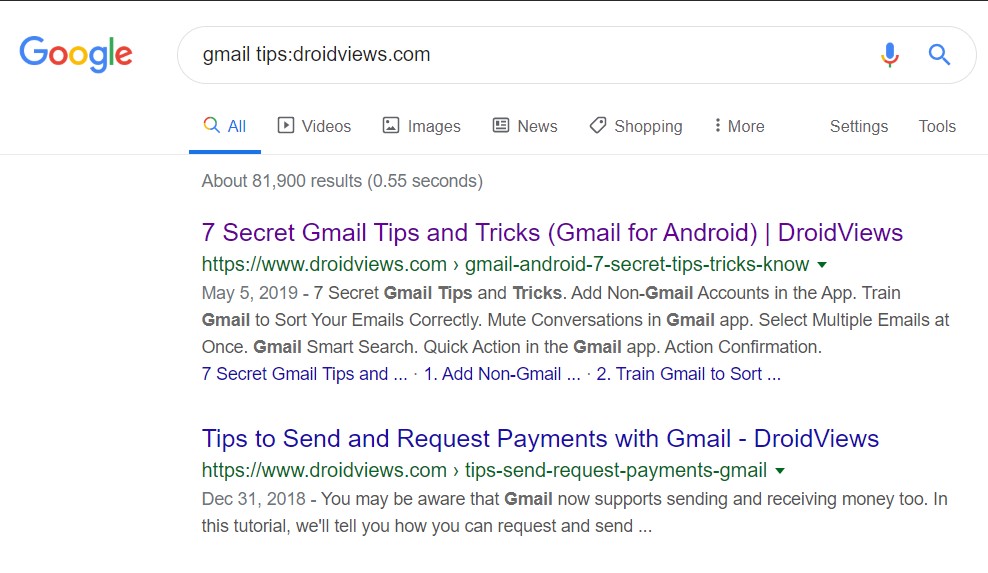
As evident from the title, you may use this Google Search tip to search your queries on a specific website. The syntax for the same is keyword:website. For example, if you wish to search for Gmail tips on DroidViews, then the syntax will be gmail tips:droidviews.com.
6. Find a Specific File
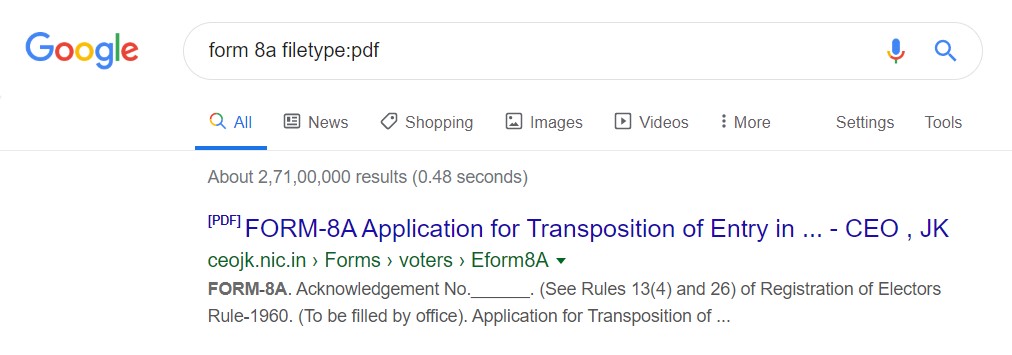
If you wish to cut the cue and directly search for a specific file type, you may use this handy Google Search Tip. The syntax for the same is <filename> filetype:<extension>. The following example will make it more clear. To change your address in Voter ID Card, you require a form 8a. And all these forms are of .PDF extension. So the search query may be shortened to form 8a filetype:pdf. Just make sure not to type in period (.) before the extension. For example, rule filetype:pdf is the correct syntax whereas rule filetype:.pdf is the incorrect one.
7. Find Similar Sites
This Google Search tip lets you find similar websites. Suppose you normally shop for your favorite products on Amazon. But one of the products isn’t available on that site. In such cases, the best bet is to look for its alternative. And what better way to do so than ask Google itself. Using the related:website syntax, you may search for related websites. In this case, we may use related:amazon.com to search for alternatives to Amazon. Again, make sure not to use the http, https or www prefix.
8. Google Search Tip for Specific Searches
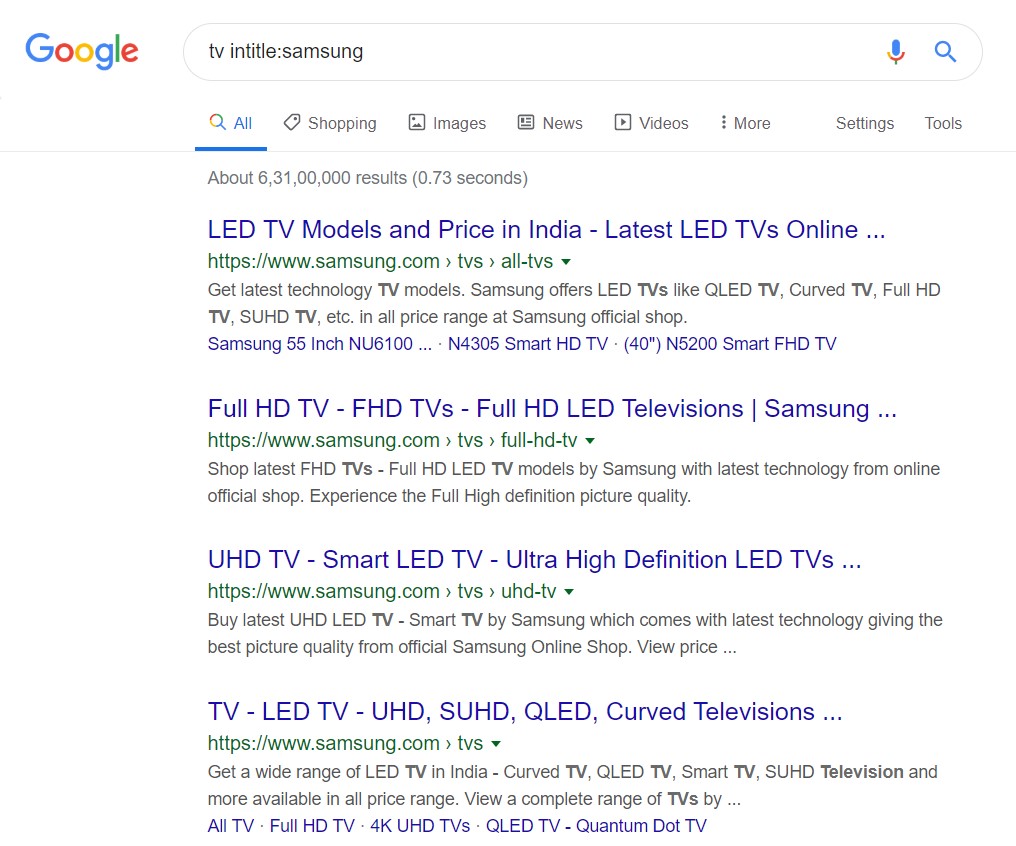
You may further narrow down your search to look out for only specific titles, URLs or text, using this handy Google Search tip. Suppose you wish to search for TVs but only from the Samsung company. in that case, the best fit will be narrow your search to the Samsung website only. In other words, the title of the website should contain the Samsung keyword. The syntax for the same will be tv intitle:Samsung. Similarly, you may do a search only in the URL via the inurl: command or lookout for a specific text in a website using intext: command.
9. Keep Searches Short
Some people tend to believe that the more they explain in the search box, the better results Google will fetch for them. Well, that’s not always the case. More often than not, a simple three-four word search is all that is required. For example, rather than searching: Where can I find a good veg restaurant near my house, search for Veg restaurants nearby. Keep your searches simple and only use the required words.
10. Converter
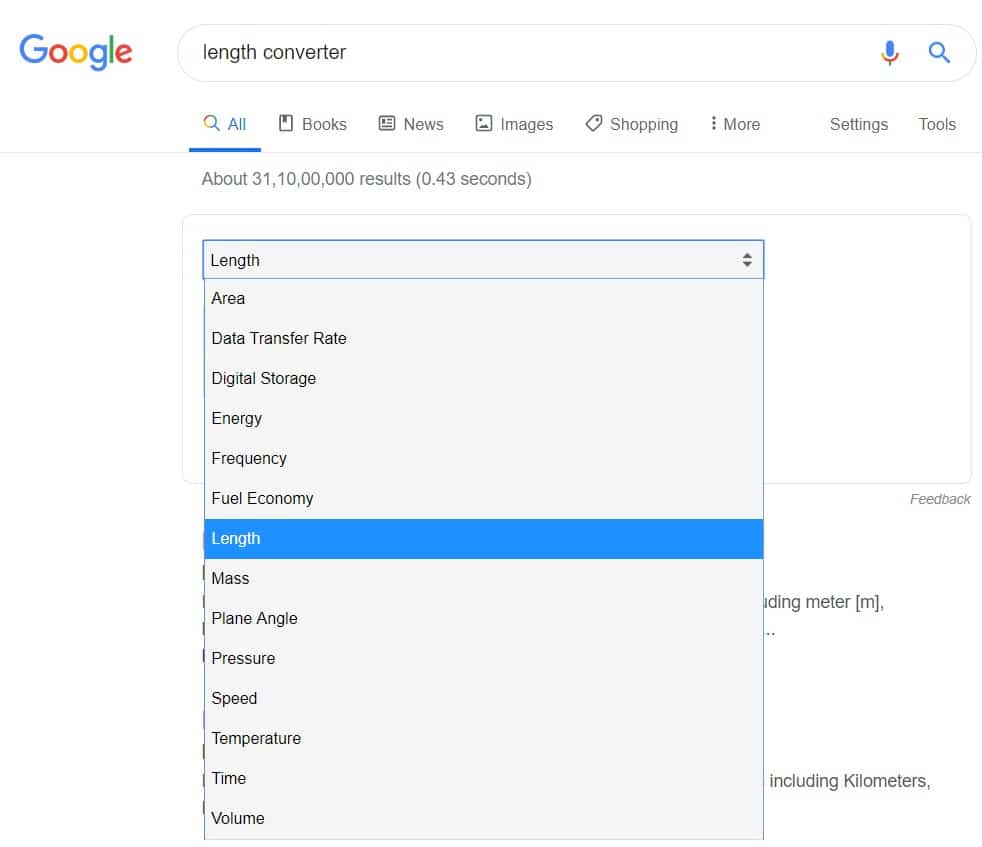
Ending the list of 10 Google Search tips with a pretty useful feature integrated into the search results. Google is capable of carrying out the following conversions:
- Area
- Data transfer rate
- Digital storage
- Energy
- Frequency
- Fuel economy
- Length
- Mass
- Plane angle
- Pressure
- Speed
- Temperature
- Time
- Volume
Just enter any of the above options along with the converter keyword and you will be presented with the conversion calculator. You may then click on the drop-down menu to bring the complete list of conversions.
With that, we conclude our list of Google Search tips, hacks and tricks. Do share your views on the same down in the comments section below.
Read next: List of 70 OK Google Commands for Google Assistant



Join The Discussion: