Apart from the tons of useful functionality that it has to offer, the Backup and Sync feature of Google Photos really makes it a standout app. It allows for easily backing up all your device images and videos over to the cloud. This not only saves a considerable amount of storage space but also allows you to access those media files from anywhere on any device. However, there’s just one thing that it needs to be addressed. There exists no easy method of deleting images from Google Photos and at the same time, letting it remain on your device. Well, why is that so, and is there any workaround for the same? In this guide, we will be explaining all this in detail. Also, have a look at the steps to manually add a location to Google Photos.
What happens on Deleting Images from Google Photos
Let’s understand this taking into consideration the Camera folder on Google photos that stores all your clicked images. When you enable the backup and sync functionality of that folder, all the media files inside it gets uploaded to the cloud. You’ll then have two copies of the file, one uploaded to could the other on your device, however, only one would be shown to you (the one stored on your device).
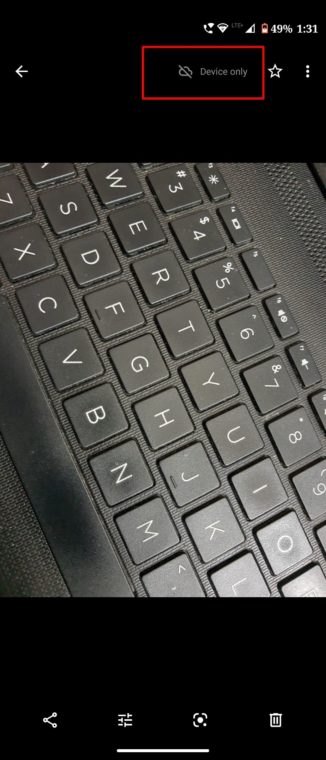
However, to save storage space, many of you would delete the image from your device. This leaves you with a single copy of that file stored on the Google servers. Now you could only view that file from Google Photos but not from any other gallery app. But in all this, did you notice how easy was it to delete images from your device but not from Google Photos.
Unfortunately, the same can’t be said for the other way around. That is, there isn’t an easy toggle that will let you delete images from Google Photos but not from your device. With that said, there still exists a workaround through which you achieve this. Let’s have a look at it.
Let the Images be on your device but not on Google Servers
There’s exists only one way of doing so and that is to create a non-synced Google Photos folder. For that, any file manager will do the job (in this guide, we have used the Solid Explorer). Here are the required steps to follow:
- Open the file manager of your choice.
- Create a new folder anywhere you wish to. Let’s name it GP.
- Next, navigate to the desired image that you wish to delete from Google Photos but not from your device. Since here we are dealing with images taken from the camera, we would be heading to the Camera folder (some devices might have named it as DCIM).
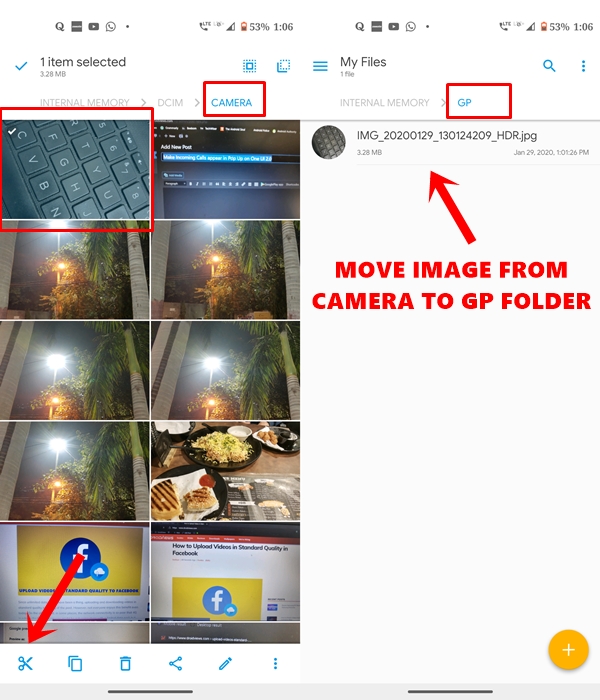
- Move that image from the DCIM folder over to the newly created GP folder.
- Now open the Google Photos app, head over to the GP folder and make sure that Automatic Backup and Sync is disabled for that folder. A line over the cloud indicates the same.
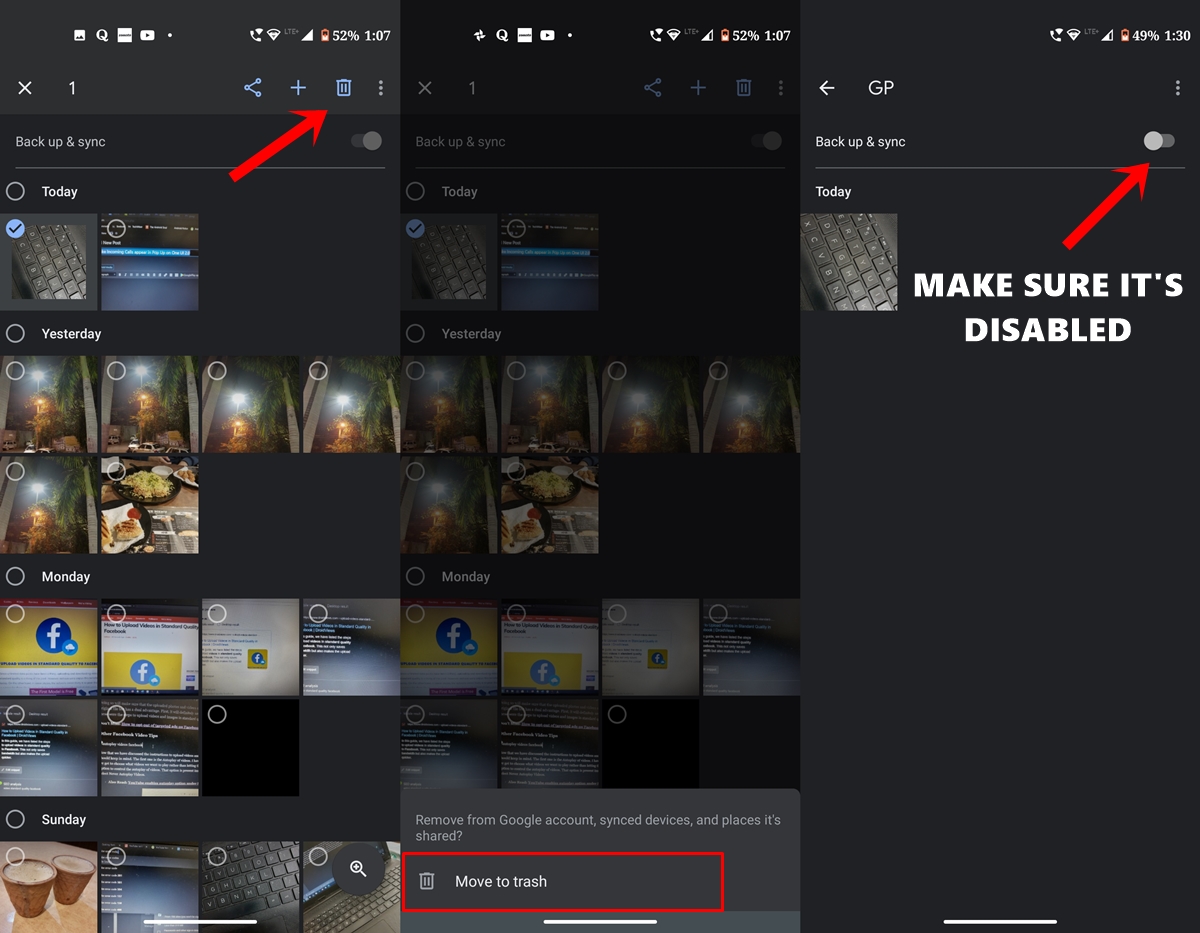
- Finally, delete that image from the Camera folder under Google Photos. The said images will be deleted from Google Photos and all the synced devices. However, you could access the same image anytime from the GP folder present on your device.
With that, we conclude the guide on how to delete images from Google Photos but not from your device. Do let us know what do you think of this handy workaround, in the comments below.



Join The Discussion: