The first thing that comes to mind when you hear the word “phones” is calling someone – your friends, parents, colleagues, etc. After all, that’s the main purpose of a phone.
I’m not sure if you ever noticed this but when you call someone, you see the first letter of that person’s name as their contact picture. That’s not cool at all. I mean, what happened to assign photos to contacts? Back in the days of Android 2.1, contact pictures were the rage in my community. Everybody had that “full-screen caller ID” app installed on their devices. Well, that’s changed nowadays.
I still like to see the photo of the person who’s calling me, and, if you do too, here’s how to add pictures to contacts on Android.
Before we begin, it’s worth pointing out that this process may vary slightly depending on the manufacturer of your device. A majority of smartphone manufacturers like to do their own thing when it comes to the OS. This is done to make their smartphones look different than the competition. And, the contacts app is no exception. For this tutorial, I’m using my Xiaomi MI A1 which is running stock Android.
Don’t miss: How to Enable Dark Mode on YouTube for Android
Okay, ready? Let’s do this thing.
How to Add Pictures to Contacts
Step 1: Open the contacts app on your phone and locate the contact to whom you want to assign a photo.
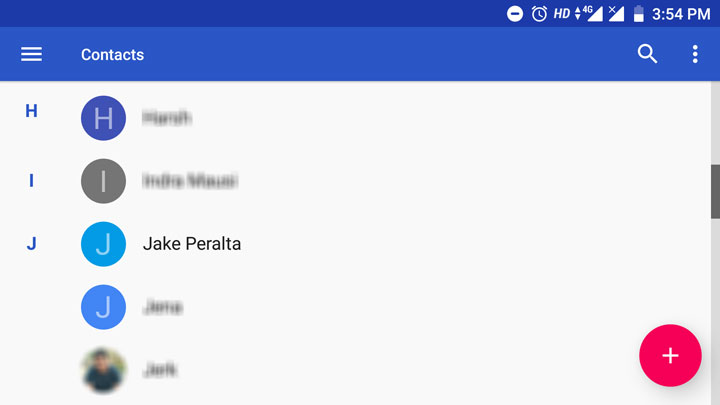
Step 2: Tap the contact and then tap the edit button at the bottom right corner. This is where you might see the difference depending on your smartphone.
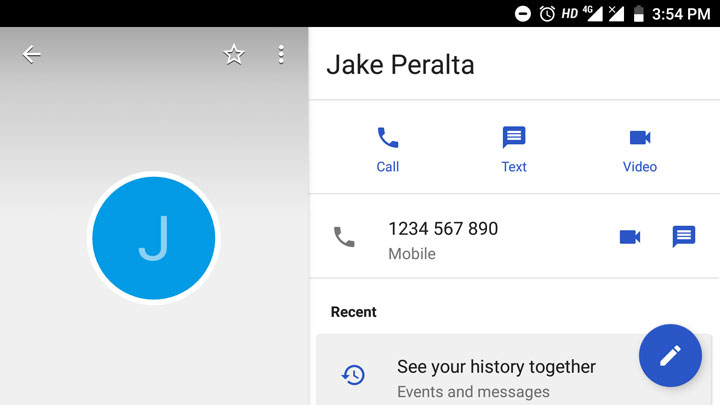
Step 3: Tap the camera button at the top and either select “Take photo” or “Choose photo” depending on whether you have the photo with you or not.
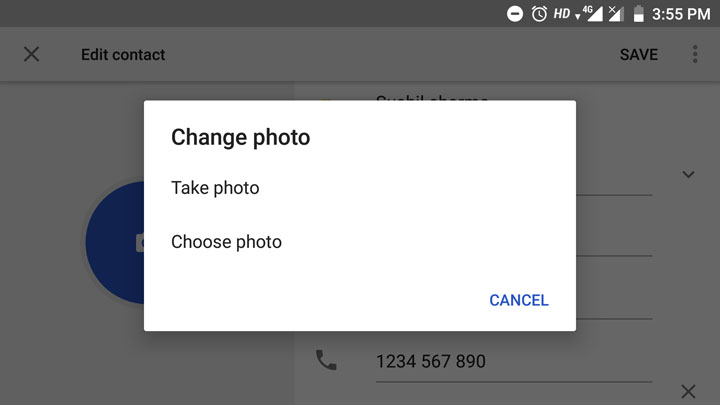
Step 4: Select the photo and tap “SAVE” in the top right corner.
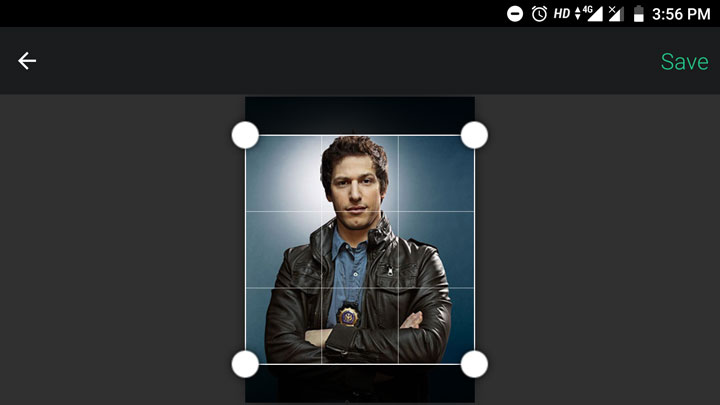
You are done. You have successfully added a picture to your contact.
If you have turned on Sync for contacts in your Google account settings and are using the same account on multiple Android devices, the contact image will be automatically synced to all your devices, including the Google contacts website which can be accessed via a desktop web browser.
Related article: How to Fix Contacts Syncing Issue Between Android and iOS Devices


Join The Discussion: