WiFi calling is slowly gathering pace across the globe and more users are trying it than ever before. In India as well, it is slowly becoming the preferred mode of communication for some. But what exactly is WiFi Calling and what are its added advantage over normal calls made via carrier’s network. In this guide, we will try to explain everything in detail. Plus we will also be listing the steps to enable it on your device. On that note, also get yourself equipped with 4G vs 5G networks: everything you need to know.
WiFi Calling: Explained
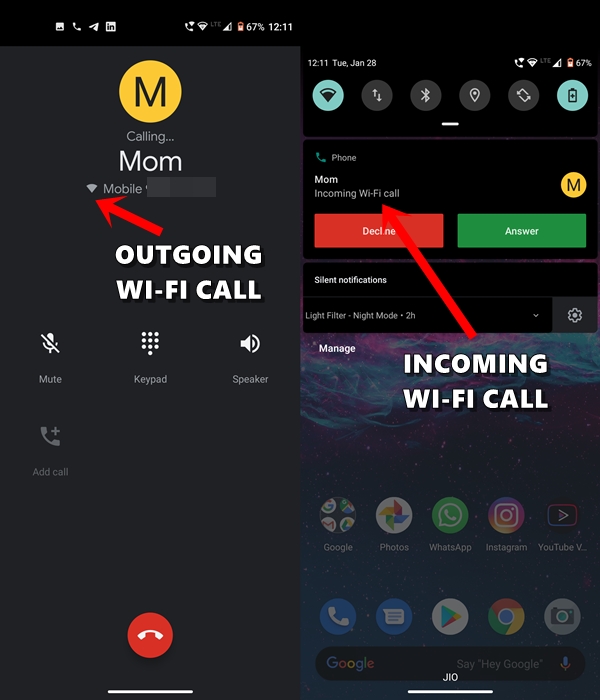
The latest technology in the field of communication, WiFi calling allows you to make and receive calls directly over WiFi. However, as and when your device notices that the WiFi connectivity is weak, it will automatically switch over to your carrier’s network. In this entire process, your existing mobile number is only used. Moreover, the person who is calling you doesn’t need to have this feature.
He will make a normal call, but on your end, your device will check the WIFi and carrier’s network strength and will route the call accordingly. In a similar manner, you could make WiFi calls without having to worry whether the receiver has it enabled or not. Also, there are no charges incurred while making these calls. All that is consumed is some of your network bandwidth.
What are the Requirements for this Feature
Well, there are quite a few prerequisites to start with. First of all, your network carrier must be supporting this feature. In India, Airtel and Jio are the only supported carrier. Moreover, your device should also support WiFi calling. Nowadays most of the devices come with this feature. Apart from that, active WiFi connectivity is needed. If you’re having trouble connecting to the WiFi network, refer to these WiFi issue fixes for Android devices.
How to Enable WiFi Calling
If your carrier and device supports this feature, then follow the below steps to enable it on your handsets.
- Head over to Settings on your Android device.
- Go to Network and Internet > Mobile Network.
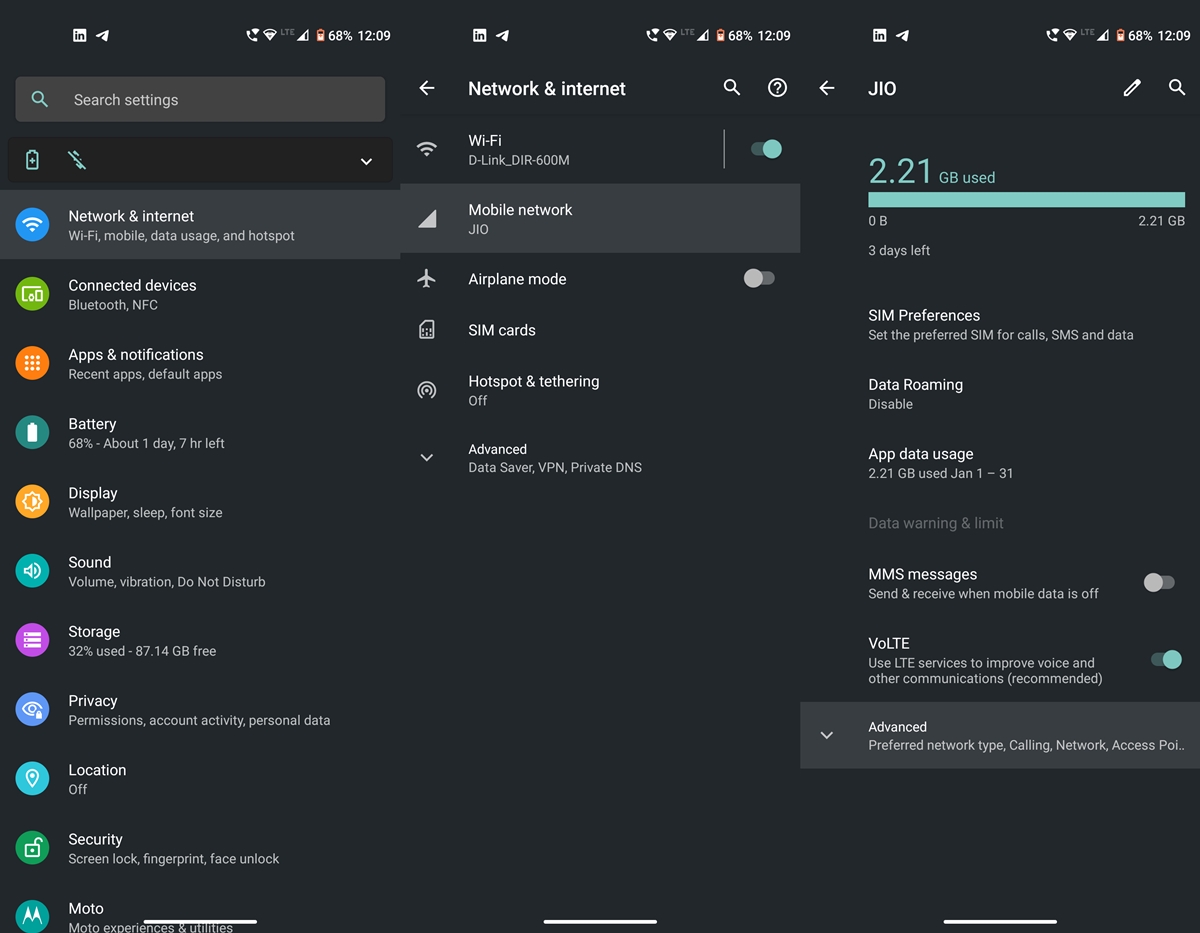
- Tap on Advanced. This will open an expanded menu.
- Head over to the Calling section and tap on WiFi Calling.
- Next, tap on Calling Preference and you’ll likely to have two options:
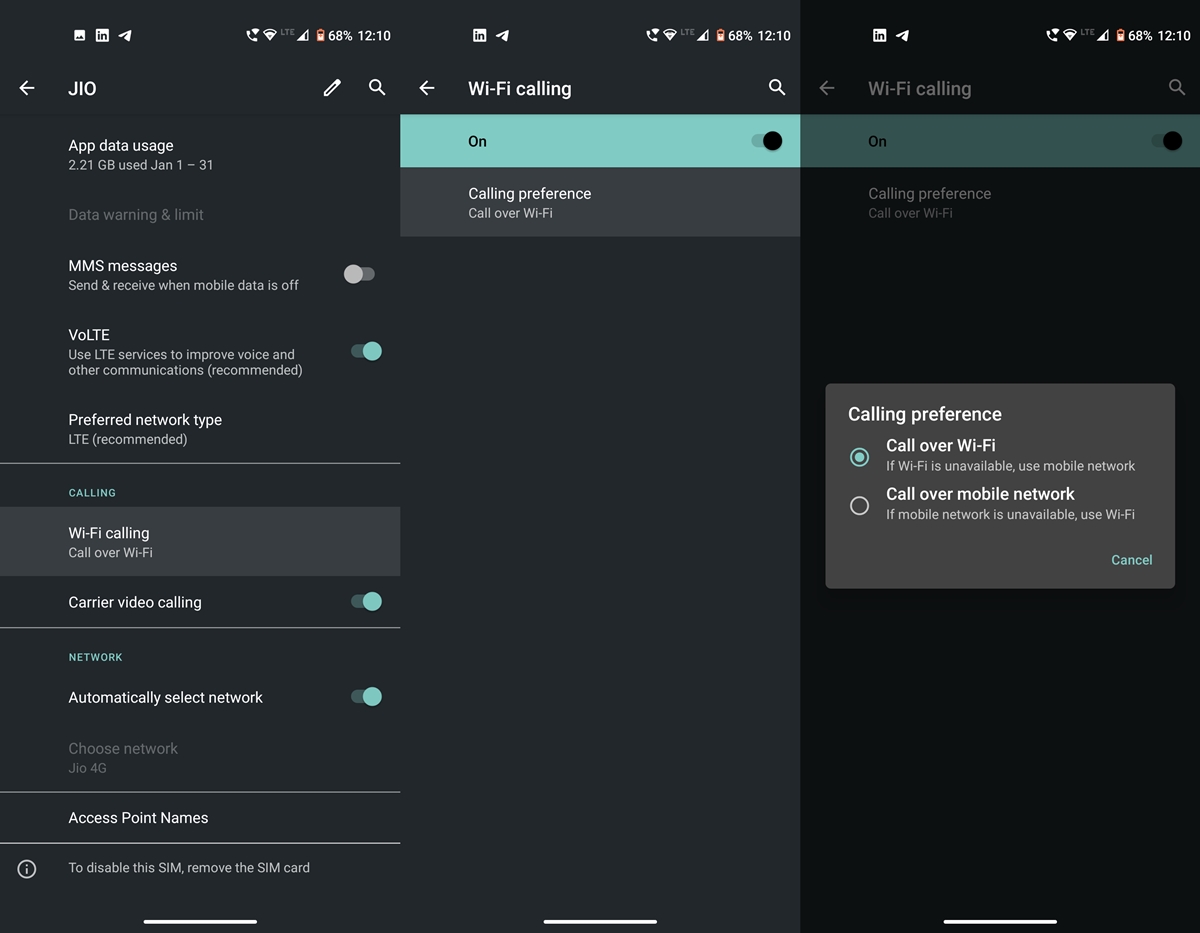
- Calls over WiFi: WiFi will be given the first preference. If it’s unavailable or the speed isn’t deemed fit, the device will then switch over to the mobile network.
- Calls over mobile network: Mobile network is the preferred mode of communication. In areas where the mobile signal is quite weak and you’re having active WiFi connectivity, it will make the switch accordingly.
- Don’t Miss: How to use Android device as a WiFi Repeater
That is all from this guide on WiFi Calling and the steps to enable it on your devices. It ultimately boils down to which device and carrier you are using, for this feature to work effectively. Anyways, it is indeed a useful addition to the calling preferences. What are your views on this? Do let us know in the comments section below.
- Read next: How to Get Faster Data Speed on Android


Join The Discussion: