Everyone likes listening to their favorite music while dozing off. Or listening to relaxing sounds for that matter. But more often than not, we forget to turn off the music before going to sleep. This ends up consuming an exorbitant amount of battery. In this guide, we have provided a nifty trick through which you could turn off the music player automatically after a stipulated time. Let’s see how this could be done.
Turn off Music Automatically after Stipulated Time
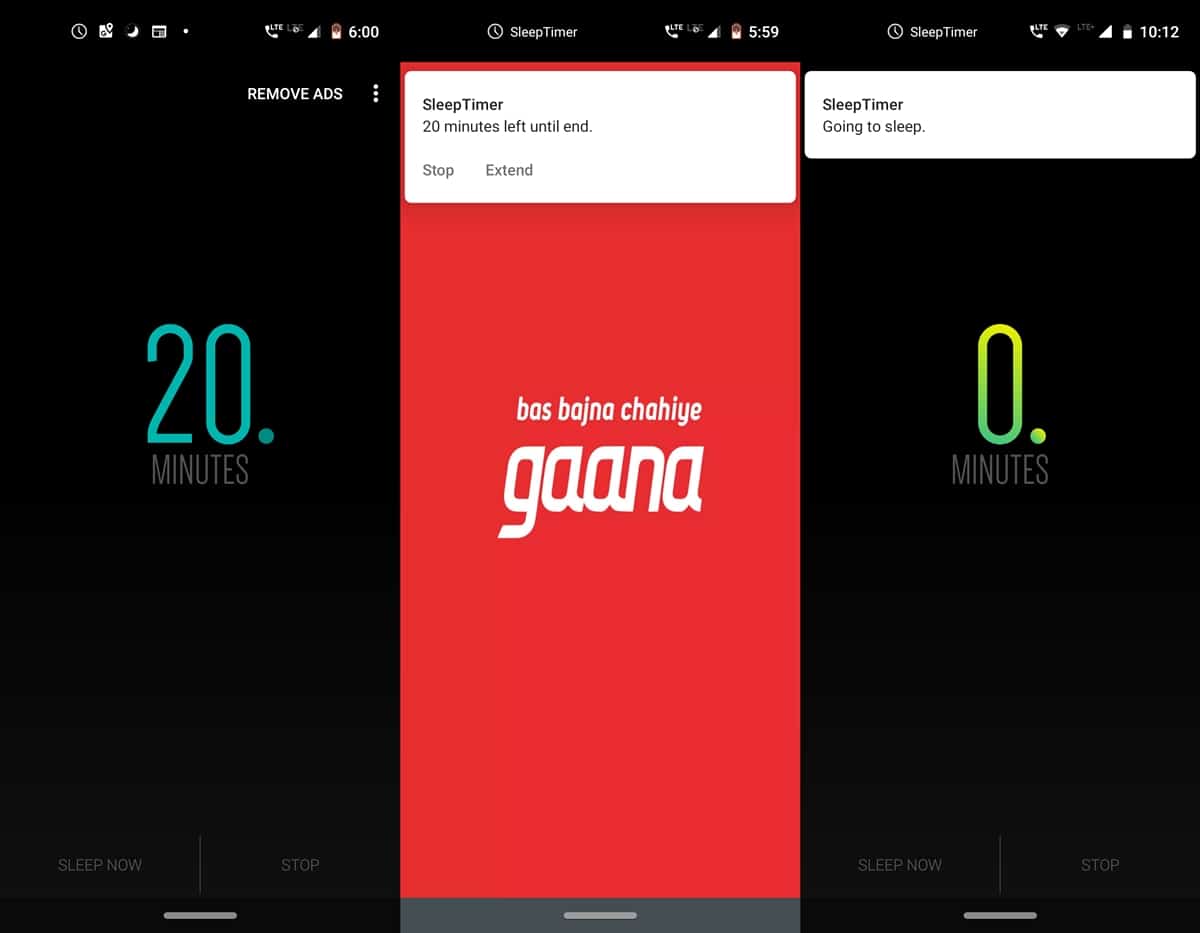
To try out this trick of turning off music automatically, we would be taking the help of the Sleep Timer app. This app allows you to set up a timer that your music player should follow. Once the said time period elapses, the app will automatically turn off the song and hence the music player as well. Moreover, it supports all the popular music player, you just need to specify the one that you use. To do so, tap on the overflow menu and select Player to launch on start option. Select the desired music player from the list and you are good to go.
Apart from turning off the music player automatically, it also allows you to set up your own timer. The said option could be found under Settings > Extension Length. Once the entered time period has elapsed, you also have the option of extending the time period. For that, just tap on the Extend button once you get the Sleep Timer notification. The duration will be extended by the same amount that you entered under Extension Length. Or you could also enable the Shake Extend feature. As the name suggests, you could also extend the sleep timer simply by shaking your device.
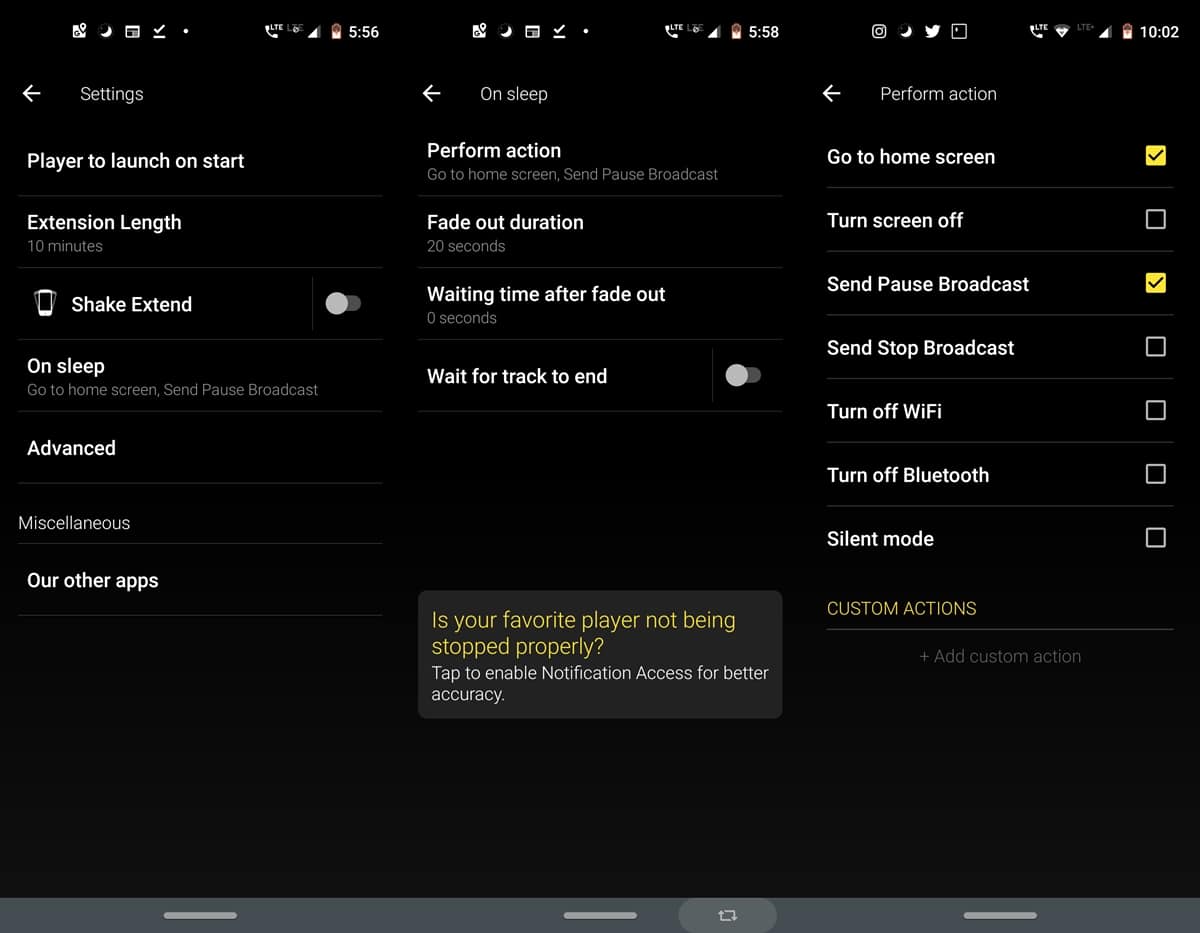
If you have the habit of turning off the WiFi or turning your device to Silent Mode, this app has got it covered as well. To do so, head over to Settings > On Sleep > Perform the action. Now choose the desired activity that you wish the app should execute. Do note that this activity will only take place once the app turns off the music automatically. Moreover, you may even create your own set of custom actions. That’s not all. Under the On Sleep screen, there is an option to Wait for the track to end. Enabling it will only stop the music player once the song gets over, even if the sleep timer has expired.
With this, we conclude the guide on how to turn off music automatically after a stipulated time period. Apart from the said feature, the app also has a plethora of other features, as mentioned above. Don’t forget to try them out as well. And then let us know in the comments section regarding your views on this handy app.
Read Next: How to Get Faster Data Speed on Android

Please, contact us via email: admin@droidviews.com
Hello!
I would like to discuss with You the issue of cooperation. Interested in placing a banner on Your website on a regular basis. The theme of the banner is mobile phones, gadgets. We work on an advance payment.
I will wait For your answer to my question. mail. Sincerely, Anna.