
It is March and we should be probably seeing a lot of devices running Android Nougat. Some of them still struggling with the beta while some running the official stable version. Nevertheless, if you haven’t received the Android Nougat update on your Honor Note 8 then you came looking for it at the right place. Here I will be discussing the steps to root Honor Note 8 and install EMUI 5.0 Android Nougat Beta ROM.
The EMUI 5.0 is a huge upgrade with lots of features and design improvements. Unlike the EMUI 4.1, the EMUI 5.0 features an app drawer, a whole different and unique looking UI. Many things have changed but it is a step up from the old one. The EMUI 5.0 is definitely better than its predecessor. I know you guys must be eager so let’s get started.
Prerequisites
- Make sure you have an unlocked bootloader
- The device should be running B029 stock ROM
- Old TWRP recovery for EMUI 4.1 must be installed
- An Honor Note 8 itself
Note- There is no way to revert back to EMUI 4.1 at the moment. So, just be sure before proceeding whether you really need Android Nougat or not.
Downloads
- B320 boot.img
- TWRP for EMUI 5.0
- SuperSU for EMUI 5.0
- Download update.zip and update-data_full_all_cn.zip
Copy all the downloaded files on the external SD card before proceeding further.
Steps to Install EMUI 5.0 Android Nougat Beta ROM
- Power off the device.
- Boot into bootloader (To do this hold Volume Up + Power Button and release all keys when you see Huawei logo).
- After that, select recovery (Use Volume Buttons to navigate and Power Button to select).

- Then, select Wipe and swipe right to do a factory reset.
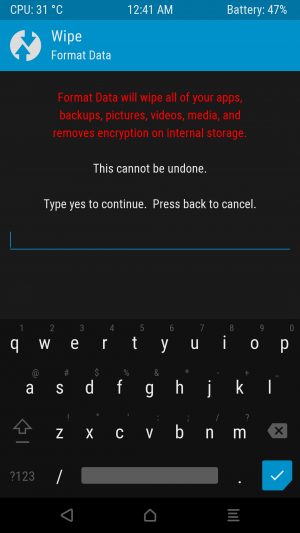
- After that, select Wipe» Format Data.
- Type yes and confirm it (Note- This will format data on the device).
- Then, head back to TWRPs main menu and click on Install.
- Navigate to the directory where you placed the downloaded [zip] files.
- Select the update-data_full_all_cn.zip file and swipe right to flash it.
- Repeat steps 6 and 7.
- Select the update.zip file and swipe right to flash it.
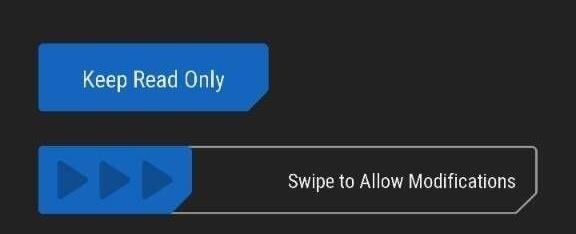
- Next, head back to TWRPs main menu.
- Finally, click on Reboot» System.
That’s it! The first boot may take 5-10 minutes. Have patience. If it doesn’t boot after 10 minutes then boot into recovery and do a factory reset. This will solve the problem.
Steps to Root Honor Note 8
- Power off the device.
- Boot into bootloader (To do this hold Volume Up + Power Button and release all keys when you see Huawei logo).
- After that, select recovery (Use Volume Buttons to navigate and Power Button to select).
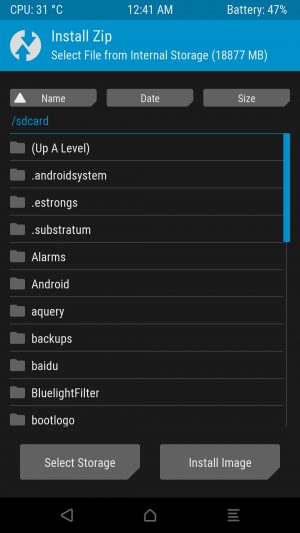
- Click on Install.
- Navigate to the directory where you placed the downloaded files.
- Select the EMUI 5.0 TWRP recovery and swipe right to flash it.
- Then, head back to TWRP recovery’s main menu and click on Reboot» Recovery.
- Once in the new recovery, click on Install and navigate to the directory where you placed the downloaded files.
- Click on Install Image button located below (Now you will see a B320_boot.img file).
- Click on it and swipe right to flash it.
- Next, reboot into TWRP (Reboot» Recovery from TWRPs main menu).
- After reboot, click on Wipe» Format Data.
- Type yes to confirm format (The process will take very long).
- Abort the process (Hold Power Button for 10 seconds and the device will restart).
- Quickly press and hold Volume Up for 3 seconds to boot into eRecovery.
- When in eRecovery select Format Data Partition.
- After the format is complete, power off your device.
- Repeat steps 2 and 3.
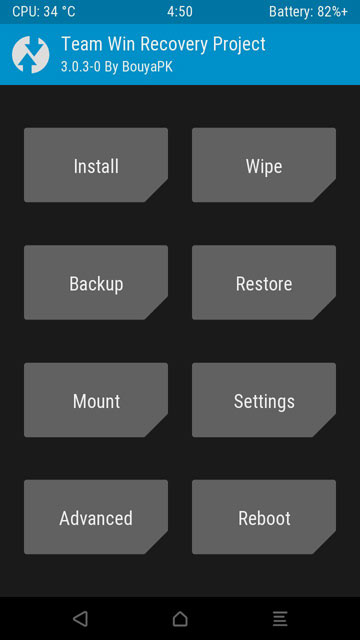
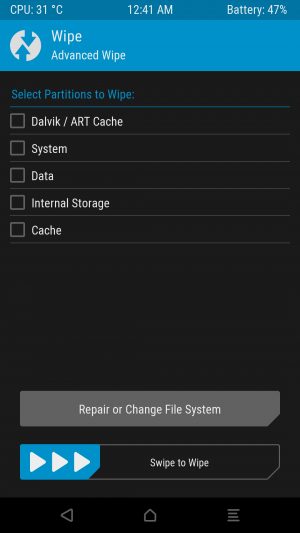
- In TWRP, click on Mount and check if data is mounted.
- Then, click on Wipe» Advanced Wipe.
- Check System, Data, Cache and Dalvik Cache and swipe right to wipe it.
- Head back to TWRPs main menu.
- Again click on Install and navigate to the directory where you placed the downloaded files.
- Select the SuperSU [zip] file and swipe right to flash it.
- Repeat steps 22 and 23.
- Select the update_data_full_all_cn.zip file and swipe right to flash it.
- Repeat steps 22 and 23.
- Select the update.zip file and swipe right to flash it.
- Repeat steps 22 and 23.
- Select the SuperSU [zip] file and swipe right to flash it.
- Next, head back to TWRPs main menu.
- Finally, click on Reboot» System.
Phew.. hell lot of steps. This is the best way in which it can be simplified. Hope this helped. The device may reboot two times. Don’t worry. After it does, head over to the SuperSU app and open it. Follow the steps and update the SU binary to get root access. That’s it, guys! If you have any trouble following any of the steps, let me know in the comments section below. I will try my best to help you out.
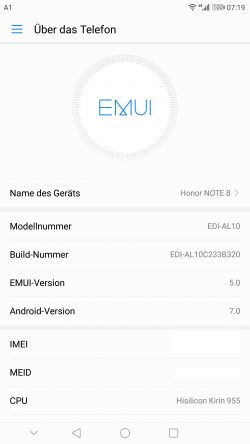
Screenshots


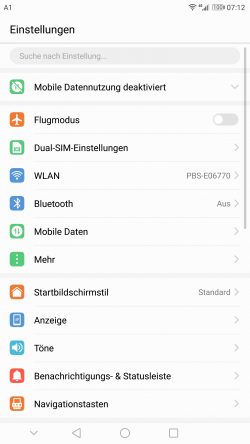
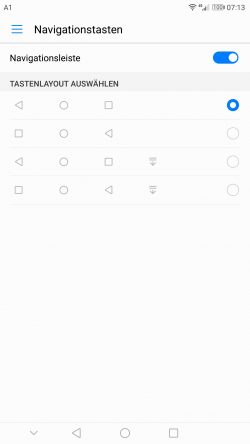
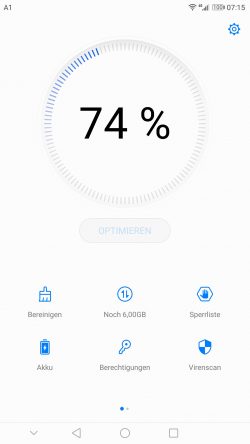






My phone is already on EMUI 5 and already anroid nougat..
What i want to know is if the I can still follow the steps on how to root my phone?
Thanks for the guide! Does it work with an honor 8 (not the note one).
Sorry, but this is only for Honor Note 8.
Huh too bad :(. Do you know any other method for this one ?
any other way to downgrade from EMUI 5 To EMUI 4.1
Great guide but cant do it til I know how to get google services, Any idea how to get google services on this?
If you mean Google Play Store then let me tell you it is pre-installed.
https://dl.xda-developers.com/4/0/6/2/5/7/6/Screenshot_20170305-071204.jpg?key=C7RDjN4ar5FJxrrVecvQhw&ts=1489480936
Check out the above link. Zoom on the Internet folder. You will see the Google Play Store icon.
above link broken but i’ll take your word for it 🙂
THANK YOU!!! This is the only guide that actually worked for me.
Glad to know! Enjoy Nougat and keep visiting for more stuff!