Mistakenly messed with your Nexus S? And confined to a bricked piece? No worries, Google always make a way out, for here comes the factory images in action. You might now ask what are factory images and how do we operate with them, perhaps as the name itself suggests, these are ROM images for your Nexus S directly delivered by Google with complete Google stuff and goodies. About how they operate is what we are doing here in this guide. No matter what Nexus S variant you have; I9020T, I9020A or I9023, you are capable of empowering your device again with Google. Now, without any further delay, lets hit the instructions and make it easy for you to recover your device.
DISCLAIMER
Droidviews.com or any of its members are not responsible for any kind of damage held to your device either in the past or in the upcoming future.
Prerequisites
- At least 60% of your phone battery.
- A USB Data cable compatible with Nexus S.
- Appropriate USB Drivers. [Download here]
- Required ADB & Fastboot files. Extract the downloaded NS_Files.zip to your desktop. So now you have NS_Files folder on your desktop. [Download here]
- Backup your complete SD Storage, text messages and contacts manually.
Please make a note that the following instructions have been completely separated for following Nexus S variants:
- I9020T/I9023 (codename: soju)
- I9020A (codename: sojua)
Tough the difference is only with the file name while flashing but we have separated the two for more simplified steps to the point, keeping in mind that many new people visit here. So please make sure to identify your correct model and then proceed any further.
Install Jellybean 4.1.2 on Nexus S I9020T/ I9023 (soju)
- Download the factory image for your device.
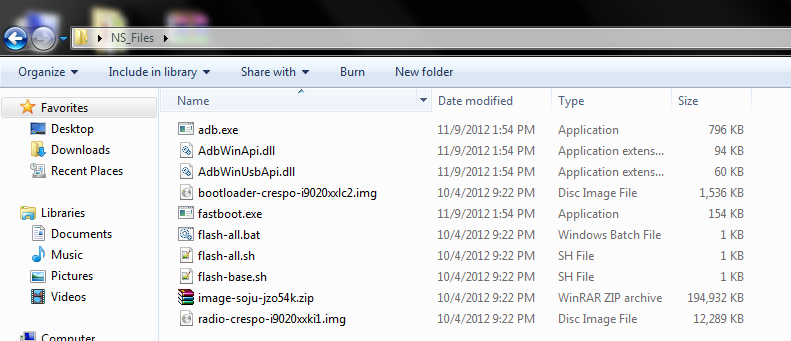
- Extract the contents of downloaded soju-jzo54k-factory-36602333.tgz to the previously extracted NS_Files folder on the desktop. So now we have files like this:
- Power off your phone. Press the volume up + power buttons simultaneously until you see the bootloader screen.
- Open the NS_Files folder, we have on desktop.
- Press shift key + right click on an empty space, select “Open command prompt here“.
- You’re now going to erase everything on your device, type the following commands one by one:
fastboot erase boot
fastboot erase cache
fastboot erase recovery
fastboot erase system
fastboot erase userdata
Note: Do not close the CMD window.
- Flash the bootloader. Type:
fastboot flash bootloader bootloader-crespo-i9020xxlc2.img
- Reboot bootloader mode (This is necessary):
fastboot reboot-bootloader
- Flash the Radio (baseband) . Type:
fastboot flash radio radio-crespo-i9020xxki1.img
- Reboot bootloader mode again. Type:
fastboot reboot-bootloader
- Flash the ROM image:
fastboot -w update image-soju-jzo54k.zip
- When everything is done, you will be notified by the command prompt.
- If you want to go completely stock, lock the bootloader again. Type:
fastboot oem lock
- Everything is done now, you can reboot your device. Type:
fastboot reboot
Install Jellybean 4.1.2 on Nexus S I9020A (sojua)
- Download the factory image for your device.
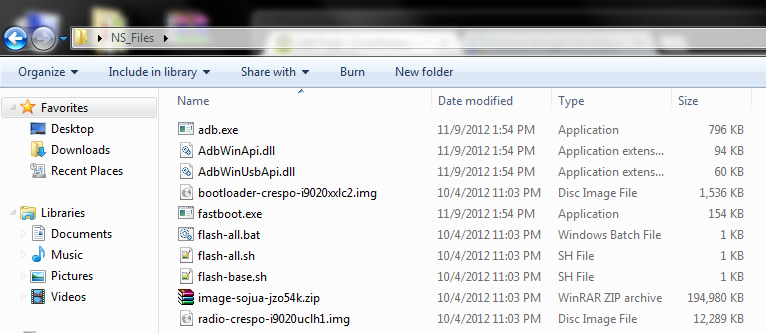
- Extract the contents of downloaded sojua-jzo54k-factory-1121b619.tgz to the previously extracted NS_Files folder on the desktop. So now we have files like this:
- Power off your phone. Press the volume up + power buttons simultaneously until you see the bootloader screen.
- Open the NS_Files folder, we have on desktop.
- Press shift key + right click on an empty space, select “Open command prompt here“.
- You’re now going to erase everything on your device, type the following commands one by one:
fastboot erase boot
fastboot erase cache
fastboot erase recovery
fastboot erase system
fastboot erase userdata
Note: Do not close the CMD window.
- Flash the bootloader. Type:
fastboot flash bootloader bootloader-crespo-i9020xxlc2.img
- Reboot bootloader mode (This is necessary):
fastboot reboot-bootloader
- Flash the Radio (baseband) . Type:
fastboot flash radio radio-crespo-i9020uclh1.img
- Reboot bootloader mode again. Type:
fastboot reboot-bootloader
- Flash the ROM image:
fastboot -w update image-sojua-jzo54k.zip
- When everything is done, you will be notified by the command prompt.
- If you want to go completely stock, lock the bootloader again. Type:
fastboot oem lock
- Everything is done now, you can reboot your device. Type:
fastboot reboot
You have successfully flashed your Nexus S with Google factory ROM. Enjoy the stock experience.
If you have locked your bootloader by mistake and so you are willing to unlock and root again, hit this guide.



thank you so much 🙂
it is just displaying waiting for device in cmd what to do bro
It looks like there is some problem with USB drivers. Re-install it and enable USB dsebugging.
i am unable to find its usb drivers moreover my phone is not working it just stops at touch the android to begin when we touch android logo it doesnot process further wat may b the problem
Try these: http://developer.android.com/sdk/win-usb.html
If it still doesn’t work, contact us on: djsaggi93@gmail.com
But, do try it first.
noooo
problem solved jst updated my winrar thanks i have successfully updated to 4.1.2
Great!
i cant find files after extraction i only get other zip file
On step 11, when i enter fastboot -w update image-sojua-jzo54k.zip
there is message
sending ‘system’
FAILED <data transfer failure >
Plz help.
when I go on number 7 it say waiting for the device
Thanks a LOT.
You just saved a fight with the shopkeeper! I bought this phone 3wks ago, and it has been having network signal problems and wifi problems.
I had given it to shops to see into it, but no one could
I tried rooting, and all.. but no use.
And I was gonna go tomorrow to return this phone by force, but thought I’d try this since it also flashes radio.
And WOW. It did the trick!
Thank you so so much.
You’re welcome!
after unziping, I only have recovery, system, user data, boot files. No bootloader or radio
Please don’t extract any further
Just the soju-jzo54k-factory-36602333.tgz or sojua-jzo54k-factory-1121b619.tgz, as per your device. And so you will have all the required files.
It was on the second file. Changed its name to .zip and extracted with 7z and that happened. After trying with Winrar instead it worked. the correct files were extracted.
Thanks for the quick reply anyways.
Good to hear that, good luck 🙂
can i use this for unrooting my phone??? and i have a 19023 so what should i type in the 7 and 9 step
Flashing the factory image would unroot the device. You need not perform an special step for that.
you mean till step 6??
Just follow the complete guide and your device will go completely stock and un-rooted..
i’m not sure what you do mean.can i replace the fastboot command with adb command?
No, adb won’t operate in bootloader mode. Fastboot is utilized here.
i get waiting for devices error message. any ideas?
i am in fastboot mode, the bootlader is unlocked but still the cmd asks for devices…
It seems that your fastboot drivers are not setup correctly.
Could you please browse to Device Manager under Control Panel and check if there is anything written like “Android 1.0” ?
thank you for your immediate response.
no there is not. only google nexus s adb interface
Drivers are fine. In fastboot mode, the command “fastboot devices” will be applicable instead of “adb devices”.
Thanks ! Worked flawlessly !
I’ve ran into a problem. Was trying to install Sojua and at step 7, flashing the bootloader, an error said remote: Unknown Partition..
What should I do now?
Disconnect, reinsert the battery, reboot into bootloader and try again with same
command.
Wow, thanks for the fast reply!
I disconnected, powered off, removed and inserted the battery, rebooted and sent the same command.
The same error ocurred. :/
You can downgrade simply as you upgraded by flashing the factory image, flash the Gingebread image in the same way 😉
No problems at all, tested by me as well.
Thanks, tried and also worked flawlessly!
Another question, would it be possible to do the same via clockworkmod, but using the “unzipped” TGZ file from which we extract the images?
Best regards!
i hope theirs also a zip file for this update same as “update_US-Xoom-WiFi-4.1.2-JZO54K_stachre_v01”. so that i can delete and add system apps.
Do you want the stock OTA update zip or the stock rooted zip?
I’m very thankful if their is stock rooted zip for nexus s I9020T & A, i wanted it please…
Here is the link: http://goo.gl/5FDBJ
i have nexus s i9020t i accidentally flashed i9020a rom but it works fine……is it okay if i continue using this rom (sojua)? both roms are works amazing on my i9020t (sojua &soju) ^^
No, it might create issues. They are not just different in names but in hardware too, so I would advise you to be on the safe side and flash the i9020T version.
okay thanks for the advise…
My phone nexus s is bricked using this tuto , on step 11 I got a Failed error message , some suggestion ? actually I can’t turn off/on or charge my phone :/
Make sure that you have downloaded “soju-jzo54k-factory-36602333.tgz”. Open this file with winrar and you will find all the mentioned files in there.
Ok thanks. Another problem, Google is not letting me download .exe files for the NS_files. Do you have any alternative download link or a winrar file where all of the required files are compressed inside?
Thank you.
When the linked page opens up, click on “File” and select :Download”.
It is confirmed to be working fine 🙂