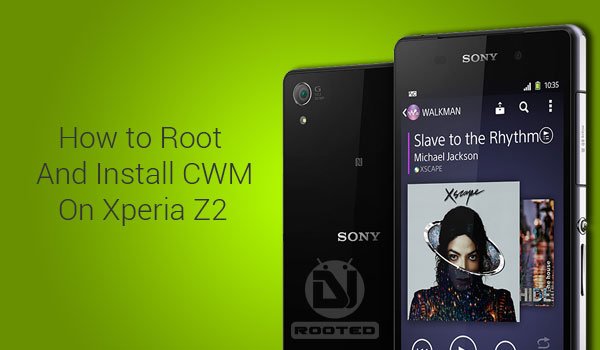
The Xperia Z2, SONY’s latest flagship which was announced in February 2014 and released in March, has already made some real achievements in terms of its hardware capabilities which include 5.2” 1080p full-HD triluminos display, Qualcomm Snapdragon 801 Quad-core 2.3 GHz Krait 400 processor, crystal clear 20 MP camera and delivered with Android KitKat 4.4.2 out-of-the-box. It is counted among the top high-end Android devices available, which is definitely a proud thing for its OEM.
Lately, we have covered the guides to root, install TWRP and best Custom ROMs for its predecessor Xperia Z.
- Root Xperia Z (C660, C6602 and C6603)
- Install TWRP on Xperia Z with Locked Bootloader
- Best Custom ROMs for Xperia Z C660/C6602/C6603
If you’ve already upgraded your Xperia Z to the Z2 or have bought it, we will help you Root Xperia Z2 and Install CWM recovery on it.
Disclaimer
Rooting voids your device warranty and understand the consequences and proceed further. DroidViews or any of its members shall not be held responsible for any damage to your device.
Prerequisites
- Charge your device at least to 60% of battery level to avoid any uncertain shutdowns
- Install SONY USB drivers
- Backup Your Apps, Contacts, Logs, Messages And Settings
- Enable USB Debugging
- Unlocked bootloader
- Install Android SDK Platform-tools
- Download essential files (Fastboot_files.Zip) and extract it to the Desktop.
Install CWM on Xperia Z2
The ClockworkMod (CWM) recovery will be flashed using fastboot commands. The Recovery is actually ported by the well-reputed developer DooMLoRD (XDA). The image file consists of an Advance Kernel and the CWM recovery.
- Flash the CWM flash-able image file Z2_DooMLoRD_AdvStkKernel_FW-4.4.2_17.1.A.2.36.img
- Move the downloaded img file to the Fastboot_files folder on the desktop and rename it to boot.img
- Inside the folder, on an empty space Press SHIFT key and right click. A menu will pop up, select Open Command Prompt Here.
- Connect the device to the PC
- Type in the following command to boot into the fastboot mode or you can also follow the manual method if you know that already.
adb reboot bootloader
- Type the following command to flash the file.
fastboot flash boot boot.img
- Enter this command to reboot your device
fastboot reboot
You have just installed CWM recovery on your Z2. To boot into CWM recovery mode, when you see the SONY logo while booting press the Volume up key several times.
Root Xperia Z2
The easiest way to root is to flash the SuperSU zip from the recovery mode.
- Download the latest SuperSU flash-able zip (UPDATE-SuperSU-v1.xx.zip)
- Connect your device to the PC and transfer the UPDATE-SuperSU-v1.xx.zip (Here XX represents the version, make sure to replace with the corresponding file) to a suitable location on your Internal or External storage
- Disconnect your device and power it off.
- Boot into CWM recovery mode. To do so, when you see the SONY logo while booting press the Volume up key several times until you see the CWM screen.
- Go to Install zip > choose zip from sdcard and select UPDATE-SuperSU-v1.xx.zip.
- Select Yes when prompted to start the flashing process.
- Once done, select reboot system now.
Install the following App and run it to confirm that your device has been successfully rooted or not.
[googleplay url=”https://play.google.com/store/apps/details?id=com.jrummyapps.rootchecker”]Congratulations! You have your newly arrived Z2 Rooted as well as have CWM installed on it. Let us know everything through your feedback.
Read next: Install OTA Updates on via ADB Sideload & Recovery


Join The Discussion: