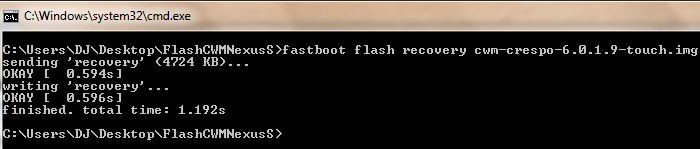
Just today I pulled off the latest CWM 6.0.1.9 from Koush’s recovery builder. So, I do not take any credit, all of it goes to Koush and his hard work. Well, building and downloading is quite easy, while flashing the recovery image may be considered as a tricky part for newbies. So, I will put on some instructions on how to flash the recovery image on your Nexus S via fastboot.
The recovery is available in two different variants; Touch & Non-Touch.
What is ClockworkMod?
A Linux/ UNIX operating system employs a recovery and since Android, being based on Linux, also has recovery. ClockworkMod is a secondary recovery system created by Koush, which adds enormous features like wiping partitions, flashing flashable .zip files like ROMs, kernels, patches, etc. to the stock device recovery.
Prerequisites
- USB drivers for Nexus S.
- A compatible USB data cable for undisturbed connection between PC and device.
- Download FlashCWMNexusS.zip (contains CWM recovery image file)
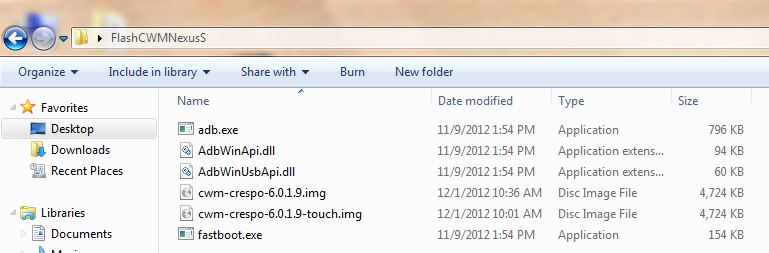
- Extract the downloaded FlashCWMNexusS.zip and extract it to your desktop. So, you will now have a folder named FlashCWMNexusS on your desktop.
Note: The touch variant is only compatible with ICS/ JB kernels, while you can flash the non-touch variant on any android version on your Nexus S.
Flash CWM 6.0.1.9 Touch & Non-Touch on Nexus S
- Power off your device. Now, press the volume up + power buttons simultaneously until you see the bootloader screen.
- Connect your device to the PC via the USB data cable.
- Open the extracted folder “FlashCWMNexusS” that you have on the desktop. On an empty space inside the folder, press shift and right click and then select “Open command prompt here“. This will execute a new CMD window which is already cd’ed to the folder’s location.
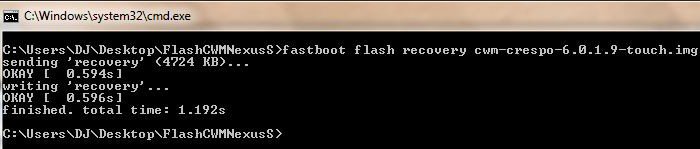
- Flash touch variant of CWM. Type in CMD:
fastboot flash recovery cwm-crespo-6.0.1.9-touch.img
orFlash non-touch variant of CWM. Type in CMD:
fastboot flash recovery cwm-crespo-6.0.1.9.img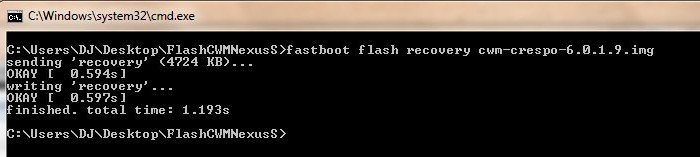
- Now use the volume keys while in bootloader mode to highlight Recovery and select it using the power button to boot into your latest CWM touch 6.0.1.9.
Read Next: Detailed TWRP Guide – TWRP Recovery Features Explained

Join The Discussion: