Samsung devices haven’t been the easiest to root or mod for quite a few years now. In fact, the company goes out of its way to discourage people from rooting Samsung devices. It is, of course, a business decision but it does make things harder for those who like to root and install custom ROMs and recoveries. Almost 3 months since launch though, TWRP recovery is now officially available for Samsung Galaxy Note 10. As long as you live outside the US and have a Snapdragon variant, you can install TWRP on Galaxy Note 10 using the guide below.
Like last year, the Snapdragon variants of the Galaxy Note flagship have only been released in the US, Hong Kong, and China. Unlike Exynos variants sold world-wide, most Snapdragon variants cannot be unlocked because they’re sold in the US. This leaves only a limited number of Snapdragon variants that can actually be unlocked. Therefore, development for the Snapdragon variants is generally much slower compared to the widely available and unlockable Exynos variants.
Warning
The method described below is only meant for the non-US Snapdragon variant of the Galaxy Note 10. It will trip Knox, and thus void your warranty as well. Tripping the KNOX counter also means you will lose features like Samsung Pay and Secure folder as well as the ability to use some banking apps. There are workarounds to make Android Pay work on rooted devices, of course, but we won’t be discussing those here. Once Knox is tripped, the effects are permanent and re-locking the bootloader or flashing the stock recovery will not help. Moreover, OTA updates will also stop working. Make sure you have a backup of everything important, even files on the internal storage.
Do not try this with any of the Exynos variants, unless you really want to risk bricking it. Modding your device is always risky, even if you do have the non-US Snapdragon variants that this method works on. Nobody can guarantee that you’d follow the instructions exactly, or that things will always happen as expected even if you do. You must take responsibility for the risk that you’re taking. DroidViews cannot be held responsible for any damage to your device.
In short, before you proceed to root your Galaxy Note 10 using the following method, keep in mind that…
- You have to have your bootloader unlocked before following the instructions.
- Unlocking the bootloader requires a full data wipe.
- Flashing TWRP recovery on the Galaxy Note 10 WILL trip KNOX.
- OTA updates will not work after this.
- Make a backup of all your important data.
- TWRP recovery available in this article is only for Snapdragon variants not sold in the USA.
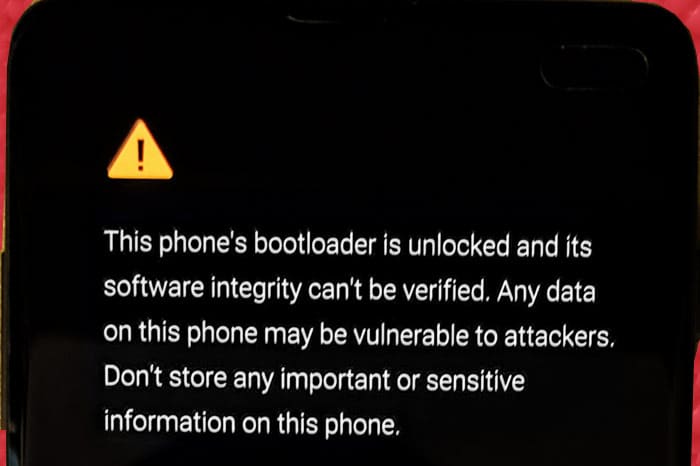
Also, remember that once you have unlocked your Galaxy Note 10’s bootloader, you’ll get a bootloader unlocked warning every time you reboot your phone.
Requirements to Install TWRP on Samsung Galaxy Note 10
- A non-US Samsung Galaxy Note 10 Snapdragon variant with an unlocked bootloader.
- Installing TWRP on the Galaxy Note 10 requires the use of Odin, and thus, a Windows PC.
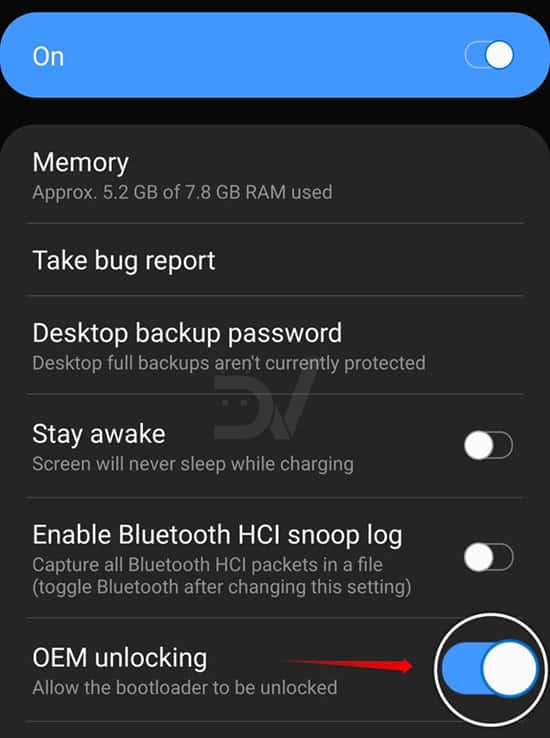
- Enable USB debugging and OEM unlock from the Developer options.
- Install the latest Samsung USB Drivers installed on your PC.
- Make sure that your Galaxy Note 10 has at least 50% battery left.
Download Galaxy Note 10 TWRP Image
Install TWRP on Samsung Galaxy Note 10
- Turn off your Galaxy Note 10 and then connect it to your PC via a USB cable while holding down the Volume down and Bixby buttons. This will boot it into Download mode.
- Here’s a more detailed tutorial about booting Galaxy Note 10 into Download and Recovery modes.
- Download the latest version of ODIN from the link provided above.
- Extract the downloaded zip.
- Run the Odin executable file.
- Disable Auto Reboot under the Options tab.
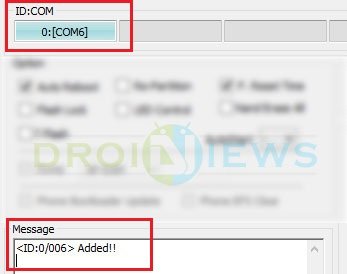
- You should see the ID: COM port on Odin in blue which means it can detect your device.
- Click on the AP button in Odin and select the downloaded TWRP tar file (twrp-3.3.1-0-d2q.img.tar).
- Now click on the Start button.
- When TWRP has been successfully flashed, you’ll see a PASS! message on Odin.
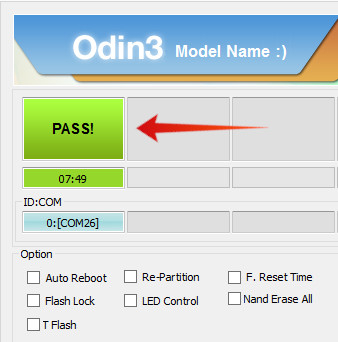
- Disconnect the device.
- Press and hold down the Volume down and Power button until the screen goes off.
- Once it does, immediately press and hold the Power, Volume up and Bixby button to reboot into recovery.
You should see the TWRP splash screen at this point which means the recovery is flashed on your Galaxy Note 10. In case you end with a phone stuck on the splash screen, don’t panic and follow our tutorial on fixing bootloop on Android devices.



Join The Discussion: