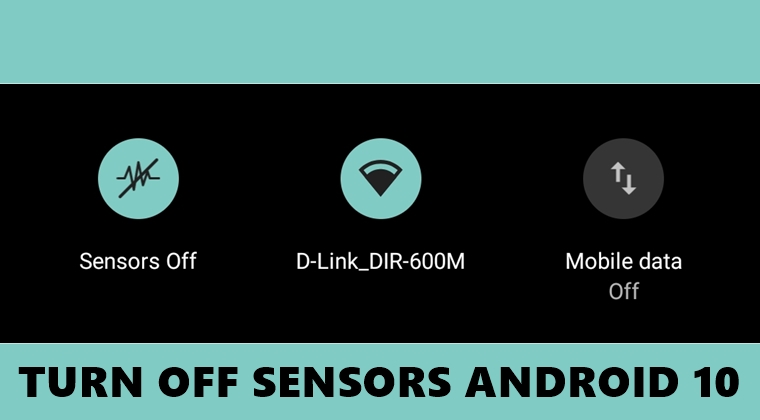
Android 10 has definitely redefined the permission manager thereby giving more privacy control to the users. Adding to that, it also has a hidden feature that allows you to turn off all the device sensors. Wonder where it might come in handy? Well, some apps with malicious intent might use the device’s gyroscope, accelerometer, and magnetometer sensor to track your location. In that case, this may come in handy. Or the device gyroscope sensor could also be used as a keylogger. So in those cases, you might consider turning off sensors on Android 10. But there are some huge drawbacks attached to it as well.
For example, turning off the sensors would disable some of the important functionalities of your device. This includes the camera, proximity sensor, compass and other apps dependent on them. However, it is always a good practice to have complete knowledge of all your device features. On that note, here are the steps to turn off sensors on Android 10 devices. Also, check out our guide to calibrate sensors on Android devices.
Turn off Sensors on Android 10
There exists a single toggle that will turn off all sensors. Enabling it will turn off the camera, compass, proximity sensor, gyroscope, accelerometer, barometer, and the ambient light sensor. Some devices also have a linear acceleration sensor, gravity sensor, rotation vector sensors and pedometer sensors which will also stop working. GPS and radio signals like WiFi and Bluetooth will continue to work. You can manually turn them off from the Notification Panel. With that said, here is how you could turn off all sensors on your Android 10 device.
Enable USB Debugging
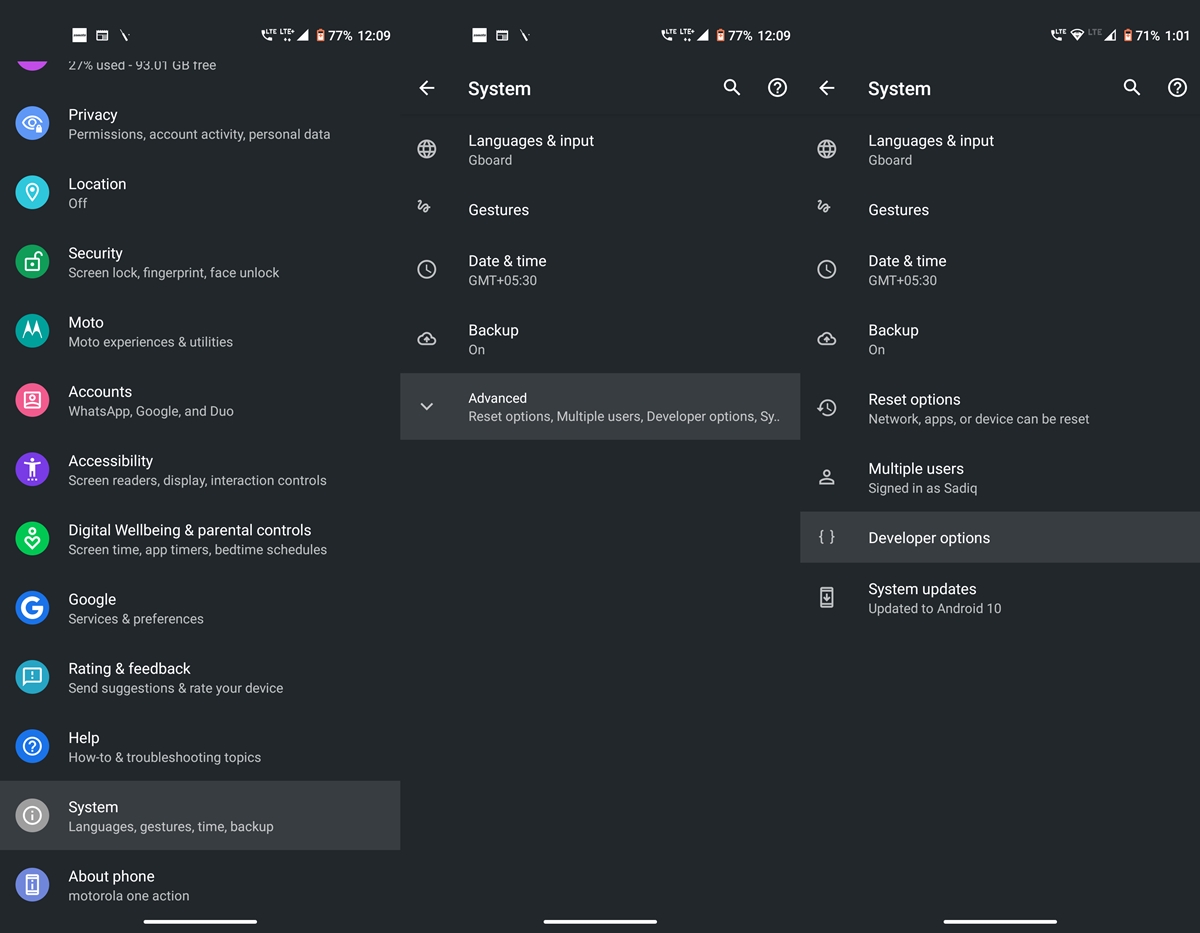
First of all, you’ll have to enable USB Debugging. For that, head over to Settings on your Android 10 device. Then go to About Phone and tap on Build Number 7 times. You’ll then be required to enter your PIN if you have one. Doing so will enable the USB Debugging option. To access it, head over to Settings > System > Advanced > Developer Options. Still, having trouble? Please have a look at our in-depth guide on how to enable USB Debugging on Android devices. Now, let see the steps to turn off device sensors.
Disable Sensor Toggle on Android 10
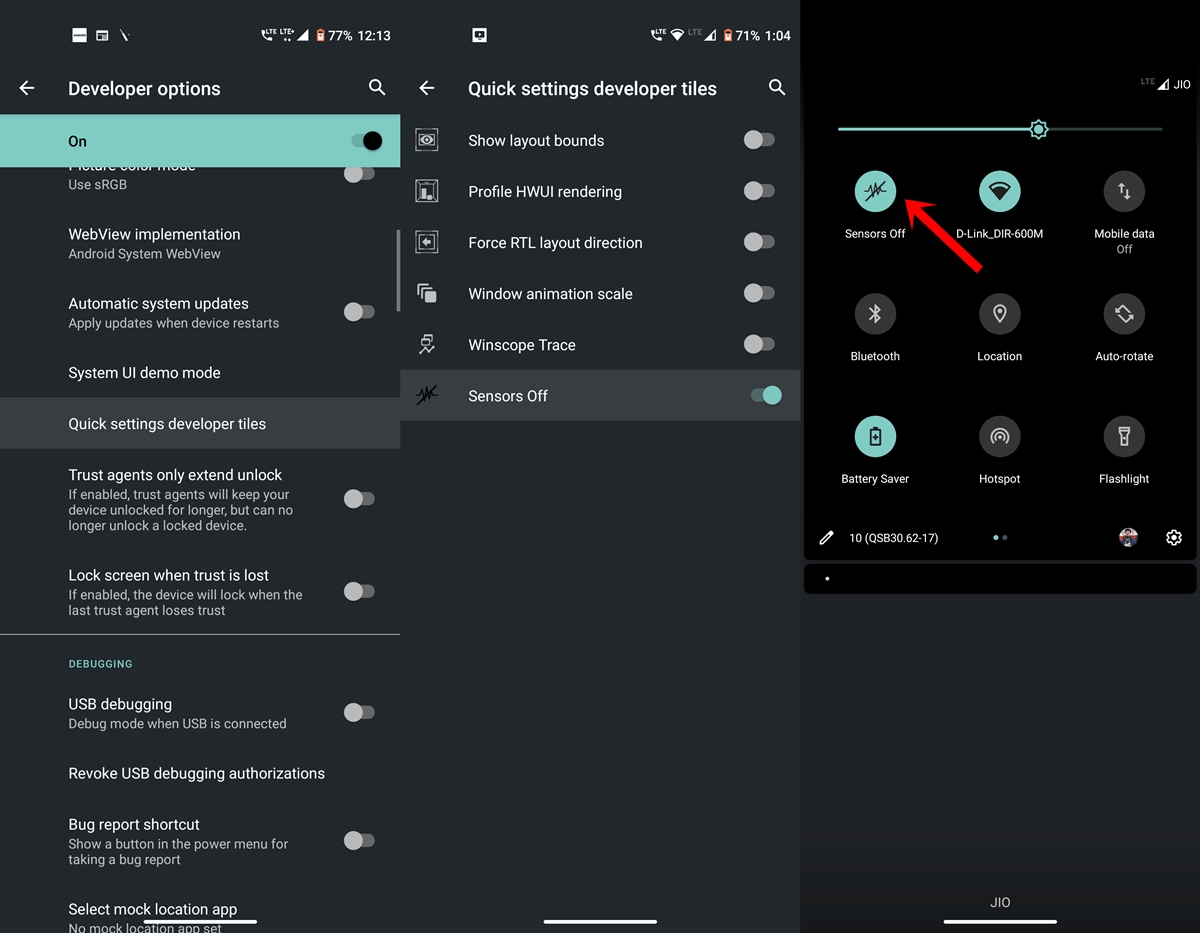
- Navigate to the Developer Options using the instructions mentioned in the above section.
- Next, go to Quick Settings Developer Tiles.
- Enable the Sensors Off toggle.
- Head over to your Notifications Panel and tap on Sensors Off. This is usually the first option.
Once you do so, all the sensors of your Android 10 device will now be turned off. You could even take the help of third-party apps like Sensors Toolbox to confirm that sensors have been turned off. As already mentioned, it might not be a good practice to keep this option enabled all the time. Once you are done testing this new feature, it is recommended to turn it off. The same could be done by disabling the Sensors Off toggle in Developer Options.
Read next: How to Add Your Profile Picture to Android 10 Lock Screen


Join The Discussion: