An Android smartphone is not complete without a launcher. Although the system launcher that the OEMs ship with their smartphones is somewhat good, a third-party launcher is what you need if you want a complete and better Android experience.
My third-party launcher of choice is Action Launcher 3. Not only me, but around 5 million Android users are using this amazing launcher, and it rightfully deserves so as it has lots of awesome features like quickdrawer, quickpage, etc. that make operating the device a breeze.
Recommended for you: How to Install Third-Party Apps as System Apps on Android
If you are using Action launcher 3, there’s a chance that you may have missed or ignored some incredible features. Here are a few of them that you may want to start using.
1. Hidden Folders/ Covers
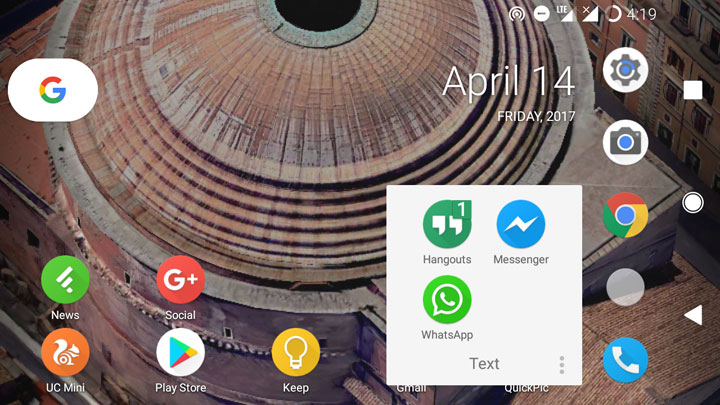
One of my most used feature of Action Launcher 3 – hidden folders. Well, not that I got something to hide on my device, it’s just that it looks cleaner than your ordinary folders, and if you are a regular reader of DroidViews then you know that I am a sucker for minimalism and clean interface. So what’s a hidden folder?
Don’t miss: 4 Awesome Icon Packs You’ll Love [#8]
A hidden folder looks like an app icon but functions like a folder. The hidden folder will use an app icon instead of the usual folder look and it’ll look like you have an app on the screen instead of a folder. Tap the folder and it will open the app which is in the first place in the folder. Swipe up on that app icon and it’ll open the folder. Cool, right?
To create a hidden folder, open the folder, tap the three vertical dots at the bottom right of the folder, and then choose “Make cover”.
2. Double Tap to Lock
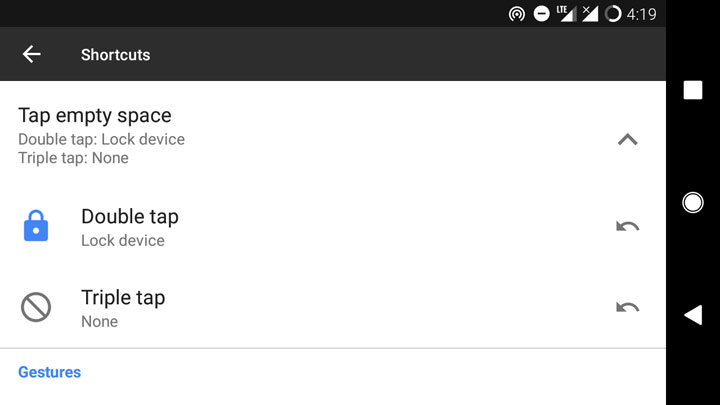
I think double tap to lock and wake is one of the most elegant features on Android. Although it is restricted to certain OEMs there have been certain workarounds. With Action Launcher 3 you can tap the home screen twice to lock your device. However, double tap to wake is not available. To enable double tap to lock feature, go to app settings, tap Shortcuts, go to Tap empty space, tap Double tap, and then select Lock device from the available options.
3. Quickcuts
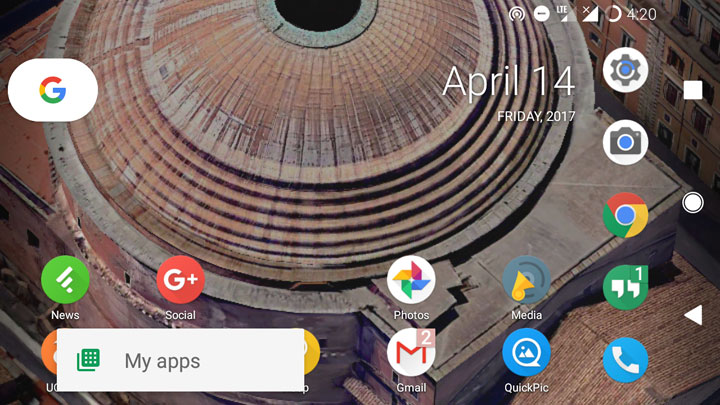
Quickcuts are awesome. They are just like the “App Shortcuts” from Android Nougat. Upon long-pressing an app App Shortcuts reveal a pop-up with certain shortcuts that lets you perform quick actions. For example, instead of opening Google Play store, swiping right to access “My apps & games” section where you check for available updates, you can simply long press the Google Play store app icon and get a shortcut that’ll you open the app directly into the “My apps & games” section.
Must read: 2 Ways to Hide Photos & Videos on Android
Quickcuts do the same thing but instead of long pressing an app icon, you’ll have to swipe upwards.
4. Suggested Icons
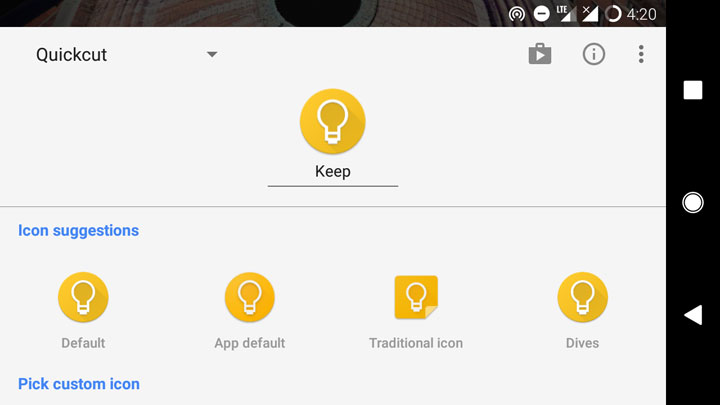
This is one of those features that I think every launcher should have. You’ll find it useful if you use multiple icon packs at the same time. Upon long-pressing an app icon, a menu will appear from the bottom with all icons from different icon packs from the same app along with the stock icon. It considerably reduces the effort of searching for a particular icon in the icon pack or using multiple icon packs for multiple apps.
5. Folders in Quickbar
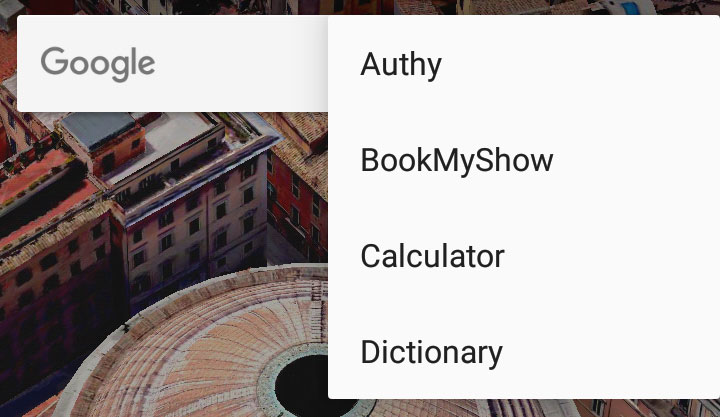
Quickbar is a replacement for the Google search bar widget on the home screen. Well, it’s a bit more customizable than Google’s search bar. It’s colorful, for instance. You can also add apps in the quickbar. But, did you know that you can also add a folder right there?
Also read: Notify me – A Notification App for Those Who Forget Stuff
Here’s how to do so. Go to app settings, tap Quickbar, tap the Floating Action Button at the bottom right corner, select “Menu group” from the available options, next, select an icon for the group. You’ve successfully created a folder in the quickbar. To add apps in this folder, go to the quickbar settings, tap the three horizontal dots beside your newly created folder, select “Add to” from the pop-up, and then select the required app from the apps list that appear.


Join The Discussion: