Chrome is slowly moving to the dark side- not metamorphically but literally. Various of Google’s apps have already adopted the dark mode. It was indeed anything but obvious that Chrome for Desktop would also do the same. After Play Store, Google App, Gmail, Calendar, Keep, Photos, etc. Whether you use on Windows PC or macOS, you can enable Google Chrome’s dark mode easily by using a Chrome flag. If you are an Android user, we have already covered an extensive guide describing the method to enable Dark Mode in Chrome for Android. Now we thought it would be better to let you know the procedure of enabling Dark Mode in the Chrome browser’s desktop version as well.
If you don’t use Chrome on your Android, here are 5 more great web browsers with dark mode or a night theme. Below is a preview of our website with Google Crome’s dark mode enabled.

To enable the dark mode in Chrome Browser (Desktop version), you will have to use the Canary version of Chrome. This is because all the features are first tested on the Canary version before being made available to the general public. Moreover, the dark mode could only be accessed via the Chrome flags. Flags are experimental features that are hidden from normal users. To access these flags and furthermore enable the Dark mode in Chrome for desktop, refer to the below steps. However, if you aren’t quite a fan of this dark mode, then have a look at how to unlock 20+ hidden Google Chrome themes.
Enable Dark Mode in Chrome (Windows, Linux & Mac)
- First and foremost, download and install the Chrome Canary.
- Type in chrome://flags in the address bar to access the flags section.
- Find the following flags. You may use the search bar and type in Dark Mode.
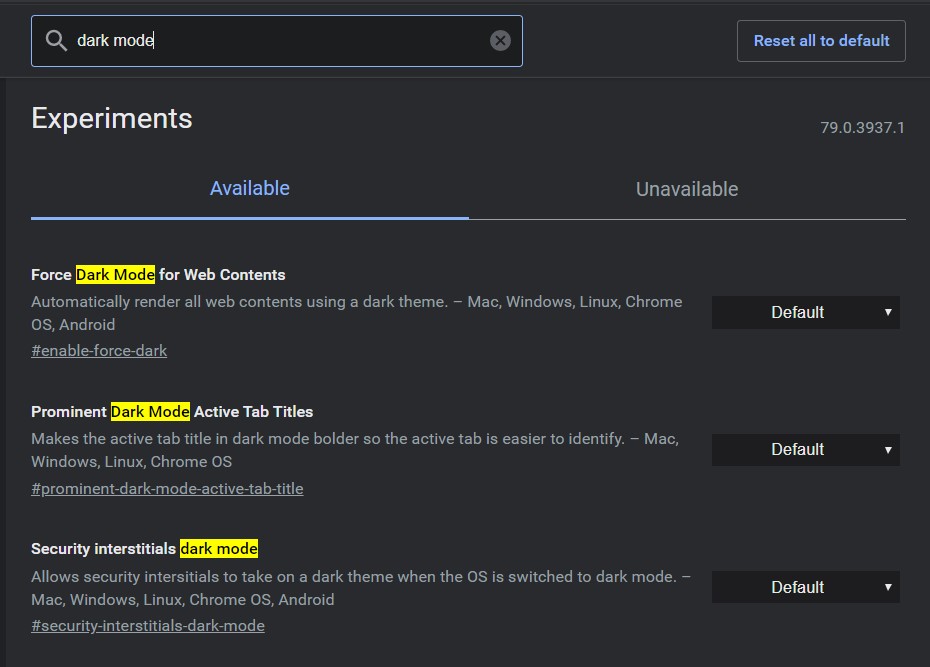
Force Dark Mode for Web Contents
Prominent Dark Mode Active Tab Titles
Security interstitials Dark Mode
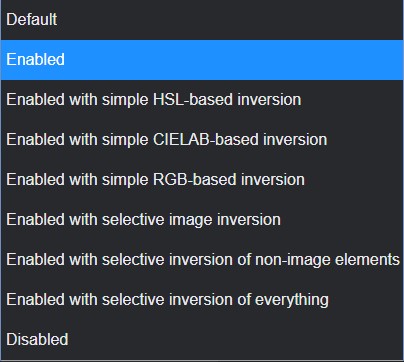
- Now click on the Default keyword. A drop-down menu with various options would appear. Select Enabled. Do this for all the three flags.
- The option of restarting Chrome will appear at the bottom. Click on Relaunch.

That’s it. Dark Mode in Chrome’s Desktop will be enabled. As mentioned before, this feature is yet to make its way over to the stable version of Chrome. Also, it might happen that some of the web pages could not incorporate the dark mode quite efficiently. Or you may see dark texts on black background. In such cases, it would be better to revert back the changes. So, to disable the dark mode, all you need to do is go to chrome://flags and disable all the three flags and relaunch your browser.
You can enjoy Google Chrome’s dark mode on Windows PC to the Mac version of the browser,

Join The Discussion: