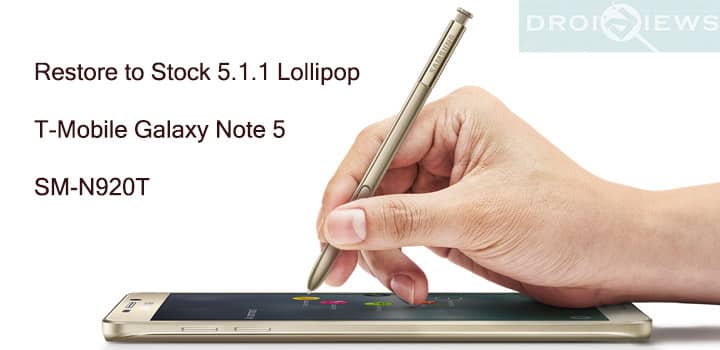
What more can you expect from the Note 5 that’s equipped with one of the best screens, comes with a new hardware design and the internals offer a significant performance boost with a massive battery life. Note 5 has been in the news lately for its strikingly impressive specifications and comes with the latest Android 5.1.1 Lollipop out of the box. Samsung has pushed quite some updates to its latest flagship phone and will be updated to the upcoming Android 6.0 Marshmallow. Although Android M has not been released yet, but in order to install further updates via OTA, you need to be on the stock firmware.
If you have for any reason installed a custom ROM, or have problems updating the latest OTA updates on your T-mobile Note 5, then this tutorial will get you back to the stock firmware. With T-Mobile pushing the updates, there are 3 firmware versions available for the Galaxy Note 5 SM-N920T variant. All the three firmware versions, N920TUVU1AOGE/ N920TUVU1BOH4/ N920TUVU1BOH6, are based on the Android 5.1.1 Lollipop.
However, to update your phone to the latest firmware, you need an Odin software specifically designed for Samsung Galaxy devices for installing a range of things including firmware, custom recovery, CF-Auto-Root and more. So if you are new to the installation process, then DroidViews have got you covered. Before we begin, make sure you have the T-Mobile variant of Note 5 as it won’t work on any other variant.
Requirements
- Make sure you have the perfect device and variant. This tutorial is suitable for only T-Mobile Samsung Galaxy Note 5 SM-N920T variant. This will install N920TUVU1AOGE/ N920TUVU1BOH4/ N920TUVU1BOH6 Lollipop 5.1.1 firmware onto your device.
- Make sure you have fully charged your Galaxy Note 5 or at least up to 60% of the battery.
- Enable USB Debugging on your phone.
- Make sure you have Samsung drivers installed on your PC.
- Download the 7zip software to extract the zip file to get the firmware file which is in.tar.md5 extension.
Download Section
The following three firmware files are based on Android 5.1.1 Lollipop for Samsung Galaxy Note 5 SM-N920T. In order to restore the Stock firmware, you need to download one of the following firmware files.
- Download | Latest(2015-09-10) – File: N920TUVU1BOH6_N920TTMB1BOH6_TMB.zip (1.7 GB)
- Download | Previous – File: N920TUVU1BOH4_N920TTMB1BOH4_TMB.zip (1.7 GB)
- Download | Previous Stock – File: N920TUVU1AOGE_N920TTMB1AOGE_TMB.zip (1.7 GB)
- Download | Odin3 v3.10.7
Backup Your Apps and Data
It is recommended that you backup your apps, contacts, messages, photos, videos and any other important data stored on the internal storage of your phone. Get some of our useful backup apps from the DroidViews archives. This will help you backup your device data easily.
Restore T-Mobile Galaxy Note 5 to Stock
- Make sure you have downloaded the Lollipop firmware for your Note 5. As it is a zip file, extract it to get the firmware file with .tar.md5 extension.
- Now turn off your phone and boot it into the Download Mode. To do this, turn off your device and then press and hold Volume UP + Home + Power buttons simultaneously for 2-3 seconds. When you see the warning screen with a yellow triangle sign, press the Volume Up key to enter Download/Odin mode
- Download the required Odin.zip file and extract the file on your PC. You will get the Odin3_v3.10.7.exe file. Open it as administrator to get to the Odin window.
- Connect your T-Mobile Note 5 to the computer using the USB cable.
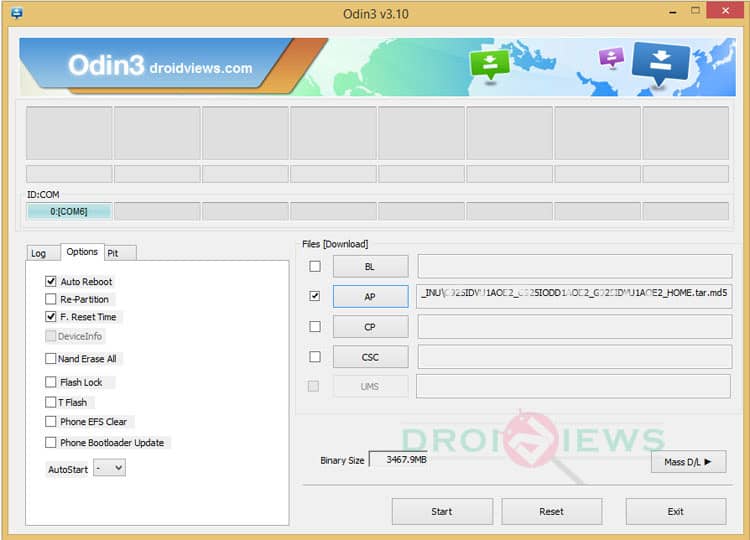
- As soon as you connect the device, the ID:COM port on Odin will turn Blue. You’ll also see “Added!!” message to indicate successful connection.
- In case your phone is not detected by Odin, you can try the following things:
- Reboot your phone and turn off USB Debugging and turn it on again.
- Try reinstalling the Samsung USB Drivers.
- Try changing the USB cable and connecting to other ports.
- Now click AP button on Odin and add the firmware file (N920Txxxxxx_N920Txxxxxx_.tar.md5).
- In the Options section, make sure that only the Auto Reboot and F. Reset Time boxes are checked and everything else are unchecked. (Do not, in any case, check Re-Partition box)
- Before you proceed to firmware installation on Odin, make sure everything is set according to the screenshot.
- Now, click the Start button on Odin to start installation which might take a while for firmware to install.
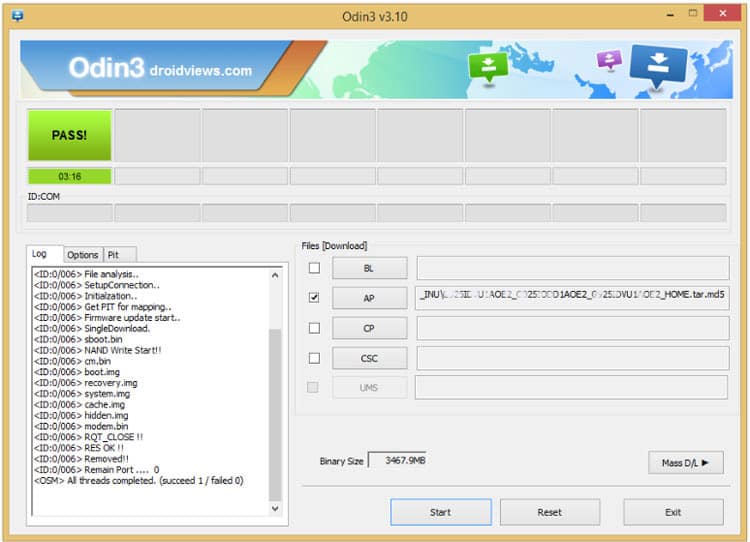
- Once you get a PASS! message on Odin, your device will restart. It’s the green signal that indicates successful installation. In case you get Fail! message, make sure you have gone through the preparations carefully
Once you have successfully booted into the firmware, you can now enjoy your Lollipop firmware.
If you come across bootloop, then this may occur sometimes when you have installed a new firmware. To solve this, remove the battery and then put it back again. Boot to Recovery by holding Volume Up + Home + Power. In Recovery, select “wipe data/factory reset” then select “Yes” This will delete all user data. Now Select Reboot to System. If you want a detailed tutorial for these steps, head over to the below link.
How to Perform Data Factory Reset on Samsung Galaxy Devices
For a detailed guide on how to install firmware on Samsung Galaxy device, get to the following link:
Install Stock Firmware on Samsung Galaxy Devices Using Odin – Detailed Guide
For any queries, comment down below.
Hey I have a galaxy note 5 from t-mobile and I tried rooting my phone but it went wrong and not my data been wipe and I manufactory reset the phone, a error message stating “kernel is not seadroid enforcing” pops doing the boot loop, my screen is stuck at the bootloop screen, my binary fr is lock, and I have twrp instead of recovery mode when pressing the volume up, home button, and power button. Can I still install stock firmware for this?
Yes, you can flash the stock firmware and restore the device to stock.
How can I do that? Do I need to go through Odin to flash the stock firmware
Download the firmware from here: http://updato.com/firmware-archive-select-model?q=SM-N920T&exact=1
and follow this tutorial: https://www.droidviews.com/install-stock-firmware-on-samsung-galaxy-devices-using-odin/
I got it to pass with the steps above, but it does not help if you are trying to get passed the Google verification.
You can easily bypass Google account verification by performing a data factory reset and wiping the user data via stock recovery.
Use this guide: https://www.droidviews.com/how-to-perform-data-factory-reset-and-wipe-cache-on-samsung-galaxy-devices/
Reboot into Recovery mode (hold Home, Volume Up, and Power, releasing Power when you see the device turn on/reboot).
Perform a Factory Reset (press Volume Down until wipe data/factory reset is selected, press Power, scroll down to Yes — delete all user data and press Power again).
Proceed through the device Setup Wizard until it prompts you for the Google account credentials.
For a Samsung device, save this RootJunky APK onto a USB flash drive, and connect it to the device via OTG.
http://rootjunkysdl.com/getdownload.php?file=Apps/samsung%20bypass%20google%20verify.apk
ive done everything right and even triple checked, and it still says fail on odin everytime..
Has this worked for anyone? I have followed another Droidviews article on how to flash my phone to Android 6.0, and I’m trying to figure out how to flash it back to stock LP.
So, I’m guessing that this is partially a cut and paste article. The Note 5 does not have a removable battery…
“If you come across bootloop, then this may occur sometimes when you have installed a new firmware. To solve this, remove the battery and then put it back again.”