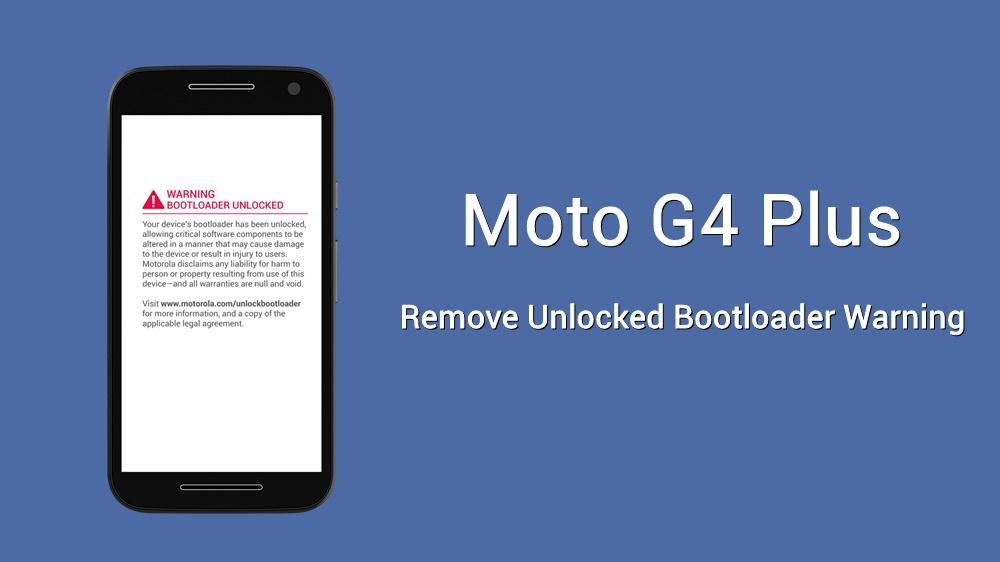
Rooting and flashing custom ROMs has become quite common these days. Most people are not very concerned about warranties, and even those who are concerned are confident that they can reclaim the warranty by reverting the changes. Unlocking bootloader is the first thing you’ll do on your device. However, you’ll see any ugly “Unlocked bootloader warning” on every boot which is quite annoying. If you’re a Moto G4 Plus user facing this issue, we can help you remove unlocked bootloader warning on your device.
Motorola doesn’t impose any restriction on bootloader unlocking, but this warning is quite annoying. Once you unlock the bootloader on your device, a flag will be set and replaces the logo.bin with the warning screen. So, if you restore back the original logo.bin, you can get rid of the unlocked bootloader warning. Although it doesn’t alter the functionality, it’s not a good sight to look at the warning status on every boot. So, let’s get rid of that.
You’ll need to flash the logo.bin from fastboot to remove unlocked bootloader warning on your device. Well, don’t be worried as it’s quite easy and we will guide you through the process. Download the below files from rahulsnair and follow the instructions to remove unlocked bootloader warning on Moto G4 Plus.
Prerequisites
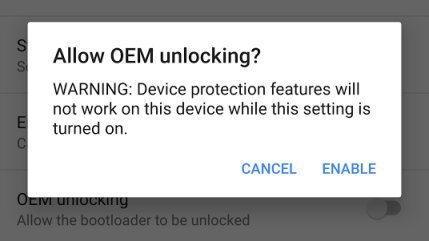
- Go to Settings » About phone » Build number and tap it 7 times to enable Developer options on your device. Then go back to Settings » Developer options and enable USB Debugging and OEM unlocking.
- Download the Minimal ADB and Fasboot Setup and install it on your computer.
- Backup important files on your device to a safe place as unlocking the bootloader will format your entire device.
Downloads
Download the file based on the logo you want on the boot screen. Check the screenshots from below.
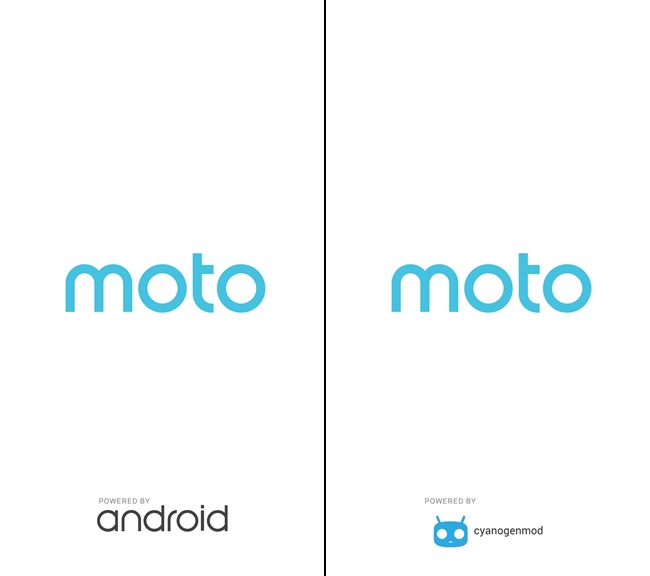
- logo.bin: PoweredByAndroid-V2.zip
How to Remove Unlocked Bootloader Warning on Moto G4 Plus
- Download and extract the Zip file to find the logo.bin file.
- Navigate to the folder where you’ve installed ADB & Fastboot files. Open a command prompt inside the folder by pressing Shift key + Right-click in the empty space inside the folder, and select Open command window here option from the Windows context menu.
- Connect your device to the PC and make sure it is detected. Now boot into the bootloader mode using the below command:
adb reboot bootloader
- While in fastboot mode, use the below command to flash the logo.bin file to your device.
fastboot flash logo logo.bin
- Reboot the device using below command.
fastboot reboot
Upon reboot, you’ll not see the annoying unlocked bootloader warning on your device.
Any chance of a Powered by LineageOS logo?