Samsung wants their phones to stand apart from the rest, LG wants the same and so do Huawei or Xiaomi or any other OEM. Since almost all flagships each year seem to have pretty much similar hardware capabilities, standing out becomes difficult when even the OS is the same. Android OEMs are thus known to customize Android to look and feel different than the Android from other brands. EMUI, the skin Huawei wraps on top of Android, started off as another iOS knockoff but has matured since then. When it comes to performance, of course, stock Android still rules but Huawei’s EMUI is no slouch either. The deal only sweetens with features like PrivateSpace.
If you’ve been following DroidViews you probably remember the one time I accepted stock Android isn’t all that great. Scrolling screenshots, the network speed indicator, a decent theme engine these are features you’ll find on just about any OEM implementation of Android. To add to it there are several privacy-focused features such as an app lock or files safe on just about any Android OEM’s skin. EMUI takes this up a notch with PrivateSpace. For the uninitiated, even stock Android allows for multiple user accounts, just as on a desktop OS. You can set up two separate user accounts on the same device with a different set of apps and settings.
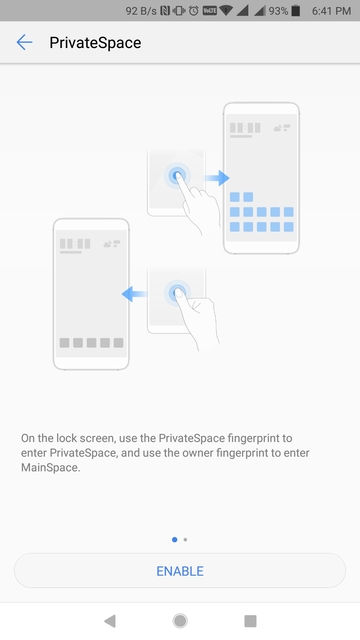
This is still allowed on Huawei’s latest EMUI 8.0 skin built on top of Android 8.0 Oreo. What PrivateSpace does is something similar. It creates another account on your device which is of course hidden and hence private. The best part about it is the ease of access. You can access your PrivateSpace from your lock screen by simply entering a different password or PIN. Even better, by simply using a different finger on the fingerprint scanner. For instance, let’s say you have set up your device to unlock with your right index finger. You can set a different fingerprint for your PrivateSpace, your left index finger. Anytime you place your left finger on the fingerprint scanner now the screen will unlock to a different home screen, different apps, different wallpaper, depending on how you set up the PrivateSpace.
You could have all your sensitive or private apps such as banking apps installed only in the private space. Or, you could just have nothing but the stock apps installed in the PrivateSpace. When you do have to lend your phone to a mate for a call or something else, you could simply unlock the phone to the Private Space. Let them think you aren’t into apps. As you can tell from the gushing, I do love this feature. Enabling it is simple enough and here’s how.
How to enable PrivateSpace on EMUI 8.0
- Head over to your device’s Settings.
- Scroll down to Security & Privacy and tap on it.

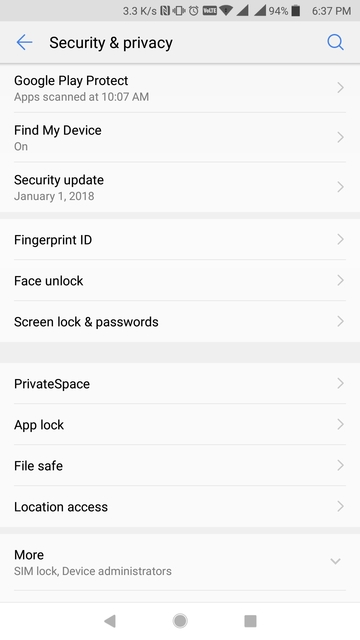
- Under Security & Privacy, you’ll find PrivateSpace among other similar features such as App lock, File safe, etc. Tap on it.
- On the next page, tap on the ENABLE button at the bottom. Above that is a rather small description of the feature.
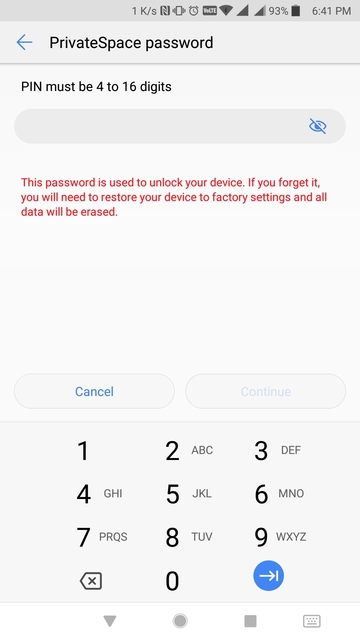
- When you tap ENABLE, you’ll be asked to set a different password for your PrivateSpace. This password has to be different than the password you already have set up for your MainSpace.
- After the password is set, you’ll be asked to associate a new fingerprint with your newly created PrivateSpace. This is optional, however, really convenient. If you decide to set up the fingerprint tap ASSOCIATE.

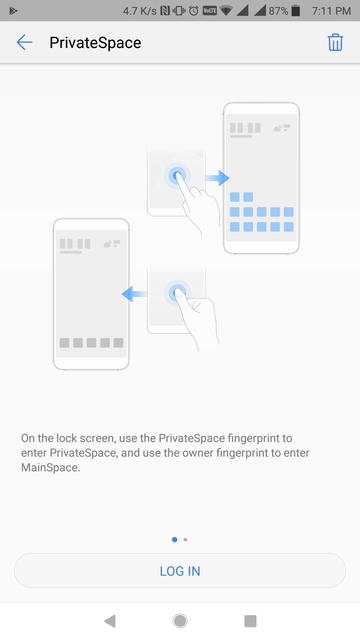
- Next, set up your fingerprint normally and that’s about it. You can now tap on the LOG IN button which replaces the ENABLE button from earlier. It’d be easier to just use your PivateSpace fingerprint or password on the lock screen.
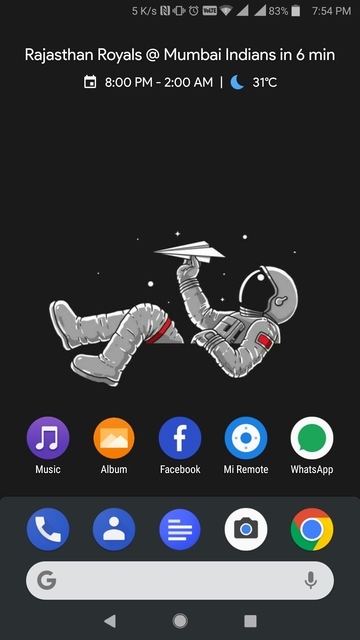
MainSpace 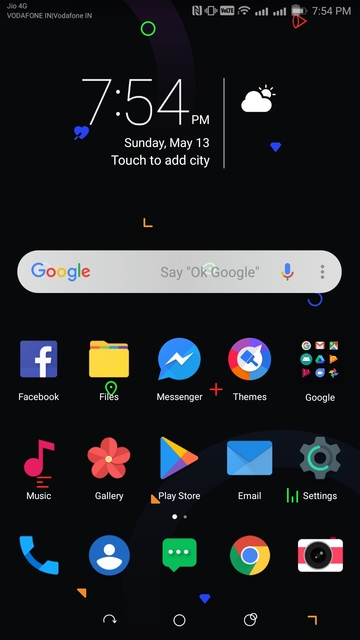
PrivateSpace
Note
While PrivateSpace is really useful, my opinion is largely dependent on the 128GB internal storage on my device, plenty of RAM and battery. Depending on your device’s hardware configuration enabling PrivateSpace can prove detrimental on performance and fill up space on your device twice as fast.


Join The Discussion: