If Wolfenstein 3D, Doom, and Quake took you on a nostalgic journey, then it seems there is no love lost between you and the DosBox games. Nowadays, the GUI and features of various games have skyrocketed to an altogether different level. But, maybe the same can’t be said about the gameplay experience. Playing those DOS games in our childhood had a completely different aura. If you echo my feelings and belong to the same elite group of DOS lovers, then there is some good news in the store. You could play various DOS games right from your Android device. Let us take a stroll down the memory lanes and see how this could be done. And if these games do arouse curiosity in you, then do have a look at 5 cool zero MB games for Android.
Play DOS Games on Android Devices
In order to make your DOS games run on your Android device, you will need a DOS emulator. There are various emulators available on the Play Store, but perhaps Magic Dosbox stands out among the crowds. There is both the free as well as the paid version of this app. I tried the free version and it worked quite well. But if you want to enjoy additional features and support the developers, consider the paid version. So download the app from below and begin with the instructions on how to run DOS games on your Android device.
Step 1: Set up the Magic Dosbox Games App on Android
- Install Magic Dosbox on your Android device.
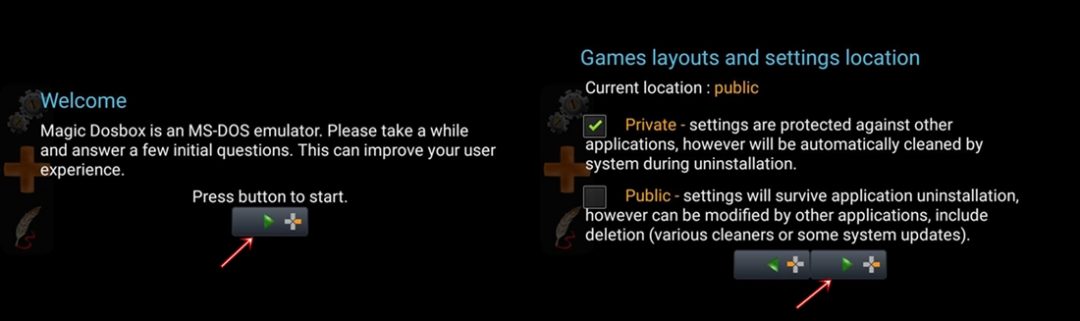
- On the Welcome screen, press the button having a green arrow to start the application.
- Next, under Games layout and settings location, select Private.
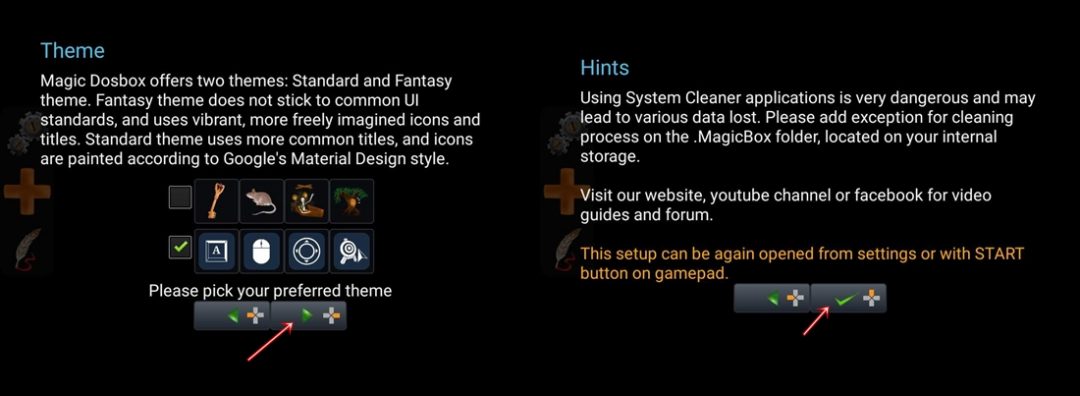
- Chose the desired theme, if you are new to all this, consider going for the standard theme (the second one).
- Finally, tap on the button having a green tick to finish setting up the app.
Step 2: Adding Games to Magic Dosbox Library
- Download your desired DOS game on your Android device. GOG.com is among the most trusted sites to buy/download various DOS games.
- Place the game in your internal storage (SD card isn’t supported yet) and inside a folder. If it is in a compressed format, don’t forget to extract it beforehand. In this guide, we will be using the /storage/emulated/0/Download/DOS path, where DOS is the folder in which all the games would be kept.
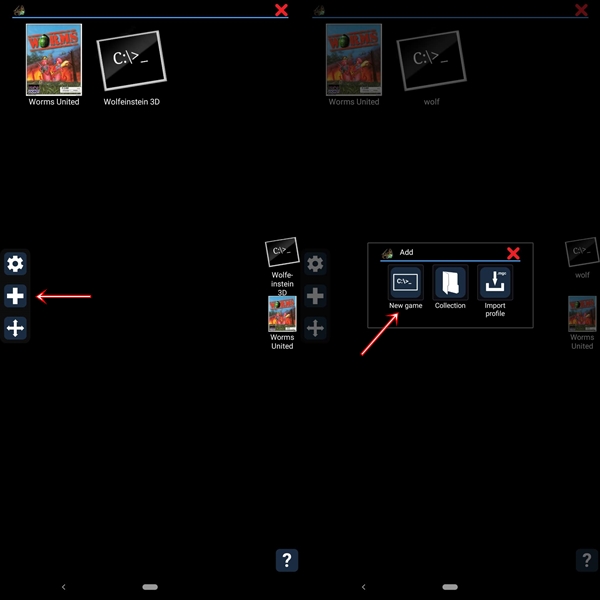
- Open the Magic Dosbox app and tap on the plus sign present at the middle left of your screen.
- Now, under the Add dialog box, tap on New game.
- In the Configuration dialog box, give the game a title. Now scroll to the bottom until you reach the Software section.
- Tap on Choose under the Main program section and browse to the game’s .exe file. This .exe will be responsible for running for the selected DOS game on your Android device.
- Beneath the Main program is the Setup section. Tap on the Choose and select the game’s .bat file. However, if there is no such .bat file, you may select the same .exe file that you choose above. Leave all the other fields as it is.
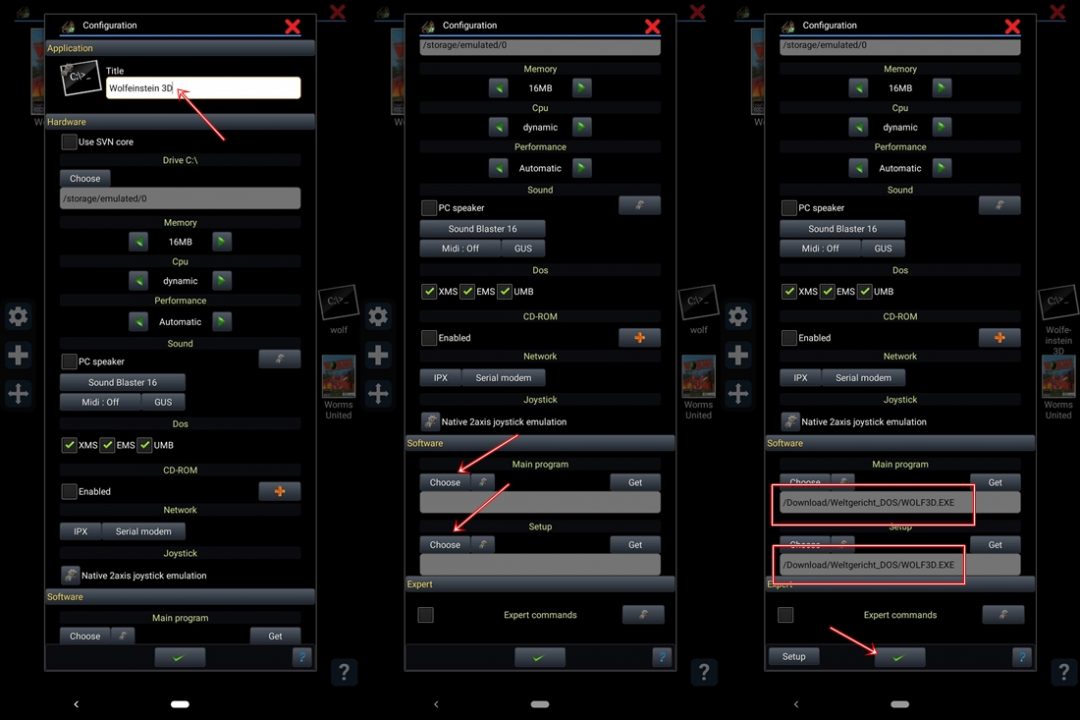
That’s it. Just tap on the tick mark situated at the bottom and you will get a Congratulations message. At this stage, your game should have also launched in the background. Close the Congratulations dialog box and start playing your favorite DOS game on your Android device. Want to further optimize your gaming experience, like adding virtual keys, hotkeys, gamepad or a virtual joystick? Follow the instructions given in the next section. Also, if you love these low on size DOS games, then you sure will want to have a look at 10 best Gameloft games under 50MB.
Step 3: Finishing the Dosbox Setup
- The app has a set of important tools, which for some reason is somewhat hidden. To view them, press the back button and it will open the General Settings menu. It includes adding virtual keys, special keys (Function keys, Alt, Shift, Enter, Space bar, etc), Mouse, Keyboard, etc.
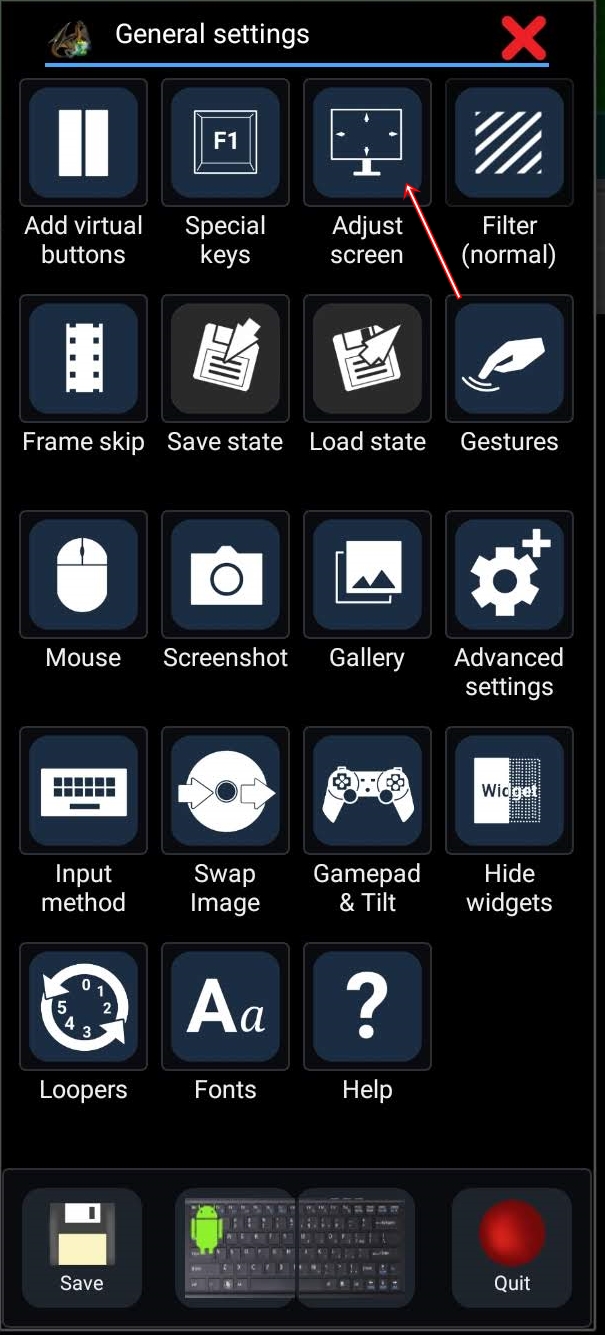
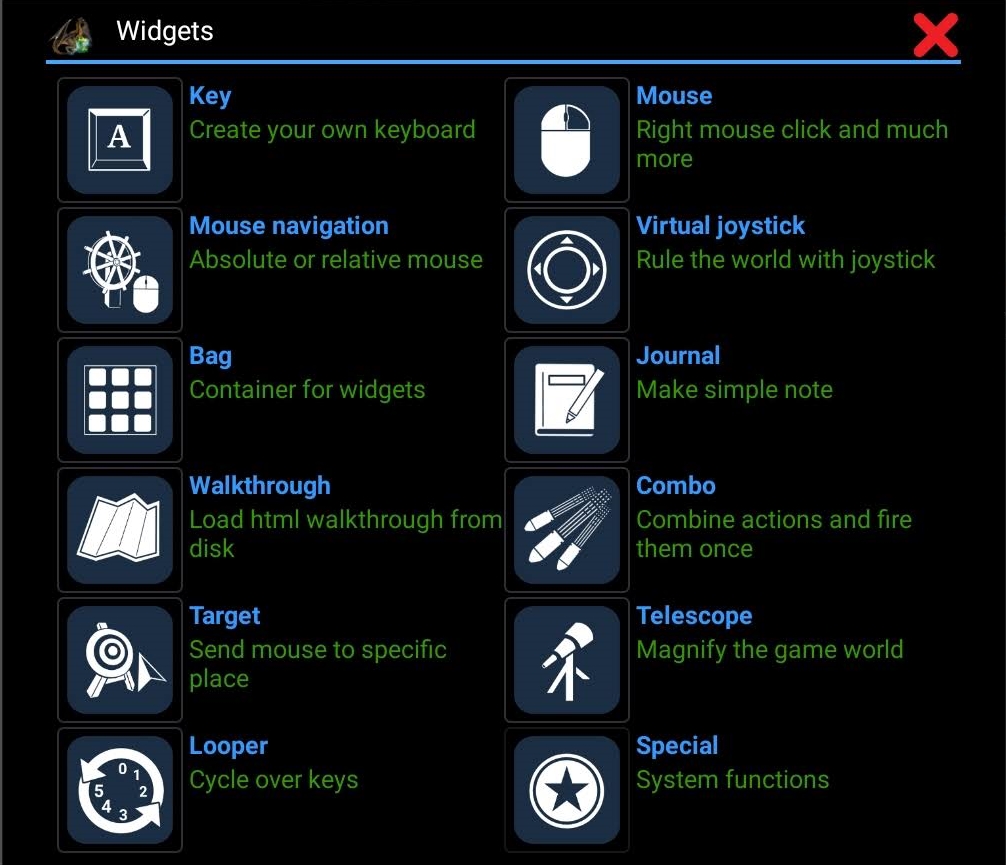
- To play DOS games on Android devices, you may consider adding joystick or virtual keys. For that, long press on the screen for a couple of seconds. The General Settings dialog box will then pop up. Closing it will subsequently open the Widgets section. Just tap on the desired option and place it anywhere on your screen. Don’t forget to save your widgets by selecting each of them individually and tapping on the save (floppy) icon.
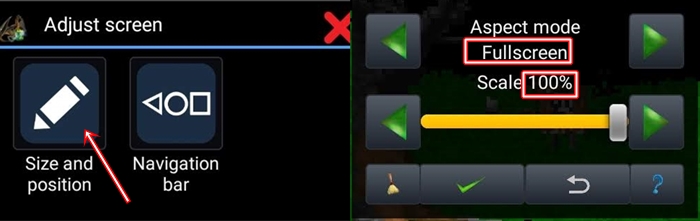
- Also, if you wish to play any game in full-screen mode, tap on Adjust Screen (General Settings) > Size and position > Change Aspect mode to Fullscreen and Scale to 100%. Also change your device’s orientation to Landscape mode.
That is all the instructions that you would be needed to play any DOS game on your Android. Although the setup might seem lengthy, just follow all the instructions as mentioned and it will be a cakewalk for you. Even then if you have any queries, feel free to drop them in the comments section below.
Having set up the Magic DosBox games app on your phone, all you need to download and install some DOS games on your Android and have fun.
Read Next: 5 Best War Games for Android in 2019


Join The Discussion: