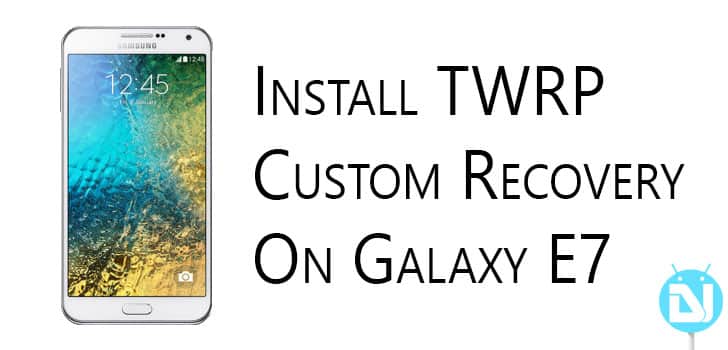
Galaxy E7 is a mid-range phablet released last year with Android 4.4 KitKat. The device recently received an update to Android Lollipop 5.1.1. Though the update arrived pretty late, the users were glad at least they got it as OEMs tend to forget OS upgrades for non-flagship devices. This guide will help you install TWRP custom recovery on your Galaxy E7.
You must be familiar with TWRP if you are already into the rooting game, but if you are new at it let me clear things for you. TWRP or TeamWin Recovery Project is a custom recovery that provides many functions that are not available in your stock recovery. It can be used to flash ROMs, Mods, make nandroid backups, restore backups, wipe data or any other partition of your device. TWRP is a powerful tool that helps developers and Android power users to make their life easier.

Well the development for Galaxy E7 has not been so great but now with TWRP working on Lollipop update as well, things should get better. As of now, there are not many things you could flash to your device using this recovery but hope for the best.
Warning: Following this guide will TRIP your Knox Counter and your warranty will be void. This recovery is only for Samsung Galaxy E7 do not install it on any other phones, installing it on any other device will result in a bricked device.
Things You Will Need
Install TWRP on Samsung Galaxy E7
- Download ODIN and other necessary files from the links given above on your PC.
- Boot your phone into Download mode by pressing and holding Volume down, Home and Power button for few seconds.
- Start Odin and connect your phone to the USB cable.
- Connecting your device will turn the upper left box on Odin blue and log will show the message as Added as shown in the screenshot below.
 If Odin fails to recognize your device try to install USB drivers on your PC. Head over to our next article for downloading USB drivers.
- In Odin click the AP button and browse for recovery.tar.md5 file.
- Check that only F.reset time is checked in the options tab of ODIN.
- Now click Start button to begin the process, this will take only a few seconds.
- Reboot and Enjoy!
Do let us know any queries you might have regarding the installation procedure in the comments section below.

step 6 ..Rebooting by pressing vol down+home button+power button??
nothing happens.
my phone reboots but nothing happens..:(