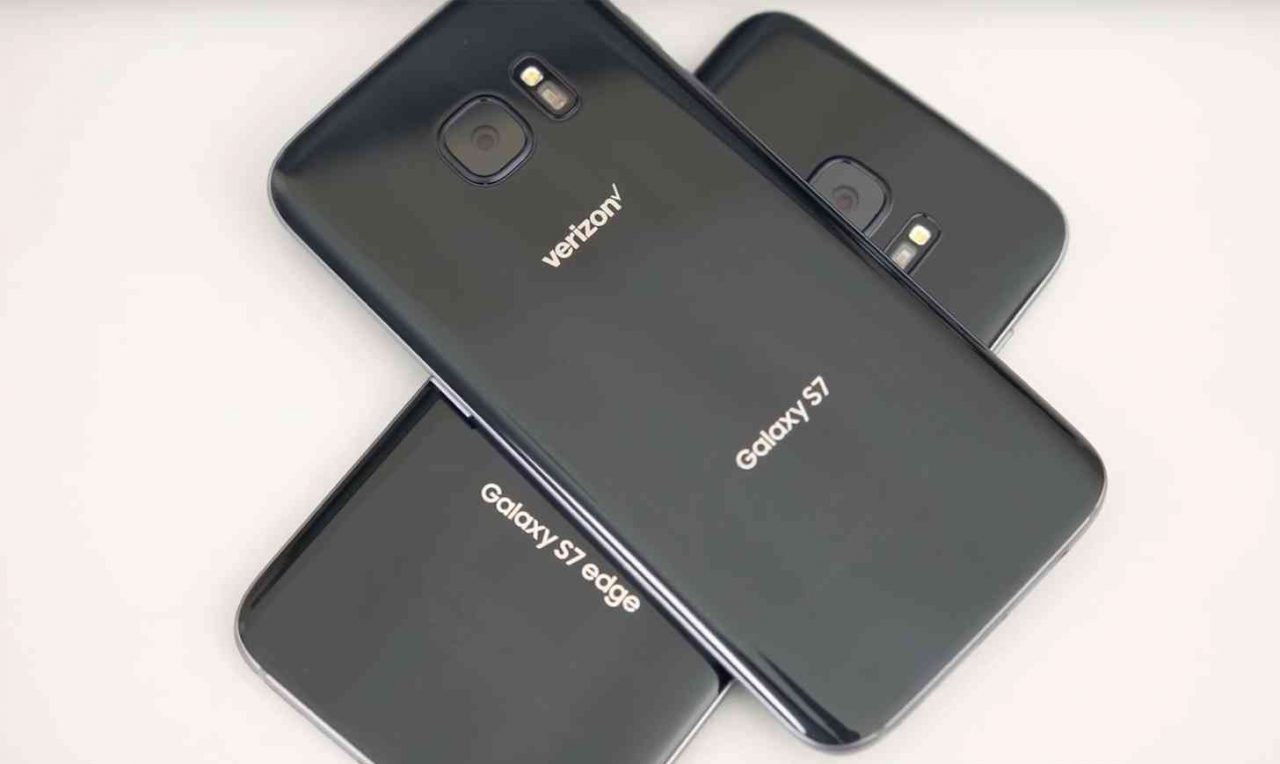
The heading might appear confusing to some people so let me clarify it. This post deals with installation of stock nougat firmware of model number SMG935T on the model number SMG935V. I hope that makes it more clear. However, this process is not going to be easy and there are some strict guidelines to follow if you don’t want your device to bootloop. So make sure to read the carefully while following the steps.
Prerequisites
- Your device should be running on Verizon Nougat beta 2
- Go to Settings> About device > Software info> Build number and tap it 7 times to enable Developer options. Then go back to Settings> Developer options and enable USB debugging and OEM unlocking.
- Download latest Odin software
- Download the Stock Nougat Firmware of SMG935T (Extract the [zip] file in a New Folder)
Screenshots

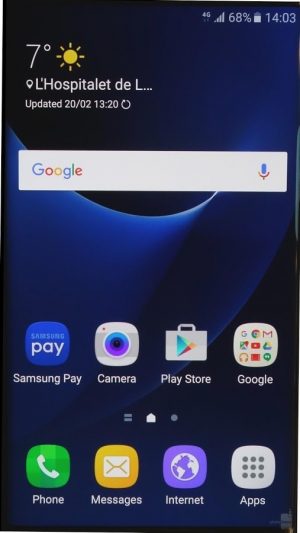
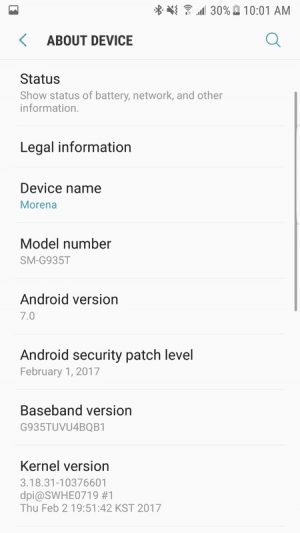
Steps to Nougat Firmware on Verizon Galaxy S7 Edge
- Power off your device.
- Then, press and hold Volume Down + Home + Power button at the same time until the warning alert screen.
- Next, press the Volume Up button to boot into the Download Mode.
- Open Odin on your PC and connect your device to the PC using USB cable.
- Then, load the files labeled as BL, AP, CP, CSC you extracted before [from .zip] to their corresponding slot in the Odin software (For now, don’t use G935TUVU4BQB1_Boot_Recovery_Image.tar.md5).
- After that, click on start (The phone will boot into recovery to finish the CSC install).
- In case the CSC install in recovery fails, reboot into bootloader in stock recovery.
- Next, in the Odin software assign the CSC file to the CSC slot and click on start (This will install the CSC file).
- As soon as the CSC is flashed try to reboot the device into bootloader (Just instantly press and hold Volume Down + Home + Power button at the same time until the warning alert screen).
- Next, press the Volume Up button to boot into the Download Mode.
- Again in Odin, assign the G935TUVU4BQB1_Boot_Recovery_Image.tar.md5 to the AP slot.
- Click on Start and the device will reboot into the system (You will have to go through a few setups).
- During the setup, you will have trouble while typing, therefore, it is recommended to skip adding accounts for now (You can add it later after installing a different keyboard or you may use the alternate method of finding and adding the Google account).
- After the device boots successfully download 4G LTE Switch app from the Google Play Store and use it to change the network to LTE/CDMA auto (PRL).
- Download Package Disabler Pro (Samsung) to disable all T-mobile apps.
Phew.. That was a hell of an explanation. If you want to know why the device needs to be on Nougat Beta 2 then click here. All the possible issues and solutions related to this firmware is provided in this link. Make sure to check it out. If you guys have any trouble while following the steps mentioned above, do let me know in the comments section below.
https://uploads.disquscdn.com/images/7043bb0808f4d8395ff919d46e4b77e915191334a1f53f7ff3c76d23e33c21f8.jpg I tried various versions of odin, but it keeps failing while trying to load BL, AP, CP, CSC. The message says re-partition operation failed. Any ideas?
It works only for devices with Verizon Beta Nougat 2 firmware.