As you all know, Google, its services, and Facebook are banned in China for years because the Chinese government wants more control over things that affect people. China tends to give space to local players like Sina, Baidu, and Tencent to develop into a billion dollars companies. Also, the government wants to keep better control of the information that circulates and to monitor user data.
China is not a democratic country and the Chinese people are forced to use services that the government wants them to use. As a result, US-based tech giants like Google and Facebook are not permitted to offer their services there. Now, if you have purchased an Android phone from China and want to use Google services like the Google Play Store, Gmail, etc., you won’t have those apps pre-installed on your device.
All Chinese phone manufacturers ship their Android smartphones and tablets without Google apps. Well, it’s hard to imagine an Android device without Google apps because Google owns Android but it’s true. In many cases, you have to flash the Google apps package separately to get Google apps.
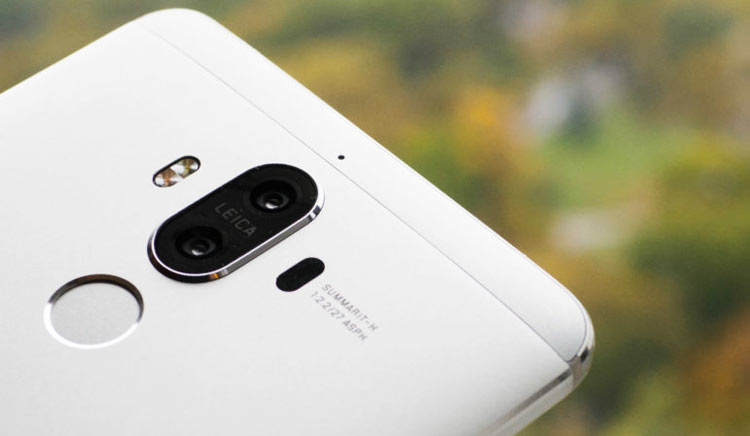
Now, if you have purchased a Huawei Mate 9 in China you must not have Google apps pre-installed on it. It’s really sound weird an Android phone without essential apps like the Gmail, Play Store, Drive, etc. Thankfully, XDA member ajsmsg78 has pulled and modded the Google apps from the US variant of the Mate 8 so that Google Apps can be installed on the Chinese Huawei Mate 9.
So, if you want to enjoy Google apps on your Chinese Huawei Mate 9, just download the provided zip from below, extract it, copy the apps to system> priv-app directory on your device and set the file permissions to 0755. Since the zips are flashable, you can also install it using a custom recovery.
Download Google Apps Package for Chinese Huawei Mate 9
Please, note that the above zip file is not recovery flashable. You have to extract the zip, copy its contents to your phone and copy them to your phone’s system using a root file manager. This means that your Huawei Mate 9 must have root access and TWRP installed on your phone or at least have root privilege on it.
See detailed guide here: Fix File Permissions on Android Devices
Installing Google Apps on Chinese Huawei Mate 9 via TWRP
- Copy Mate_9_Gapps.zip to your phone.
- Reboot your Mate 9 into the TWRP recovery mode,
- Tap the Install option and navigate to Mate_9_Gapps.zip.
- Flash the file and then select Wipe cache/dalvik option.
- Finally, reboot your phone.
That’s it!
Pushing Google Apps on Chinese Huawei Mate 9
Alternatively, you can push the Google apps to your phone manually using the instruction given below.
- Download and extract Mate_9_Gapps.zip.
- Copy the extracted folder to your phone.
- Install Root Browser app on your device.[googleplay url=”https://play.google.com/store/apps/details?id=com.jrummy.root.browserfree”/]
- Also, install BusyBox, open the app and install the script.[googleplay url=”https://play.google.com/store/apps/details?id=stericson.busybox”/]
- Now open Root Browser, grant it root permission when prompted, and navigate to the location where you copied the Google apps.
- Tap and hold the files of the Mate_9_Gapps folder one by one and move them to system> priv-app folder on the root storage.
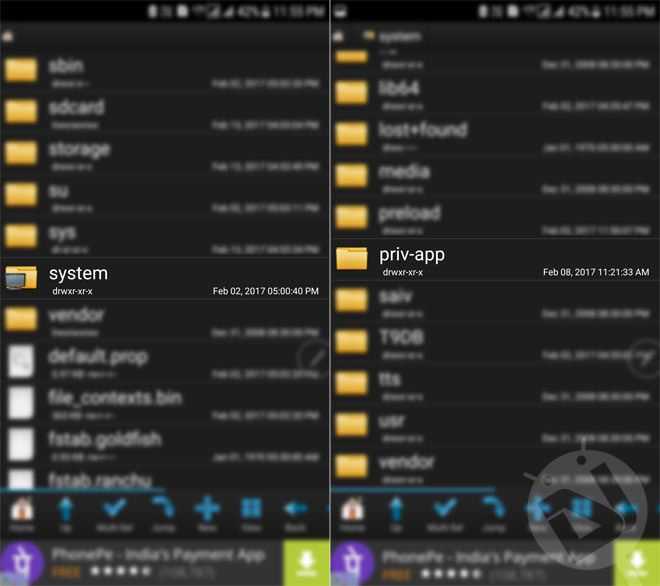
- Having copied the files, tap each of them one by one, tap Permissions option and set it to 0755 (rwe r-e r-e).
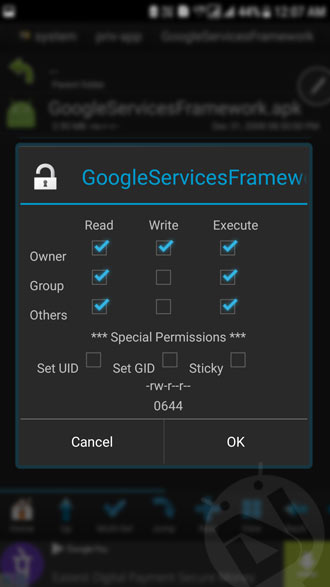
- When you are done with setting the file permission for all the copied files, exit Root Browser and reboot the phone. The newly set permissions won’t apply unless you reboot your phone.
Done! When your Chinese Huawei Mate 9 boots up, you’ll have Google apps installed on it. Enjoy!
Read Next: Check MD5 Checksum on Windows / Mac / Linux / Android



Still, it don’t work. Playstore not working.
Try resetting the permission and fixing them again.
Or, you can just flash it via TWRP.