Google Assistant has tons of impressive features up its sleeves. From setting up reminders to playing songs for you, it covers all the domains. One feature, however, that goes unnoticed is how well it could act as a translator. Yes, there exist various translator apps for your Android device. But the Assistant app stands out for me. It is able to translate in more than 27 different languages. And if you use Google Assistant along with the Google Translator app, then you probably wouldn’t require any other app whatsoever. Moreover, if you wish to translate any written text, the Google Assistant app is very well capable of doing that as well. Methods are different for both of them. Let’s have a look at both these methods.
Google Assistant as a Voice Translator
To make Google Assistant app act as a translator, consider downloading the Google Translate app. This is because the Assistant app is capable of translating a few words by itself. Whereas, if you incorporate the Translate app, its capabilities increase exponentially. So go ahead and download the said app from Play Store.
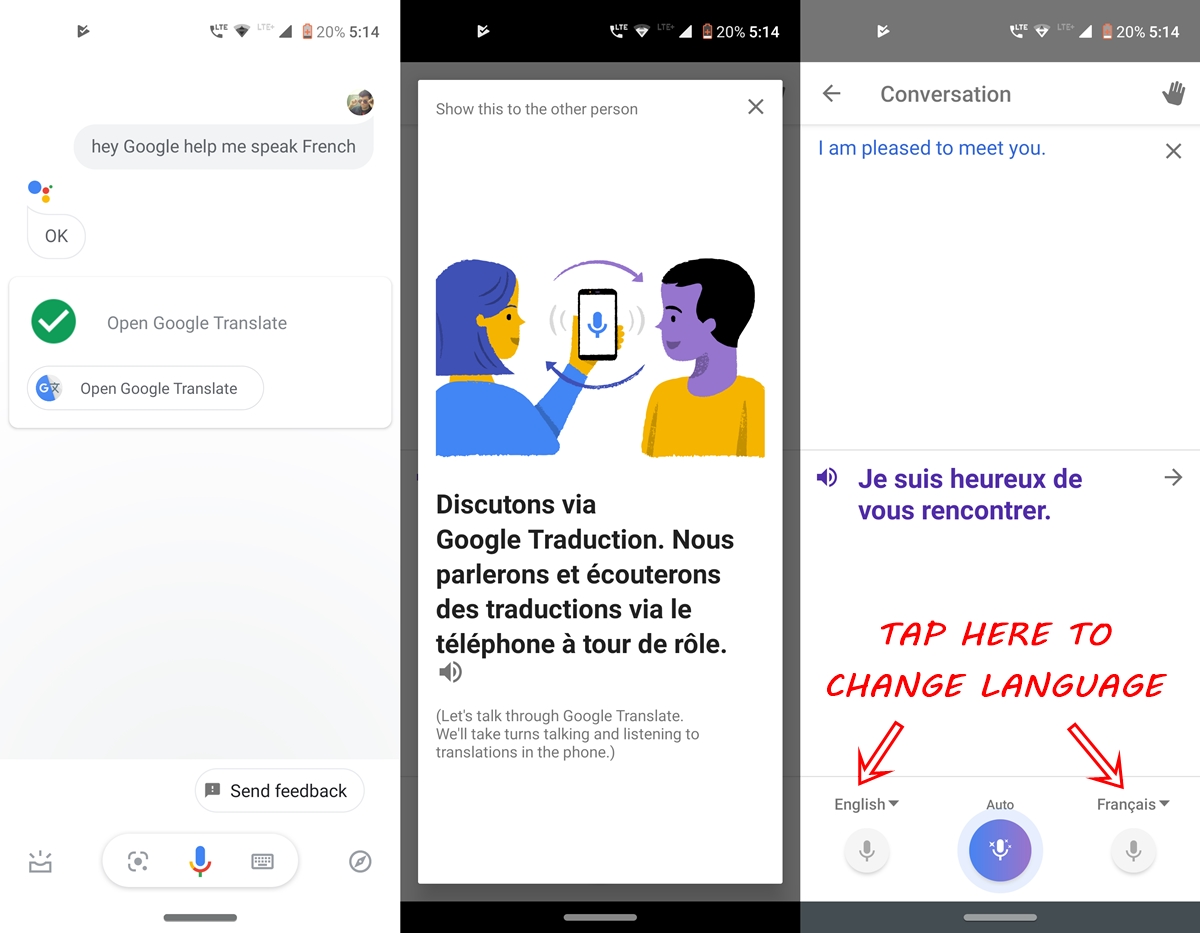
Once you do so, just say “Hey Google, help me speak French” (or any language of your choice). The Google Assistant will now open the Translator app. Now you may start the conversation in the desired language and the app will translate texts to the required language. You may change the detected language and the translated language as well.
Just tap on the left and right microphones to change those languages to your desired one. As you might notice, not all languages are installed by default. So it would be better if you download the required ones manually. This was all about using Google Assistant as a translator. However, this feature will not work if you wish to translate any written text. To do so, follow the below instructions.
Translating Texts
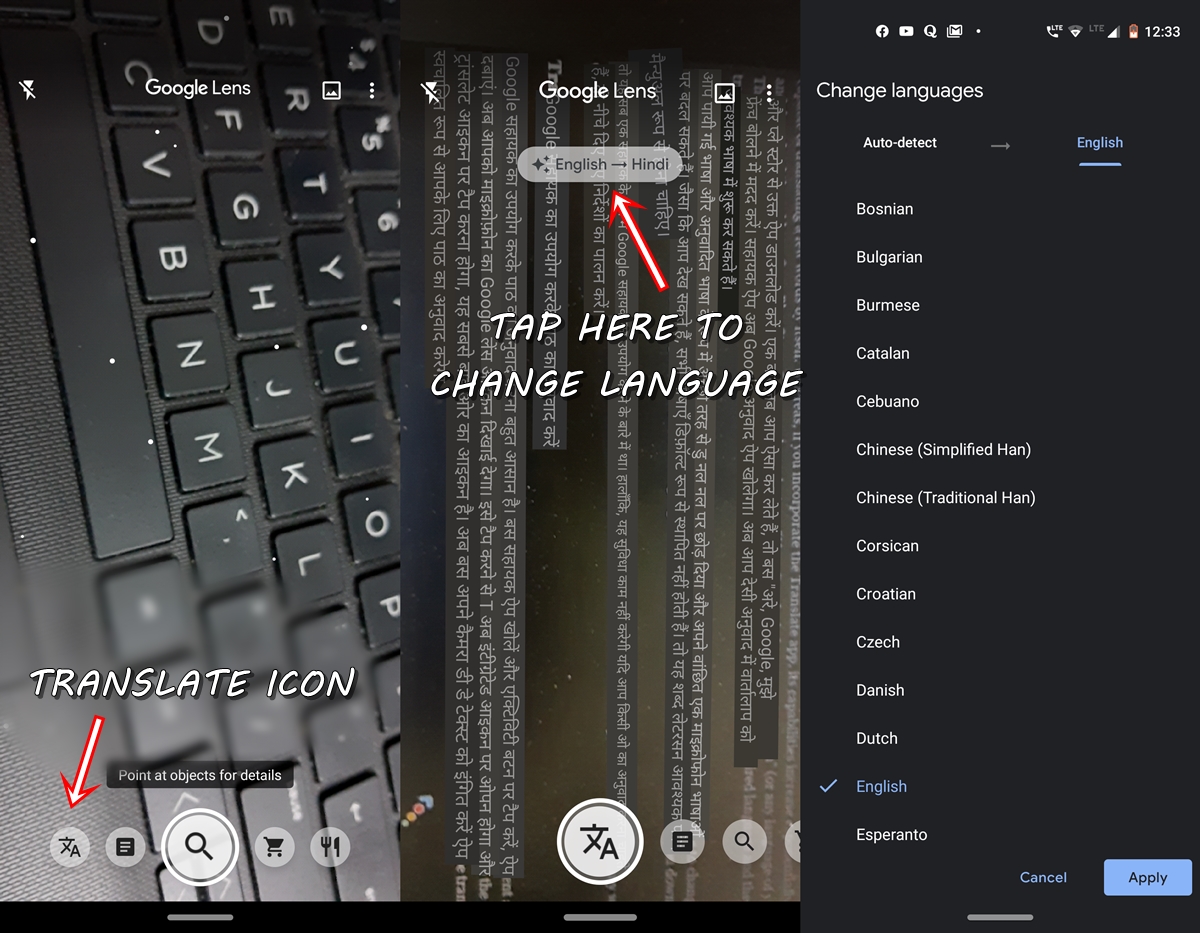
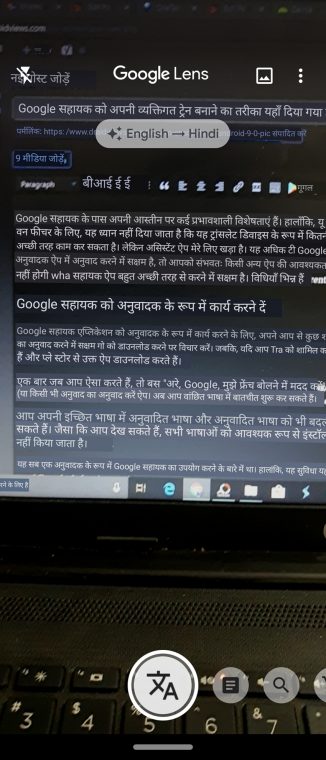
Translating texts using Google Assistant is pretty easy. Just open the Assistant app and tap on the Activities button, present at the bottom left of the app. you will now see the Google Lens icon left of the microphone. Tapping it will open the Google Lens app integrated into Assistant. Now go ahead and tap on the Translate icon (the leftmost one) to use Google Assistant as a text translator.
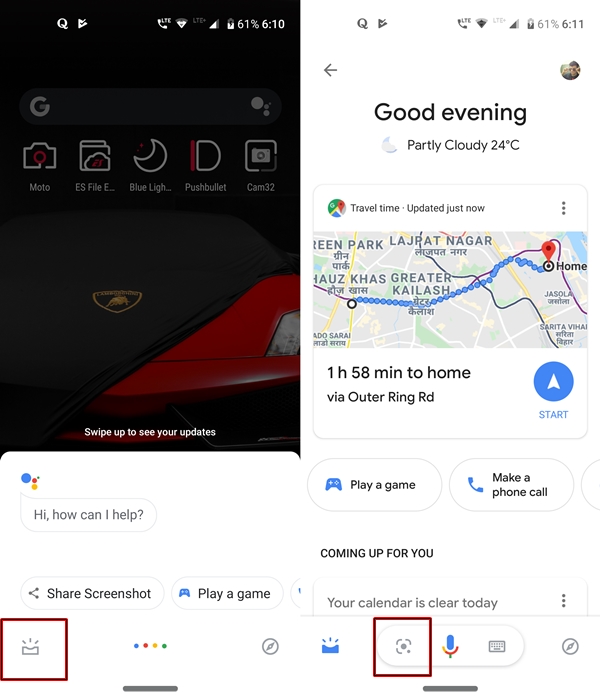
Now just point your camera at the desired text to be translated and the app will automatically translate the text for you. By default, the app will auto-detect the language and translate it into English. To change the translated language, tap on the Auto-detect–>English message and choose the translated language of your choice.
With this, we conclude the guide on how to use Google Assistant as a translator. If you have any queries regarding this article, feel free to ask us in the comments section below.
Read Next: 10 Cool Google Translate Tips and Tricks


Join The Discussion: