It’s been just a couple of days since the new Motorola logo was revealed which shows a revamped and colorful Motorola ensign with the tagline: ‘a Google company’ written under it. People were hardly aware of it when an XDA member ‘fabiobatera’ came up with Motorola splash screen with the new Motorola insignia.
Google acquired Motorola in May 2012 for a total of $12.5 billion. At the time, Google refrained itself from making any changes to Motorola Mobility at the time. The picture seems to change now. The new Motorola logo was first seen plastered on a website of Techweek, which is a tech conference that Motorola is co-sponsoring in the US.
Talking about the logo, the traditional’ remains but this time enclosed in a colorful circle. The earlier logo had a white ‘M’ inside a bright red colored circle.
So how to get this new splash screen on your RAZR XT910? That’s a very simple procedure to follow. There are a very less number of prerequisites and you should be done with the whole process in a minute or two, after getting the prerequisites of course! Let’s head to it.
Disclaimer
Droidviews cannot be held responsible if anything happens to your device during the process. Play safe!
Prerequisites
- Make sure you’re charged above 60% to be safe.
- A Windows PC.
- Motorola Device Manager (For installing drivers, if you haven’t installed it already).
- RSD Lite (A tool to flash firmwares and stuff on Motorola devices).
- The new Motorola emblem files.
Procedure to Get the Motorola Splash Screen
- Install the Motorola Device Manager and make sure your device gets detected properly after the driver’s installation.
- Install RSD Lite from the link provided above.
- Turn your phone off.
- Now hold down Power + Volume Down + Volume Up.
- You will see a black screen with a menu. You have to choose ‘AP Fastboot’ from the list. Press Volume Down to get to it and when it’s highlighted, press Volume Up to select it.
- Now plug your USB cable to your PC and to your phone. Now your phone should say ‘OK to Program’
- Unzip the Motorola emblem files package somewhere, say Desktop.
- Start RSD Lite and make sure your device shows connected in the list. Refer this screenshot for confirmation:
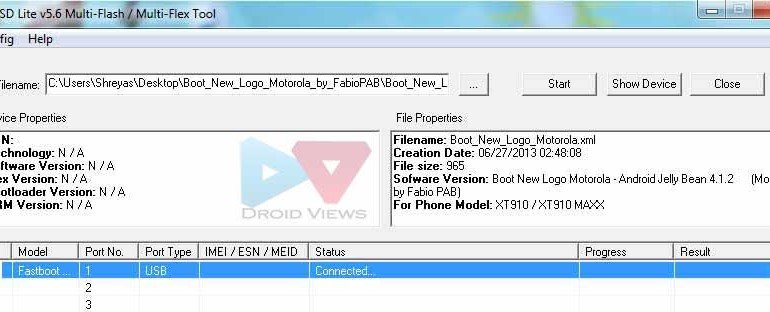
- Now click on the three dots in front of the file name field, it’s for browsing the files, browse to the extracted folder and select the XML file ‘Boot_New_Logo_Motorola.xml’
- Finally, click ‘Start’. After a few seconds, your device will restart. Unplug it after that.
- That’s all. Enjoy the new Motorola emblem on your device.
Must Read: Boot Android Devices into Fastboot/Recovery/Bootloader Mode
Join The Discussion: