How would you like an Android device without root access? Of course, there are millions of Android users who are happy without root on their devices. Most of them might not even be aware of what actually rooting means and those who know are afraid of attempting to gain root because it voids the warranty of the phone and because of the risk involved in the procedure.
However, if you ask the same questions to millions of other Android users who are passionate about their phone and love to explore new things, the other side of the story would come to light. As for me, I remember purchasing a Sony Xperia Z2 the last year and selling it after a couple of weeks since there was no working root exploit available for the phone. The real joy of using Android lies in the very sense of freedom and possibilities that come through root privilege.
Using root apps, mods, custom kernels and ROMs, you can fix issues like lag in performance, battery drain and customize parts of the UI. The same root access that proves to be a panacea for a whole lot of issues sometimes becomes a problem itself when you start getting the warning that your phone doesn’t have proper root access because SuperSU has stopped working. In many cases, the issue pops up right after rooting your phone.
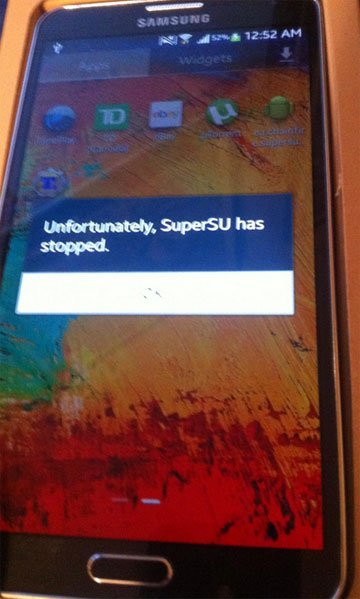
Having installed SU binaries during the rooting procedure, we need to install a separate root manage app called SuperSU/SuperUser to manage root permissions on the device. If the SuperSU app or the SU binaries have not been installed properly on your phone, you’re likely to face this problem. Today, we’ll see how we can fix “Unfortunately SuperSU has Stopped” error on Android devices.
Fixing “SuperSU has Stopped” Error
- Download the latest flashable SuperSU update package: UPDATE-SuperSU-vx.xx.zip
- Copy the zip to your device and flash it using a custom recovery like CWM/TWRP/PhilZ.
- In case you don’t have a custom recovery installed on your device, extract the SuperSU zip file and open the extracted folder. Go the folder named “common” and copy the Superuser.apk to your phone. Enable Unknown sources option in Settings> Security and then install the Apk.

- Then go to the Play Store and install the SuperSU app: [googleplay url=”https://play.google.com/store/apps/details?id=eu.chainfire.supersu”]
Now reboot your device. “Unfortunately SuperSU has Stopped” error should be fixed now. Enjoy!
Related Tutorials:
How to Hide Root Access from Apps that Detect Root on Android



Join The Discussion: