Copying text on a touchscreen device is always more complicated than it should be. Moving around the sliders with your finger tip is not the best experience. On Sony’s Xperia devices, the process is helped somewhat with a small magnifier that pops up when selecting text. However, casting aside the troublesome experience it is still a not so awesome experience. That is because you can’t copy text from certain apps. A messaging app or a web browser would allow it but apps like Facebook and Twitter don’t. And the guessing game about which apps will or will not let you copy text isn’t really fun to play. Where Google hasn’t found success, the Microsoft Garage Team have found success with their app called Clip Layer. It lets you copy text from any app on Android by simply long pressing the home button.
Download Clip Layer
[googleplay url=”https://play.google.com/store/apps/details?id=com.microsoft.cliplayer”/]Set up Clip Layer To Work With Your Home Button
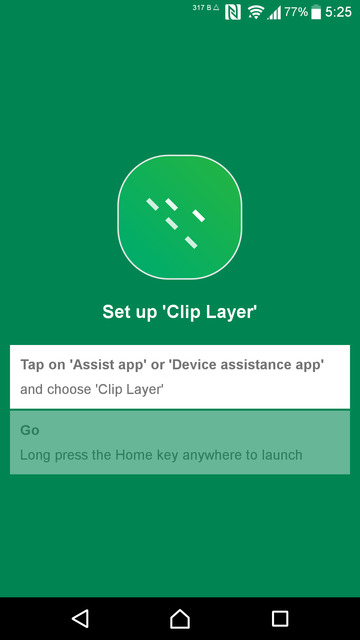

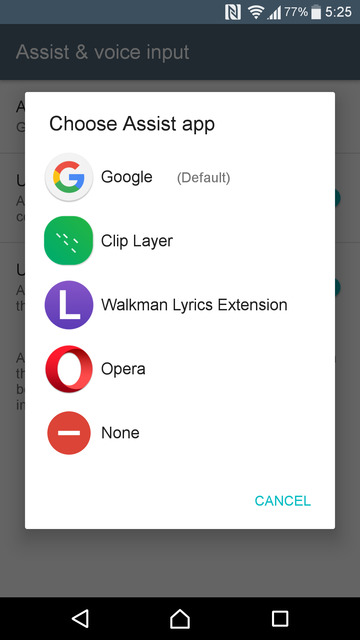
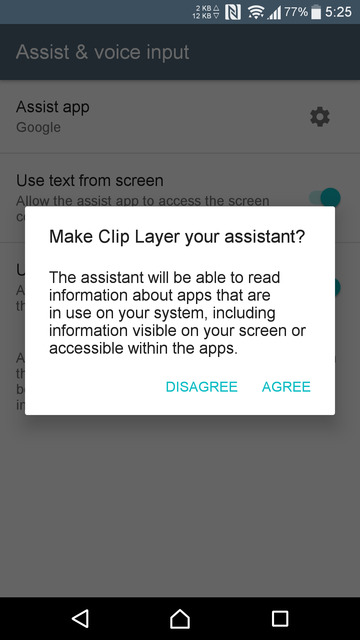
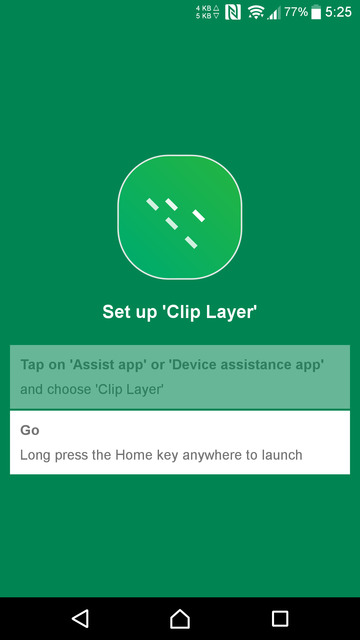
For Clip Layer to be any useful, you will need a way to access it from anywhere. The app lets you do that by replacing your search assistant. Apps accessible via a long press of the home button on Android Marshmallow and above are called Assist apps. Clip Layer being one of them. When you launch Clip Layer, tap the first button on the main menu. You’ll be redirected to the Default apps Settings page. Make sure the Use text from screen and Use Screenshot are enabled. Now tap on Assist and select Clip Layer, tap Agree on the confirmation pop up.
Also read: How to Share Clipboard Between Windows PC and Android
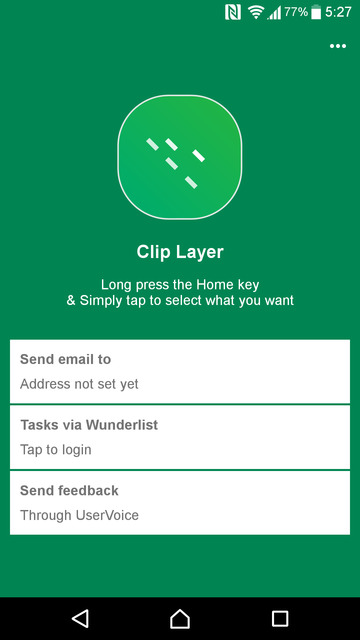
Tap on the back button to go back to the app and here you can add an email address to which you can directly mail stuff with Clip Layer or Log-in with Wunderlist. None of these is really necessary or important. Simply leave the app because there isn’t much to do.
Use Clip layer to copy text from any screen
From now on, whenever you want to copy something off the current screen, be it any app, just long press the home button. With an animation similar to the Google Assistant’s, the Clip Layer interface will pop up. You can then tap on any word on the screen to select it. You can tap multiple words and they will be selected in a sequential order. When you’ve selected the words, you must now wonder what all those options at the bottom are.
Must read: 3 Shortcut Apps for Quick Access to Anything
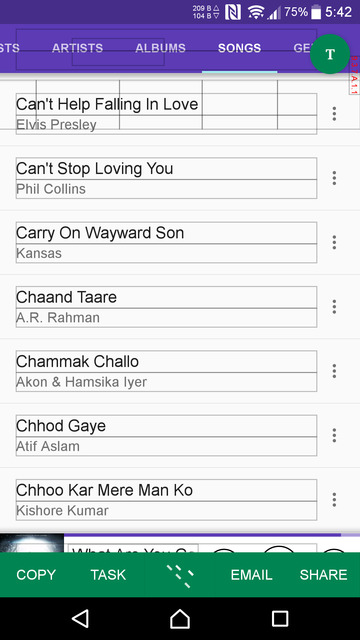
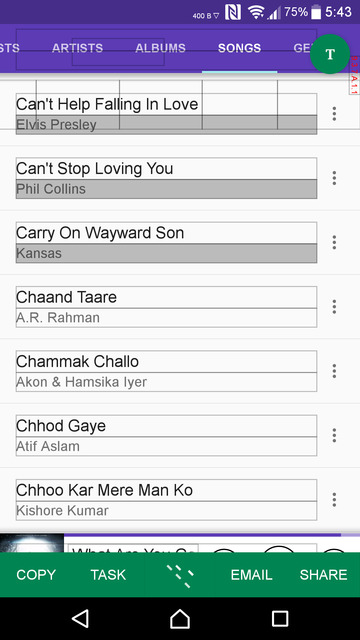
Copy, simply copies the selected text to your clipboard. Tasks is a Wunderlist integration that lets you add the selected text to a to do list. Email, lets you send the text in a new email and Share opens up the Android share menu, so you can share it wherever you want. If you want to take a look or edit the selected text first, you can tap the T button at the top-right corner.
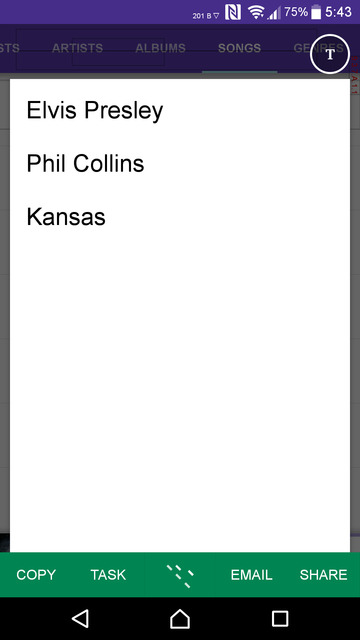
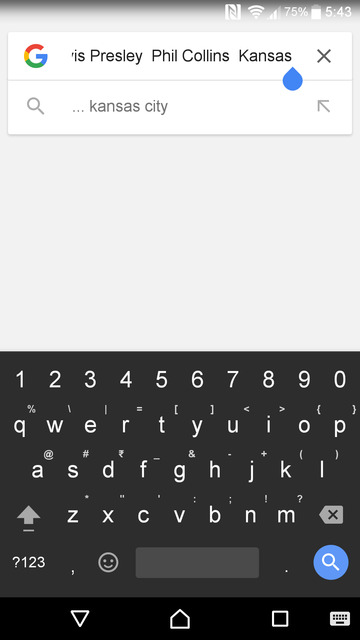
If you select Copy, you can paste the text anywhere and you will see that it is pasted in the sequential order it was selected in. That said, it seems the app has some problem selecting text from some apps. When it can read text from an app, you will see boxes around the text when summoning Clip Layer.
Verdict
I tried it over Facebook, Twitter, Instagram and a few other apps. What I found is that it works partially on most of these. Meaning it can copy text that is part of the app’s UI but not the text you probably actually want to copy, like someone’s status update. I’m not sure whether this is by design or is it a bug.
Don’t miss: 4 Awesome Gboard Tricks You May Not Know
Furthermore, if you use any Assist apps already like the Google Assistant, using Clip Layer might not be suitable. Since this essentially means giving up on your voice controlled AI friend. But if you don’t, your home button long press gesture is simply not being utilized. It’s better to have Clip Layer installed in case you might ever need to copy text from an app.



Join The Discussion: