So the dust is now settling. Android Lollipop has finally arrived on existing Nexus devices via factory images, and the party has already begun! And while most other OEMs aren’t invited, one of them seems to have gotten access this time around. Yes, you guessed it right, we surely are talking about Motorola here.
Motorola has set the bar quite high for other OEMs when it comes to having a timely roll-out plan for the latest Android updates. With Lollipop though, they have outperformed themselves, and seem to have matched even the acclaimed Nexus devices which are known for being the first of the flock to receive any Android version bumps. The Moto G and Moto G started receiving the Android Lollipop update almost at the same time that the Nexus devices did.
And well, if you have updated your Motorola device and are now looking for ways to ROOT your device, we just might have the right ingredients for you! The great developer of SuperSU, namely Chainfire, has revealed the One-Click Auto-Root tool for ALL versions of Motorola devices running on the latest Android 5.0 Lollipop! Yes, guys, you heard it right. No need for scouring the web for a simple method, no need of anything else.
This tool just has a batch file which easily unlocks the Bootloader and installs SuperSU on your device with Root access. And even though the official CF Auto-Root page states that the supported version for Motorola devices is Android 4.4.4 Kitkat, a tweet coming from Chainfire’s official Twitter handle has confirmed that the same version plays nicely with Android 5.0 Lollipop as well!
Various Motorola CF-Auto-Root’s added, and all Fastboot based CFAR’s should now be able to root 5.0 firmwares – http://t.co/yWxc0kKYq2
— Chainfire XDA (@ChainfireXDA) November 14, 2014
So what are you waiting for? Let’s get on with our business, shall we?
Warning
This guide is meant for all Motorola G and X devices running Android Lollipop. But do keep in mind that rooting your device means meddling with it’s system and hence venturing into some muddy waters. Also, unlocking your bootloader may void your warranty too! This process has been tested on various devices with positive results, but keep in mind that you alone are responsible for anything that might go wrong during the process. We shall not be liable for any damage to your device and the responsibility lies solely with you. So, follow this installation guide with utmost care!
Download CF-Root for Moto G and Moto X Variants
- Moto X 2014 XT1097 (victara_retbr)
- Moto X XT1052 (ghost_retgb)
- Moto G 2014 XT1063 (titan_retuglb)
- Moto G 2014 XT1068 (titan_retaildsds)
- Moto G 2014 XT1068 (titan_retde)
- Moto G XT1031 (falcon_boost)
- Moto G XT1032 (falcon_reteu)
- Moto G XT1033 (falcon_retbr_ds)
Download the CF-AutoRoot Tool for your Motorola device first. The download link has been provided above along with the device listing.
Requirements and Precursors
- Once you have downloaded the version specific to your device, you will have to set up the SDK Platform-tools drivers for Android on your PC. ADB drivers are needed for connecting your device correctly to the PC for the purpose of flashing or installing stuff via fastboot mode.
- When you are done with setting up ADB and Fastboot, you’ll have to install your device-specific USB drivers by connecting it to your PC via a USB cable. Download the drivers and manually install them by opening your PC’s Device Manager and clicking on the ‘Other Devices’ button. Then, right-click on Nexus 7 and select ‘Update Driver Software’. In the pop-up screen that appears, browse to and select the zip drivers you just downloaded.
- You will have to revert back to pure stock Android by doing a complete un-root of your device and flashing back the stock recovery.
- Enable USB debugging on your device in the ‘Developer Options’ menu by referring to the comprehensive guide.
- And lastly, do NOT forget to backup your personal data and charge your Moto device to at least 60% beforehand.
Root Moto G and Moto X with CF Auto-Root
- First of all, get to your device system-Settings, and then go to Developer options -> Enable OEM unlock.
- Don’t forget to extract the CF-Auto-Root script file specific to your device in a folder of your preference. (Remember, if you mix-up this script file with one meant for another device, it may well brick your phone. So download the one which is specific to your device, and recheck it!)
- Now reboot your Motorola device in its ADB mode (by pressing VolUp + VolDown + Power) before connecting it to your PC via a USB cable.
- Once connected, simply double-click on the Script file and a pop-up will appear.
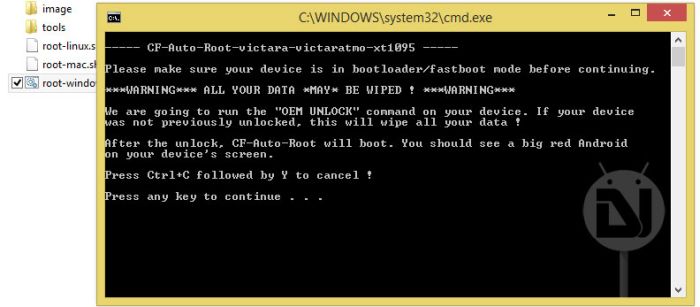
- This script will then automatically root your Moto device in one go. A few prompts might appear asking for key presses.
- And voila! You’re done!
So you now have a Rooted Motorola device on Android 5.0 Lollipop! Having your cake and eating it too, eh? Okay now, stop grinning and get on with your Lollipop! And don’t hesitate in sharing any issues with us in the comments section below.
Don’t Miss: Authorize ADB Commands on Android


not work on my XT1028 ( !!!
A lot of these files are actually still based on Android KitKat which is probbaly why so many people are failing.
when i try to root with this method below things shows on my mobile screen and both cmd and mobile phone stuck.
cmd: oem unlock; cmd: oem unlock; cmd: flashing unlock
This used to work on my XT1031. And then I broke the phone’s software and had to reflash the stock firmware in order to have the phone 100% bootable, stock and functioning again. I don’t think refalshing would cause the non-root condition I am having. I am at the “Press any key to continue..” screen and on my phone it says, “cmd: oem unlock; cmd: oem unlock; cmd: flashing unlock” One thing I should mention is that once Motorola pushed the OTA update to the XT1031, the bootloader became unlockable. However, when this phone was on 4.4.4 Kitkat, the bootloader was not unlockable. My point is that I unlocked the bootloader via Motorola’s approval and I don’t need the unlock flashing process. Is that what my issue is? I wouldn’t think so because common sense says that if the bootloader has already been unlocked, why would there be a need to flash the unlock..? Any help would be helpful.
my root was unsuccessful bcz its written fastboot is not recognised as an internal or external command , what to do in my moto g xt 1033 running android 5.0.2
Hi, I performed the procedure on my XT 1033 running 5.0.2.
the script was only partially succesful. i could see failed error in the command prompt.
on rebooting, no root. help…
—– CF-Auto-Root-titanumtsds-titanretaildsds-xt1068 —–
Please make sure your device is in bootloader/fastboot mode before continuing.
***WARNING*** ALL YOUR DATA *MAY* BE WIPED ! ***WARNING***
We are going to run the “OEM UNLOCK” command on your device. If your device
was not previously unlocked, this will wipe all your data !
After the unlock, CF-Auto-Root will boot. You should see a big red Android
on your device’s screen.
Press Ctrl+C followed by Y to cancel !
Press any key to continue . . .
…
(bootloader) fastboot oem unlock [ unlock code ]
OKAY [ 0.012s]
finished. total time: 0.013s
…
(bootloader) fastboot oem unlock [ unlock code ]
OKAY [ 0.011s]
finished. total time: 0.013s
downloading ‘boot.img’…
OKAY [ 0.401s]
booting…
FAILED (remote failure)
finished. total time: 0.418s
It may take a minute or so for the red Android to appear. If it doesn’t show up
at all, there may be a problem.
Press any key to continue . . .
What should i do if this comes up?
what about xt1064
plzzzz help
i am to unlock my moto g xt1033
I guessed that might be the answer,thanks anyway. Maybe they should change the title of this article.
I have a moto g xt1072,will any of these work or will it be updated soon? Thanks.
Hi, CF-Root is not available for your model.
hey does this unlocks bootloader too? i have moto g XT1033
plz reply asap
Yes, it’ll prompt you to unlock the bootloader.
I have already lost some of my imp data and want to recover it. I know it is still there in system partition but i need root access for which I have to unlock bootloader which will again format the system. Will I be able to still recover the lost data after unlocking the bootloader which was lost previously.? plz reply. Its very urgent. Thank you.
It will be a good thing for you to backup your data before proceeding.
You probably didn’t got my question.
oh lord be with you ..
why dont you dig a hole and jump on it and dig another and jump in (IT) TOoo!
hope u get this ..
you lost your data and you try retrieving it but u lost it .. so you will try another time by loosing your data and you will try retrieving it of the previous one but not previous (Previous precious one – PPO) once again!!! its lost ..
bottom line .. Rooting your phone!!!!! doesn’t get your data back if its Original! DAWG
its Wipes itself like a tissue paper clean plates ..it would be pity all over again..
You get me where i m going
i once lost my data.. luckily i kept in my backup.. using cloud or whatever F@$k&%^ thing would it be or say take a hard drive it will save a bunch… and keep pass locked incase u need to hide evidence
Will this remove all my data from my phone or will everything stay?
Unlocking the bootloader, which you’ll have to do, will wipe all data. Backup all you data first.
Thanks for the quick reply. What app or method do you recommend for backing up my data?
See here: https://www.droidviews.com/backup-apps-contacts-logs-messages-and-settings-without-rooting-your-android-phone/
Thanks, I appriciate the help.
I got error in 1068 (Remote Failure)
Please help me out…
Reinstall drivers, reboot phone and PC and try again.
all done…but no effect on error…:(
I can confirm that this works on the XT1032 model. Excellent… >:3
Thanks for confirming!
will this work on xt1032 gpe lollipop 5.0.1?
thanks
Will this work on verizon moto x 2nd gen. Runnin 5.0
Thank u
If your device model is listed above, it would work.
1096. 🙁
Then you will have to wait.
How long do you think it’ll be?
Not sure, actually. It might just be in the next few hours or weeks.
Do I need an unlocked bootloader?
Yes.
Thanks !
Which model do you have?
Moto X 2014
I meant model number, like XT1097, etc.
I guess it is XT1097. It is a Brazillian GSM phobe.
You can try auto root as the tool will unlock the bootloader.
Thanks, I will!
Does that method worked for you? I have the same model as you running lolipop 5.0, can you confirm if that worked?
Thank you
Good Bye!
@disqus_R4JAIKaMOy:disqus
I have an xt1095, and I do not have this option…
First of all, get to your device system-Settings, and then go to Developer options -> Enable OEM unlock
Hmm, then skip that step.
I’m using this with XT1068 but my cfar cmd is stuck with waiting for device. I tried both locked and unlocked bootloader before running the script, both had the same issue. What should I do?
Any idea of this will work on AtT branded XT 1097?
Yes. Try this: http://download.chainfire.eu/600/CF-Root/CF-Auto-Root/CF-Auto-Root-victara-victararetbr-xt1097.zip