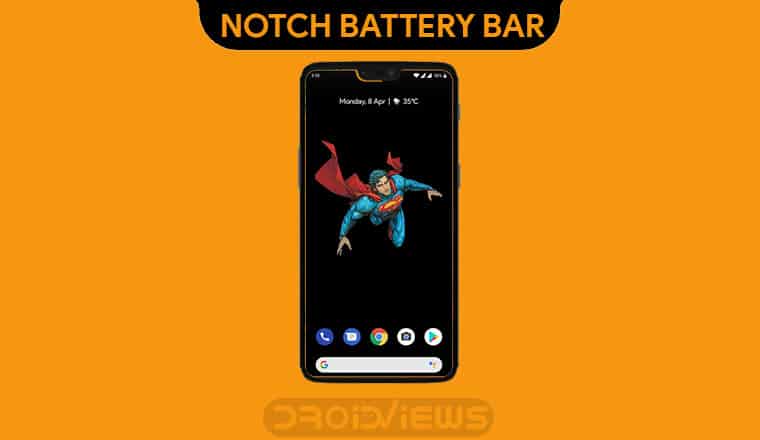
Many Android enthusiasts hate a notch to this date even though most of them now have phones with notches. Some have come to terms with it and even embraced it. Generally, though, people either don’t care or love it. This is what inspired developer dax105 to create the Borderlight Live Wallpaper. The devs over at Extinct Entertainments then decided to take it a bit further by adding a notch battery bar. By using Notch & S10 Battery bar – Live wallpaper app, you can easily add battery bar to notch on your Android phone.
The concept is very similar to that of the Borderlight Live Wallpaper. In fact, the Notch & S10 Battery Bar app they came up with is itself a live wallpaper too. It is basically the same app as Borderlight and offers the same features. The only difference lies in the fact that Borderlight only highlighted your screen’s borders, including the notch with colors of your choice. With Notch & S10 Battery Bar, the border around the notch decreases and increases based on the amount of battery remaining. That adds a little functionality to aesthetics.
We’ve seen a similar app called Energy Ring do something very similar with the Galaxy S10’s camera hole too. If you didn’t find that app interesting or if have devices with various kinds of notches you might like Notch & S10 Battery Bar more because it supports many devices, including the S10.
Notch & S10 Battery Bar Live Wallpaper
Use the notch as a battery bar on your phone with this live wallpaper.
Pick an image of your choice and add the battery bar to it with custom colors and percentages. Add a battery border around your wallpaper.
Select a notch
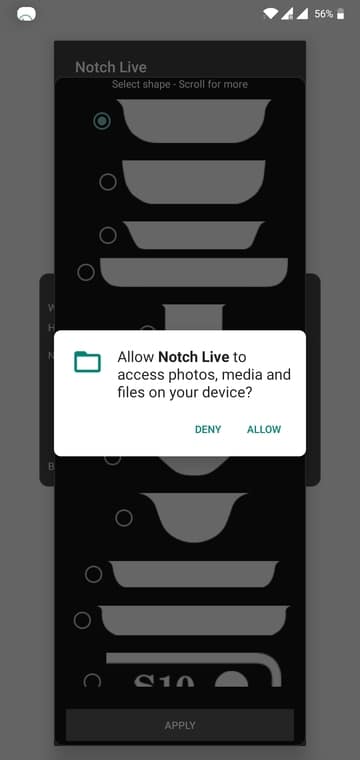
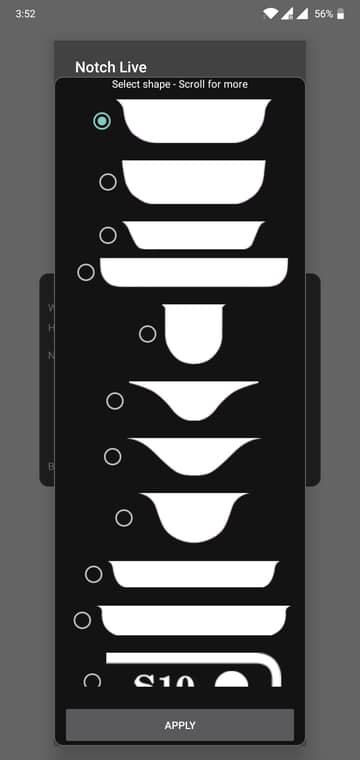
Unlike Energy Ring for the Galaxy S10, this app does not display an overlay on your screen around the notch. It simply acts as a wallpaper, therefore doesn’t need the permission to draw over other apps. It only needs permission to access files on your device. This is so that you can choose an image on your device to be the actual wallpaper with the battery indicator on top. This is a better approach since otherwise you’re either left with an empty black wallpaper or pre-selected images at best.
Related Article: Energy Bar Adds a Cool Battery Bar at the Top of Your Screen
With the permission granted, you can start selecting the kind of notch your phone has. The app contains all the kinds of notches that have come out. The first option fits best for devices like OnePlus 6, for instance. The third will fit best with devices like the Asus Zenfone 5Z, Zenfone Max Pro M2, etc. There are options for the Galaxy S10 e and Galaxy S10/S10+ too. Tap on the Apply button when you’ve selected the notch you think fits best with your device’s notch.
Configure it
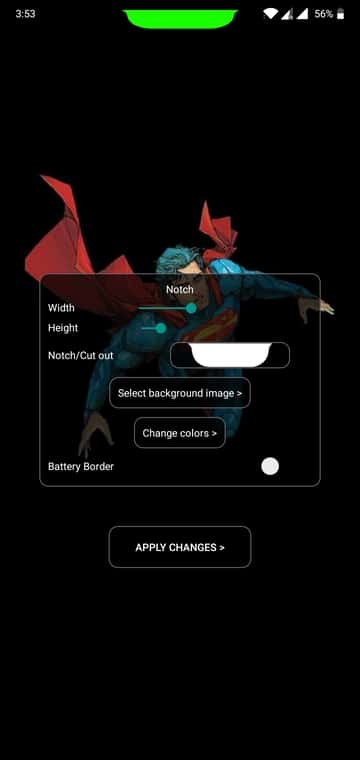
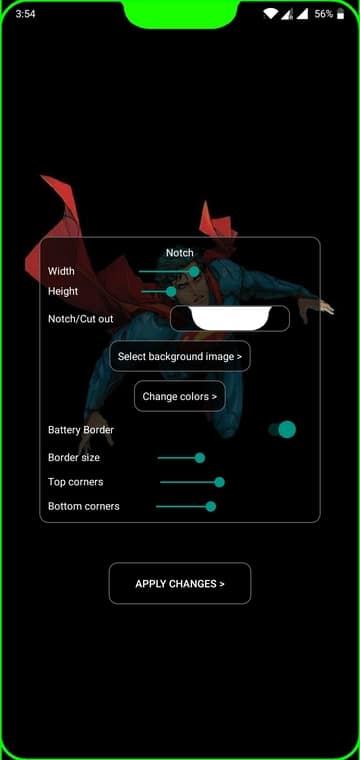
Next, you can configure the width and height of the battery indicator. In most cases, you’ll definitely have to in order to adjust the indicator to the notch as per your preference. What the Select background image > button does, requires no explanation. The Battery Border toggle lets you enable and configure a border around your screen to go with the notch. This border does not part take in indicating the battery but it does change colors with the notch battery bar.
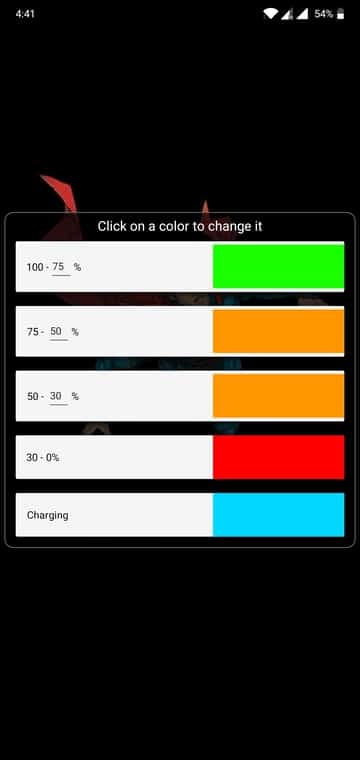
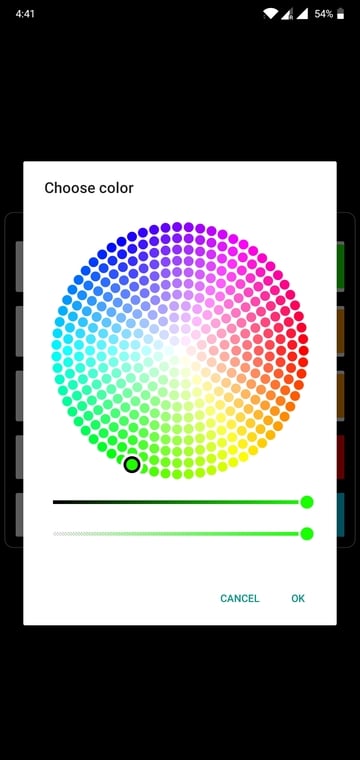
When you tap on the Change colors button you can choose the color of the indicator depending on the percentage of battery. This is pretty standard if you’ve used any of the battery bar apps before.
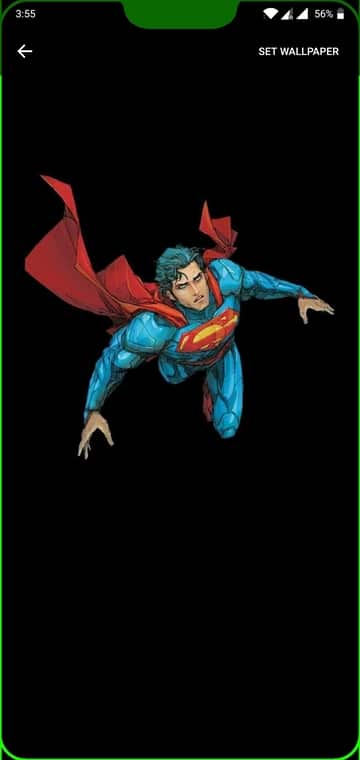
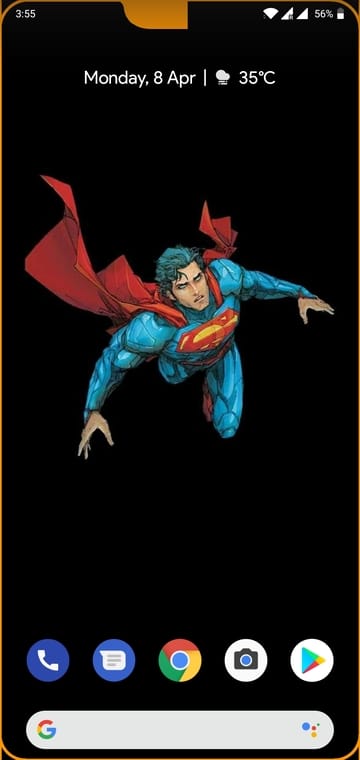
When you’re satisfied with the look and feel just tap on the APPLY CHANGES > button at the bottom. You’ll then be shown a preview of the wallpaper but the battery indicator isn’t working in the preview yet. You only see it as you would if your battery was full. That’s enough to decide whether you like the look or not, however. Select SET WALLPAPER from the top-right to apply the wallpaper.
Since this is a wallpaper, you will not see the battery indicator while you’re using an app. Energy Ring, on the other hand, draws over apps so it is visible all the time. The downside is that Energy Ring isn’t visible on the lockscreen since apps aren’t allowed to draw on the lock screen. This live wallpaper has no problems displaying your notch battery bar over the lockscreen though.
Read Next: Is Display Notch is a Good or Bad Thing?



Join The Discussion: