Every now and then a smartphone comes out that somebody will claim takes DSLR like photos. The rise of dual cameras is 2017 only shows how almost every flagship would like to claim so. As long as we’re still using the same tech to capture images, smartphone cameras will never be able to take DSLR like photos. The fact that most manufacturers are tweaking the software on their devices so much to emulate a DSLR-like image quality is a testament to that. Low light conditions are when the differences between an actual camera and a smartphone camera are even more pronounced. That’s not to say smartphones can’t take good pictures in low light.
But it should be noted that smartphones have a serious problem when it comes to the camera. The Image sensors are extremely small compared to the sensors on a normal DSLR camera. If you’re picturing a DSLR in your mind and comparing it to the camera sensor on your phone, you might have a rough idea of how small. Let’s take a step forward and see exactly how small a smartphone camera sensor is compared to DSLR camera sensors.
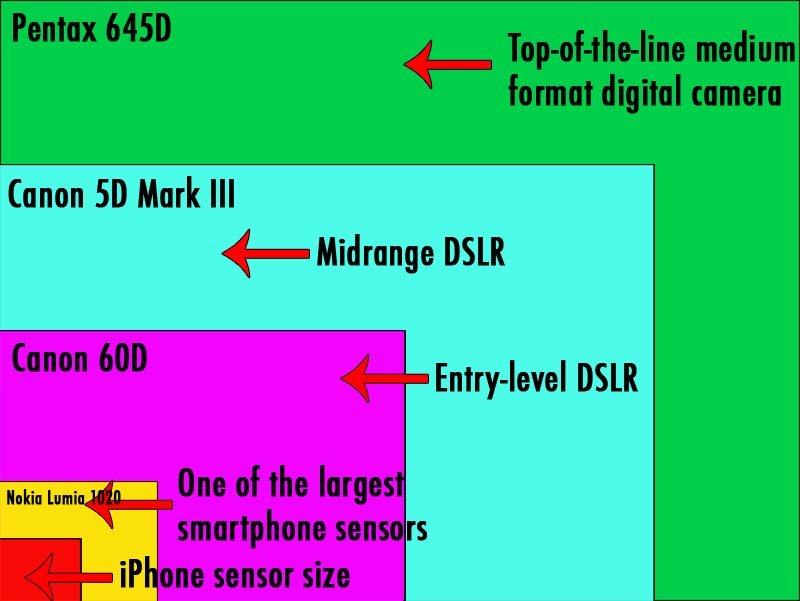
The image above says it all. And this size problem causes a larger problem when it comes to low light photography. The light-sensitive are on most smartphone cameras is about 15 to 30 mm². The same area on a DSLR can be 30 to 60 times larger. This means even in low light a DSLR camera sensor can gather enough light to capture sharp images without artificially tweaking the image. Smartphone cameras may be getting better at taking pictures in daylight but they are still far behind in low light conditions. There are workarounds for this but they aren’t really perfect.
Tweak ISO sensitivity
If you’ve been following DroidViews you may be familiar with what ISO is. If not, you can take a look at our Manual mode camera settings guide where you’ll learn more about ISO and some other terms. Understanding those will help you know exactly what you want out of your images and how to capture those images.
To take a bright image in low-light, such as night time, you can crank the ISO values up to a notch. There are certain things to consider though. Increasing ISO values increases the sensor’s sensitivity towards the light. This also produces greater read errors that manifest themselves as image noise, washed colors and loss of detail. The pictures are indeed bright but not in the way you’d hope for most of the time and definitely not something you would want to frame.
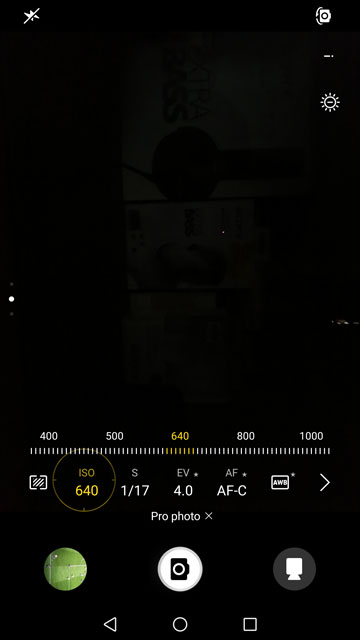
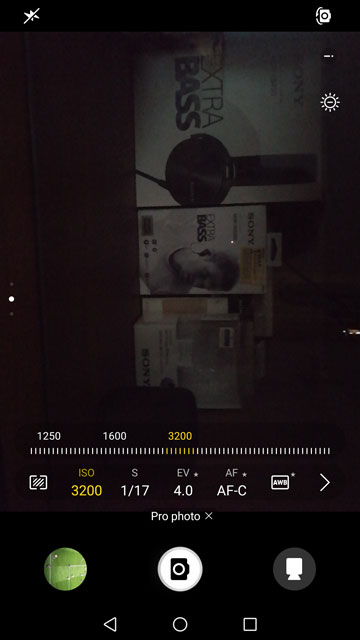
These images above show one of the better examples of increasing ISO sensitivity. Most smartphone cameras these days will let you change the ISO values but if your phone’s default camera doesn’t, you can try third-party alternatives. We recommend trying Open Camera.
Decrease Shutter speed
Once again, you’d be familiar with what it is and what it does if you’ve read our Manual mode camera settings guide. The term is quite self-explanatory though. By decreasing the shutter speed, you can allow your device’s camera to wait longer and gather more light before shutting off the sensor and capturing the image. The result is a brighter image with the usual amount of noise that you’d expect from your smartphone camera. There is a big con though. Since the camera sensor is taking more time to capture an image, anything that moves, even slightly, during that time will be blurry.
The camera needs to be perfectly steady if you set the shutter speed at 1 second or above. Beyond the 1 second mark, it becomes almost impossible to take non-blurry photos even if you have the calmest of hands. You’ll need a tripod or will have to fix or lean your phone onto something. Bonus points to owners of a Sony Xperia device here because all you need is a flat surface.
Most smartphone cameras have a default shutter speed of 1/8000th of a second. That’s a little too little, especially in low light. Some smartphones offer users the ability to decrease the shutter speed to up to 30 seconds. Although if you do that, your image will be nothing but a white blob of nothing even in the lowest light scenarios.
Consider the images below and compare them to the ones above with 640 and 3200 ISO values. These images have been shot at ISO 640 with exposure times (or shutter speeds) of 30 seconds (left) and 2 seconds (right).

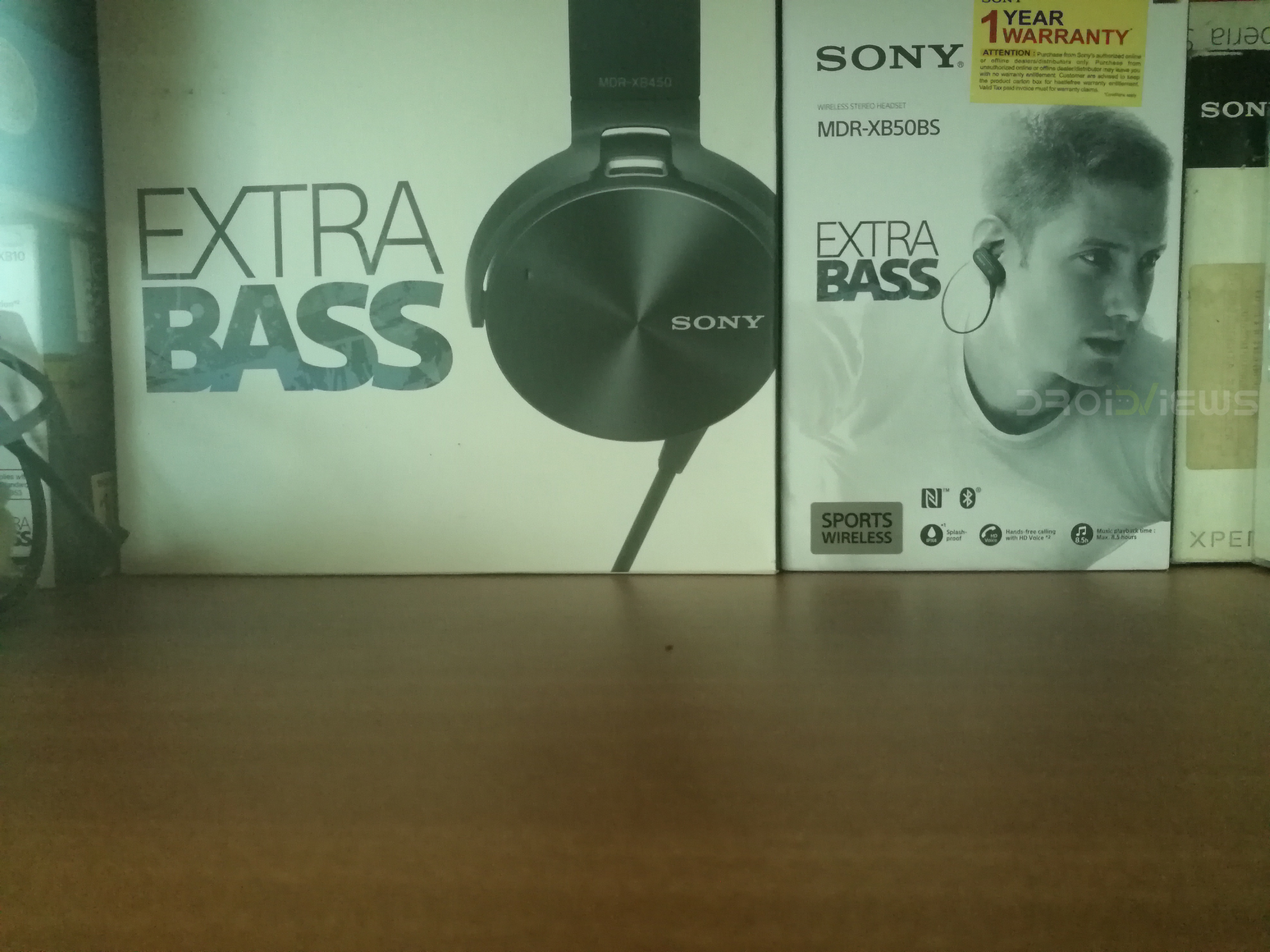
It may look like some external light sources were used but this is simply the magic of a slower shutter speed and a perfectly stable smartphone camera.
Get creative
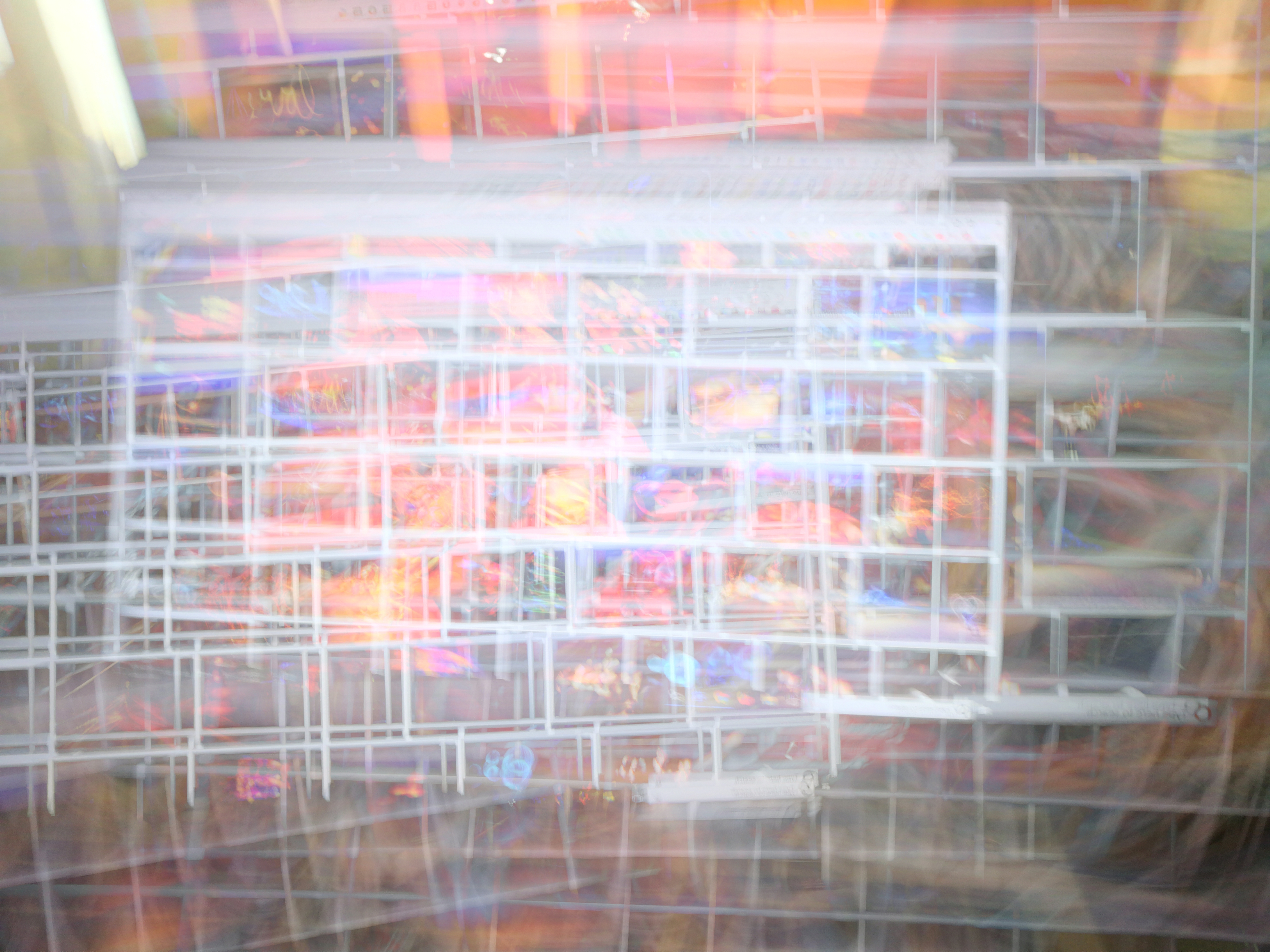
Lowering shutter speed works really nice for static objects but as we’ve already said, moving objects will be blurry. But creative people have managed to find art in that too. If you Google images for “light photography” you can get an idea of the kind of artistry I’m talking about. Some Huawei phones have a dedicated Light painting mode for this.



Join The Discussion: