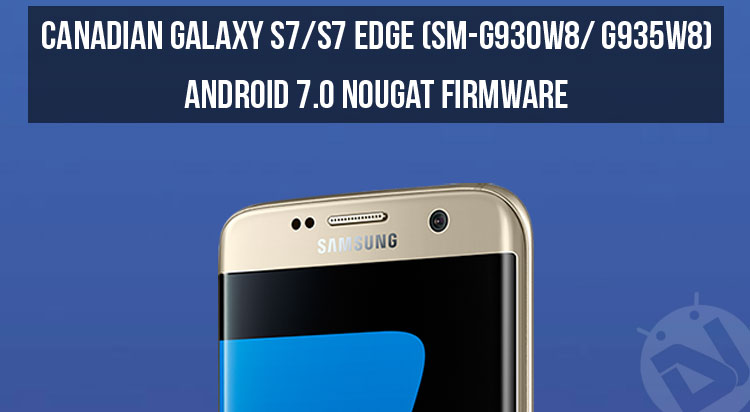
Samsung has been pretty busy with the preparations for the launch of the long-awaited S8 and cooking the latest Nougat update for the eligible smartphones like the Galaxy S6 and S7. The first official nougat roll out for the international S7 and S7 Edge started back in mid-January this year and it has been making its way to the carrier-branded variants of the device since then.
Yesterday, we shared the Nougat update tutorial for the Verizon Galaxy S7/S7 Edge. However, if you own the carrier-branded Canadian Galaxy S7 (SM-G930W8) or the S7 Edge (SM-G935W8), it’s you turn now to enjoy the fresh taste of Nougat on your phone.
While many users of the device have already received the official Nougat OTA, there are still many, especially those who rooted their S7 or have been using it out of Canada, who will have to flash the full Nougat firmware manually to get the latest update.
What’s New in Android 7.0 Nougat Update for Galaxy S7/S7 Edge
Android 7.0 Nougat is definitely a big update that brings a host of new features, improvements, fresher and simpler UI and new ways to customize your S7/S7 Edge.
-
- The new battery management feature helps maximize your battery’s potential. Customizable presets for Medium power and Maximum power saving modes are now available. The App Power Monitor detects inactive apps consuming the battery, and puts them to sleep, extending your battery charge.
- The new split-screen feature lets you enjoy multitasking by viewing 2 apps side by side. You can enjoy split screen by tapping the Recents button (the one the left of the Home key) and then by tapping the split screen view icon for the desired apps.
- Now, you can preview all available effects and filters while taking a picture. To view the effects, just swiping left to right after launching the camera app. Moreover, you can also download new effects by tapping the download link on top.
- You can now set any image saved in your Gallery on your Always On Display directly from the Gallery app.
- Using the new Samsung Internet app you can now take advantage of the Samsung Pass and the fingerprint scanner for website logins. You need not remember multiple login credentials for various sites as Samsung Pass securely stores your login details.
- You can now improve your phone’s performance whenever you want using the Performance Mode that allows you to choose from Optimized, Game, Entertainment, and High-performance modes to optimize battery consumption and improve device performance.
- The new keyboard is configured updates language data automatically and provide better predictions.
- You can now choose between QHD and full HD display resolution.
Download Android 7.0 Nougat Firmware for Canadian Galaxy S7/S7 Edge
Galaxy S7 SM-G930W8 Firmware
Canada (EastLink): G930W8VLU2BQB6_G930W8OYA2BQB6_ESK.zip
Canada (SaskTel): G930W8VLU2BQB6_G930W8OYA2BQB6_BWA.zip
Canada (Bell Mobile): G930W8VLU2BQB6_G930W8OYA2BQB6_BMC.zip
Canada (Virgin Mobile): G930W8VLU2BQB6_G930W8OYA2BQB6_VMC.zip
Canada (Globalive Wind Mobile): G930W8VLU2BQB6_G930W8OYA2BQB6_GLW.zip
Canada (Vidéotron): G930W8VLU2BQB6_G930W8OYA2BQB6_VTR.zip
Canada (Telus): G930W8VLU2BQB6_G930W8OYA2BQB6_TLS.zip
Canada (Fido Mobile): G930W8VLU2BQB6_G930W8OYA2BQB6_FMC.zip
Canada (Rogers): G930W8VLU2BQB6_G930W8OYA2BQB6_RWC.zip
Canada (Koodo Mobile): G930W8VLU2BQB6_G930W8OYA2BQB6_KDO.zip
Galaxy S7 Edge SM-G935W8 Firmware
Canada: G935W8VLU2BQB6_G935W8OYA2BQB6_XAC.zip
Canada (EastLink): G935W8VLU2BQB6_G935W8OYA2BQB6_ESK.zip
Canada (SaskTel): G935W8VLU2BQB6_G935W8OYA2BQB6_BWA.zip
Canada (Bell Mobile): G935W8VLU2BQB6_G935W8OYA2BQB6_BMC.zip
Canada (Virgin Mobile): G935W8VLU2BQB6_G935W8OYA2BQB6_VMC.zip
Canada (Globalive Wind Mobile): G935W8VLU2BQB6_G935W8OYA2BQB6_GLW.zip
Canada (Fido Mobile): G935W8VLU2BQB6_G935W8OYA2BQB6_FMC.zip
Canada (Vidéotron): G935W8VLU2BQB6_G935W8OYA2BQB6_VTR.zip
Canada (Koodo Mobile): G935W8VLU2BQB6_G935W8OYA2BQB6_KDO.zip
Canada (Rogers): G935W8VLU2BQB6_G935W8OYA2BQB6_RWC.zip
Canada (Telus): G935W8VLU2BQB6_G935W8OYA2BQB6_TLS.zip
Install Android Nougat Firmware on Canadian Galaxy S7/S7 Edge
Already downloaded the firmware file for your Samsung Galaxy S7? Great! Just follow the easy steps described below to install it.
- Download Odin3_v3.12.3.zip and unzip it.
- Download and install Samsung USB Drivers on your computer if you don’t have installed them already.
- Go to Settings> Developer options and enable USB debugging.
- Backup your apps and data as a precaution.
- Unzip the firmware zip file you downloaded from above. You will get 5 files (with .tar.md5 extension) inside the extracted folder.
- Turn off your Galaxy S7 and press and hold the Volume Down + Home + Power keys simultaneously for 2-3 seconds to boot your phone into the Download mode. Release the keys as soon as you see a blue screen with exclamation sign and press the Volume Up key.
- When your phone gets into the Download mode, open the Odin folder double-click the .exe file to launch it.
- Connect your phone to your computer using the USB cable that came with your phone.
- When your device is detected by Odin, the ID:COM port will be highlighted (see below).
- Now click the BL button in Odin, navigate to the firmware folder and add the file that starts with BL in its name.
- Then click the AP button and add the corresponding file to it. Since the AP file is huge in size, it might take some time for it to be added in Odin.
- Now click the CP add the CP file to it.
- Finally, click the CSC button and add the CSC file to it. Please note that if you select the HOME_CSC file, the apps and data on your phone will not be wiped. However, of you wish to wipe your phone, select the file that starts with CSC in its name.
- Having added all files, make sure your Odin’s screen looks like as shown below.
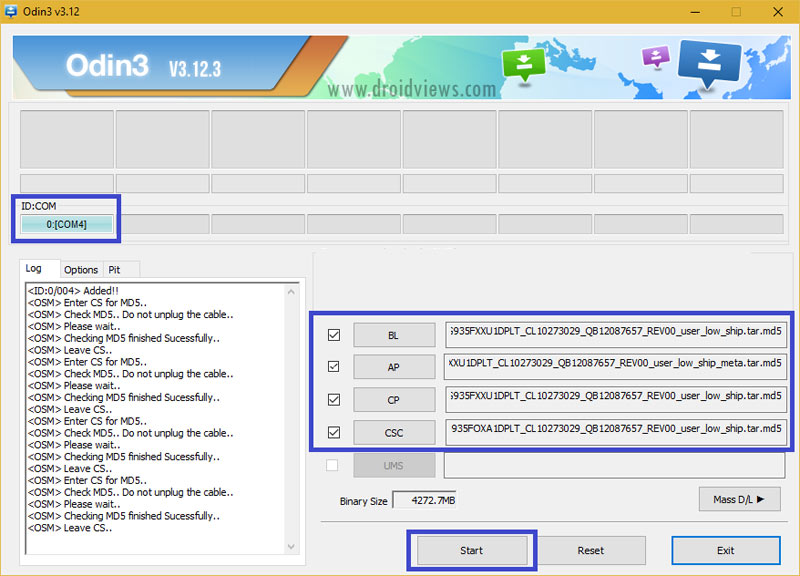
- Finally, click the Start button to initiate the installation and wait until the installation completes.
- When the firmware is installed, you will get PASS! message in Odin and your phone will reboot automatically.
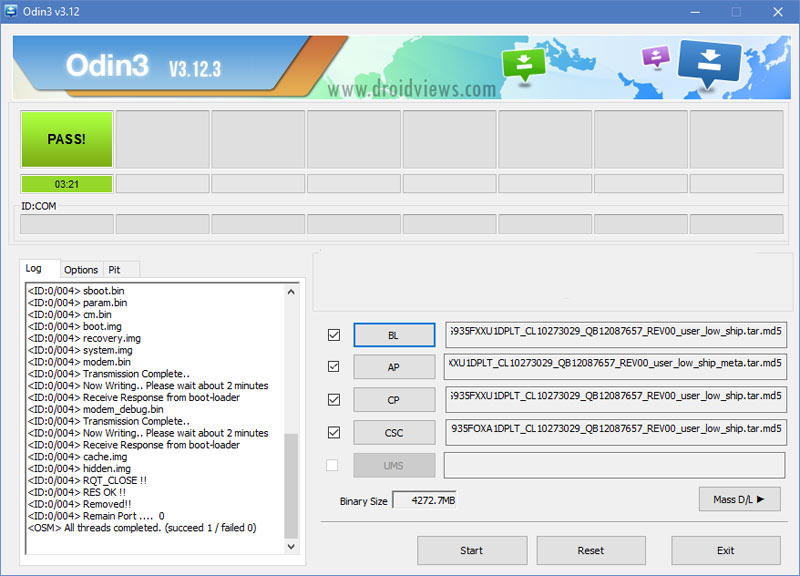
- Now, disconnect the USB cable and wait patiently until your phone boots up. The first boot might take about 5-7 minutes so don’t panic.
Your Galaxy S7 or S7 Edge will boot up. Don’t panic as the first boot might take 5-8 minutes. When you are greeted by the welcome setup screen, go through the initial steps.
Now go to Settings> About device and check your phone’s software version. It’ll show Android 7.0 Nougat there. Enjoy the newly installed Nougat firmware.

can this be done on a rooted S7 G935W8?
the best way to find what your actual firmware is for your phone download smart switch on your computer, then don’t connect your phone to it as first step, second open smart switch and then click on more >Emergency Software Recovery>Device initialization> enter your model number(case sensitive for eg: “SM-G930W8” don’t type as “sm-g930w8” search for it and then enter your mobile serial number you can find it by dialing code *#06# or if you in boot loader menu press home button then it will give you your PDA,CSC with carrier code in ends like “TLS” “XAC” etc and then you will know what your mobile actual firmware is
Thanks for sharing the info! The best way to share such tips is to contribute them on DroidViews! 🙂
If I have a Telus phone, is it going to cause problems if I install the Bell firmware?
Yes. Better not try it.
The Nougat firmware for Telus S7/S7 Edge will be available soon.
Hi Stewart, the Android Nougat firmware for Telus S7 Edge is now available. Just updated the firmware list