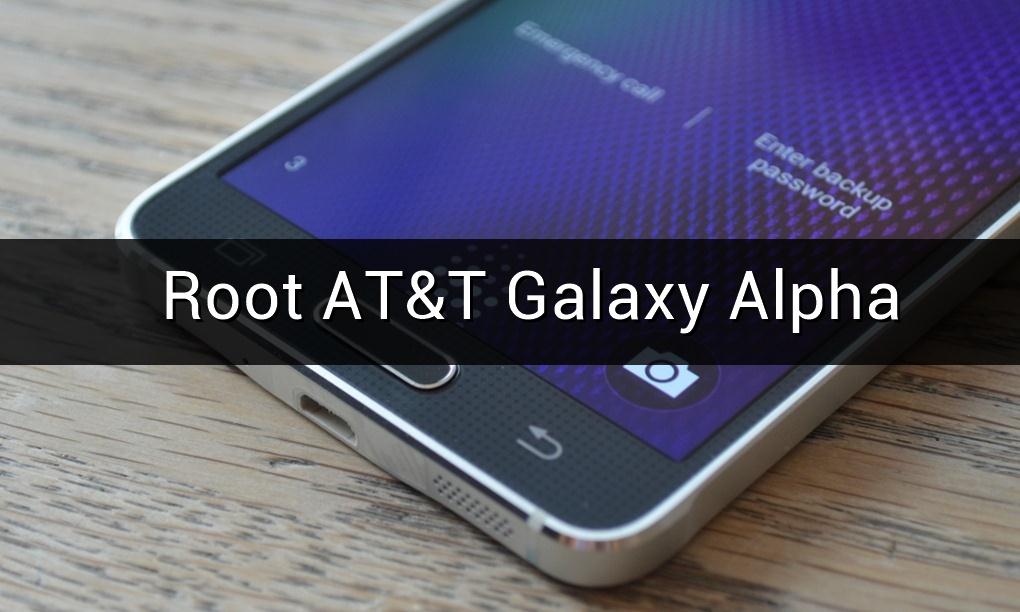
The AT&T Galaxy Alpha G850A has been finally rooted after a long wait of 2 years. The Samsung Galaxy Alpha has launched a long back but was stranded in the Android world without a proper root. The root process comes from the popular KingRoot app. Once you root AT&T Galaxy Alpha, you can install awesome apps like Xposed framework to change the look and functionality of your device.
KingRoot doesn’t provide full functionality on your device like SuperSU does. So, once you root your device, you can install SuperSU app to manage root permissions on your device. So, if you’re excited to root AT&T Galaxy Alpha G850A, let’s root it and install SuperSU app on it.
Downloads
How to Root AT&T Galaxy Alpha G850A
- Download the two APK files from the downloads section and transfer it to your device’s storage.
- You need to enable unknown sources on your device to install the apps. To do this, open Settings » Security » and enable “Unknown Sources”.
- Install the KingRoot v4.81 app on your device. You can just click on the APK file to install it on your device.
- Kingroot is a single-click root app, so all you need to do is to click the “Root” button to root your device. Your device will reboot once the rooting process is complete.
- It might take a couple of times before you get the root. So, if you’re not rooted at the first time, just try it again and you’ll eventually root your device.
- You need to install the Supersume app to replace the KingRoot app with SuperSU. The SuperSU app will then manage the root permissions on your device.
- So, install the Supersume app on your device. Once the app is installed, click on the green button to enable root access. It will replace the KingRoot app with SuperSU app.
- Open the Google Play Store and update the SuperSU app.
- Finally, open the Google Play Store app and update the binaries. Click on the Normal method to install the SuperSU binaries.
That’s it. You’ve finally rooted your AT&T Galaxy Alpha G850A.
Join The Discussion: