Samsung Galaxy Note 7 recall is in full swing and the company is urging everyone to power down their Note 7 devices immediately. The Korean manufacturer has started distribution of the new replacement Galaxy Note 7 devices to the users who bought the faulty Note 7 smartphones which are exploding. So, if you haven’t replaced your Note 7 yet, contact Samsung support to get it replaced immediately. Anyone who purchased the Galaxy Note 7 prior to September 15 is eligible for replacement.
So, how do you know if your Galaxy Note 7 is faulty or safe? Samsung has released few instructions to the buyers which help to identify a safe Note 7. You can identify the new replacement Galaxy Note 7 from the new Green battery icon and a small black square on the sticker labeled on the packaging box. Check the below instructions to make sure you’re buying a safe Galaxy Note 7.
Identify the New Replacement Galaxy Note 7
Samsung has set up several safety checks to ensure public safety and to regain their trust. You can identify a new replacement Galaxy Note 7 either from the packaging box or the device directly. In our opinion, we want you to make sure all the below checks are ruled out when you’re purchasing a new Galaxy Note 7 from eBay or other sources.
1. Look out for the new Green Battery Icon
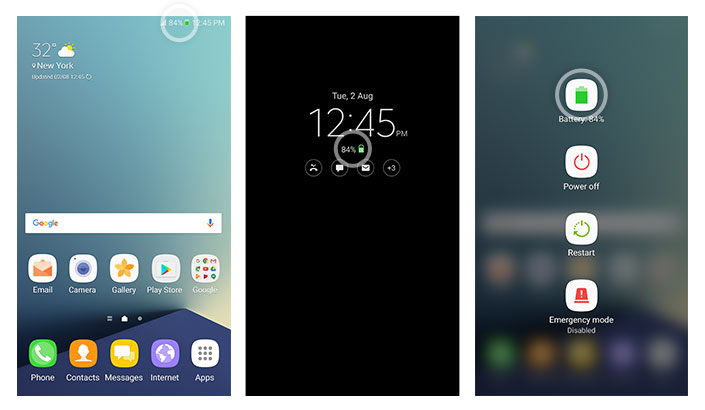
The simplest way to identify the new replacement Galaxy Note 7 is to look out for the new Green battery icon. Earlier, it used to be a white-ish grey icon on Note 7 but now it will be distinguishable. The new green battery icon will be visible in three different places:
- Status bar
- The Always ON display screen
- The Power OFF prompt screen (accessed by long pressing the Power key)
So, you can identify the new Galaxy Note 7 from the green battery icon as shown in below screenshots.
2. Black Square on Package Box
If you have the new Galaxy Note 7 package box lying around, you can check if it’s safe or not. All you need to do is to check if the device information sticker has a black square on it or not.

It’s also reported that few Note 7 boxes are being shipped with a symbol ‘S’ to mark it safe.
3. Verify your IMEI
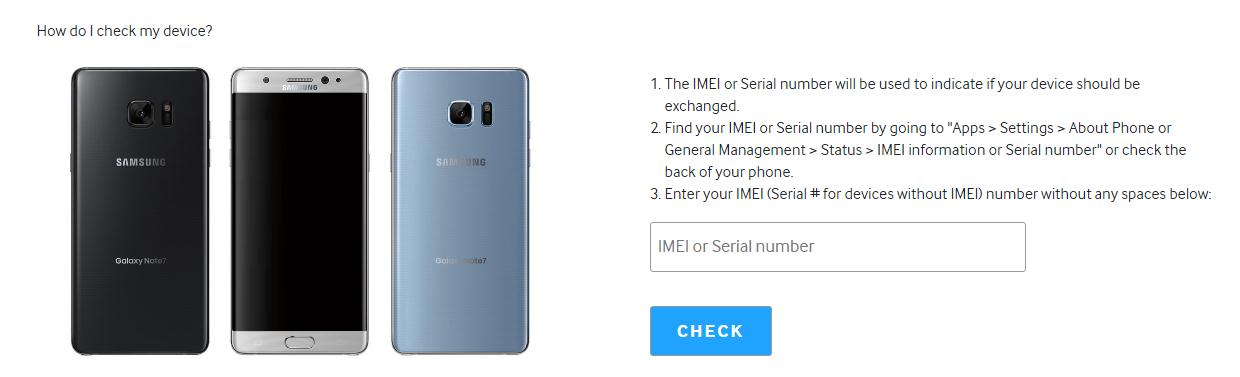
If you want to go an extra mile and check the device safety, head over to the Galaxy Note 7 Safety Recall Page and input your IMEI. The tool will tell you if the device is safe or whether it needs to be replaced.
Share this safety tutorial in your circle and make sure no one’s using the unsafe Galaxy Note 7 devices.



Join The Discussion: