One of the headlining features on the Google Pixel 4 is the 90Hz display. This is probably the first time Google has picked up on a hardware trend before big names like Samsung. Although, the way Google has implemented it is not sitting well with a lot of people. The Pixel 4’s display only runs at the 90Hz high refresh rate when the brightness is set to 75%+. Luckily, there is an easy way to force 90Hz high refresh rates on Google Pixel 4. Let’s see how we can force 90Hz refresh rate on Pixel 4.
Just like every other hardware aspect of the Pixel 4, the high refresh rate of the display comes with its own compromise. The regular Pixel 4 already has a smaller battery than last year’s Pixel 3. And the Pixel 3 was… bad, poor, in the battery department. Naturally, the Pixel 4 is worse and forcing the 90Hz refresh rate all the time will not help. The Google Pixel 4 XL has a larger battery than the Pixel 3 XL, but forcing 90Hz at all times makes it almost as bad as the Pixel 4 without forced 90Hz.
So, you either learn to live with a 60Hz display most of the time, while having paid for a 90Hz screen or you carry a portable charger everywhere. That choice is on you but if you’re willing to choose the charger, here’s how you can force 90Hz high refresh rates on Google Pixel 4.
Steps to Force 90Hz Refresh Rate on Pixel 4
OnePlus’ implementation of the 90hz display has been praised much. But OnePlus phones also dynamically switch between 60Hz and 90Hz based on the app and content. OxygenOS does allow users to stay with 60Hz but it does not allow forcing 90Hz high refresh rate at all times. On the Google Pixel 4, at least you can do this right from the Settings.
Enable Developer options
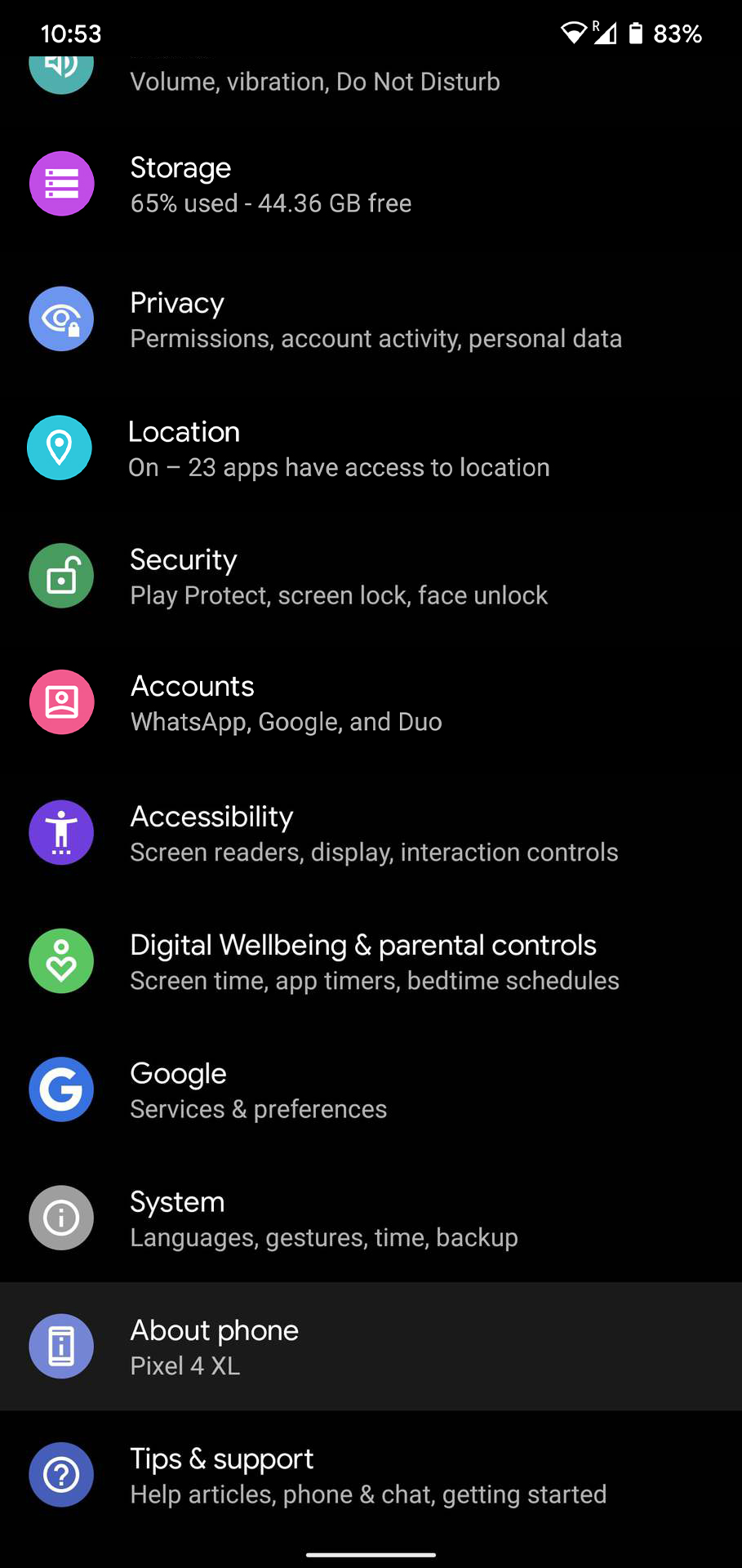
- Open Settings from the app drawer or pull down the quick settings panel and tap on the cogwheel icon.
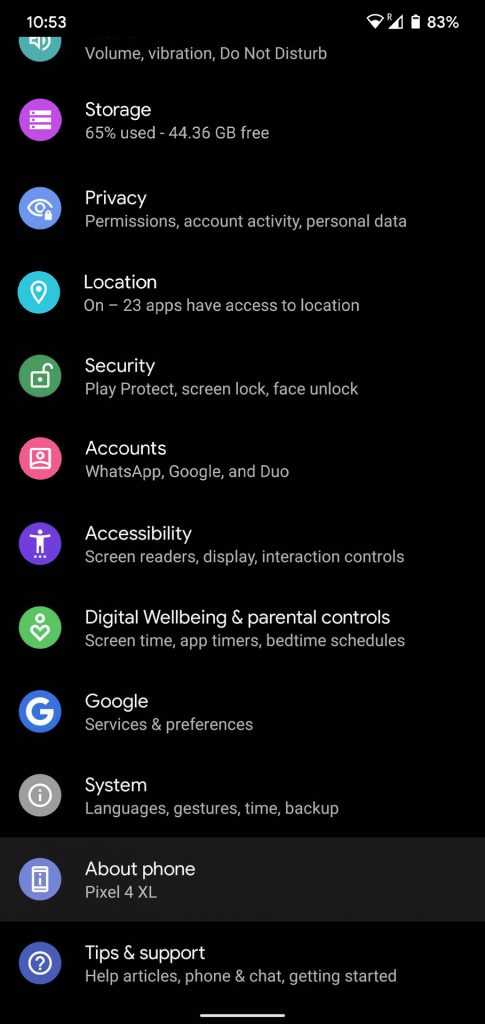
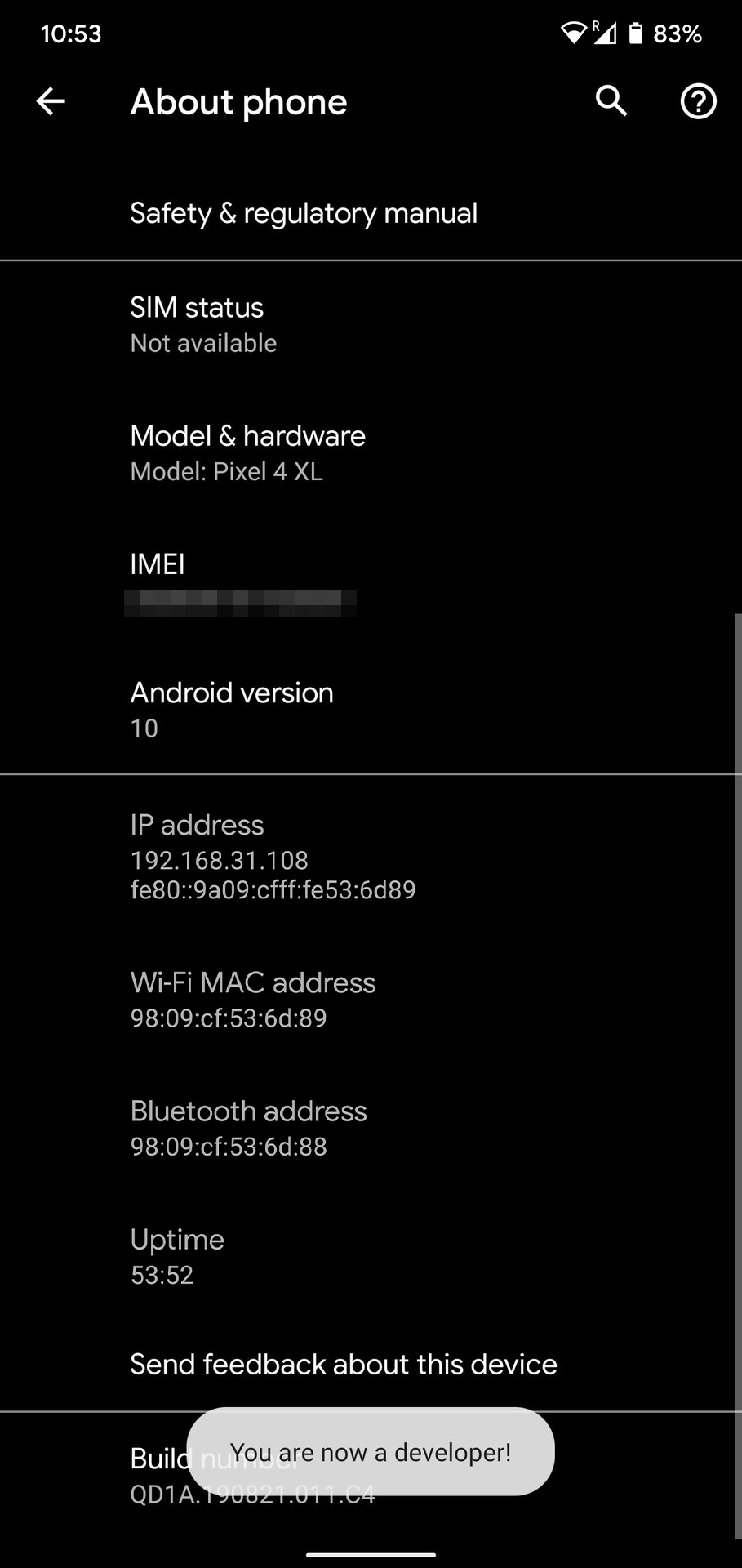
- Scroll down and select About phone.
- Scroll down again on the next page until you find the Build number.
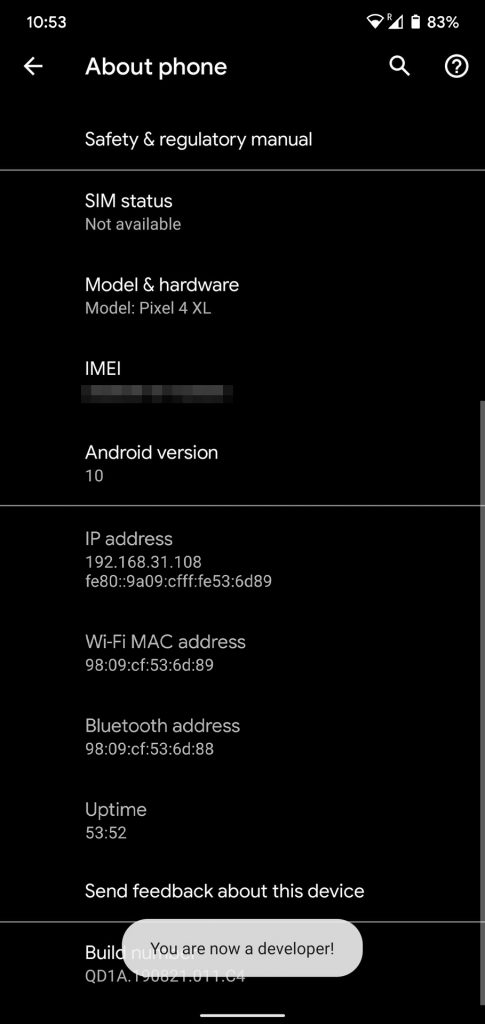
- Tap on it 5 times and you’ll be asked to enter your PIN if you’ve set up one.
- Once you do, you should see a toast message saying “You are now a developer!”
Enable Forced 90Hz Refresh Rate on Pixel 4
- Go back to the Settings main page.
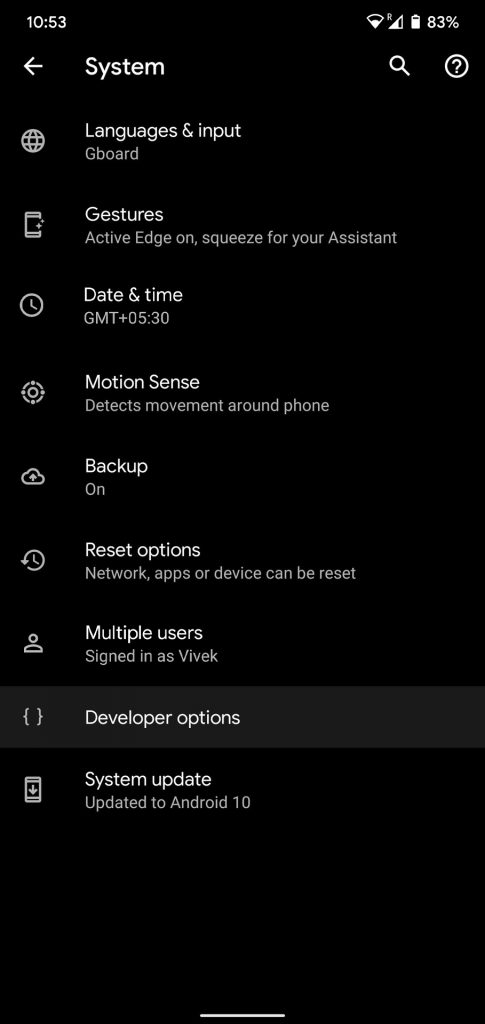
- Select System and you should find a new entry here labeled Developer options.
- In the Developer options, scroll down to the DEBUGGING section.
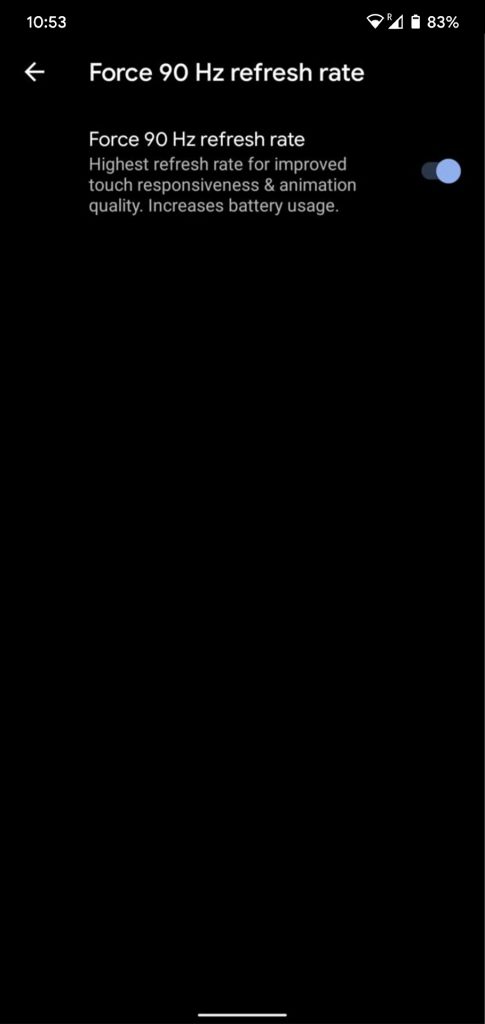
- At the bottom of it tap on the Force 90Hz refresh rate setting.
- Turn on the toggle and the high refresh rate will now be forced at all times on the Pixel 4.

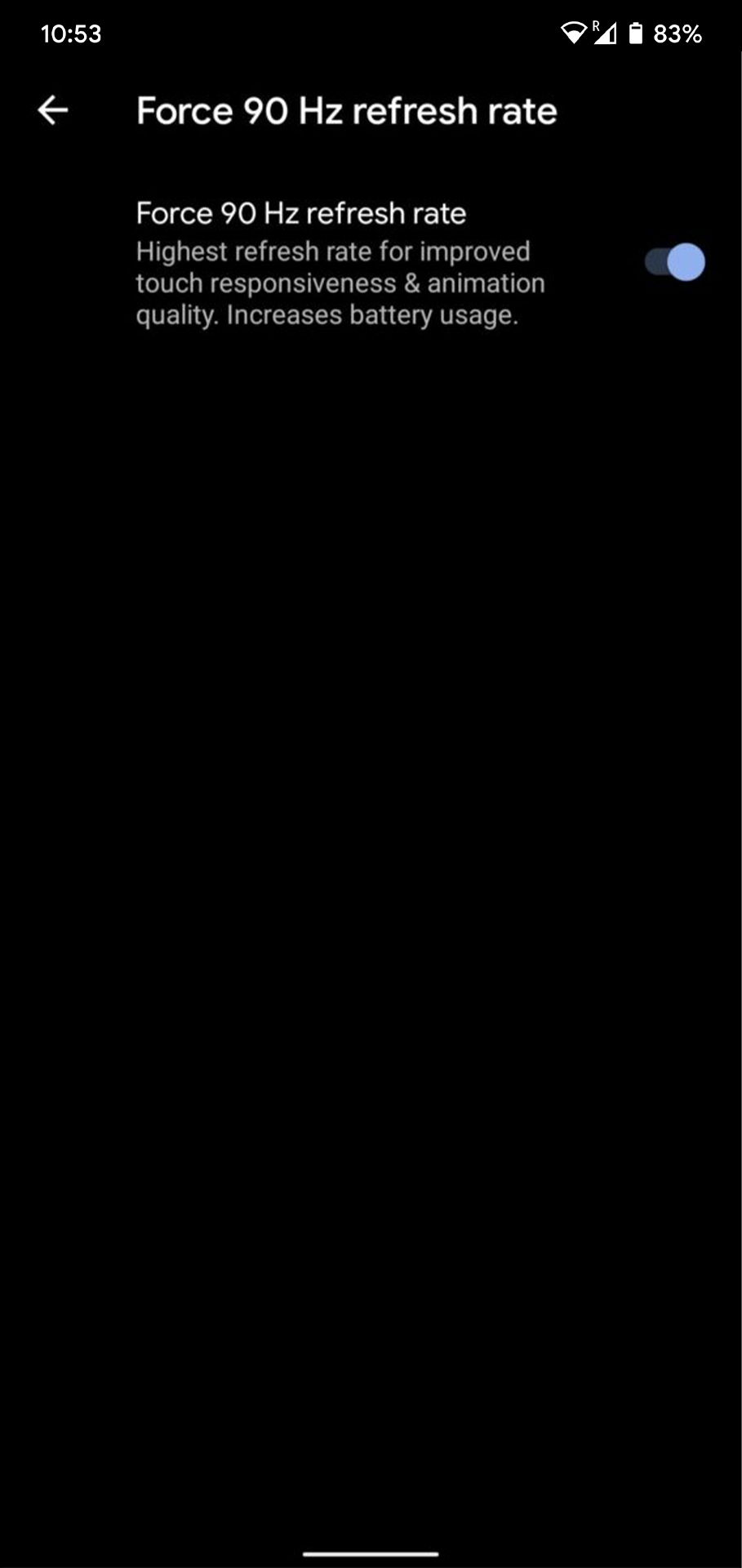
And that’s all you have to do. Unlike the OnePlus 7 Pro and the OnePlus 7T, there’s no need to fiddle with ADB commands. Although, as mentioned before, be prepared for your battery life to take a massive hit. We strongly advise against it if you own the regular Pixel 4.


Join The Discussion: