
It’s no exaggeration to call the OnePlus One as the flagship killer of the year. Priced at half the price of its competitors, the OnePlus One hosts top-notch hardware and most importantly the CyanogenMod 11S which was specifically designed for the One. Recently, Google reportedly attempted to buy the CyanogenMod Inc. but they were denied. If the Android company is behind Cyanogenmod then why won’t we, right?
CyanogenMod is an immensely popular custom ROM for Android and offers a great flexibility in terms of performance and customization of your device. The OnePlus One, even with its meager supply gained the attention of most of the developers, so you’ll get various custom ROMs, mods that will tempt you to install them. Installing third party images and ROMs might void your warranty which may cost you much in case of any misfortunes during some installation or something. You should be sure to have a contingency plan in case of any trouble.
So today we will guide you on how to revert back to stock ROM on your OnePlus One along with the process to clear the unlock and tamper bit that might have been set during the process. The process is very simple, just a bunch of clicks and flashes and you will be back to the Stock ROM on your OnePlus One. So let’s see how to restore OnePlus One to Stock Rom.
Warning
This Guide is intended only for the OnePlus One devices, not for any other variant or device of OnePlus. Be extra cautious when you choose the firmware as flashing wrong firmware might result in a bricked device. You alone are responsible for any consequences that might occur during the process. We shall not be held responsible for any damage to your device.
Prerequisites
- Charge your OnePlus One above 60% battery level to avoid shutdowns during the process.
- Backup your device storage, contacts, SMS etc. using Google Sync service or any third-party app.
- You need an Unlocked Bootloader on your OnePlus One.
Restore OnePlus One to Stock
- Download the factory firmwares of the OnePlus One based on your model (Either 16 GB or 64 GB)
- XNPH05Q 16GB → Click Here
- XNPH05Q 64GB → Click Here
- Download the ADB/Fastboot files and extract them to a folder in your PC → Click Here
- Extract the firmware file to the same folder where you extracted the ADB/Fastboot files.
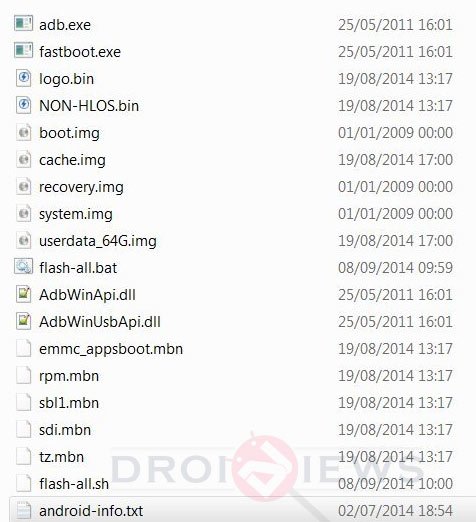
- Now you’ll see files like flash-all.bat (Windows) or flash-all.sh (Linux) which are the 1-Click installers for the firmware files.
- Reboot the phone into Fastboot mode and connect it to the PC. Now click on the 1-click installer file (flash-all.bat for Windows, or flash-all.sh for Mac/Linux) based on your OS on your PC.
- The flashing process is automatic and the phone will reboot once the flashing is complete.
- During the bootloader unlock process, a tamper/unlock flag is set which will indicate an unauthorized flash on your device. So we’ll restore these flag bits as well.
- First of all, get a recovery on your device. You can install TWRP from our exclusive guide → Click Here
- Download this Boot unlocker script , and flash it via the recovery. For instructions on flashing Zip files on recovery follow our exclusive guide → Click Here
- Reboot your device.
That’s it, you are now reverted back to the Stock image provided by the OnePlus.
Flashing the Firmware Manually
In case you get error or issues while installing the stock firmware using one-click method described above, you can flash the firmware files manually too.
- Extract the firmware file.
- Copy the contents of the ADB and Fastboot folder into the firmware folder (see the screenshot attached above).
- Now launch a command window and issue the following commands one by one.
fastboot flash modem NON-HLOS.bin
fastboot reboot-bootloader
fastboot flash sbl1 sbl1.mbn
fastboot reboot-bootloader
fastboot flash dbi sdi.mbn
fastboot reboot-bootloader
fastboot flash aboot emmc_appsboot.mbn
fastboot reboot-bootloader
fastboot flash rpm rpm.mbn
fastboot reboot-bootloader
fastboot flash tz tz.mbn
fastboot reboot-bootloader
fastboot flash LOGO logo.bin
fastboot reboot-bootloader
fastboot flash oppostanvbk static_nvbk.bin (this partition seems to have appeared in the 44S build)
fastboot reboot-bootloader
fastboot flash system system.img
fastboot reboot-bootloader
fastboot flash userdata userdata_64G.img (or userdata.img if you have the 16GB version)
fastboot reboot-bootloader
fastboot flash boot boot.img
fastboot reboot-bootloader
fastboot flash recovery recovery.img
fastboot reboot-bootloader
fastboot flash cache cache.img
fastboot reboot
When your phone reboots, wait till it boots up properly and go through the initial setup. Done!
Leave your feedback in the comments section below.

fastboot flash modem NON-HLOS.bin
fastboot reboot-bootloader
fastboot flash sbl1 sbl1.mbn
fastboot reboot-bootloader
Now I’ve got a dead oneplus one.
It’s gone black and never rebooted to fastboot 🙁
i also has the same issue. i am not able to boot my phone now. any help??
Hi people,
I messed it up!!I forgot to unlock the boot loader and tried flashing using above instructions. Now its stuck at boot screen shows only CYANOGEN mode screen-doesn’t boot at all. I can boot it to fastboot again and cannot do anything else. Help please!!
Whats app still showing you have a custom roam installed 🙁 And my 3g network is not working Please help me
Have you tried performing a full factory reset?
I tried all the above methods using one click flash installer . Please let me know how I can perform a full factory reset
Whats app still showing you have a custom roam installed 🙁
Don’t worry. That’s because OnePlus One runs on a custom version of Android – CyanogenMod 11S. It is common.
I can understand you but when I purchase my phone that time i never face this issue
No worries. It is a very common issue for the OnePlus One users. I have been through this every time I set up WhatsApp myself. Nothing to worry about. This was brought about by the 44R and the 05Q updates.
Ok Now which one you are using ? cyno 11 or 12 ?
I’ve been using CM 12S for the past 1 month, and it has been really great. Although it has many features packed, and although it runs on Lollipop, there is a serious battery drain issue. I’m currently running CM 11S, rooted.
But I installed Incremental already. So I need to reflash my opo ?
You are on CM 11S, right? No need to reflash your OPO. Even if you update to CM12S, it’ll be on Stock, as it’s an original update.
i am using 11.0-XNPH05Q
One more thing while updating this I am having issue with Android debugging. ADB automatically disconnect . Can I brink back my device to out of the box same when i purchase ?
Which ROM are you using? Can you please specify? If you are having troubles connecting, make sure you have enabled the USB Debugging option from the Settings. Also, uninstall and re-install all of the ADB Drivers.
I am using the same rom that mentioned in the above tutorial. After follow this tutorial I got a system update name Incremental and Know I can install CM12 lolipop 5.
Yes. That means you are running the Stock Version of OnePlus One. I’ve got the incremental update too. If you don’t want bad battery backup, just ignore it. Although it might download automatically, just don’t tap install. If you are well aware of the worsened situations that are present in CM 12S, then go ahead.
i keep getting an error when it tries to flash system.img. says the file is too big.
any suggestions?
Are you using the .bat file or individual commands to install the firmware.
individual commands. the system.img is the only part that I can’t seem to flash
Figured it out. Apparently the version of fastboot I was using was too old.
what to do
Step 5 :
Reboot the phone into Fastboot mode and connect it to the PC. Now click on the 1-click installer files based on your OS on your PC.
I don’t see the “1-click installer” …
This is what I get :
Actually, it’s a .bat file for Windows and .sh file for Mac or Linux.
flash-all.bat
flash-all.sh