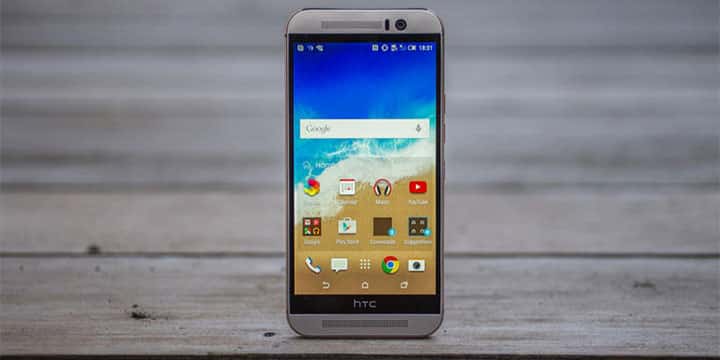
HTC One M9 has already received an update to Android 6.0 Marshmallow and if you have already installed the update you must be wondering how to root it. Well here you go, this guide will help you achieve root access on your Htc One M9 with Android Marshmallow update. If you haven’t installed the update for whatever reasons, head over to the article linked below for a complete guide on installing the official Marshmallow firmware on the HTC One M9.
Marshmallow brings many performance optimizations to Android along with some new features like Doze, custom App permissions, Now on tap. These features may enthuse you but if you are an Android power user, you may want to root your device to install some mods that give you better performance and loads of customization options. Follow the steps given below to easily root your HTC One M9 with Marshmallow update installed.
Read: Update HTC One M9 to Official Marshmallow Firmware with Latest RUU File
Warning: Rooting or installing any custom software on your device will void your warranty. Also, if the following the procedure given below leads to any harm to your device, only you would be responsible for it.
Things You Will Need
Root HTC One M9 on Marshmallow
- Follow this guide, How to Install TWRP Recovery on HTC One M9, to install TWRP on your HTC One M9. Use the files linked above in this thread.
- Download the SuperSU zip file and copy it to your device.
- Now boot your device into recovery mode, to do so:
- Turn off the phone and press the Volume Down & Power buttons to boot into bootloader mode.
- In bootloader screen, select Recovery mode using volume buttons and then press the power button to boot into recovery mode.
- Once in the custom recovery, select Install zip and browse for the downloaded SuperSu zip file.
- Swipe to confirm installation.
- Once the installation is complete Reboot your device.
- Enjoy!
You may check if your device has been successfully rooted or not by installing the Root Checker application linked below.[googleplay url=”https://play.google.com/store/apps/details?id=com.joeykrim.rootcheck”/]
Enjoy root on your Htc One M9 on the latest Marshmallow update. Drop down your queries regarding installation procedure in the comments section below. Also, let us know how is Marshmallow update performing on your device.

Thank you. It works well with HTC One m9
Version 6
Glad to know! 🙂
Afte about one hour my phone keeps rebooting? Any help? Thank you
Thank you! Work with HTC ONE M9
6.0 Android
7.0 Sense version
I have the same problem – did you ever figure it out?
Should twrp 3.X work? also, supersu 2.7x?
Yes.
The restoration of the OS completed quickly. I’m rebooting now. It is taking a little longer than normal… . I’ve been up all night working on this… . I see the AT&T globe logo. It faded to the next “htc one – powered by android” screen… . This is where it has hung before when recovery said there was no OS installed.
When I go boot into recovery, I can now see files inside the folders as well as at the root of the directory system. My SuperSu zipfile is missing. If I can ever get the device to load its OS, I can copy the file back to the phone.
You may restore device to official Marshmallow firmware using this guide: https://www.droidviews.com/upda…
Use method 2, the one using Fastboot. This will restore your device to stock firmware and you will be able to boot your device.
IF you do not want to restore, you can use ADB sideload to transfer SuperSU zip file to your phone while it is booted into TWRP.
Ok. I’ve downloaded and flashed various versions of TWRP Recovery. I finally got hold of 2.8.7.1_CPTB-* (my VPN client was blocking the download until I turned it off).
Once I’m in recovery, I still can’t find the zip file. While using one of the other recoveries, I got a notice that there was no OS installed when I tried to reboot. That was scary!
Using 2.8.7.1, I am able to do a restore of my nandroid backup (other attempts to restore had failed). The current one is proceeding apace. One I get my OS restored, I hope to be able to reboot, reinstall the zipfile, and proceed to root. I’ll report later.
I have been able to install TWRP Recovery, version 2.8.7.0. I had a previous version installed which allowed me to install the SuperSU zipfile (though I “found” it by accident. Now I’m unable to locate the file and I can’t recreate the method I accidentally used previously. The recovery “file manager” doesn’t show individual files at the root (/) level or among the subdirectories.
What is the method for locating the Beta-SuperSU file?
I’m also getting stuck on the “htc one Powered by android” screen. At first it hangs there for a while, then I get the AT&T logo for a few seconds, then it returns to the previous htc one screen and hangs again. Is there a solution to this? When it did it on the previous lower version of the TWRP recovery, I attributed the hang to that version. I found the later version, flashed it successfully, but am still getting the hung screen.
Umm, my phone won’t get past the htc one powered by android loading screen….
Maybe I’m missing it but it seems like this will only work on a particular variant of the M9 – which one(s)?
Do I need to unlock bootloader with S-OFF for installing custom recovery?
I succesfully flashed latest TWRP before I even considered S-OFF but I believe I had to unlock bootloader using HTCDEV first.
Is this work on developer varson of htc one m9 3.35.617.12
No.
Is this for GSM models only ? Will this work on Verizon once Verizon gets the official update?
Yes, it should work just as it did before: https://www.droidviews.com/how-to-root-htc-one-m9-and-install-twrp-recovery-on-it/