Android is the most popular OS for smartphones with billions of users. Many people opt Android because it offers multiple choices in different budgets from some most renowned OEMs and millions of awesome apps. However, there is still a very big group of users that have adopted Android as their creed, a way of living. For such people, their phones are a means to add some sense of adventure, exploration and ultimate customization. And the source of all joy of Android is root privilege that lets you unleash the true potential of the device you own.
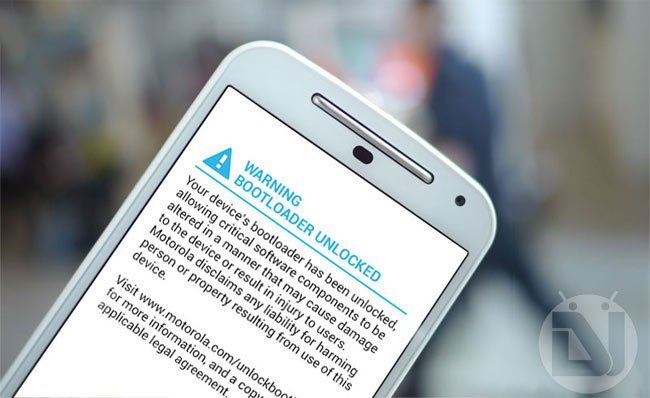
Most Android manufacturers tend to put some kind of obstacle or warning to prevent the users from gaining root access on his/her. OEMs often ship their devices with locked bootloaders and as soon as you unlock it, you void the warranty. You get freedom from the bond that prevents you from rooting and they get freedom from responsibility of providing free service. When you unlock the bootloader of an Android device, you see some kind of warning or sign that reminds you of your guilt. Huh!
Personally, I love such warnings and signs as it makes me feel like someone particular. But if are one who gets irritated by them, you must be looking for a solution. During the past few months, we have done several tutorials on that topic for different phones like the 1st and 2nd Gen. Moto X and old Moto G, but if you own the all new 2nd Gen. Moto G 2014, it’s your day today.
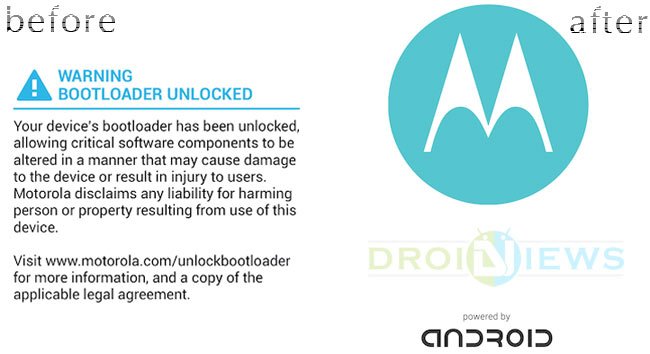
XDA member rafaelbrunner has shared with us the stock Motorola logo for the Moto G 2014. The logo file he has shared is available as a flashable zip that can be installed via CWM or TWRP recovery. In case you just have root access (even this is not needed) and have not installed a custom recovery, you can still remove the “BOOTLOADER UNLOCKED” Warning on your 2nd Gen. Moto G.
Remove Unlocked Bootloader Warning on Moto G 2014
Method 1: Using CWM/TWRP Recovery
- Download the stock logo file for the Moto G 2014: FixBootloaderWarning-Moto-G-2014.zip
- Copy the zip file to your device.
- Reboot your Moto G into CWM/TWRP recovery mode.
- Select the Install option, select the zip and flash it.
- Reboot your device.
Note: You can find a detailed guide for installing flashable Zip in different custom recoveries here.
The bootloader unlocked warning should have gone from the boot screen. Enjoy!
Method 2: Using ADB & Fastboot Commands
- Download the logo file: FixBootloaderWarning-Moto-G-2014.zip
- Install Android SDK on your computer or simply download the Minimal ADB and Fastboot tool (extract the zip): mfastboot-v2.zip
- Make sure you have the Motorola USB Drivers installed on your computer.
- Enable USB Debugging on your Moto G 2014.
- Now unzip the logo file and copy the logo.bin file to the same directory where ADB and Fastboot files are present. If you have installed Android SDK, copy the logo.bin to platform-tools. And, if you have downloaded Minimal Fastboot tool, copy the logo file to it.
- Now launch the command window from the same directory where you have logo and fastboot files.
- Connect your Moto G to computer reboot your phone into the bootloader mode using the following command:
adb reboot bootloader
- When your phone gets into the bootloader mode, issue the following command and hit the Enter key:
mfastboot flash logo logo.bin
- When the logo if flashed, type
fastboot reboot
Done! When you phone reboots, throw your eyes on its screen to check if the Bootloader Unlocked warning has gone! Now do one more thing, just share your experience with below via your comments!

bro does this work with motoe2nd gen?
Thanks brow <3 !!!
The “powered by android” message is different in Lollipop, where can i get that one?
Thanks, it’s worked with me!
Thanks it worked! I already had that removed but this logo looks better than the logo provided by Motoboot.
It really worked .. finally got read of the irritating warning ..
Glad to know!
Thanks Yaar! I tried the second method. It certainly worked very well. The warning message was really irritating. Thank you once again
Great!