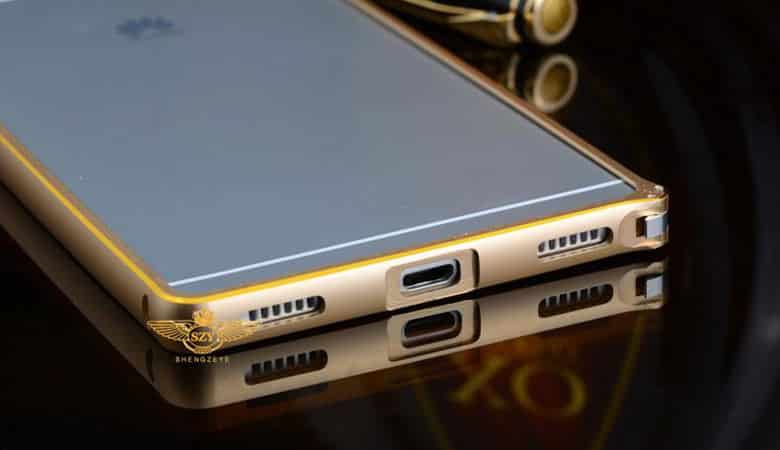
Alright, so I made this guide because I myself had problems finding the required files and upgrading to Marshmallow. So here you have it a step by step guide on Unlocking the Bootloader to Unbricking and Upgrading to Marshmallow. This guide covers it all.
Warning!
This guide is dedicated to the P8 lite ALE-L21. If you have a different phone model stop reading. This is tested by me so there should be no problems if you do everything right. I will not be responsible for destroying your phone. This will void your warranty. This is gonna take a lot of time, so have patience.
So Let’s Get Started
Things You Need
- Download and install Huawei USB Drivers Drivers (Hisuite)
- ADB and Fastboot: Link
- USB debugging should be enabled on your phone
Firmwares You Need
- Firxmware file
- B170 update file for P8 Lite ALE-L21: Huawei_P8_Lite_ALE-L21_V100R001C432B170_Europe.zip
- Marshmallow Update or EMUI 4.0: Link
Unlock the Bootloader
Well first things first let’s unlock the bootloader
Step 1: Go to this site. Accept the agreement and make a profile.
Step 2: Fill the form and you’ll have your code in a couple secs. If you get some weird error telling you to wait 14 days well you need to wait then and then fill the form again.
Step 3: Let’s assume you have the code save it somewhere safe.
Step 4: Connect your device to your pc
Step 5: Go to the folder where you extracted minimal adb and fastboot and run maf32.exe
Step 6: Type adb devices. It should ask for permissions on your device. Grant them. Make sure to check always allow from this pc.
Step 7: Type the following command:
adb reboot bootloader
Step 8: Wait until Windows install the driver and then type:
fastboot oem unlock xxxxxxxxxxxxx
(where x is your unlock code)
Voila! You have successfully unlocked your bootloader
Changing Region or Unbricking your Phone
This is a necessary step which changes the region of your phone so we can install marshmallow. Can also Unbrick your phone.
Remember the Firmware 1. We’re gonna need that.
Step 1: Extract it to your desired folder.
Step 2: Connect your phone in Fastboot and run the “Flash all” script.
Step 3: Let the script run and that once done boot your phone. Well before you go into panic mode there is a fix for your sim not being detected. Remember the Balong Fix. Extract that and you’ll get a “dload” folder that contains an update.app file
Step 4: Put the folder with the file in it on your sd card or internal memory.
Step 5: Go to “Settings -> Update”.
Step 6: Press the menu (at the bottom you will see 3 lines, that’s the menu).
Step 7: Choose “Local update”.
Step 8: Select “UPDATE.APP”.
Step 9: Press “Install”
Now you are 2 firmwares away from enjoying Marshmallow.
Update to B170
Download B170 file and extract it. You’ll get another “dload” folder with Update.app
Follow Step 4 to 9
Upgrade to Marshmallow
Extract the Marshmallow firmware and guess what you get another “dload” folder with Update.app
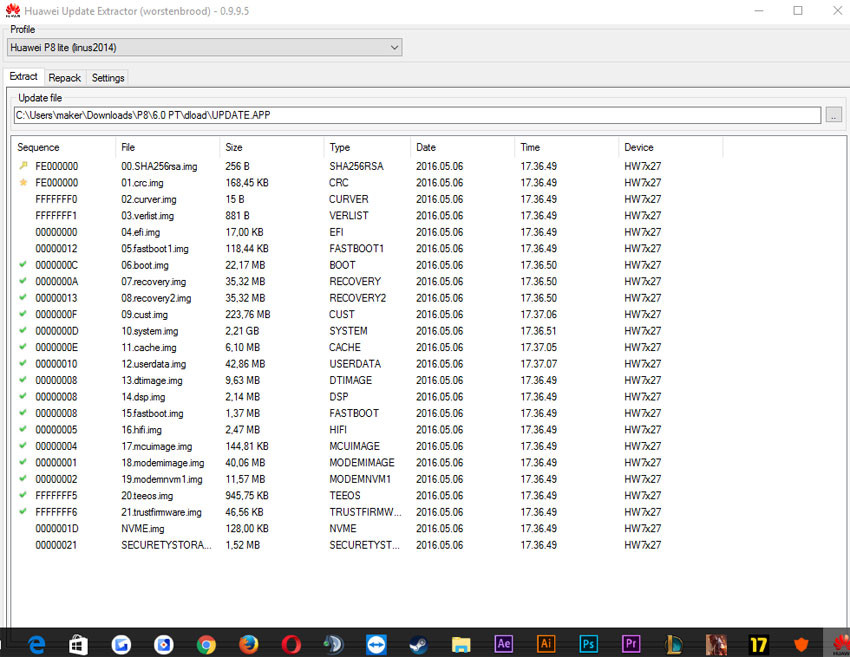
I guess by this point you already know what I’m gonna say next.
Follow Step 4 to 9.
Yep, that’s it all that hard work pulled off and you now have marshmallow.Enjoy.
If you happen to get OTA’s download and install them on your phone when you feel like it.
Having issues? Contact us and we’ll be happy to solve them.
After connecting my phone to fastboot, it went to the bootloop and doens’t move from there. any help?
Hi,
Is it possible to do this if I have already update to Marshlallow? I ask because I need to fix the Balong problem….. Thanks for help!
Yes, you can do that.
OK but the website to obtain the unlock code is down now….. Other solution? Thanks
thank you very much Sir , Because of you i was able to fix a belong bug and succeed to return in to the stock rom , I hadn’t find the solution anywhere .
Glad to know it worked out for you.
Thanks a lot i finally upgraded to marshmallow even though i didnt even know what all that work meant. Awesome work
I’m glad you found it usefull
Glad to know! Thanks for the appreciation!