It wasn’t long ago that Apple was making headlines for the wrong reasons. The reason, at least according to Cupertino, deteriorating battery health on older iPhones. Well, guess what, Android smartphones have similar batteries, based on the same tech. They deteriorate just as much too. Fortunately, there haven’t been cases where Android OEMs were caught slowing down a phone deliberately. The phones do slow down on their own though and the battery is one of the few reasons. This is why at least Sony Xperia devices come with a built-in system that helps charge the battery a certain way. It would be a good idea to monitor your device’s battery health and follow certain precautionary measures to make it last longer.
Natively on Android, you can monitor the battery status, but not the overall health. As Steve Jobs once famously said though, there’s an app for that. And this one’s called AccuBattery. There are a number of other, similar apps on the Play Store and there is no reason why you can’t or shouldn’t use them. I just happened to have used this one and it works. Accubttery is free but is ad-supported. The ads aren’t exactly intrusive but they appear like cards looking similar to the other information it offers.
Install Accubattery
[googleplay url=”https://play.google.com/store/apps/details?id=com.digibites.accubattery&hl=en”/]Getting started
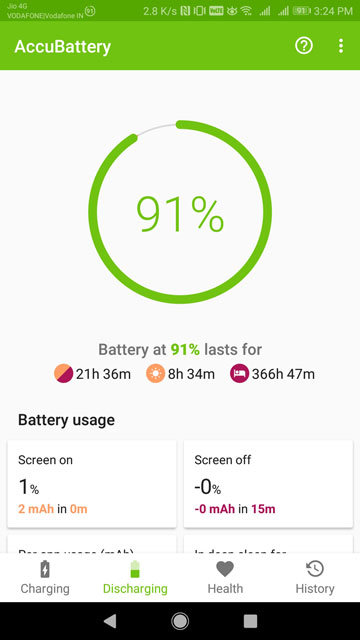
When you launch the app first, the app will walk you through a brief introduction to what it does. It will also introduce you to a research on battery lifespan. You may have come across this supposed fact somewhere, that charging the battery to a maximum of 80% (instead of 100%) you can increase its longevity by quite a bit. Once you reach the main screen of the app, you’ll notice it displays your battery percentage at the top of a circle and percentage. At the bottom are several tabs. Head to the charging tab and you’ll notice a slider that you can move around the battery percentage. It is set to 80 by default.
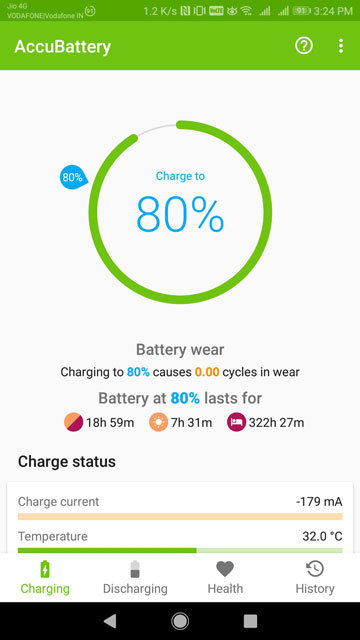
This slider decides the percentage up to which you want your battery to be charged. After this, the app will notify you to pull your phone off the hook. This works better if your phone is not on silent or vibration mode. Yes, it would’ve been convenient if the app could stop the charging but that would require root privileges. So can’t really complain about that. It does the best it could with what’s made available. The app will perform a bit of calibration after this and you’re good to go.
Must read: Li-ion Battery Technology – Obsolete or the Future?
Using AccuBattery to monitor battery health
You can’t start monitoring the battery health already. The app will need to stay installed on your device for a few days and monitor your usage habits. It will show more accurate results as much as you use it, of course. However, it will start showing results after about a day of use too. It will more accurately be able to predict the time left for discharge under the Discharging tab as you use it. This also includes details about your average battery usage, usage per app, and more.

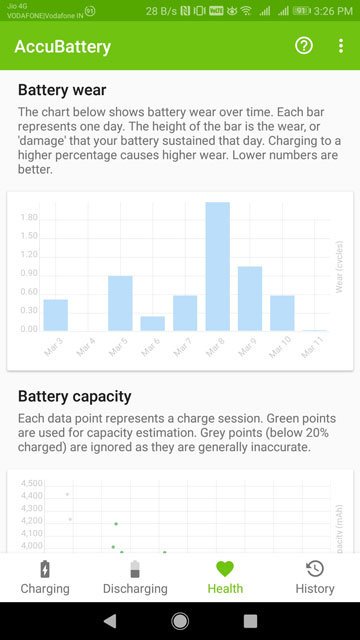
The Charging tab will show you how quickly your device usually charges. It is the Health tab you should rather be more interested in though. This will show you your battery’s current health based on your average charge sessions and the battery wear by your daily use. It would be advisable to let your battery discharge completely once you install the app before you plug it to charge again. As you can see the app has by battery’s design capacity confused to be 1000mAh. It is 4000mAh in fact, but the first time I plugged my phone to charge, it only had to charge 1000mAh. Now it is kind of stuck. Not a problem if you’re aware of your battery’s design capacity.
Don’t miss: Ultimate Android Guide for Beginners
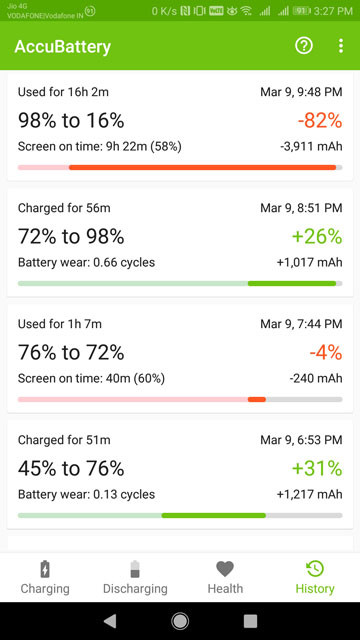
Under the History tab is a record of all the charge and discharge cycles. It shows how long you use your phone and how long you let it charge during each session. Not world changing revelations but I find them interesting.



Join The Discussion: