
In this guide, we will be having a look at how to enable the Dark Mode in the Microsoft Edge browser, both for the Android and Windows platforms. The instructions are pretty simple on the Android device but not so for the Desktop version. So follow the instructions carefully.
Chrome browser for Android and Windows have long had the option of enabling dark mode in its browser. More recently, it also made its way to the stable Chrome browser v78. What many users are unaware of is that its counterpart, Microsoft Edge browser, also supports this feature. Although it’s available on the Android platform for ages, it has recently made its way over to the desktop version. But whereas you could enable the same on Edge’s stable version on Android, that’s not the case with Windows. And the process is a little bit different as well. So, in this guide, we will have a look at how to enable dark mode in Microsft Edge for both of these platforms.
Enable Dark Mode in Microsoft Edge Browser (Android)
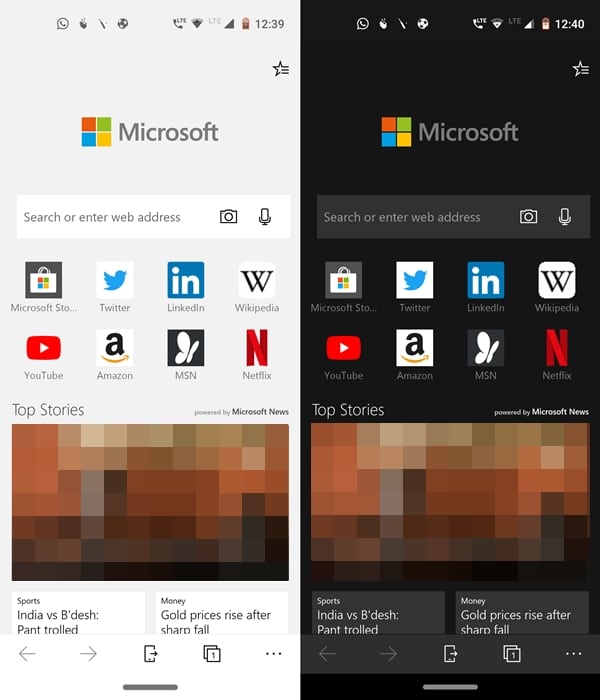
- Make sure to download the stable version of the Microsoft Edge browser from the Play Store.
- Once downloaded, open the app and tap on the three horizontal dots. It will be situated at the bottom right.
- Tap on Settings and select the Appearance option under Basic.
- Go to Themes and select the Dark option.
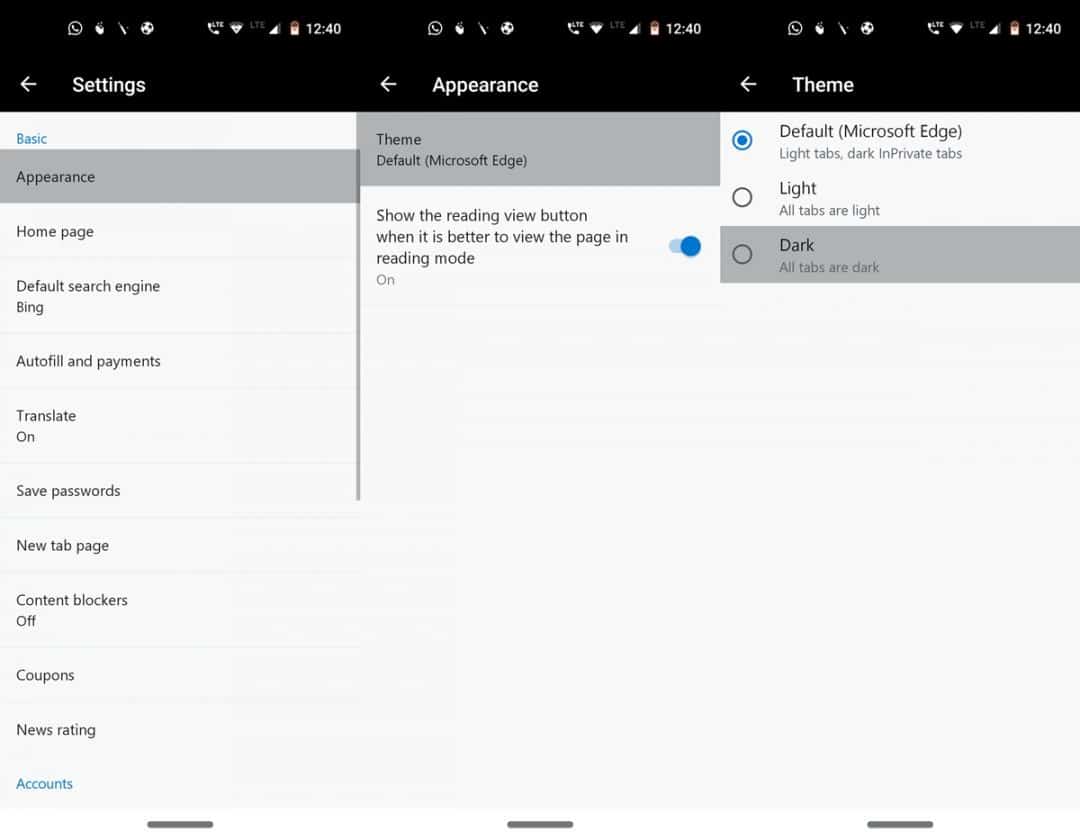
That’s it. These were the steps to enable the Dark Mode in Microsoft Edge browser on Android. Now head over to the below section to do the same for the Desktop version.
Steps For Windows (Desktop)

For the Desktop version, you will need to download the Canary build of the Edge browser. Contrary to Google Chrome, this feature hasn’t yet made it’s way over to the stable version. Canary Builds are mostly used for testing experimental features and some of its features may be unstable. With that mind, if you wish to enable Dark Mode in Microsoft Edge browser for desktop, follow the below steps.
- Download and install the Canary version of the Edge browser on your desktop.

- Open the browser and enter the edge://flags in the address bar.
- Next, using the search bar, look out for Dark Mode. There you will find the Force Dark Mode for Web Contents flag.
- Click on the Default keyword. This will open a long list of options. Simply select the Enabled option.
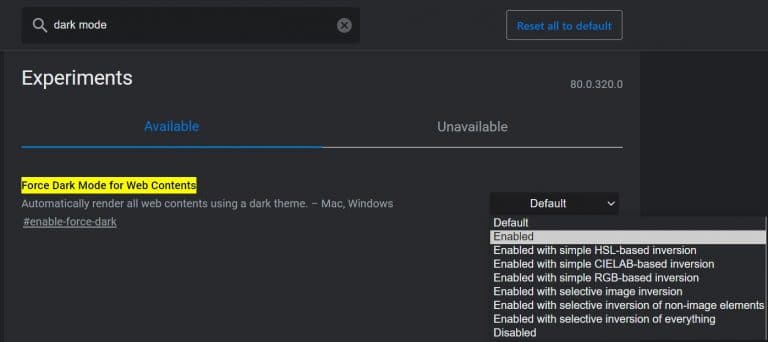
- You will now be notified to relaunch the Microsoft Edge browser. Click on Restart.
- Once the browser restarts, Dark Mode would have been successfully enabled on the Microsoft Edge browser for Windows.
Moreover, did the UI of the flags menu looked near-identical to that of Chrome? Well, that’s because Edge Browser is also a part of the family of browsers that have adopted Chromium as it’s core engine. That is, it is based on Chromium’s source code, thanks to the latter’s open-source nature. Popular browsers belonging to this family include Opera, Yandex, and Baidu.
So with this, we conclude the guide on how to enable dark mode on Microsoft Edge browser on Android and Windows. What are your views on this browser? Will you consider switching to this browser in the near future. Or have you already ditched the Chrome browser for this? Share your views in the comments section below.



Join The Discussion: