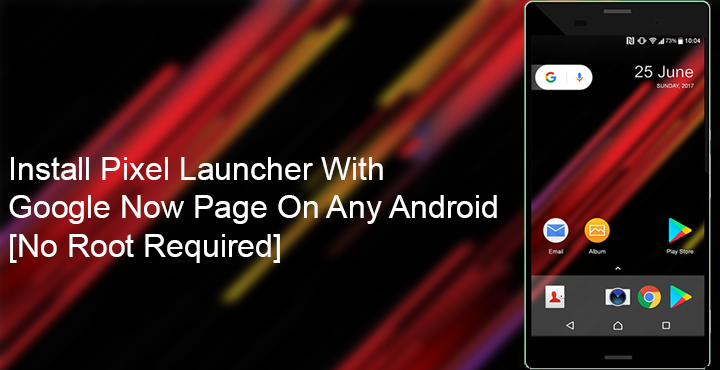
Google has been in the Android app launcher game for quite a few years. First, with the Google Now Launcher and then adding the Pixel Launcher under their belt when they launched the first Google smartphone. While the Google Now launcher focused on being the stock Android launcher everybody could download, Pixel Launcher introduces a new way to access the app drawer. It’s pretty slick, and hence you’ll find the “Swipe to open app drawer” feature on a lot of other third-party launchers now. Other than that the Pixel Launcher has another exclusive feature which is the Google Now page.
We’ve had ways to install different versions of Pixel Launcher on other Android smartphones almost as soon as they’re released with some flavor of Android. But a unique feature that makes the Pixel Launcher stand apart, i.e. the Google Now page was simply not there if your device wasn’t rooted. It might not sound like it but it’s a big deal to many users. Well, thanks to developer Till Kottmann users without root can now install a Pixel Launcher that does have a Google Now page.
And Kottmann needs to be appreciated here because this was not an easy task. On his Reddit post, he describes the entire process and how he had to build it all from the ground up. The result of his hard work is a fully functional Pixel Launcher that can be installed on any Android without the need to root. Actually, more than fully functional because it also has some features that the Pixel Launcher does not have. And it can only be a good thing. The Pixel Launcher would have been a perfect launcher had it had the ability to use icon packs and hide apps. Guess what? Kottman’s Pixel Launcher, which is actually named Lawnchair, does.
Also read: How to Get Google Now Side Panel on Nova Launcher
Download: Rootless Pixel Launcher 1.5
Enable Unknown sources
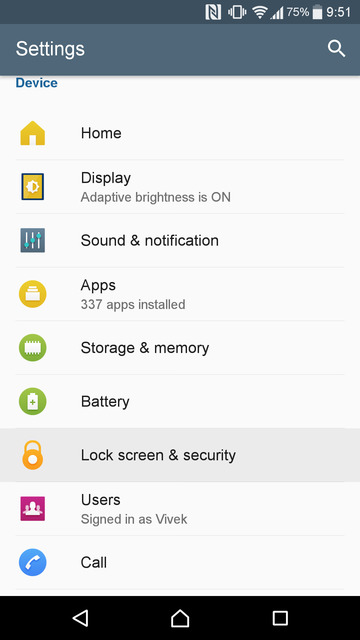
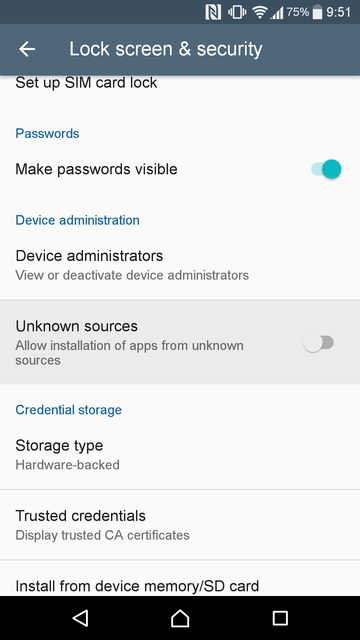
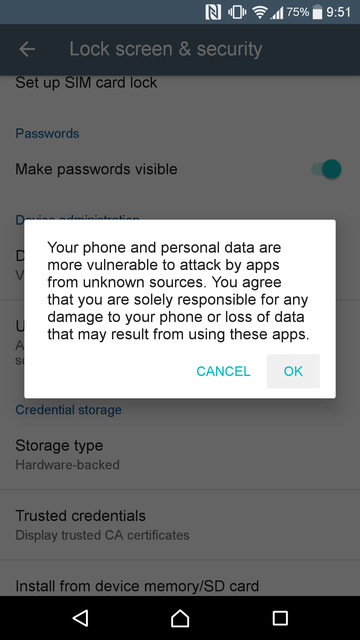
If you’ve never installed a third-party APK you’ll probably need to enable Unknown sources before you can. You can enable them in Settings > Security. On some devices, the Security entry might be named Lockscreen and Security. Here, you’ll find Unknown sources scrolling down. Just tap on it to enable it and tap OK on the warning pop up. You’re good to go.
Install Lawnchair
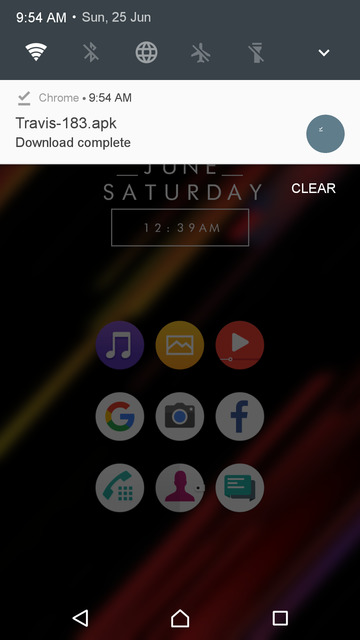
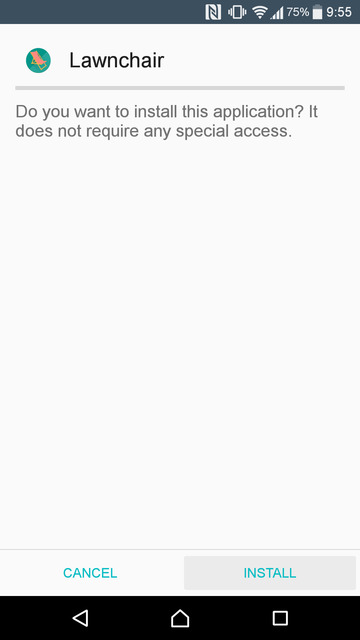

Download the Lawnchair APK from the download link provided below. The APK is named as Travis-183 as of now so don’t worry, you’re downloading the right one. Just tap on the download complete notification when it’s done downloading. After that tap on Install and when that’s done just press the home button and select Lawnchair. If you want to use it as your default launcher just tap the home button again and select Always.
Lawnchair Settings

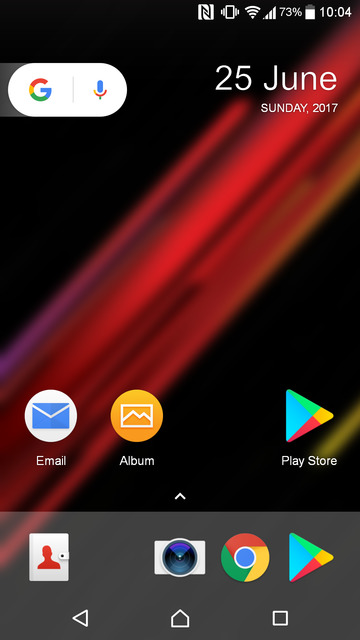

Right off the bat, you have a Pixel Launcher and with a swipe, you can access the Google Now page. If that’s all you wanted you should probably start organizing your home screen already.
Apps like icon packs and other companion apps that you know you’ll never be opening directly, you can hide them. Therefore, you don’t have to scroll through a list of apps you don’t want to open. It makes the experience a lot better. To hide an app, simply drag it out of the app drawer and push it over the Edit option that appears at the top of the screen. In the pop-up toggle the Visibility off. And that’s all.
Don’t miss: Utilize Your Fingerprint Scanner Like Never Before with easyHome
If you’re interested in the other features that Lawnchair offers over the Pixel Launcher, you should long press a home screen empty space and tap Settings. Here, you’ll find three options – UI, Pixel Style, and Behaviour.
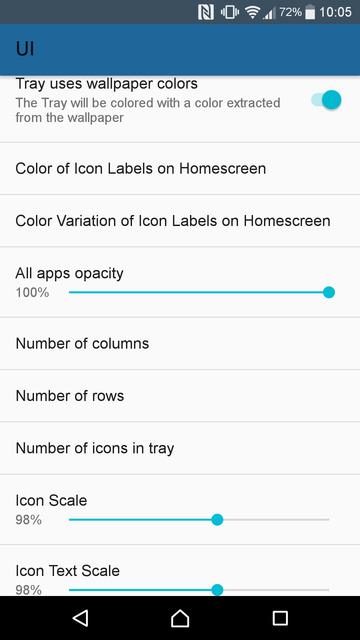
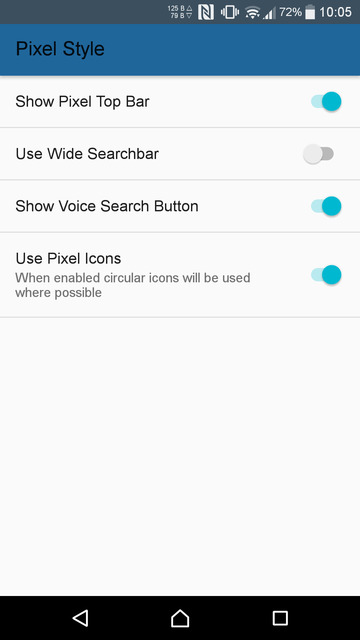

UI contains various icon options including icon pack, icon size, the dock background color, it’s opacity, grid size, icon text size, etc. In Pixel Style, you can disable the pill style Google widget or simply remove the mic icon. The pill widget can also be expanded into a full sized Google search bar. If you’re running the latest versions of Android Nougat, you might also be interested in the last option here. Furthermore, under Behaviour, you can toggle on or off various gestures and other settings. These include settings like pinch to overview, swipe down to search, etc. This is also where you can toggle hidden apps to be visible until you toggle them off again.



Join The Discussion: