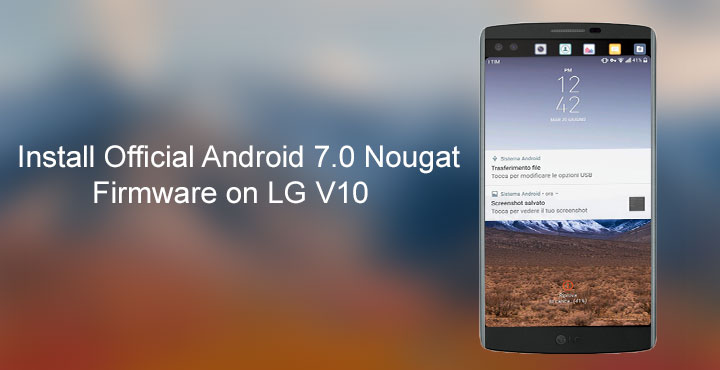
The LG V10 was amongst the several LG flagships to have received the LG UX 5.0 update based on Android 7.0 Nougat. The update first rolled out to LG V10 units in South Korea (LG-F600K, F600S, and F600L) but it is now also available for the global variants of the V10. In this tutorial, we’ll show you how to install the official Android 7.0 Nougat update on your LG V10. We have the links for the official firmwares available for download and this tutorial is valid for the LG V10 variants – F600K, F600S, F600L, H960ATR, H901.
Note
- You’ll, of course, need one of the aforementioned variants of the LG V10.
- Install the necessary LG USB Drivers on your PC.
- Charge your phone so it at least has about 50% charge left.
- Install the latest LGUP with UPPERCUT on your PC.
- Make sure that you back up all your important data just to be on the safe side.
- Enable USB Debugging and OEM Unlock on your LG V10.
Screenshots

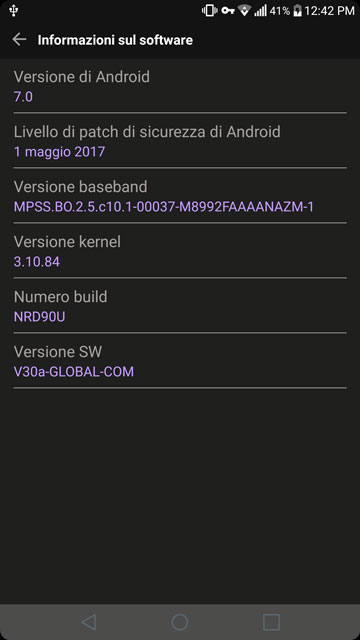
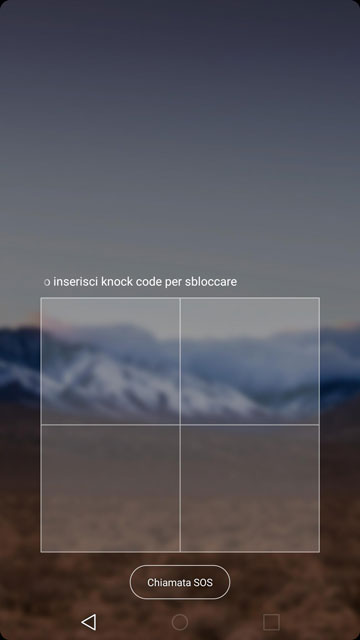
Download LG V10 Nougat Firmware
- F600K30d_00_0510.kdz
- F600L30e_00_0517.kdz
- F600K30d_00_0510.kdz
- H960ATR30a_00_0519.kdz
- H90130b_00_0523.kdz
Install Android 7.0 Nougat Firmware on LG V10
- Power off your LG V10 and plug it into your PC via a USB cable while holding the Volume Up button. This will boot your phone into the download mode.
- Launch the LGUP tool with Uppercut so that it will recognize your LG V10 on start up. Copy the folder common from the downloaded LGUP folder to C:\Program Files (x86)\LG Electronics\LGUP\model.
- If everything is properly set up, LGUP will not warn you, if not, it will ask you to connect your phone. You should check the USB connection and the drivers if that happens.
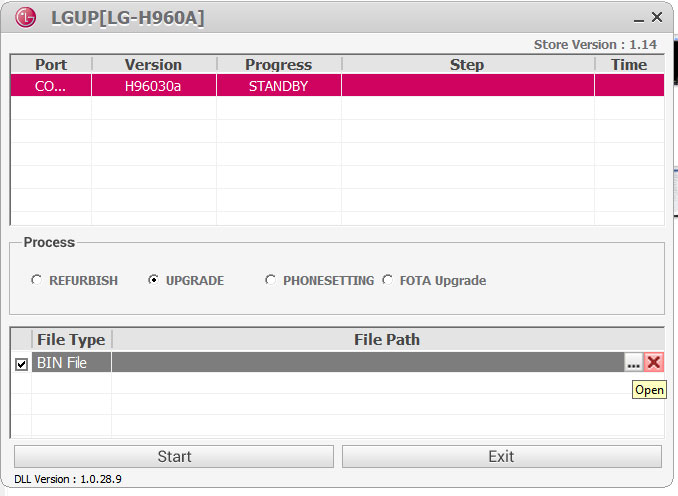
- In the Process section, select the UPGRADE radio button. and then select the KDZ firmware file that you’ve downloaded. Make sure it’s the correct KDZ for your device.
- When you’re ready, click on the Start button and the flashing process should begin. It may take a while so be patient and do not unplug the phone during the process. It may restart a few times and say that Android is upgrading.
Once the update has been installed, it is recommended that you perform a factory reset but the choice is totally upon you. You can now enjoy the new LG UX and the features of Android 7.0 including split-screen multitasking and direct replies from the notifications.
Will this work for the H900? Thanks
The method will work but you’ll have to find the correct KDZ file for your AT&T LG V10.
Link for H900
i tried and my phone cannot power on again…
same here.
how to fix
lets try it